VectorStyler
    • Categories
    • Unread
    • Recent
    • Tags
    • Popular
    • Register
    • Login

    Cube it - A pattern made of Cubes - easy level

    Scheduled Pinned Locked Moved Tutorials
    9 Posts 2 Posters 11.2k Views 2 Watching
    Loading More Posts
    • Oldest to Newest
    • Newest to Oldest
    • Most Votes
    Reply
    • Reply as topic
    Log in to reply
    This topic has been deleted. Only users with topic management privileges can see it.
    • S Offline
      Subpath
      last edited by Subpath

      Hi all

      A few days a go i found a Tutorial how to make such a pattern
      in the iPad App "Concepts" and i thought that this pattern would
      be a nice Tutorial for VS.

      I use smart shapes and clipping objects in VS to create this pattern.
      There are, of course, other possible ways to do it.

      If you like a little challenge. Then try to recreate the pattern by yourself,
      and watch the video later.

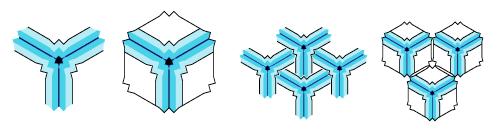
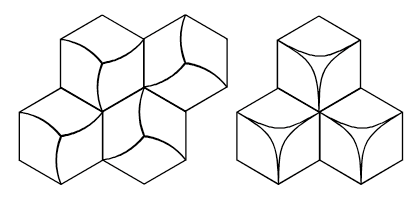
      The pattern looks like this.

      0_1679048521262_Cube-it-Pattern-1.png

      Here the Video, re-upload
      The video is ca 4 Min long

      Here another Version of the Pattern also made in VS.
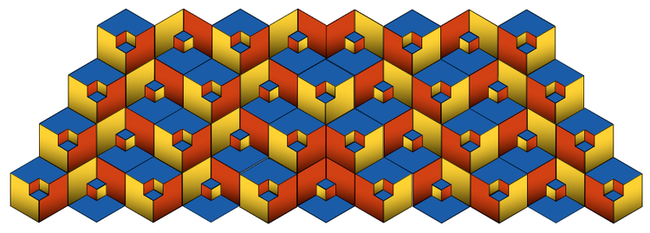
      0_1679048668380_Cube-it-Pattern-2.png

      Win 11
      CPU: AMD Ryzen 5 9600X, 6-core.
      GPU: Nvidia Geforce RTX 5070.

      1 Reply Last reply Reply Quote 7
      • S Offline
        Subpath
        last edited by Subpath

        Here some descriptions that i promised

        As i mentioned above i used clipping objects
        and smart shapes to create this pattern in VS.
        .
        .
        Clipping Group/Objects
        Clipping group is a really useful feature, not only
        for pattern making. It has so many uses that we'll
        probably never be able to explore them all.

        To create a clipping group you normaly choose one or
        more shape/s which be the clipping shape/s and the
        clipping contend (Shapes, Strokes, Bitmaps) which you
        would put inside the clipping shape.

        One way to do create a clipping group in VS is:
        Position your clipping contend over your clipping shape.
        Select your clipping contend and "Cut" it "CTRL-x" on windows
        "Command-x" on "mac" into the clipboard.

        Then select your clipping shape and choose "Paste Inside"
        (Menu Edit > Paste Inside.)
        .
        .
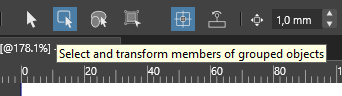
        To edit the contend in a clipping group, you can use
        the "Select members Group" Tool or double click onto
        a clipping Object.

        "Select members Group" Tool
        0_1679398708636_Group-Tool.png
        .
        .
        By double clicking an clipping group you will enter
        the "isolation mode". To leave this mode, after your editing,
        click once somewhere on the Artboard/Canvas.
        .
        .
        .
        Smart Shapes
        All these shapes here are smart shapes.

        0_1679398987379_Smart-Shapes-2.png
        .
        .
        Smart Shapes in VS offers some addional editing possibilities.
        The opposite are shapes that are converted to curves or shapes
        you have create from curves.

        There are two ways to edit them. One is to use the "Shape Editor" Tool.
        If you use this Tool and select a Smart Shape you notice blue dots/handels.
        By moving that blue dots with the "Shape Editor" Tool you will see that
        the shape change its Form.
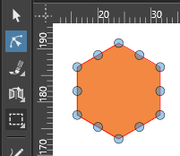
        0_1679399113650_Shape-Editor-Tool-1.png
        .
        .

        But to see the whole editing options of a smart shape, you better take
        a look at the "Shape Panel" and play with the values there.
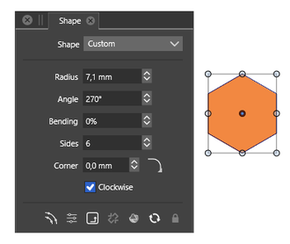
        0_1679399178747_Shape-Panel-2.png
        .
        .

        Win 11
        CPU: AMD Ryzen 5 9600X, 6-core.
        GPU: Nvidia Geforce RTX 5070.

        1 Reply Last reply Reply Quote 0
        • B Offline
          B-Vs-V
          last edited by

          Very clever ☺

          W11 Pro 25H2 - 12th Gen Intel(R) i7-12700K 3.61 GHz - RAM 64 Go - NVIDIA GF GTX 4070 Ti - Intuos - Dell UP3216Q / Eizo ColorEdge
          W11 Pro 25H2 - 12th Gen Intel(R) i7-12700KF 3.60 GHz -RAM 64 Go - NVIDIA GF GTX 3080 - IntuosPro- ProArt PA329C

          S 1 Reply Last reply Reply Quote 2
          • S Offline
            Subpath @B-Vs-V
            last edited by Subpath

            @Pat ,
            Thank you, usually I tinker around for a while
            what options there are to create something like this

            But it's the tools and options in VectorStyler that
            make such a workflow possible 🙂

            Win 11
            CPU: AMD Ryzen 5 9600X, 6-core.
            GPU: Nvidia Geforce RTX 5070.

            1 Reply Last reply Reply Quote 0
            • S Offline
              Subpath
              last edited by

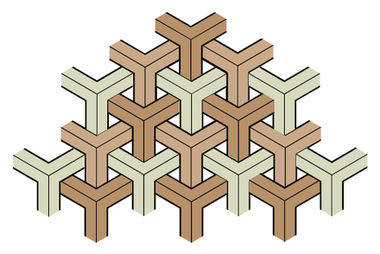
              Here is a another Pattern.

              Made it with more or less the same Workflow as above.
              Apart from that i use the "Square Star" Shape as a clipping contend.
              .
              .
              0_1679399419118_a-different-one.png

              Win 11
              CPU: AMD Ryzen 5 9600X, 6-core.
              GPU: Nvidia Geforce RTX 5070.

              1 Reply Last reply Reply Quote 2
              • S Offline
                Subpath
                last edited by Subpath

                And here is how i made it
                .
                .
                0_1679401767798_SquareStar-1.png

                Used the Polygon and Square Star Shape
                and the Shape Panel.
                .
                .

                0_1679401818648_SquareStar-2.png

                1
                Recommend to use symmetrical shapes
                if you like to align them in the center

                "Cut" the "Square Star" Shape into the
                Clipboard select the "Polygon" Shape
                and do a "Paste Inside"
                .
                .

                0_1679401908113_SquareStar-3.png

                2
                Selecte the "Square Star" Shape with the "Select members
                group" Tool and use the "Shape Panel" to set Inner to 30 %.
                Set Sides to 3 and rotate the "Square Star" Shape until it looks
                like the result on to the right. Inner is still 30 %.
                .
                .

                0_1679402118619_SquareStar-4.png

                3
                Copy the Square Star Shape to get the outline inside
                the clipping Shape.
                Switch to the "Select members Group" Tool and select
                the Square Star then copy it into the Clipboard.

                Then select the "Polygon" Shape and do a "Paste Inside"

                While the Square Star is still selected change its color to
                black and set Inner to 2 %.
                .
                .

                0_1679402027984_SquareStar-5.png

                3
                Its also possible to use the Corner Tool or to add
                a Shape Effect. All of it stay editable, so there is a wide
                field for experimentation.
                .
                .
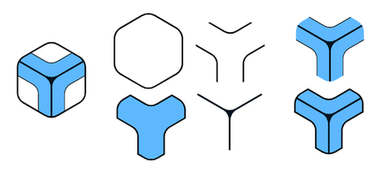
                0_1679402322829_SquareStar-6.png

                4
                "Expand clipped Groups" (Object > Expand clipped Groups)
                Will expand all in individual shapes (they are no longer Smart Shapes then)
                could be helpful for special editing needs.

                Win 11
                CPU: AMD Ryzen 5 9600X, 6-core.
                GPU: Nvidia Geforce RTX 5070.

                1 Reply Last reply Reply Quote 2
                • S Offline
                  Subpath
                  last edited by Subpath

                  some variations

                  Btw. take a look at the "Corner Shape" Video from Vectorstyler
                  to get some additional inspirations.
                  Here the Video Link:
                  Corner Shape Magic
                  .

                  This variation are made with the Corner Shape only.
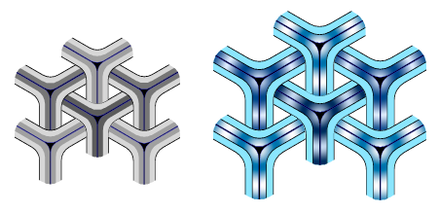
                  0_1679401184684_SquareStar-7.png
                  .
                  .
                  0_1679401198857_SquareStar-8.png
                  .
                  .
                  0_1679401214537_SquareStar-9.png
                  .
                  .
                  some other variations
                  .
                  used a "Offset Path" Effect here
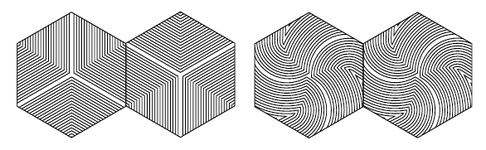
                  0_1679403364717_OffsetPath-Effect.png
                  .
                  .
                  0_1679403443768_Smart-Shapes-2b.png

                  Win 11
                  CPU: AMD Ryzen 5 9600X, 6-core.
                  GPU: Nvidia Geforce RTX 5070.

                  B 1 Reply Last reply Reply Quote 4
                  • B Offline
                    B-Vs-V @Subpath
                    last edited by

                    @Subpath Great. I wish I had time to use VS ☺

                    W11 Pro 25H2 - 12th Gen Intel(R) i7-12700K 3.61 GHz - RAM 64 Go - NVIDIA GF GTX 4070 Ti - Intuos - Dell UP3216Q / Eizo ColorEdge
                    W11 Pro 25H2 - 12th Gen Intel(R) i7-12700KF 3.60 GHz -RAM 64 Go - NVIDIA GF GTX 3080 - IntuosPro- ProArt PA329C

                    S 1 Reply Last reply Reply Quote 2
                    • S Offline
                      Subpath @B-Vs-V
                      last edited by

                      @Pat said in Cube it - A pattern made of Cubes - easy level:

                      @Subpath Great. I wish I had time to use VS ☺

                      thank you and no need to worry
                      during the time you may write down
                      or scribble your ideas

                      Win 11
                      CPU: AMD Ryzen 5 9600X, 6-core.
                      GPU: Nvidia Geforce RTX 5070.

                      1 Reply Last reply Reply Quote 2
                      • First post
                        Last post