VectorStyler
    • Categories
    • Unread
    • Recent
    • Tags
    • Popular
    • Register
    • Login

    A set of new icons for the context panel

    Scheduled Pinned Locked Moved Features and Ideas
    31 Posts 5 Posters 42.5k Views 4 Watching
    Loading More Posts
    • Oldest to Newest
    • Newest to Oldest
    • Most Votes
    Reply
    • Reply as topic
    Log in to reply
    This topic has been deleted. Only users with topic management privileges can see it.
    • BoldlineB Offline
      Boldline @b77
      last edited by

      @b77 very cool that you set it up so we can use them and not just look at the screenshot.

      I did that and added your files there. I ended up making an alias to the new settings folder and putting it in my VS folder in my documents section because it was too hard to force the library to be visible when using VS to go find the workspace file.

      I opened the workspace files you sent but I'm not seeing the full contextual bar with any of them for some reason. is there something I'm missing?

      0_1685304113197_7d7b516c-49db-49a5-82e0-74a4eae0ee0e-CleanShot 2023-05-28 at 15.59.42.png

      🍎 macOS Tahoe 26.2, Mac mini (M1, 2020), Chip Apple M1, Memory 16 GB
      Cintiq 27QHD Display and LG Ultra HD Display

      b77B 1 Reply Last reply Reply Quote 0
      • b77B Offline
        b77 @Boldline
        last edited by b77

        @Boldline I guess it doesn’t work with an alias? Hmm. No idea.
        Sorry, I thought this would be easy…

        There is a way to set the Finder to show the hidden files:
        https://www.macworld.com/article/671158/how-to-show-hidden-files-on-a-mac.html

        Let me know if it works after this, or if I misunderstood something.

        MacBook Pro (Intel) running Monterey 12.6.4

        b77B 1 Reply Last reply Reply Quote 0
        • b77B Offline
          b77 @b77
          last edited by b77

          Anybody else succeeded in installing the icon sets — do the icons show up
          when loading any of the custom workspaces?

          MacBook Pro (Intel) running Monterey 12.6.4

          S 1 Reply Last reply Reply Quote 0
          • S Offline
            Subpath @b77
            last edited by

            @b77

            Tried to load the Icons on Windows but no luck.
            Same result as @Boldline.

            I think all steps was right.
            Create a settings Folder in:
            C:\Users\Username\NumericPath\VectorStyler1.0\vector\data
            and put this Files in it:
            iconset_0.vsicon
            iconset_1.vsicon

            No Alias involved.
            Looks like this after loading a Dark Workspace
            New Icons Dark UI.workspace
            New Icons 2 Dark UI.workspace
            doesnt matter

            0_1685350021006_Context Panel.png

            Also no new icons change to see.

            Win 11
            CPU: AMD Ryzen 5 9600X, 6-core.
            GPU: Nvidia Geforce RTX 5070.

            1 Reply Last reply Reply Quote 0
            • S Offline
              Subpath
              last edited by Subpath

              @b77 said in A set of new icons for the context panel:
              Then paste inside this new folder the iconset_0.vsicon and iconset_1.vsicon files.

              [Windows]
              is:

              C:\Users\UserName\NumericPath\VectorStyler1.0\vector\data

              ««««««««««««««««««««««««««««««««««««««««««««

              Switching to any of the three workspaces is done by loading it:
              (Mac) – click the VectorStyler menu > Workspaces > Load from
              File
              (PC)
              the same:

              Menu > View > Workspaces > Load from File

              Win 11
              CPU: AMD Ryzen 5 9600X, 6-core.
              GPU: Nvidia Geforce RTX 5070.

              b77B 1 Reply Last reply Reply Quote 0
              • b77B Offline
                b77 @Subpath
                last edited by b77

                @Subpath Thanks for trying.
                If you go to the View(?) menu > Customize Toolboxes and you try to
                edit the ContextPanel or the Quick Panel like this https://recordit.co/kyn9cbmHl5
                do you have a Light Icon Set and a Dark Icon Set there?

                @VectorStyler Is there another file that needs to be included beside iconset_0 and
                iconset_1 for this to work?

                MacBook Pro (Intel) running Monterey 12.6.4

                S 1 Reply Last reply Reply Quote 0
                • Victor VectorV Offline
                  Victor Vector
                  last edited by

                  What I find encouraging is how your proposed set of 4 icons for the selection modifiers shares many similar design features to the set that I proposed. I think it shows that they are both going in the right direction. Thanks for sharing your ideas.

                  I think an import point you mentioned was the current light blue highlighting. As I also experienced, It does make it a challenging to see the icon when it is highlighted. My vote would be for the third one, the "dark gray rounded square with a light blue stroke". I would have to see it on the light UI version to know for sure.

                  1 Reply Last reply Reply Quote 3
                  • S Offline
                    Subpath @b77
                    last edited by Subpath

                    @b77 said in A set of new icons for the context panel:

                    @Subpath Thanks for trying.
                    If you go to the View(?) menu > Customize Toolboxes and you try to
                    edit the ContextPanel or the Quick Panel like this https://recordit.co/kyn9cbmHl5
                    do you have a Light Icon Set and a Dark Icon Set there?

                    No
                    No Quick Panel Toolbox, only Application and Context Panel
                    and no addional Icon Sets, only the Application Icons

                    your icon sets are still in:
                    C:\Users\Username\NumericPath\VectorStyler1.0\vector\data\settings

                    Win 11
                    CPU: AMD Ryzen 5 9600X, 6-core.
                    GPU: Nvidia Geforce RTX 5070.

                    1 Reply Last reply Reply Quote 0
                    • S Offline
                      Subpath
                      last edited by Subpath

                      @b77

                      Kind of a small success.

                      Maybe my mind was still ticking why these Icons did not appear.
                      So I took another look at the VS folders and i noticed that VS
                      on Windows has two more or less similar paths.

                      One in the folder where Windows stores the Settings of programs
                      C:\Users\UserName\NumericPath\VectorStyler1.0\vector\data

                      and one in the installation path of the program
                      your Partion:\your Folder\VectorStyler\vector\data

                      So i made a test and create the Settings folder with the
                      iconset_0.vsicon and iconset_1.vsicon Files in that installation path
                      (your Partion:\your Folder\VectorStyler\vector\data)
                      and get now at least the Icon Sets displayed.

                      But the display in the context bar does still not work.
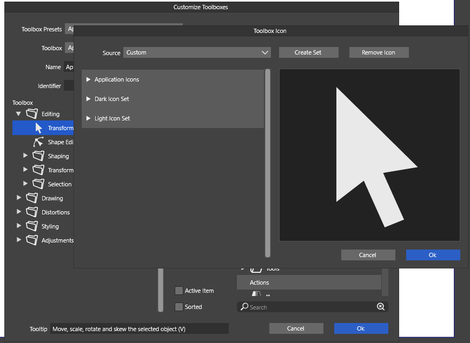
                      0_1685435411196_new Icons 1.png
                      .
                      .
                      0_1685435421698_new Icons 2.png

                      Win 11
                      CPU: AMD Ryzen 5 9600X, 6-core.
                      GPU: Nvidia Geforce RTX 5070.

                      Victor VectorV 2 Replies Last reply Reply Quote 0
                      • Victor VectorV Offline
                        Victor Vector @Subpath
                        last edited by Victor Vector

                        @Subpath
                        On my Windows 11, the .vsicon files for VectorStyler are stored here:

                        c:\Users\Your_Name\AppData\Roaming\NumericPath\VectorStyler1.0\vector\data\settings\

                        AppData is a hidden folder.

                        c:\Users\Your_Name\AppData\Roaming\NumericPath\VectorStyler1.0\vector\data\
                        Contains all your configurable settings

                        Other note:
                        Depending upon your VectorStyler install choices, if you choose to install it for "everyone" or for "just me", it may be in either the "AppData\Roaming" folder or the "AppData\Local" folder...

                        S 2 Replies Last reply Reply Quote 1
                        • S Offline
                          Subpath @Victor Vector
                          last edited by Subpath

                          @Victor-Vector

                          Thank you, for looking

                          its curios to me that i have
                          that Setting Folder on two different places
                          will investigate in it

                          i know that AppData is hidden

                          Win 11
                          CPU: AMD Ryzen 5 9600X, 6-core.
                          GPU: Nvidia Geforce RTX 5070.

                          1 Reply Last reply Reply Quote 1
                          • S Offline
                            Subpath @Victor Vector
                            last edited by

                            @Victor-Vector

                            i use always "just me"

                            but i dont really know if that explain why one is in
                            C:\Users\UserName\NumericPath\VectorStyler1.0\vector\data

                            and another one in
                            C:\Users\UsernName\AppData\Roaming\NumericPath\VectorStyler1.0\vector\data

                            Win 11
                            CPU: AMD Ryzen 5 9600X, 6-core.
                            GPU: Nvidia Geforce RTX 5070.

                            1 Reply Last reply Reply Quote 0
                            • Victor VectorV Offline
                              Victor Vector @Subpath
                              last edited by Victor Vector

                              @Subpath said in A set of new icons for the context panel:

                              and one in the installation path of the program
                              your Partion:\your Folder\VectorStyler\vector\data

                              I was confused about the folder path you listed here as it did not correspond to how my VectorStyler is installed on Windows 11
                              My default program install folder for VS is here:
                              c:\Program Files\NumericPath\VectorStyler\vector\data

                              But I get what you are saying. You have TWO user settings folders, one in C:\Users\UserName\NumericPath\VectorStyler1.0\vector\data and one in the hidden AppData folder path.

                              If I am not mistaken, the C:\Users\UserName\NumericPath\VectorStyler1.0\vector\data may be a legacy install. I found that location too a couple weeks ago, but noticed that all the files were a few months old, even after I had changed some settings, but the ones in the AppData were the new ones, so I think I recall erasing that folder.

                              So the c:\Users\Your_Name\AppData\Roaming\NumericPath\VectorStyler1.0\vector\data\settings\ should be the correct one.

                              S b77B 2 Replies Last reply Reply Quote 0
                              • S Offline
                                Subpath @Victor Vector
                                last edited by Subpath

                                @Victor-Vector said in A set of new icons for the context panel:

                                I was confused about the folder path you listed here as it did not correspond to how my VectorStyler is installed on Windows 11
                                My default program install folder for VS is here:
                                c:\Program Files\NumericPath\VectorStyler\vector\data

                                It's not as complicated as it seems.
                                I use the C : Partion only for the Windows Operating system
                                and install Programs on a Partion F:
                                and all other Data, Games and Programs which i only try out
                                on G: to keeps things a little in order.

                                Win 11
                                CPU: AMD Ryzen 5 9600X, 6-core.
                                GPU: Nvidia Geforce RTX 5070.

                                1 Reply Last reply Reply Quote 0
                                • S Offline
                                  Subpath
                                  last edited by

                                  @b77, @Victor-Vector

                                  In the meantime i tried also the Folder @Victor-Vector mentioned
                                  c:\Users\Your_Name\AppData\Roaming\NumericPath\VectorStyler1.0\vector\data\

                                  and create here the settings folder with Icon file in it

                                  The Icons Sets are listet in the Toolbox Panel
                                  but would not shown in the Context Bar

                                  @b77
                                  they did also not shown as i load the other
                                  files you have send me

                                  Win 11
                                  CPU: AMD Ryzen 5 9600X, 6-core.
                                  GPU: Nvidia Geforce RTX 5070.

                                  1 Reply Last reply Reply Quote 1
                                  • S Offline
                                    Subpath
                                    last edited by

                                    @b77

                                    please correct the File Path above
                                    c:\Users\Your_Name\AppData\Roaming\NumericPath\VectorStyler1.0\vector\data\

                                    seems the correct Path where VS store settings
                                    and the Icon Set are listed in the Toolbox Panel
                                    if a user put it here

                                    While
                                    your Partition:\your Folder\VectorStyler\vector\data
                                    will mysterious also work, it seems me not the right folder
                                    for that

                                    Win 11
                                    CPU: AMD Ryzen 5 9600X, 6-core.
                                    GPU: Nvidia Geforce RTX 5070.

                                    1 Reply Last reply Reply Quote 0
                                    • b77B Offline
                                      b77 @Victor Vector
                                      last edited by b77

                                      OK guys, whatever the location is, it looks like nobody can install the icon packs. 🤔

                                      Could be a limitation or bug of the app, or it's some other file that needs to be installed
                                      which I didn't find. I don't know, and the developer probably didn't get around to test.

                                      I posted a download link for the screenshots with the icons in original post of the thread.
                                      Please download those.

                                      MacBook Pro (Intel) running Monterey 12.6.4

                                      1 Reply Last reply Reply Quote 2
                                      • IngolfI Offline
                                        Ingolf
                                        last edited by

                                        Didn't @VectorStyler add the new icons - or new icons inspired by - in the latest update?

                                        🍏 macOS Sequoia Apple Silicon

                                        b77B 1 Reply Last reply Reply Quote 0
                                        • b77B Offline
                                          b77 @Ingolf
                                          last edited by b77

                                          @Ingolf Those included in version 1.1.086 are indeed the three selection mode icons suggested by VictorVector.

                                          This is a new set of icons for all the icons of the context panel, those three selection modes, and more.

                                          And three workspaces.

                                          But for whatever reason it won't install… so I'm posting a link to screenshots instead:

                                          https://www.dropbox.com/sh/rnugyaf9tb88evi/AACARHpG8F3G-IeqXXeCvmZsa?dl=0

                                          MacBook Pro (Intel) running Monterey 12.6.4

                                          1 Reply Last reply Reply Quote 0
                                          • IngolfI Offline
                                            Ingolf
                                            last edited by

                                            I have this now from the default install:

                                            0_1685490806390_3fb2d9f1-eda2-4252-8052-a9d8b92111f1-image.png

                                            Room for small improvements 🙂 The image icon has too many details. They result in a mess of tiny details that are hard to recognize, and it doesn't look much better on my Mac, where I've scaled up the interface a bit. Gradually, all the lines and slashes/shadings look indistinct and muddy, so I suggest the icons move towards the flatter and simpler:

                                            0_1685490972539_b1d2889b-4e89-4e45-8f9c-cfb2a9c15800-image.png

                                            As can be seen in this icon:

                                            0_1685491127297_d4a8ae0e-b6dd-4a1f-ae72-d2e5466f0907-image.png

                                            Strokes/outlines in icons are not really nescessary so I prefer that icon too in real life use. 🙂

                                            🍏 macOS Sequoia Apple Silicon

                                            1 Reply Last reply Reply Quote 1
                                            • First post
                                              Last post