VectorStyler
    • Categories
    • Unread
    • Recent
    • Tags
    • Popular
    • Register
    • Login

    Blending - "ghost" object ?

    Scheduled Pinned Locked Moved Bugs in VectorStyler
    10 Posts 2 Posters 8.9k Views 2 Watching
    Loading More Posts
    • Oldest to Newest
    • Newest to Oldest
    • Most Votes
    Reply
    • Reply as topic
    Log in to reply
    This topic has been deleted. Only users with topic management privileges can see it.
    • B Offline
      B-Vs-V
      last edited by

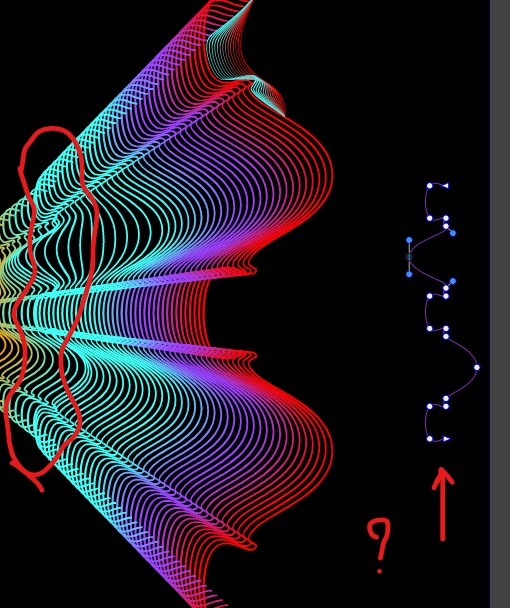
      Some curious things can be observed after blending. Suddenly, the shape of an object appears shifted (no stroke), and it's possible to change its shape, which has a consequent effect on the overall design??
      0_1713445307531_od.jpg

      W11 Pro 25H2 - 12th Gen Intel(R) i7-12700K 3.61 GHz - RAM 64 Go - NVIDIA GF GTX 4070 Ti - Intuos - Dell UP3216Q / Eizo ColorEdge
      W11 Pro 25H2 - 12th Gen Intel(R) i7-12700KF 3.60 GHz -RAM 64 Go - NVIDIA GF GTX 3080 - IntuosPro- ProArt PA329C

      VectorStylerV 2 Replies Last reply Reply Quote 1
      • VectorStylerV Offline
        VectorStyler @B-Vs-V
        last edited by

        @Pat This also may depend on the blend mode. Changing the shape at one end will change how the shapes are blended.

        Send me that example.

        B 1 Reply Last reply Reply Quote 0
        • B Offline
          B-Vs-V @VectorStyler
          last edited by

          @VectorStyler File sent ☺

          W11 Pro 25H2 - 12th Gen Intel(R) i7-12700K 3.61 GHz - RAM 64 Go - NVIDIA GF GTX 4070 Ti - Intuos - Dell UP3216Q / Eizo ColorEdge
          W11 Pro 25H2 - 12th Gen Intel(R) i7-12700KF 3.60 GHz -RAM 64 Go - NVIDIA GF GTX 3080 - IntuosPro- ProArt PA329C

          1 Reply Last reply Reply Quote 1
          • VectorStylerV Offline
            VectorStyler @B-Vs-V
            last edited by VectorStyler

            @Pat The issue can be replicated here. What happened is that the blend spine path was modified, and this changes the location of the shape (even more so inside a flipped object).

            To clear the blend spine path, select the whole group, and in the blend panel menu select "Remove Path"

            B 2 Replies Last reply Reply Quote 1
            • B Offline
              B-Vs-V @VectorStyler
              last edited by

              @VectorStyler Thanks. If I changed the blend pine path, it was by mistake and I didn't notice it at all.

              W11 Pro 25H2 - 12th Gen Intel(R) i7-12700K 3.61 GHz - RAM 64 Go - NVIDIA GF GTX 4070 Ti - Intuos - Dell UP3216Q / Eizo ColorEdge
              W11 Pro 25H2 - 12th Gen Intel(R) i7-12700KF 3.60 GHz -RAM 64 Go - NVIDIA GF GTX 3080 - IntuosPro- ProArt PA329C

              1 Reply Last reply Reply Quote 0
              • B Offline
                B-Vs-V @VectorStyler
                last edited by

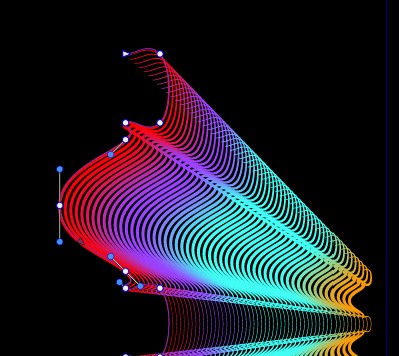
                @VectorStyler I did it again and I'm sure I didn't change anything. In fact, all you have to do is copy and paste and invert the object to see these "shadow shapes".

                OK:
                0_1713509930754_b1.jpg

                Not OK ☺ :

                0_1713509970669_b2.jpg

                W11 Pro 25H2 - 12th Gen Intel(R) i7-12700K 3.61 GHz - RAM 64 Go - NVIDIA GF GTX 4070 Ti - Intuos - Dell UP3216Q / Eizo ColorEdge
                W11 Pro 25H2 - 12th Gen Intel(R) i7-12700KF 3.60 GHz -RAM 64 Go - NVIDIA GF GTX 3080 - IntuosPro- ProArt PA329C

                VectorStylerV 1 Reply Last reply Reply Quote 1
                • VectorStylerV Offline
                  VectorStyler @B-Vs-V
                  last edited by

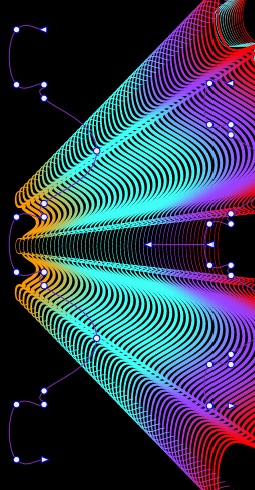
                  @Pat I will try to replicate this with the existing file, In the second image, there is a horizontal line segment pointing leftwards. This is a blend spine, somehow it gets added (could be because of the flipping).
                  I will try to fix this.

                  B 1 Reply Last reply Reply Quote 0
                  • B Offline
                    B-Vs-V @VectorStyler
                    last edited by

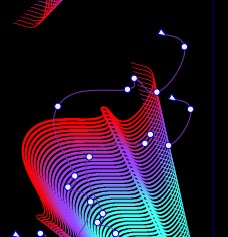
                    @VectorStyler I've just tried a simple rotation and same "issue":
                    0_1713510575416_r1.jpg

                    W11 Pro 25H2 - 12th Gen Intel(R) i7-12700K 3.61 GHz - RAM 64 Go - NVIDIA GF GTX 4070 Ti - Intuos - Dell UP3216Q / Eizo ColorEdge
                    W11 Pro 25H2 - 12th Gen Intel(R) i7-12700KF 3.60 GHz -RAM 64 Go - NVIDIA GF GTX 3080 - IntuosPro- ProArt PA329C

                    VectorStylerV 1 Reply Last reply Reply Quote 1
                    • VectorStylerV Offline
                      VectorStyler @B-Vs-V
                      last edited by

                      @Pat Try the Blend panel menu Remove Path after the rotation, does that fix the issue?

                      B 1 Reply Last reply Reply Quote 0
                      • B Offline
                        B-Vs-V @VectorStyler
                        last edited by

                        @VectorStyler Yes, it does but the overall shape of the object changed.

                        W11 Pro 25H2 - 12th Gen Intel(R) i7-12700K 3.61 GHz - RAM 64 Go - NVIDIA GF GTX 4070 Ti - Intuos - Dell UP3216Q / Eizo ColorEdge
                        W11 Pro 25H2 - 12th Gen Intel(R) i7-12700KF 3.60 GHz -RAM 64 Go - NVIDIA GF GTX 3080 - IntuosPro- ProArt PA329C

                        1 Reply Last reply Reply Quote 1
                        • First post
                          Last post