Strange (though useful) behaviour; is it a bug?
-
I am using the free trial to see if I will jump ship from Affinity Designer, and am pulling all the levers and pressing all the buttons to see what happens.
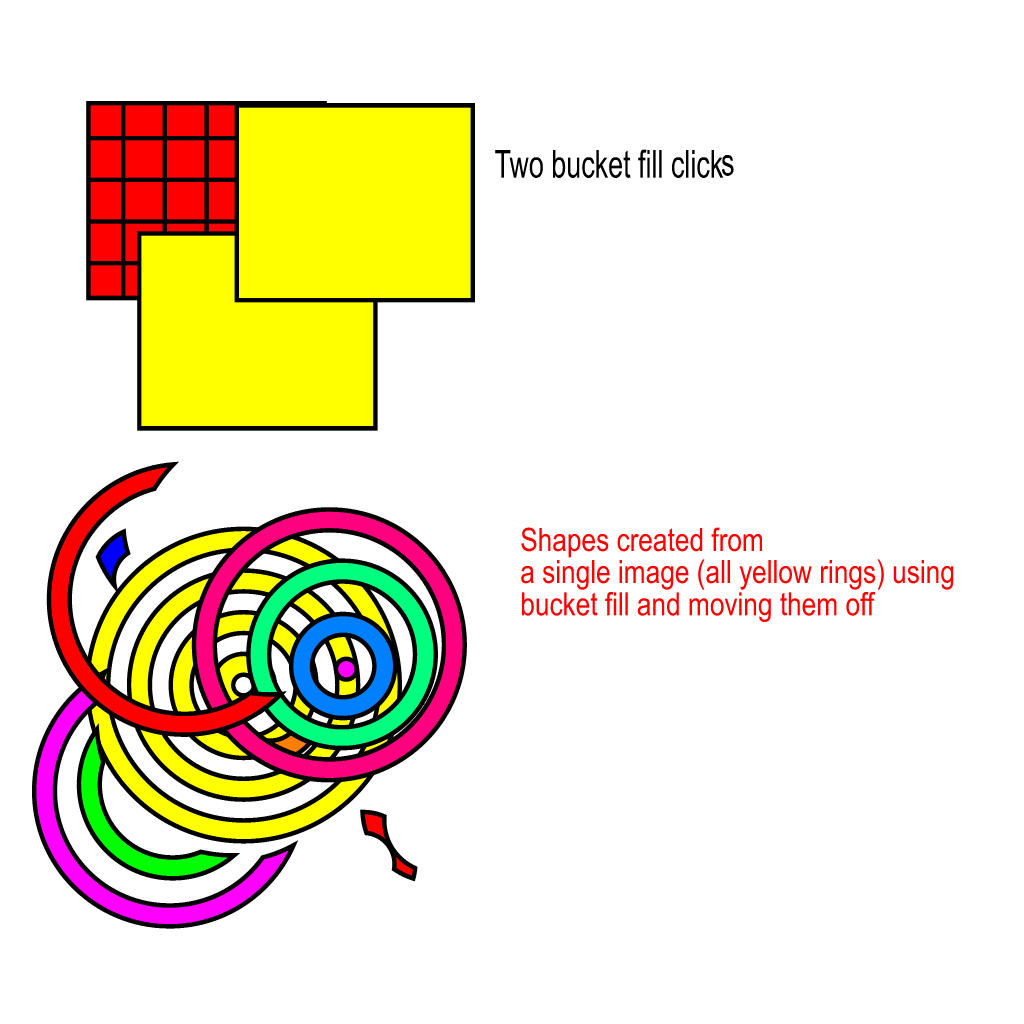
In this case the 'Concentric Circle' tool was being used. Once drawn out you can colour every other row by selecting a colour. All well and good, you can move it around and resize it etc. Using the bucket tool you can colour individual rings, which I did.
Using the transform tool to move the coloured ring set about resulted in a single ring detaching from the set (leaving the set unchanged). I was able to remove all the rings, recolour them with the bucket tool and remove them too - leaving the original untouched. Using the node tool I can reshape any given ring and detach it, again leaving the original intact.Using the grid shape, I tried to bucket colour the separate cells, but this coloured the whole square obscuring the grid, but you can move the coloured square off, leaving the original behind.
I attach a picture of what I mean. Is this what is meant to happen?
-
This post is deleted! -
@GRH I correct myself. It will fill all boxes, because the style is the same (outline, null fill).
In the context panel, uncheck "Merge Styles", then it will fill the separate cells.
Same would have happened for concentric shape also, if used the same colors.
-
@VectorStyler Thanks for the reply, though I'm not sure I have made myself clear.
When bucket filling just one yellow ring with a different colour, this ring becomes a separate item, which you can drag off and the item you 'filled' remains unchanged.
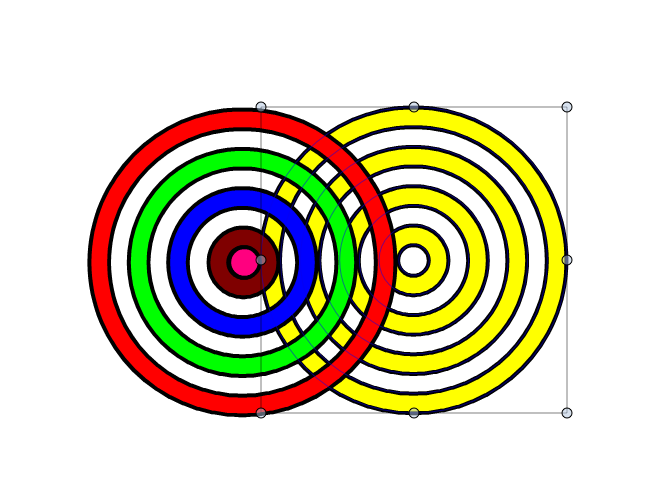
In the attached picture, the yellow circles are one item
 .
.
I coloured each yellow circle in the colours you see.
I was then able to move the yellow circles away from coloured circles, which are all separate items.I did not want this, I wanted a single item with different colour circles
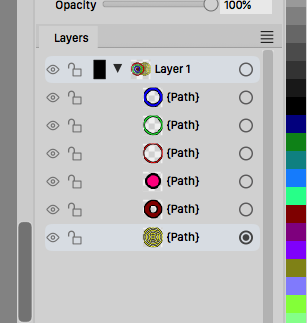
As you can see in the layers, all the circles I coloured have become separate items.
-
@GRH I have just seen the tool tip appear. The bucket fill creates a new shape.
This is not what bucket fill should do, it should fill the existing shape with the desired colour, not create a new shape with the chosen colour. -
@GRH said in Strange (though useful) behaviour; is it a bug?:
When bucket filling just one yellow ring with a different colour, this ring becomes a separate item, which you can drag off and the item you 'filled' remains unchanged.
Now I got it, yes, this is the intended behavior, to create a new shape. This can be changed by enabling the "Remove Shapes" option in the context panel. If enabled, then the filled parts are removed from the original.
-
there is also another way to get what you want
using a Circle, there are parametric Shapes in VectorStyler
which offers some options via the Shape Panel
Menu > Panels > Shape Panel
