Intersect Segment Delete and Join Tool
-
@vectoradmin
I would like to see VectorStyler add what I am calling an “Intersect Segment Delete and Join Tool”.
What the Intersect Segment Delete and Join Tool does:
Lets you Delete portions of objects that are between or at the intersections of Objects (or objects and Guidelines**), with the Option to automatically Join the trimmed paths after segment deletions.How it works:
With the Intersect Segment Delete and Join Tool Icon selected from the Toolbox:No objects have to be selected (unless specified in Preferences). Just use the tool.
- To Delete a Line Segment between or at Intersections:
-
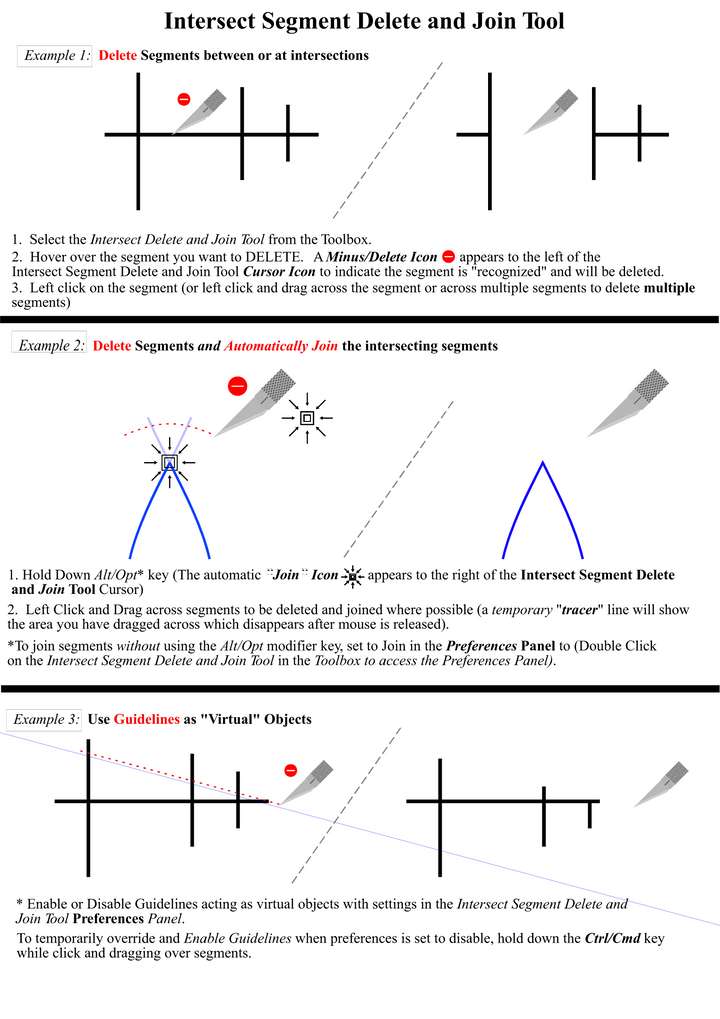
Hover over a line segment. A Minus/Delete Icon appears to the left of the Intersect Segment Delete and Join Tool Cursor Icon to indicate the segment is recognized and targeted for deletion.
-
Click directly on a line segment to delete it. This deletes the segment section that falls between or at the Intersection of the two objects. (or Object and *Guidelines),
-
For a Segment that does not intersect/fall “between" two objects, the segment is deleted and trimmed off at the intersecting point.
- To Delete Multiple Line Segments at one time.
- Click and Drag* through all of the targeted segments. Release the Mouse to delete.
*As you click and drag you see a temporary live “tracer” dotted line, in a preset color (changeable in the Preferences Panel), of where you have clicked and dragged to show what is being selected). Release the mouse to delete.
If you make a mistake in your click and drag selection and missed or selected something unintended, Hit the Esc Key on your Keyboard BEFORE Releasing the Mouse so you can start over and try again).
To select with a Box/Rectangle Marquee, hold down the Shift Key and Click and Drag over the segments and release the mouse to delete intersections.
- Optional Automatic Join Segments with Modifier Key
Hold down Alt/Opt key (the Intersect Segment Delete and Join Tool Cursor Icon changes by adding a “Join” Icon to the right of it.
Click and Drag* through all of the targeted segments. Release the Mouse to delete the segments and automatically join them where they intersect.
- To Join segments without using the ALT/Opt key, set to “Automatically Join” in Intersect Segment Delete and Join Tool Preferences Panel).
**Bonus:
The Intersect Segment Delete and Join Tool recognizes GUIDELINES as a “virtual” Objects so it can also delete segments between the intersections of an Object and a Guideline.Suggested Preference Panel Options (To access: Double Click on Intersect Segment Delete and Join Tool Icon in the Toolbar):
- Temporary Tracer Line Color (click on Color Swatch Icon to select and set the desired color)
- Enable or Disable Guidelines as virtual objects (check box)
- Only Allow Segment Delete and Join if Paths are Selected (check box)
- Enable or Disable Automatic Join after segment deletion (check box)
- Paths with Same Style (check box)
- Paths on Same Layer (check box)
Here is three samples of the Intersect Segment Delete and Join Tool and how it could work:
.
.
This Intersect Segment Delete and Join Tool is a kind of a hybrid “best of” combination of the Astute Graphics "AG Trim and Join Tool" and CorelDRAW "Virtual Segment Delete Tool".Below are some youtube links to get an idea of how these work:
CorelDRAW (Virtual Segment Delete Tool):
-
Corel Draw Tips & Tricks Virtual Segment Delete Tool
https://www.youtube.com/watch?v=3nwKVFKy-4Q -
Corel Draw Tips & Tricks Virtual Segment Delete Tool Part 2
http://www.youtube.com/watch?v=MlisZJnI8eI -
Corel Draw Tips & Tricks Virtual Segment Delete key with a Font or Text
http://www.youtube.com/watch?v=11G4H9J9LbQ
Astute Graphics (AG Trim and Join Tool):
-
Astute Graphics AG Trim and Join Tool
https://www.youtube.com/watch?v=10p0wzweCi8 -
AG Trim and Join Preferences - How to trim paths in Illustrator
https://www.youtube.com/watch?v=cmtmOrl8Ni8
-
@vectoradmin Maybe the Erase mode of the Pencil tool ( @Vector-Rock it deletes parts of segments when you hold Shift and draw over them) or the Eraser tool could be improved with an option to automatically merge any overlapping nodes (and paths, by extension) that result when doing this.
Later edit: Merging of the intersecting nodes works if you delete both segments at the same time: https://recordit.co/SMk2qbTmZA
-
@Vector-Rock I think having a separate tool for this makes a lot of sense (less key presses).
I will add this to the backlog. Since most of the required features already exist, this should not be difficult.
Currently you can trim and join, using the Eraser tool which Shift key held down. If the Merging option is enabled in the context panel, then the paths will be merged at intersection points.
But there are a lot of ideas here that are still missing in VS:
- working with all objects, not just selected ones.
- using the guidelines as intersecting shapes.
- using box selection (or lasso).
- style and location matching options (to restrict when to merge).
-
@vectoradmin Not sure if this got included, but tying in the ability we spoke about a couple weeks ago of retaining stroke settings at the point of the cut so the stroke itself does not reset necessarily
-
@Boldline That was about the stroke width profile being cut and merged when working with the pencil tool (and eraser tool).
That is already done, and should be working in version 1.0.038 -
@vectoradmin Oh! ok I'll check that out - not sure how I missed that!
-
@vectoradmin said in Intersect Segment Delete and Join Tool:
@Vector-Rock I think having a separate tool for this makes a lot of sense (less key presses).
I will add this to the backlog. Since most of the required features already exist, this should not be difficult.
Currently you can trim and join, using the Eraser tool which Shift key held down. If the Merging option is enabled in the context panel, then the paths will be merged at intersection points.
But there are a lot of ideas here that are still missing in VS:
- working with all objects, not just selected ones.
- using the guidelines as intersecting shapes.
- using box selection (or lasso).
- style and location matching options (to restrict when to merge).
@vectroadmin,
Yes, a separate new Tool is definitely the only way to go.
Very pleased this is being added to the backlog. I hope this will be a priority item.

I predict this feature will be one of the most popular and heavily used/daily used features in VectorStyler.
It's so simple it belies its power. It's like another form of shape builder tool in a way.
.
.Footnote:
Just to explain the reason and give perspective as to why I included Modifier keys for Join and Guidelines:
I don't especially like to use Modifier keys. Why? Because who wants to memorize yet another option ...Of course some people love to use them as well as shortcut keys. To each his own, as they say.
That being said, I also don't like to constantly be having to access a Preference Panel to change things either.
 It can be annoying, especially for things you might change more frequently.
So, in an attempt to "balance" the not having to use Modifier Keys at all (generally the optimal way to go) and not having to use the Preference Panel very often, I tried to offer a flexible option to meet the needs of different users preferred ways to work.
That way, for those who don't want to memorize Modifier Keys and just want to set a Preference they can do that. However, if you find using Modifier Keys quicker and more efficient, you could do that as well. Win, Win.
Also note that I didn't offer Modifier Keys for all of the Preference Options, only the two (Join and Guidelines) I thought might be changed most often. (Especially the option as to whether to Auto Join after segment deletion).
I don't know how difficult adding Modifier Keys Options like this would be from a computer "coding" standpoint.
........Anyway, the Modifier Keys are not deal breakers, just some things you may want to ponder/consider as you plan out and decide how the Intersect Segment Delete and Join Tool will be implemented and work. I'm looking forward to it!
-
@Vector-Rock Some of these options could be available in the context panel (top of the window), when the tool is active.
This gives faster access than double clicking on tool icon. -
@vectoradmin said in Intersect Segment Delete and Join Tool:
@Vector-Rock Some of these options could be available in the context panel (top of the window), when the tool is active.
This gives faster access than double clicking on tool icon.@vectoradmin,
Yes!
The Context Panel is an Excellent alternative to Alt/Opt for Auto Join and other preference Options or for Double Click to open Preferences Panel.

The VectorStyler Context Menu is way, way underutilized at this point in it's development in my opinion. It is key to further improving the VectorStyler User Interface (but that's for a different topic post).


