VectorStyler
    • Categories
    • Unread
    • Recent
    • Tags
    • Popular
    • Register
    • Login

    Wrong transformations

    Scheduled Pinned Locked Moved Bugs in VectorStyler
    6 Posts 3 Posters 4.2k Views 2 Watching
    Loading More Posts
    • Oldest to Newest
    • Newest to Oldest
    • Most Votes
    Reply
    • Reply as topic
    Log in to reply
    This topic has been deleted. Only users with topic management privileges can see it.
    • F Offline
      Fertuffo
      last edited by

      Hi,
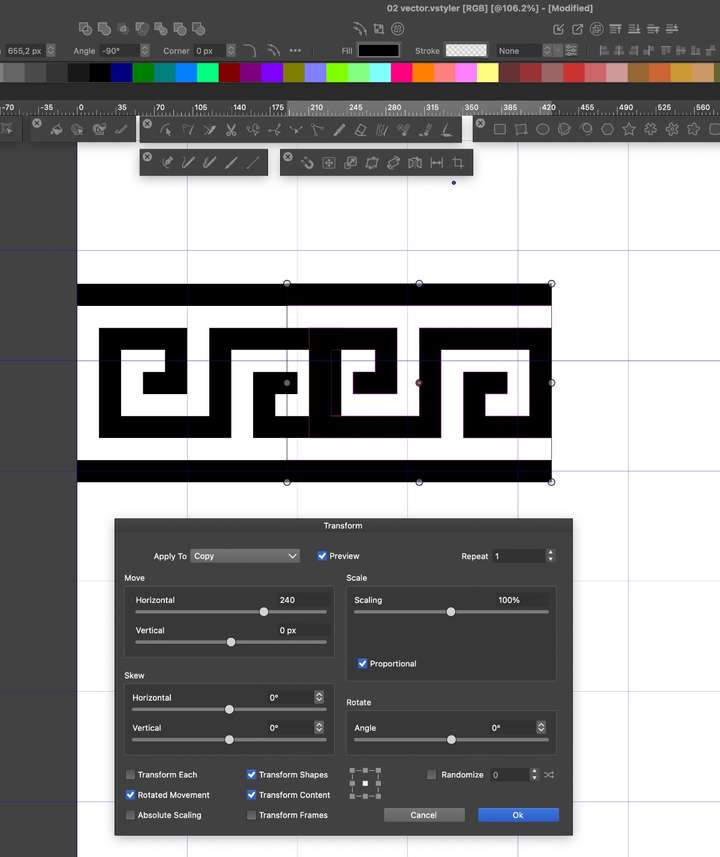
      I encounter an annoying bug when using the transform tool.
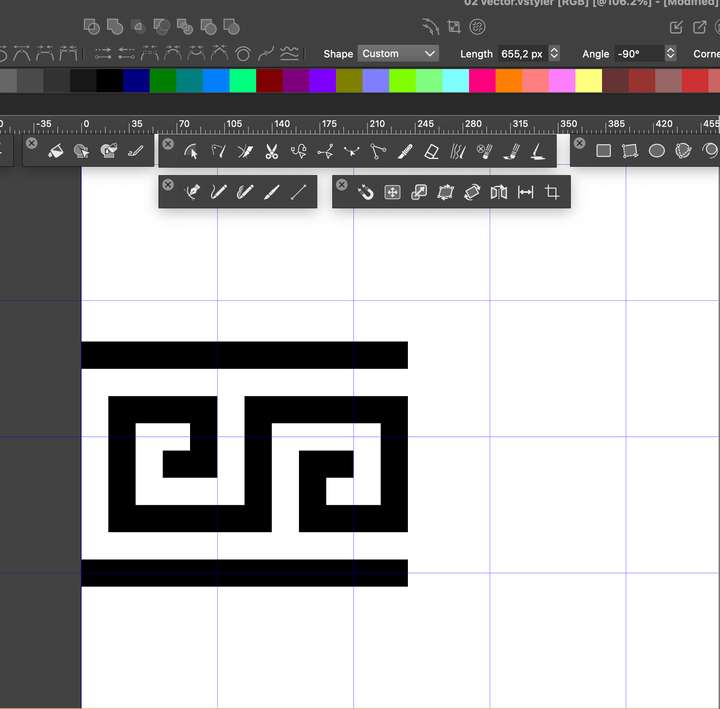
      As you can see in the image, the correct value should be 240 in the horizontal movement (see also grids), but the pattern still overlaps.
      I attach the file too
      Thanks
      Sergio

      ![1_1739988958258_example.jpg](Uploading 100%) [0_1739988958257_02 vector.vstyler](Uploading 100%)

      BoldlineB 1 Reply Last reply Reply Quote 0
      • BoldlineB Offline
        Boldline @Fertuffo
        last edited by

        @Fertuffo Could you try to upload the image again? It did not seem to load properly

        🍎 macOS Tahoe 26.2, Mac mini (M1, 2020), Chip Apple M1, Memory 16 GB
        Cintiq 27QHD Display and LG Ultra HD Display

        1 Reply Last reply Reply Quote 1
        • F Offline
          Fertuffo
          last edited by

          0_1739990566832_After.jpg ![0_1739990515150_After.jpg](Uploading 100%) 0_1739990461417_Before.png ![0_1739990471355_After.png](Uploading 100%) 0_1739990591626_02 vector.vstyler

          now you should see them

          VectorStylerV 2 Replies Last reply Reply Quote 1
          • VectorStylerV Offline
            VectorStyler @Fertuffo
            last edited by

            @Fertuffo I opened a bug on this and will try to replicate it.

            1 Reply Last reply Reply Quote 0
            • VectorStylerV Offline
              VectorStyler @Fertuffo
              last edited by

              @Fertuffo The Layer 1 is scaled and this causes all movements to be scaled.
              Select Layer 1 in the Layers panel with the round knob, and convert it to curves, to flatten the scaling.

              1 Reply Last reply Reply Quote 0
              • F Offline
                Fertuffo
                last edited by

                Now it works.
                I would have never realized by myself. I thought that the conversion to curve was only needed on the object alone, not also on the root layer.
                I hope to get familiar one day with all these hidden tricks, which make this software so powerful
                Thank you

                1 Reply Last reply Reply Quote 2
                • First post
                  Last post