VectorStyler
    • Categories
    • Unread
    • Recent
    • Tags
    • Popular
    • Register
    • Login

    The surprising possibilities of Stroke Stripes for pattern creation

    Scheduled Pinned Locked Moved Tutorials
    8 Posts 3 Posters 8.0k Views 3 Watching
    Loading More Posts
    • Oldest to Newest
    • Newest to Oldest
    • Most Votes
    Reply
    • Reply as topic
    Log in to reply
    This topic has been deleted. Only users with topic management privileges can see it.
    • S Offline
      Subpath
      last edited by Subpath

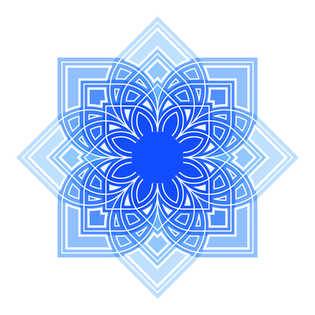
      The surprising possibilities of Stroke Stripes for pattern creation.

      As many may know i like to play with pattern creation and some day
      i created that simple pattern in the post below. As I often play with Tools
      and Features in VS in unusal ways, just thinking how may look that or that.

      I decided to try Stroke Stripes with this Pattern and I got a surprising result
      when I applied Stroke Stripes to the outlines of the shapes and combined them.

      Which led to this pattern.

      0_1740856300514_flower.png

      For all who are interest, i made this little tutorial here which shows steps
      how to create something like that.

      I dont know yet how many parts this Tutorial will have, but will post
      the Links here.
      .
      .
      Part 1 - see next Post below
      The Basic Steps

      Part 2
      Extend the possibilities

      Win 11
      CPU: AMD Ryzen 5 9600X, 6-core.
      GPU: Nvidia Geforce RTX 5070.

      1 Reply Last reply Reply Quote 4
      • S Offline
        Subpath
        last edited by Subpath

        Part 1 - Surprising possibilities of Stroke Stripes for pattern creation.

        The Basic Steps

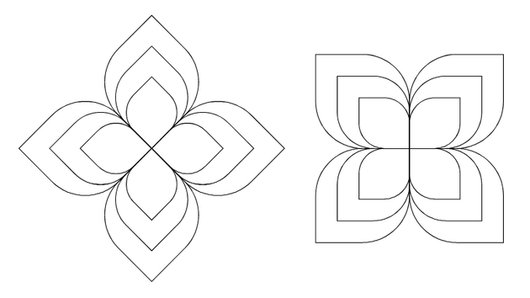
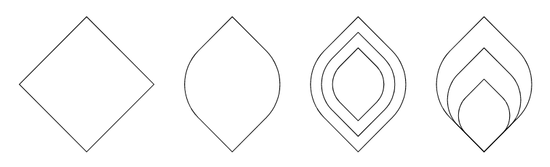
        Create any kind of closed Shape.
        For more interesting pattern apply a Offset Shape Effect on it.
        ( Menu > Effects > Outline > Offset Path )
        Copy the result and keep the original in case you want
        to edit something later on.
        0_1740857371924_Stripe-1.png
        .
        .
        0_1740857416419_Stripe-2.png

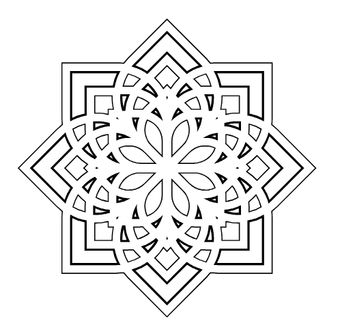
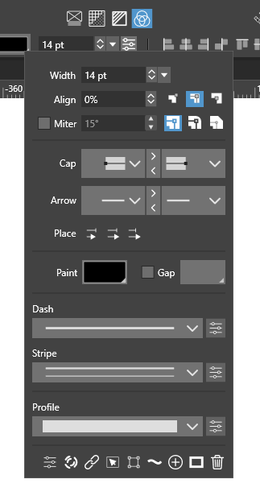
        Now apply a Stroke Stripe on that Pattern, i use a 14 point stroke width and Stripe 2 here.
        0_1740857105715_stroke-stripe.png
        .
        .
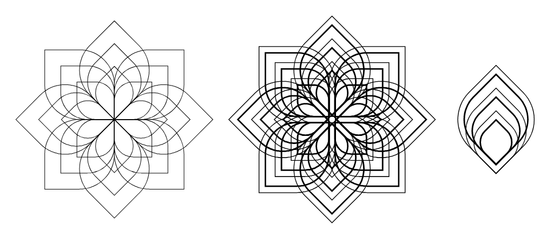
        Copy/duplicate it rotate or move it a bit and combine it
        and you have the steps to create such patterns
        0_1740857591197_Stripe-3.png
        .
        .
        0_1740857721978_Stripe-4.png

        Win 11
        CPU: AMD Ryzen 5 9600X, 6-core.
        GPU: Nvidia Geforce RTX 5070.

        1 Reply Last reply Reply Quote 5
        • S Offline
          Subpath
          last edited by Subpath

          Part 2 - Using Stroke Stripes for Pattern creation.

          Extend the Possibilities

          The basic steps mentioned above already offer some possibilities.
          But VectorStyler has a feature that offers even more possibilities.
          .
          .
          These are Composite Shapes !
          ( Menu > Objects > Composite Shapes )

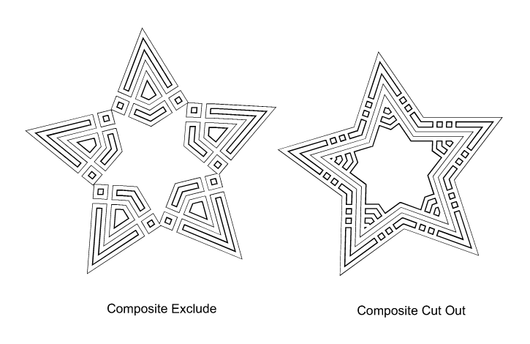
          Composite Shapes are, in simple terms, editable booleans.
          Combine is also as an option there but some additional boolean
          options too. Not all of them are useful for Pattern creating,
          the way we doing it here, but a few are nice to have.

          The biggest advantage of using Composite Shapes, however, is that
          you can move these shapes around. So you have a sort of live preview
          while you do your pattern creation and you can see how your pattern
          changes as you move shapes around or try out different composite modes.
          .
          .
          Here some Composite Boolean Modes.
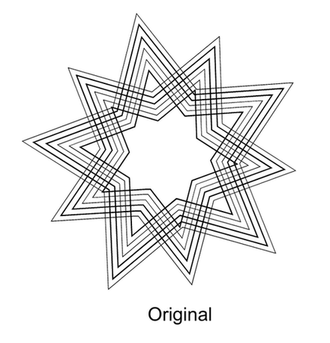
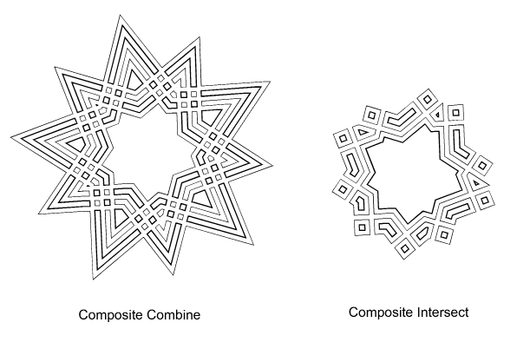
          0_1741093368707_Composite original.png

          0_1741092743429_Composite Modes-1.png

          0_1741092753289_Composite-Modes-2.png
          .
          .
          .
          To move a Composite Shape, open the Transform flyout and
          select the "Shape Tool". Then select a Composite Shape
          an move it around.
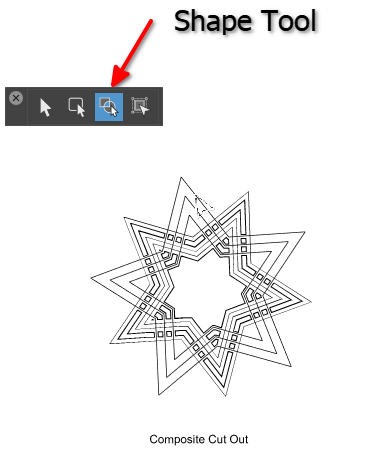
          0_1741092818895_Composite Shape Tool.png
          .
          .
          For a easy way to switch between Composite Modes do the following:
          Open the Shape Panel
          ( Menu > Window > Shape Panel )

          Now select your Design with the “Transform Tool”
          and choose a Mode from the Pull down Menu
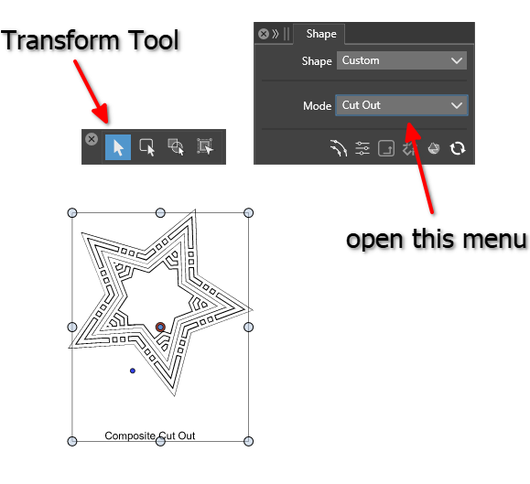
          0_1741092890747_Composite Modes changing.png

          And a least a Tip:
          Using copy and past ist not possible with Composite Shapes,
          as this will break the Composite Mode.

          Do the following instead:
          Select your Composite Shape with the Shape Tool mentioned above.
          Select "Duplicate"
          ( Menu > Edit > Duplicate )
          and you have a duplicated Version of your Composite Shape
          which stay in Composite Mode. The duplicated Composite
          Shape may lay above your original so move the Composite Shape
          with the "Shape Tool" a bit.

          Thats all for that Part have fun and a nice day

          Win 11
          CPU: AMD Ryzen 5 9600X, 6-core.
          GPU: Nvidia Geforce RTX 5070.

          1 Reply Last reply Reply Quote 4
          • Devil DinosaurD Offline
            Devil Dinosaur
            last edited by

            Thanks a lot 👍

            Fred.
            MacBook Pro (M1) - MacOs Sonoma 14

            S 1 Reply Last reply Reply Quote 2
            • S Offline
              Subpath @Devil Dinosaur
              last edited by Subpath

              @Devil-Dinosaur said in The surprising possibilities of Stroke Stripes for pattern creation:

              Thanks a lot 👍

              Thank you, really appreciated.

              I like to mentioned that a big part goes to VectorStyler because
              of its cool features which offers all of this. 🙂

              Win 11
              CPU: AMD Ryzen 5 9600X, 6-core.
              GPU: Nvidia Geforce RTX 5070.

              1 Reply Last reply Reply Quote 1
              • F Offline
                FastVector
                last edited by

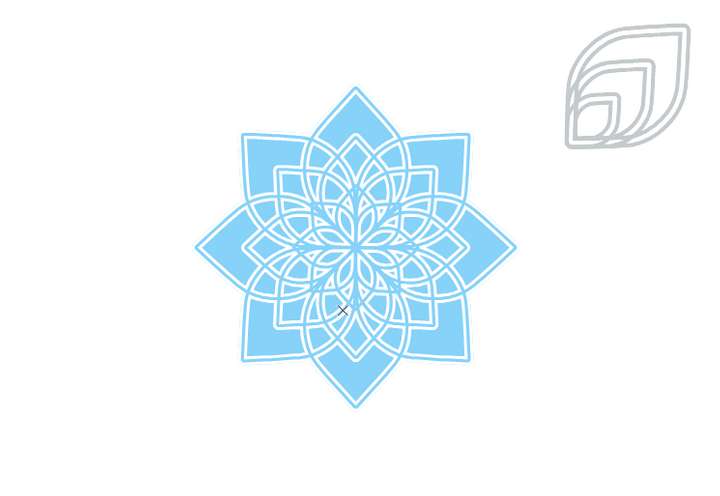
                A gave it a shot. Thanks for the tutorial!
                0_1741174608406_134df3db-04ed-4c89-bcfa-d336f064db7d-afbeelding.png

                Windows 10 | 1920x1080 | 125%

                S 1 Reply Last reply Reply Quote 1
                • S Offline
                  Subpath @FastVector
                  last edited by

                  @FastVector

                  thanks, your welcome

                  Win 11
                  CPU: AMD Ryzen 5 9600X, 6-core.
                  GPU: Nvidia Geforce RTX 5070.

                  1 Reply Last reply Reply Quote 0
                  • S Offline
                    Subpath
                    last edited by Subpath

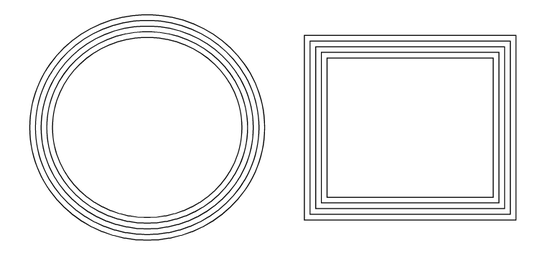
                    Another nice result with this type of pattern creation
                    which work even on simple shapes. All you have to do
                    is apply an offset shape effect to it.
                    0_1741177239956_Offset-Path-1.png
                    .
                    .
                    0_1741177253351_Offset-Path-2.png
                    .
                    .
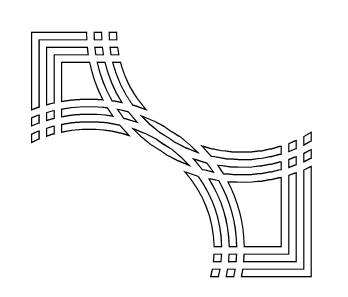
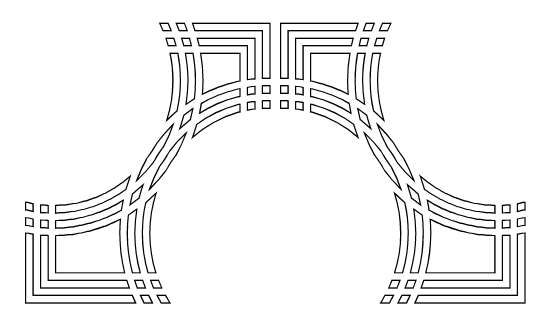
                    And dont forget you could duplicate a composite Shape
                    use the Pattern above but duplicated the circle here which
                    leads to this pattern
                    0_1741177733655_two-circles-1.png

                    0_1741177745011_Two-circles 2.png

                    Win 11
                    CPU: AMD Ryzen 5 9600X, 6-core.
                    GPU: Nvidia Geforce RTX 5070.

                    1 Reply Last reply Reply Quote 1
                    • First post
                      Last post