VectorStyler
    • Categories
    • Unread
    • Recent
    • Tags
    • Popular
    • Register
    • Login

    XLS for features and ideas - Megathread

    Scheduled Pinned Locked Moved Features and Ideas
    191 Posts 11 Posters 570.1k Views 9 Watching
    Loading More Posts
    • Oldest to Newest
    • Newest to Oldest
    • Most Votes
    Reply
    • Reply as topic
    Log in to reply
    This topic has been deleted. Only users with topic management privileges can see it.
    • S Offline
      Subpath @Daniel
      last edited by Subpath

      @Daniel,

      that's an interesting topic, but I think the "General Dicussion" section of the forum
      may be a better place for this. Additionally, you could add a link to it here.

      Win 11
      CPU: AMD Ryzen 5 9600X, 6-core.
      GPU: Nvidia Geforce RTX 5070.

      1 Reply Last reply Reply Quote 1
      • DanielD Offline
        Daniel
        last edited by Daniel

        @VectorStyler: Icons for showing screen colours, print colours, cyan, magenta, yellow and key. There should be 5 icons. One of it should be a toggle switch between print and screen colours. And there should be three 4 icons showing Cyan, Magenta, Yellow and Key separately.

        Work: Windows 11 | Intel i9 14900HS (24 Cores/32 Threads) | GeForce RTX 4070 | 64 GB RAM
        Personal: Windows 11 | Amd Ryzen 9 7950X (16 Core, 32 Threads) | GeForce RTX 3060 | 32 GB RAM

        1 Reply Last reply Reply Quote 0
        • DanielD Offline
          Daniel
          last edited by Daniel

          @VectorStyler: Interactive highlight for nodes, handles and curves. This is not a feature but a question of interactive feedback. As already noted, having a highlight to show which exact segment of the curve is being manipulated upon hover is useful. Likewise, the nodes and handles must enlarge slightly (AND/OR change colour?) on hover. This is again quality-of-life improvement. See Lunacy for a version of what I mean.

          Work: Windows 11 | Intel i9 14900HS (24 Cores/32 Threads) | GeForce RTX 4070 | 64 GB RAM
          Personal: Windows 11 | Amd Ryzen 9 7950X (16 Core, 32 Threads) | GeForce RTX 3060 | 32 GB RAM

          1 Reply Last reply Reply Quote 0
          • DanielD Offline
            Daniel
            last edited by Daniel

            Lock node coordinate position: Select nodes, and lock them to their coordinate positions. Just like you'd do to any object.

            Work: Windows 11 | Intel i9 14900HS (24 Cores/32 Threads) | GeForce RTX 4070 | 64 GB RAM
            Personal: Windows 11 | Amd Ryzen 9 7950X (16 Core, 32 Threads) | GeForce RTX 3060 | 32 GB RAM

            VectorStylerV 1 Reply Last reply Reply Quote 1
            • VectorStylerV Offline
              VectorStyler @Daniel
              last edited by

              @Daniel said in XLS for features and ideas - Mega Thread:

              Lock node coordinate position: Select nodes, and lock them to their coordinate positions. Just like you'd like any object.

              This I assume would be used in the Node tool, so it cannot move those nodes.

              But when moving the whole objects, these should be movable, right?

              DanielD 1 Reply Last reply Reply Quote 0
              • DanielD Offline
                Daniel @VectorStyler
                last edited by Daniel

                @VectorStyler: Yes, that is correct. The node position should locked relative to the rest of the nodes. Not the absolute position on canvas. That would mean that the object itself is locked. Since the object cannot be moved.

                Think of it like stakes in the ground when you're putting up a tent. The stake position once hammered in remains unchanged, while you can adjust the rest of the tent flaps and cover.

                Work: Windows 11 | Intel i9 14900HS (24 Cores/32 Threads) | GeForce RTX 4070 | 64 GB RAM
                Personal: Windows 11 | Amd Ryzen 9 7950X (16 Core, 32 Threads) | GeForce RTX 3060 | 32 GB RAM

                VectorStylerV 1 Reply Last reply Reply Quote 1
                • VectorStylerV Offline
                  VectorStyler @Daniel
                  last edited by

                  @Daniel Can you collect these also into the XLS file, for better organization.

                  DanielD 1 Reply Last reply Reply Quote 1
                  • DanielD Offline
                    Daniel @VectorStyler
                    last edited by

                    @VectorStyler will do shortly

                    Work: Windows 11 | Intel i9 14900HS (24 Cores/32 Threads) | GeForce RTX 4070 | 64 GB RAM
                    Personal: Windows 11 | Amd Ryzen 9 7950X (16 Core, 32 Threads) | GeForce RTX 3060 | 32 GB RAM

                    1 Reply Last reply Reply Quote 1
                    • DanielD Offline
                      Daniel
                      last edited by Daniel

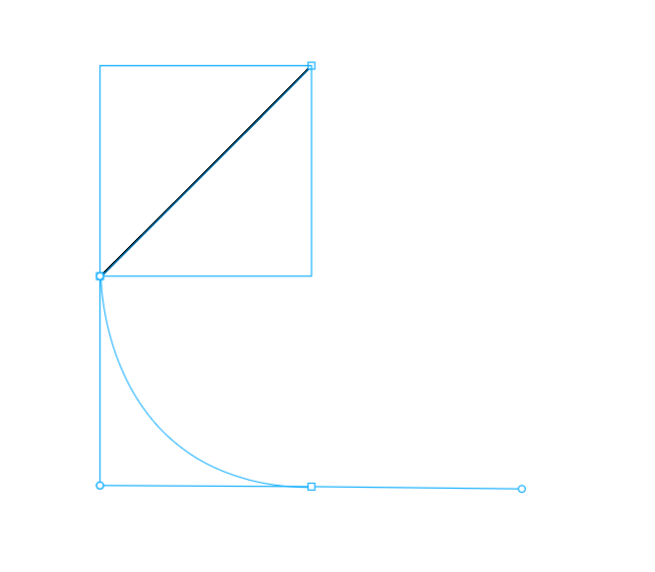
                      @VectorStyler, @Boldline: Graphite.Rs has a very useful 45-degree snapping guide when using pen-tool. This is very useful for creating smooth curves with just the normal pen tool. It might be worth adding this before Bezigon Tool if you think Bezigon will take time. See below for what I mean.

                      But if you think Bezigon can be implemented quickly, then it is worth shipping this guideline feature along with it. Because they compliment each other. Will collect into XLS when I do housekeeping on this thread.

                      P.S: Checked this out further. Holding down shift actually calls up an additional dashed line guide, which I can't screenshot as I have to let go off Shift. This guide can snap at 15-degree incremental points. Super useful. Super intuitive.
                      0_1743420846608_35d36aea-a493-4c68-914f-08a8b9d56592-image.png

                      Work: Windows 11 | Intel i9 14900HS (24 Cores/32 Threads) | GeForce RTX 4070 | 64 GB RAM
                      Personal: Windows 11 | Amd Ryzen 9 7950X (16 Core, 32 Threads) | GeForce RTX 3060 | 32 GB RAM

                      1 Reply Last reply Reply Quote 2
                      • DanielD Offline
                        Daniel
                        last edited by

                        @VectorStyler: All features and ideas are up to date on XLS. And added one new idea: Group nodes.

                        Work: Windows 11 | Intel i9 14900HS (24 Cores/32 Threads) | GeForce RTX 4070 | 64 GB RAM
                        Personal: Windows 11 | Amd Ryzen 9 7950X (16 Core, 32 Threads) | GeForce RTX 3060 | 32 GB RAM

                        1 Reply Last reply Reply Quote 1
                        • DanielD Offline
                          Daniel
                          last edited by Daniel

                          Embed External Image File: Don't know what your plans are for developing a dedicated image editor (PictureStyler?). If you have no such plans (I'd actually prefer this as you can focus exclusively on vector editing) , then here's an idea: Allow users to embed an image file within VS (like Placeholder objects in PL, and Smart Objects in PS, and linked files in Affinity). Then, allow users to click through to a dedicated image editing app (I recommend PL), make their edits and come back.

                          The reason I recommend PL is because PL already supports external applications. Exactly as I've described here. You can open any object in an external application just as long as that external application saves in the same location, over the same file, as you were working on when you were inside PL. The support formats are TIFF, JPEG and PDF. That is broad enough for most use cases.

                          This might not be an easy task to accomplish. Might want to slot in for the long term roadmap.

                          That is my official 100th post on the forum! 👀 🕺 😂

                          Work: Windows 11 | Intel i9 14900HS (24 Cores/32 Threads) | GeForce RTX 4070 | 64 GB RAM
                          Personal: Windows 11 | Amd Ryzen 9 7950X (16 Core, 32 Threads) | GeForce RTX 3060 | 32 GB RAM

                          1 Reply Last reply Reply Quote 1
                          • DanielD Offline
                            Daniel
                            last edited by

                            Contextual changes to the colour swatches upon selecting objects. Indicating stroke, fill, and gradient stops.

                            Work: Windows 11 | Intel i9 14900HS (24 Cores/32 Threads) | GeForce RTX 4070 | 64 GB RAM
                            Personal: Windows 11 | Amd Ryzen 9 7950X (16 Core, 32 Threads) | GeForce RTX 3060 | 32 GB RAM

                            1 Reply Last reply Reply Quote 1
                            • DanielD Offline
                              Daniel
                              last edited by

                              Close all files without saving and return to files, to the current scroll location in each file.

                              Work: Windows 11 | Intel i9 14900HS (24 Cores/32 Threads) | GeForce RTX 4070 | 64 GB RAM
                              Personal: Windows 11 | Amd Ryzen 9 7950X (16 Core, 32 Threads) | GeForce RTX 3060 | 32 GB RAM

                              VectorStylerV 1 Reply Last reply Reply Quote 1
                              • DanielD Offline
                                Daniel
                                last edited by

                                Thumbnail view on hover over the files tab. If multiple files are open in VS, allow a thumbnail view on hovering over the tabs.

                                Work: Windows 11 | Intel i9 14900HS (24 Cores/32 Threads) | GeForce RTX 4070 | 64 GB RAM
                                Personal: Windows 11 | Amd Ryzen 9 7950X (16 Core, 32 Threads) | GeForce RTX 3060 | 32 GB RAM

                                1 Reply Last reply Reply Quote 1
                                • VectorStylerV Offline
                                  VectorStyler @Daniel
                                  last edited by

                                  @Daniel said in XLS for features and ideas - Mega Thread:

                                  Close all files without saving and return to files, to the current scroll location in each file.

                                  This is not clear: where is the current scroll location ? Is the a "reveal file" type of action?

                                  DanielD 1 Reply Last reply Reply Quote 0
                                  • DanielD Offline
                                    Daniel @VectorStyler
                                    last edited by Daniel

                                    @VectorStyler: What I mean is, if I am working on multiple untitled files and don't have the time to save it all, then I just want to close the program without a prompt to save. Then when I reopen the program, I want to come back to where I left off. And in each file, I want to be able to find myself in the same zoom level and scroll location. Scroll location might be confusing because VS does artboards and not pages. Think of a multipage document and you're on page 15. You close and come back to the exact same spot. Every time. In VS's case, this does not apply. You just need to come back to the same artboard and zoom level.

                                    If I have 5 documents, and on document 1, you have three artboards, and you're zoomed into 1500% on an object on artboard 3. Then, when I close and come back, I want to come back to the same place, where I left off. I want to have this in each of the 5 documents.

                                    For reference, see XDP.

                                    If you're as disorganised as I am, this is makes life so much better.

                                    Alternatively, as an addition, there should be a simple tick box within the save prompt window, to "do the same for all files".

                                    Work: Windows 11 | Intel i9 14900HS (24 Cores/32 Threads) | GeForce RTX 4070 | 64 GB RAM
                                    Personal: Windows 11 | Amd Ryzen 9 7950X (16 Core, 32 Threads) | GeForce RTX 3060 | 32 GB RAM

                                    1 Reply Last reply Reply Quote 1
                                    • DanielD Offline
                                      Daniel
                                      last edited by

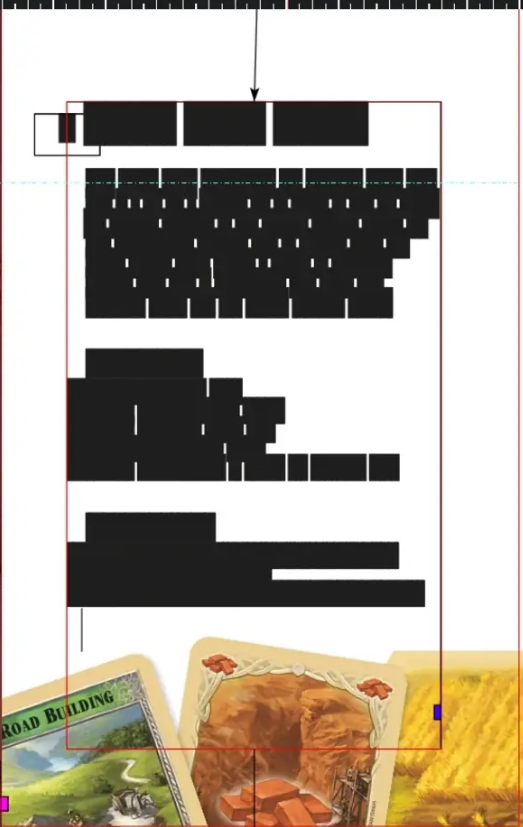
                                      White Space Preview: A toggle to turn all text into black blocks. Like so:
                                      0_1743598261734_ff89479f-4310-4c8d-a79f-805db8de6897-image.png

                                      Useful when trying to see the document for visual impact.

                                      Work: Windows 11 | Intel i9 14900HS (24 Cores/32 Threads) | GeForce RTX 4070 | 64 GB RAM
                                      Personal: Windows 11 | Amd Ryzen 9 7950X (16 Core, 32 Threads) | GeForce RTX 3060 | 32 GB RAM

                                      1 Reply Last reply Reply Quote 2
                                      • DanielD Offline
                                        Daniel
                                        last edited by

                                        0_1743687432268_8c6e3065-d259-4ba1-bd40-242cf8f4f66c-image.png

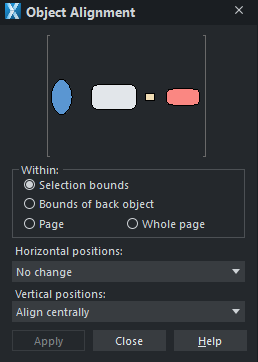
                                        Visual alignment panel. This is much speedier than the normal iconized alignment options. Providing greater visual feedback. I also think there should be a constraint option baked into alignment. Logically related and sequentially performed. Therefore group tool options.

                                        Work: Windows 11 | Intel i9 14900HS (24 Cores/32 Threads) | GeForce RTX 4070 | 64 GB RAM
                                        Personal: Windows 11 | Amd Ryzen 9 7950X (16 Core, 32 Threads) | GeForce RTX 3060 | 32 GB RAM

                                        VectorStylerV 1 Reply Last reply Reply Quote 1
                                        • VectorStylerV Offline
                                          VectorStyler @Daniel
                                          last edited by

                                          @Daniel said in XLS for features and ideas - Mega Thread:

                                          Visual alignment panel. This is much speedier than the normal iconized alignment options.

                                          The problem with this approach is that it needs a separate "Apply" button. So even if the alignment is just a regular "horizontal-left", you will need 2 clicks to do it. The current approach needs one click only for this.

                                          DanielD 2 Replies Last reply Reply Quote 1
                                          • DanielD Offline
                                            Daniel @VectorStyler
                                            last edited by

                                            @VectorStyler: That is true. But as I explained, this is not the only option possible. It is an additional panel alongside the iconized alignment options. And it need not contain the apply button. It can be a simple direct click to apply. Further, having the option to modify click within the panel also reduces cognitive load. I only have to click in one place. Alt click for Horizontal. Ctrl click for vertical. Check this out in XDP to get a feel for it. 🙂

                                            Having said that, I think the alignment panel in Inkscape is by far the most advanced and useful of all. If you've not checked it out, highly recommend it.

                                            Also, I reckon there should be a node align panel too.

                                            Work: Windows 11 | Intel i9 14900HS (24 Cores/32 Threads) | GeForce RTX 4070 | 64 GB RAM
                                            Personal: Windows 11 | Amd Ryzen 9 7950X (16 Core, 32 Threads) | GeForce RTX 3060 | 32 GB RAM

                                            S M 2 Replies Last reply Reply Quote 1
                                            • First post
                                              Last post