Double click preference
-
One of the features of at least Affinity and Gravit I have come to like a lot is that double clicking activates the node edit tool (shape editor in VS) and this is exactly what I need very, very, very, very often, to fine tune objects. I miss it constantly in VS. With the A key not working when the layer is active I am often frustrated. But even with it working in VS, double clicking is far more efficient and speeds up the work flow when adjusting hundreds of objects.
- Customers coming from Illustrator will probably expect the isolation mode when double clicking an object
- Customers from programs like Afffinity (and Gravit Designer) probably expect the node/shape edit mode which I believe is far more workflow oriented
Double click is a key feature in any program and any workflow that should make the user happy so I suggest an option in preferences for what it should trigger. Maybe there is even more options that would make sense to others.
Thanks again for considering and for the hard work, @vectoradmin
🍏 macOS Sequoia Apple Silicon
-
@Ingolf There will be a preference option for this.
-
@Ingolf @vectoradmin - I'm glad @vectoradmin will be adding a preferences option for this, but I'm torn on what option I would prefer double click do. As you mentioned, I'm used to the Illustrator solution of isolation mode, I was unaware of the affinity option until now (just tried it and I like the efficiency of it). I also like the VS option of isolation mode to paste an object, creating a clipping mask.
I guess what I'm saying is, are we going to be stuck with choosing only one of the three options for double click or could we add a modifier key for example to get another? -
@Boldline said in Double click preference:
I guess what I'm saying is, are we going to be stuck with choosing only one of the three options for double click or could we add a modifier key for example to get another?
There are two options planned for double click: isolation mode and node editing. Is there a third I'm missing.
And using a modifier key to choose what to do when double clicking is a way better idea (maybe it flips the option temporarily). -
@vectoradmin the third thing I was thinking of was the ability to do a clipping mask easily from within isolation mode.
I agree that a modifier key to do the opposite of what is set in preferences would be ideal! -
@Boldline said in Double click preference:
@vectoradmin the third thing I was thinking of was the ability to do a clipping mask easily from within isolation mode.
I agree that a modifier key to do the opposite of what is set in preferences would be ideal!Yep - as long as the "raw" double click option is configurable.
-
@vectoradmin
Feedback - awesome again - it (configuring for double click -> node editing mode) works perfectly for me now. Also great with the options, I immidiately configured SHIFT + doubleclick to rename object. Instant succes.
Question: panel options -> Isolate on control + click. On macOS I get the context sensitive menu?
🍏 macOS Sequoia Apple Silicon
-
@Ingolf Can you elaborate more on how the double click and the shift-double click work?
-
@Boldline said in Double click preference:
@Ingolf Can you elaborate more on how the double click and the shift-double click work?
Sure, my setup:
Preferences -> Document editor
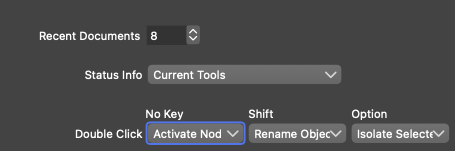
Double click on object: object enters "permanent" node editing mode (the mode I use the most)
SHIFT + double click: rename objects dialog appears where I can directly enter name for the object (I name all objects, so great)
Option (alt) + double click: isolation mode as before -
@vectoradmin - this double click with modifiers option is AWESOME! I already have it set up in an efficient manner for smooth workflow edits.
@Ingolf Thanks for explaining that. It all made more sense when I realized I needed to go into Preferences. I used a similar setup to what you are using only I made the naming my third option because I use isolation and node edit far more frequently. thanks for showing me details on that
I'm running into an issue with naming however - maybe you know the answer?
When I click on an object to name it, I get to dialog box like I would expect but there's only the default names of "Layer 1" for example - and if I type a unique name in the box, it does not seem to have any effect. The name of the object in the layer panel does not change and if I double click the object in the layer panel, that layer panel box does not have the unique name there also.Did you run into this at all?
UPDATE: I tried in reverse - by naming the object in the layer panel first and then clicking on that object - prompting the newly featured name function, and my unique name was listed there and was one of the pull-down names as well. I tried altering the name in the box but it had no effect on the name in the layer panel
Sidenote to @vectoradmin - in my attached video, in the beginning you can see a real-life example where the top menu bar is too sensitive for me and detaches when I am not trying to have it do so. In this case I was trying to grab the entire app window and move it over a little to the right
-
UPDATE: I tried in reverse - by naming the object in the layer panel first and then clicking on that object - prompting the newly featured name function, and my unique name was listed there and was one of the pull-down names as well. I tried altering the name in the box but it had no effect on the name in the layer panel
@vectoradmin @Boldline
Not exactly but if "Numered"
 is enabled, I just get the number the first time I activate rename. If I disabled it, it kind of works as expected. The numbering seems to be a little buggy, at least with only one object selected. I think it should be disabled as default or hwn just one element is activated. The bulk-rename is nice in a major way but the numbering is not relevant for my use.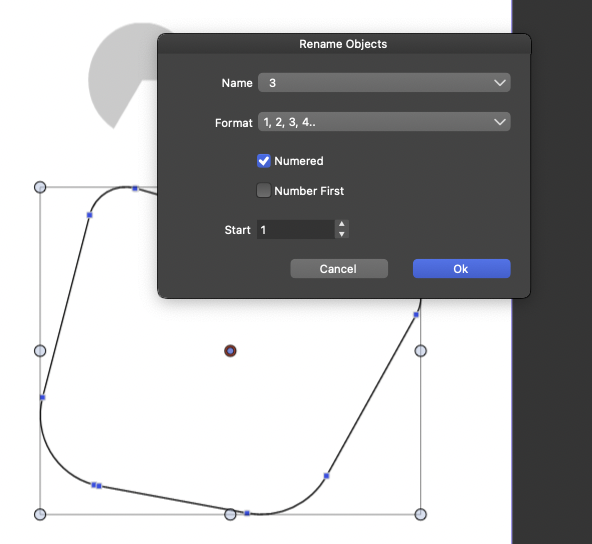
-
@Ingolf I'm with you on the "numered" - I was thinking at first it was an alternative european spelling for something or a fancy name for a certain method. @vectoradmin, I assume this was supposed to be "numbered"?
-
Definitely a ‘B’ key malfunction.
-
@vectoradmin I am all in favor of the numbered option in the double click naming dialog box. - I think it's a necessary addition to the naming option because there can be countless "stars" or similar objects you want to individually identify and numbers are perfect for that.
I'm having no success getting it to actually change the name of a selected shape. As I mentioned earlier in the thread, it works in reverse (if I name it in the layer panel first, the unique name I entered shows up in the double click modified text box)
This is a really impressive and useful feature overall - it just needs to work 100% -
@Ingolf said in Double click preference:
@vectoradmin
Question: panel options -> Isolate on control + click. On macOS I get the context sensitive menu?This affects the Layers panel only, if an object Control+Clicked in the panel, then it isolates that object (default behavior).
If disabled, Control+Click will select the object both in the Layers panel and on the Canvas.



