VectorStyler
    • Categories
    • Unread
    • Recent
    • Tags
    • Popular
    • Register
    • Login

    Real time opacity preview in layers panel
    Scheduled Pinned Locked Moved Implemented Features
    2 Posts 2 Posters 4.4k Views
    Loading More Posts
    • Oldest to Newest
    • Newest to Oldest
    • Most Votes
    Reply
    • Reply as topic
    Log in to reply
    This topic has been deleted. Only users with topic management privileges can see it.
    • BoldlineB Offline
      Boldline
      last edited by

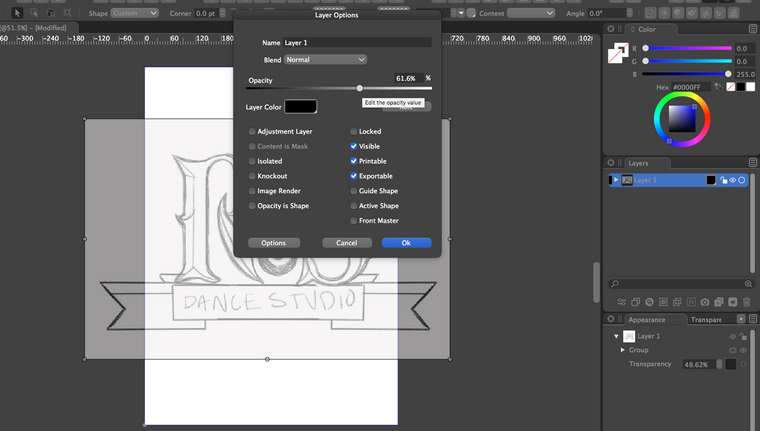
      When I am changing the opacity of the layer to reduce it for a trace-over, is it possible to have the action begin as I am adjusting? Right now I open the layer options and move the slider and nothing happens until I hit "ok". It would help to know the feature is working and also be able to dial in the result without closing out and going back in again if needed.
      0_1609191900804_Screen Shot 2020-12-28 at 4.37.49 PM.png

      🍎 macOS Tahoe 26.2, Mac mini (M1, 2020), Chip Apple M1, Memory 16 GB
      Cintiq 27QHD Display and LG Ultra HD Display

      VectorStylerV 1 Reply Last reply Reply Quote 1
      • VectorStylerV Offline
        VectorStyler @Boldline
        last edited by

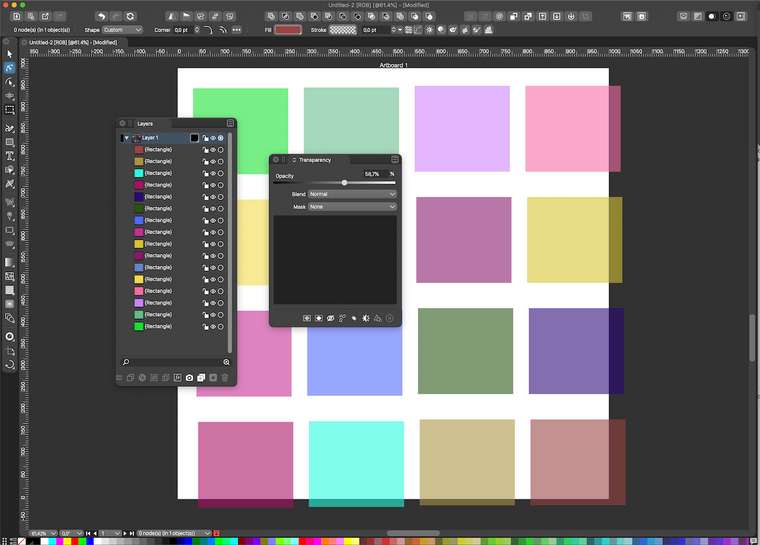
        @Boldline Following steps:

        • open both the Layers and the Transparency panels.
        • select the whole layer in the Layers panel, by clicking on the round circle at the end of the row with the layer name.
        • this creates a single object selection, where the object is the layer (can only be done in this way.
        • now with the layer selected, adjust the Opacity slider in the Transparency panel.
        • the result can also be verified, that it applied to the layer (and not those objects) in the Layer Options (or just double click the layer name in the panel).
        0_1609192576780_transparency.png

        1 Reply Last reply Reply Quote 1
        • First post
          Last post
