VectorStyler
    • Categories
    • Unread
    • Recent
    • Tags
    • Popular
    • Register
    • Login

    Warp Use Questions

    Scheduled Pinned Locked Moved Questions and Support
    12 Posts 3 Posters 15.8k Views 2 Watching
    Loading More Posts
    • Oldest to Newest
    • Newest to Oldest
    • Most Votes
    Reply
    • Reply as topic
    Log in to reply
    This topic has been deleted. Only users with topic management privileges can see it.
    • M Offline
      mbarr
      last edited by

      Hi,
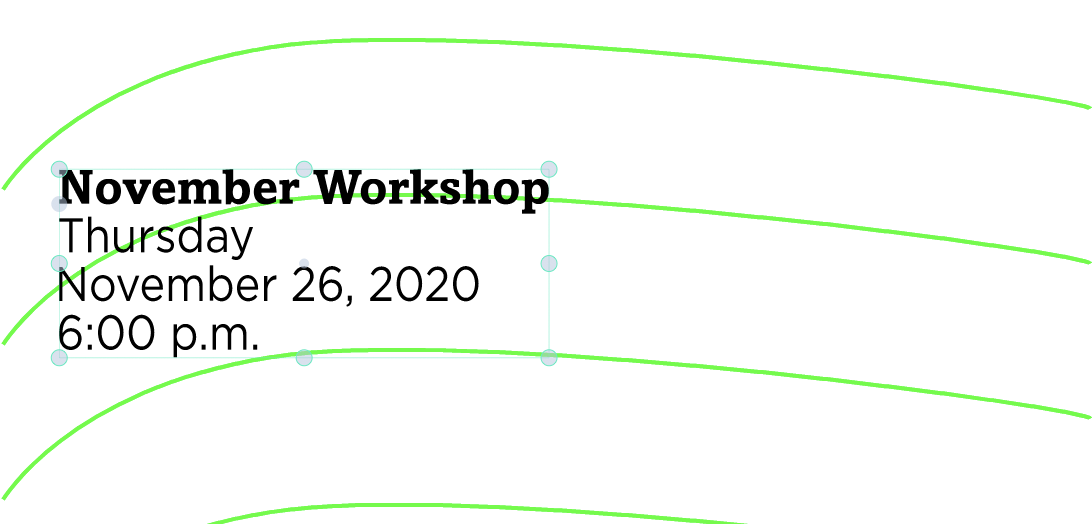
      Does anyone know the best option for getting the text or a shape to warp to the lines show in the picture. I've tried the various warp option but none of them allow me to get it just right. I'm trying to make the text look like its a page on a book.
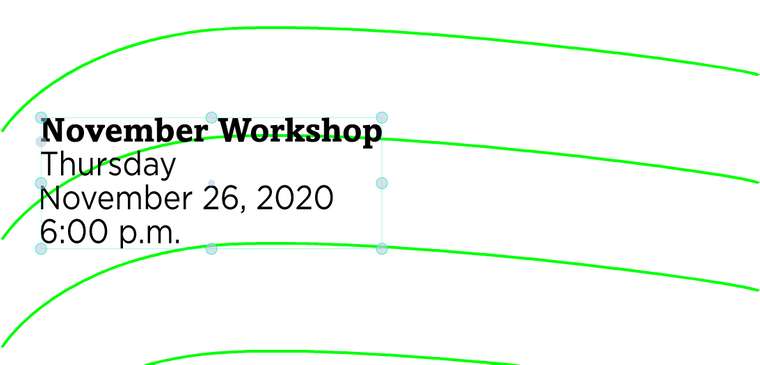
      0_1602026886596_84713c13-9355-4da4-8203-5fa368524333-Screen Shot 2020-10-06 at 7.24.39 PM.png

      MacBook Pro (16-inch, 2019)
      Processor: 2.4 GHz 8-Core Intel Core i9
      Ram: 32 GB 2667 MHz DDR4
      Graphics: AMD Radeon Pro 5500M 8 GB
      Intel UHD Graphics 630 1536 MB

      1 Reply Last reply Reply Quote 0
      • b77B Offline
        b77
        last edited by b77

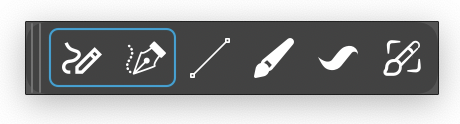
        If the green lines are not vector objects, you need to use the Pen or Pencil tools to draw the path on which the text will be placed:
        0_1602028527113_Screenshot 2020-10-07 at 02.53.32.png

        Then write the first line of text (November Workshop), select both the text and the path and choose 'Text on Path' from the app's Text menu.

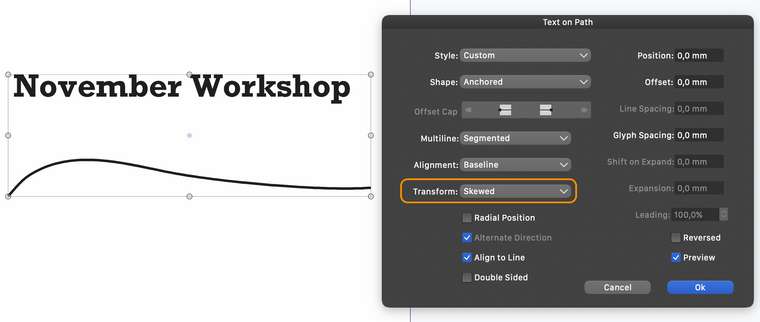
        Make sure you choose 'Skewed' from the 'Transform' menu in the dialog…
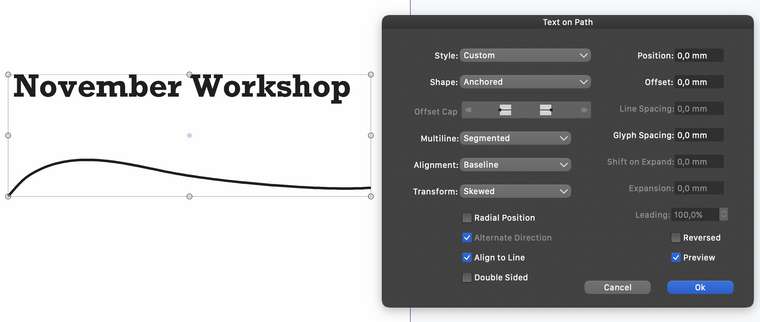
        0_1602028616388_Screenshot 2020-10-07 at 02.52.17.png

        …then after clicking OK, duplicate the object and change the text to the second line, then the third and fourth.

        MacBook Pro (Intel) running Monterey 12.6.4

        M 1 Reply Last reply Reply Quote 1
        • VectorStylerV Offline
          VectorStyler
          last edited by

          Text on Path is great to fit the text along a path.

          For another "warping" effect you may try the Bending shape effect:

          • open the Shape Effects panel (Panels -> Effects -> Shape Effects).
          • add a new effect (plus sign, first icon at the panel bottom row) and select Mesh -> Bending.
          • to edit the bending curve, press the second icon at the panel bottom.

          0_1602043195779_icons.png

          You can edit this bending curve just like any other shape by adding nodes, adjusting control points, etc.

          b77B M 2 Replies Last reply Reply Quote 1
          • b77B Offline
            b77 @VectorStyler
            last edited by b77

            @vectoradmin It would be great if the Bending effect would have a similar option to 'Skewing' from the 'Text on Path' settings, so that the block of text is bent only vertically.

            Also: there's a small glitch in the settings pane of the Bending effect — choosing a different profile works but the dropdown menu doesn't update with the new profile.

            MacBook Pro (Intel) running Monterey 12.6.4

            1 Reply Last reply Reply Quote 2
            • VectorStylerV Offline
              VectorStyler
              last edited by

              Added the bending profile bug (can be replicated).
              I think the text on path bending mode option is a great idea. added to the backlog.

              1 Reply Last reply Reply Quote 1
              • M Offline
                mbarr @b77
                last edited by

                @b77

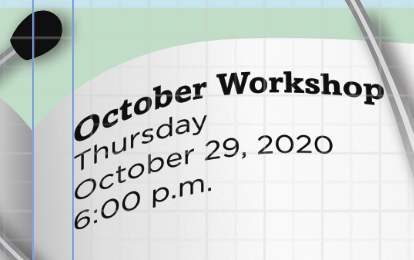
                Hi Thanks for the response. However text on a path won't give the look I'm trying to achieve as it orients the rotation of each letter to its position on the path (which is how it should work) and doesn't give that text on open book page look. I've been able to do it in another app but its destructive. Here's an example:
                0_1602097502501_Screen Shot 2020-10-07 at 3.03.04 PM.png

                MacBook Pro (16-inch, 2019)
                Processor: 2.4 GHz 8-Core Intel Core i9
                Ram: 32 GB 2667 MHz DDR4
                Graphics: AMD Radeon Pro 5500M 8 GB
                Intel UHD Graphics 630 1536 MB

                b77B 1 Reply Last reply Reply Quote 0
                • M Offline
                  mbarr @VectorStyler
                  last edited by

                  @vectoradmin

                  Hi, Thanks for the response. I'll play with this and see if I can get the results I want.

                  MacBook Pro (16-inch, 2019)
                  Processor: 2.4 GHz 8-Core Intel Core i9
                  Ram: 32 GB 2667 MHz DDR4
                  Graphics: AMD Radeon Pro 5500M 8 GB
                  Intel UHD Graphics 630 1536 MB

                  1 Reply Last reply Reply Quote 0
                  • M Offline
                    mbarr
                    last edited by

                    Can you copy a warp or bend from one object to another?

                    MacBook Pro (16-inch, 2019)
                    Processor: 2.4 GHz 8-Core Intel Core i9
                    Ram: 32 GB 2667 MHz DDR4
                    Graphics: AMD Radeon Pro 5500M 8 GB
                    Intel UHD Graphics 630 1536 MB

                    1 Reply Last reply Reply Quote 0
                    • VectorStylerV Offline
                      VectorStyler
                      last edited by VectorStyler

                      Copying bend (or any other effect):
                      Edit -> Attributes -> Copy Shape Effect while the object with bend is selected.
                      Then select tne other object and (from the same menu) Paste Shape Effects.

                      another way:

                      Open the Shape Effects panel. Here you see the list of effects on the selected object.
                      The list contain Bend, as the single effect on the object.
                      Select the Bend effect in the panel, and press Command+C
                      Then select the other object (with no effect), click inside the panel (should be empty) and press Command+V

                      1 Reply Last reply Reply Quote 0
                      • b77B Offline
                        b77 @mbarr
                        last edited by

                        @mbarr Make sure to choose 'Skewed' from the 'Transform' menu in the settings here:
                        0_1602103042518_Screenshot 2020-10-07 at 02.52.17.png

                        MacBook Pro (Intel) running Monterey 12.6.4

                        M 1 Reply Last reply Reply Quote 1
                        • M Offline
                          mbarr @b77
                          last edited by

                          @b77

                          Hi,
                          Thank you that made a huge difference. There is so much to learn and explore with VectorStyler.

                          MacBook Pro (16-inch, 2019)
                          Processor: 2.4 GHz 8-Core Intel Core i9
                          Ram: 32 GB 2667 MHz DDR4
                          Graphics: AMD Radeon Pro 5500M 8 GB
                          Intel UHD Graphics 630 1536 MB

                          1 Reply Last reply Reply Quote 0
                          • VectorStylerV Offline
                            VectorStyler
                            last edited by

                            The text on path view has been rearranged and a bend mode was added to the Transform modes.
                            This also works with the interactive text on path tool to adjust the text along the path.
                            0_1602333182382_icon2.png

                            1 Reply Last reply Reply Quote 0
                            • First post
                              Last post
