Ability to Offset OPEN Paths and Create MULTIPLE Offsets of both Open and Closed Paths
-
Any chance in your next Beta build release you could Improve/Expand the scope of the Offset Path capabilities of VectorStyler in these two ways ???
-
The ability to Offset OPEN paths
-
The option to input/specify the Number of Offsets desired (i.e. "Multiple" Offsets/Steps) for both Open and Closed paths
I would recommend these capabilities be offered both as a Multi-Offset Tool in the “Tools Panel” as well as a Multi-Offset Effect in the "Live Effects” drop down menu (so when an original "reference" path is altered, all of the Offsets would update and change accordingly).
At a minimum for example, I would even welcome something as simple as the abilities of the Adobe Illustrator Plugin by Graffix called ToolShed. It has a nice Multi-Offset/Open-Closed Path "Tool" in it (https://rj-graffix.com/product/toolshed/).
In its dialog panel (see below) you input the desired "Number of Offsets" and "Offset Distance". If you want to have the Offsets applied to both sides of the path, you check the "Offset Mirroring" box in the panel. You can also "Delete the Reference Paths" while keeping the created Offsets if you desire. In addition, you can see live updates when "Preview" is checked.
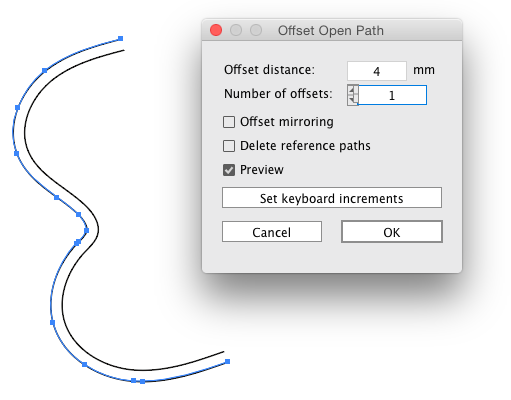
Offsets can also be created by "click and drag” method, using modifier keys, to get the result you desire.
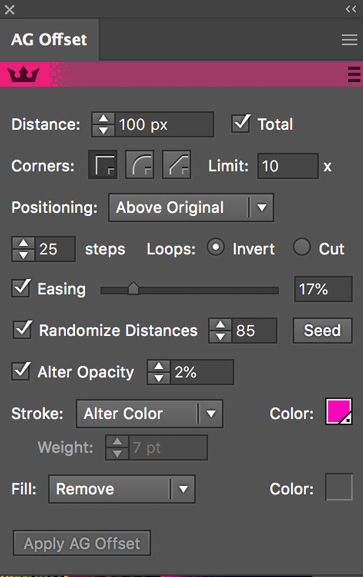
Also as a “reference” and for “inspiration”, probably the ultimate implementation of an Offset tool is the Astute Graphics plugin called Stylism (https://astutegraphics.com/plugins/stylism), which includes the AG Multi-Offset Effect which has tremendous capability and flexibility. Here is the Panel:
AG Multi-Offset youtube links:
a) Stylism AG Offset Tool Location- New Multi Offset
https://www.youtube.com/watch?v=qRQRNmXDfzs
b) Stylism AG Offset Working with object types
https://www.youtube.com/watch?v=Xoe_onEBMs0
c) Stylism - AG Offset .25.0 Update - Gradients Update
https://www.youtube.com/watch?v=XUC0ypF3Kjk
d) Astute Graphics Stylism | AG Offset Update | Apply offset to both sides of path
https://www.youtube.com/watch?v=_YLs3akO8yA
e) Stylism AG Offset Working with type
https://www.youtube.com/watch?v=G6N0dcGehYk -
-
The open path option will be added to the Offset Path shape effect, in the next build.
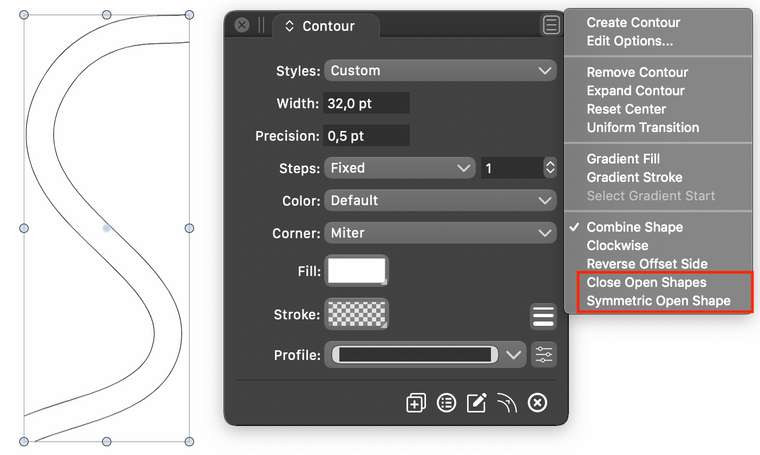
With multiple offsets also.Meanwhile for a different offset option, try the contour effect (Panels -> Effects -> Contour).
Make sure that you uncheck the Close Open Shapes and Symmetric Open Shapes options in the panel menu.
If you also set the steps mode to distance, and set the amount of spacing between offsets, then the effect is similar.
-
Some explanation on Offset Path and Contour:
In VectorStyler, the Offset Path is a shape effect, an adjustment of the shape of the object (like the other shape effects). It cannot change the style of the object (stroke color or width).
There can be improvements here in the new builds, but these will be limited strictly to the shape.The Contour effect is an object effect, meaning that it blends fills and outlines between selected styles.
This can be improved in the future as suggested in the original post.
