update 1.1.028
-
VectorStyler 1.1.028 release notes
- Adding node selection with Shift + box dragging in the Node tool.
- Ungroup may place objects at the wrong positions.
- Blending brush content.
- Regression in brush with profile rendering.
- Window resizing issue on Windows.
- Using grid origin with rotated grid, may show grid at wrong positions.
- Modifier key for transform text frame content.
- Shortcuts after exiting text editing mode are not handled on Windows.
- Closing path and dragging a handle should create a curved segment.
- Adding symbols to transformed symbol sets.
- Wrong baseline display for text shapes inside groups.
- Pressing a key while drawing a path may result in wrong curve.
- Possible freeze while copy pasting text frames multiple times.
- Pen tool did not draw when Above insertion mode was selected.
- Grayed image in outline mode is in wrong position.
- Control + backspace deactivated object name editor in Layers panel on MacOS.
- Opacity setting from keyboard to also work in Layers panel.
- Default drawing mode to be persistent.
- Artboard size set in pixels was not displayed using correct resolutions.
- Snapping indicator was left on the screen.
- Text shape and frame conversion action name for multiple selections.
- Update landscape mode in Create Artboard view when selecting an artboard size.
- Resizing floating panels should update the cursor when approached from outside.
- Locking aspect ratio in shape panel should be persistent.
- Non-uniform sliders in shape panels.
- Disable automatic scanning of fonts from PDF files.
- Could not select the member of a cloned group.
- Exiting isolation mode of a cloned group resulted in hidden objects.
- Cloned group with nested master and clone disappears upon refreshed isolation.
- Duplicating a group containing clones did not copy the clone links correctly.
- Undoing duplicated clones broke the clone links.
- Symbol instance goes transparent when switching canvases.
- Changing member of grouped clone original hides clones.
- Reopening files at startup.
- Cutting and pasting clone from reference canvas crashes VS.
- Change to member of master group doesn't propagate to copy of clone
- Changing external master of member clone hides clone in clone of group
- Copying group with clone, whose master was switched crashes VS
- Clicking again with different mouse button should not be a double click.
- Linked shape effect style not updated.
- Option to allow interactive editing of transform shape effect.
- Wrong code page used in Windows task bar.
- Use alphabetical order in panel group menu.
- Panning with the mouse wheel pressed removes the selection.
- Context panel layout had a small margin cut.
- Saving with invalid file names should keep the last valid name.
- Cusp super shape corner results in smooth node.
- Selecting black color may highlight the registration color.
- Cutting path with a parametric shape to keep the original shape.
- Object bounding box inside hidden layers or groups.
- Add path closing indicator to Node tool also.
- Unexpected and unwanted color mode changes.
- Text in-line symbol handling when the symbol contains text.
- Regression in the character tool.
- Using multiple object roles may result in additional empty styles.
- Copy paste of text should clear internal pasteboard of vectors.
- Small movement when rasterizing vectors to images.
- Stroke style role on solid stroke did not work.
- Changing or removing override of copied object back-propagates change to original
-
@vectoradmin said in update 1.1.028:
Unexpected and unwanted color mode changes.
Great - so many fixes - this one wasn't solved though:
Unexpected and unwanted color mode changesFrom .28:

🍏 macOS Sequoia Apple Silicon
-
@vectoradmin said in update 1.1.028:
Pen tool did not draw when Above insertion mode was selected.
Now draws but on top of everything:
MovieAnd sometimes doesn't draw still. You forgot to include some of these fixes in the build?

🍏 macOS Sequoia Apple Silicon
-
@vectoradmin said in update 1.1.028:
Control + backspace deactivated object name editor in Layers panel on MacOS.
Still does?? (Unless the object name is an active selection)
🍏 macOS Sequoia Apple Silicon
-
@vectoradmin Thank you for another awesome build update! I appreciate it
-
@vectoradmin It was so encouraging to see all the fixes you implemented. Thank you for doing such an excellent job, it is much appreciated!


-
Thursday late evening I proposed a new feature to @vectoradmin and now it's already in the build! Amazing. You can now interactively edit a transform shape effect. This needs to be enable by Preferences > Panels > Transform Effect Editing.
Overly specific guide for clarity. The various restrictions I describe don't really exist, but are for the clarity of instruction:
- create a red rectangle at the top layer
- open the "Panels" application menu
- open the "Effects" sub menu
- select "Shape Effects"
- click on the "+" button at the bottom of the panel
- select "Outline > Transform", the shape effect appears
- unfold the shape effect by clicking on the arrow to the left of it
- enable interactive editing by clicking on the "pencil on a square" icon at the bottom of the panel
- move the object a bit ( this is needed atm, I suspect due to some internal mechanism I discussed with @vectoradmin via email )
- now apply any transformation via the transform tool and see the changes appear in the various fields of the panel
-
@Nils @vectoradmin This is awesome!
Having this much feedback and control over the effect is really valuable for getting the results one desires, and stacking the effects non-destructively is so powerful, just like modifier stacks in 3D software. I found my new toy within VectorStyler! I will be playing with this a lot in the next while.
Thank you both! -
@Nils Thanks for suggesting this to @vectoradmin and for alerting us to the details of how to get it to work so we can enjoy it
-
@vectoradmin said in update 1.1.028:
Stroke style role on solid stroke did not work.
Nice to have this one fixed! So nice to be able to use the solid stroke properly and not have it convert to another brush each time.
-
@Ingolf said in update 1.1.028:
Unexpected and unwanted color mode changes
Looks like a some cases were not tested properly. I keep these issues open.
-
@Ingolf said in update 1.1.028:
Control + backspace deactivated object name editor in Layers panel on MacOS.
Still does?? (Unless the object name is an active selection)
Here it only deactivates after everything was deleted and was pressed again on an empty field. Is that the case?
-
@Ingolf said in update 1.1.028:
And sometimes doesn't draw still. You forgot to include some of these fixes in the build?
The fix is in, but it looks like only partial. When clicking with the pen tool on an existing object it will change the selection and that causes to draw on top of that object (this will be fixed).
I could not replicate the the case when it is not drawing.
-
@vectoradmin said in update 1.1.028:
@Ingolf said in update 1.1.028:
And sometimes doesn't draw still. You forgot to include some of these fixes in the build?
The fix is in, but it looks like only partial. When clicking with the pen tool on an existing object it will change the selection and that causes to draw on top of that object (this will be fixed).
I described my findings here to move it to the appropriate section of the forum
https://vectorstyler.com/forum/topic/1843/draw-above-bugI could not replicate the the case when it is not drawing.
I will try to establish a pattern. I experienced it once, I believe the issue was somewhat mitigated in build 28, at least.
-
@vectoradmin said in update 1.1.028:
@Ingolf said in update 1.1.028:
Control + backspace deactivated object name editor in Layers panel on MacOS.
Still does?? (Unless the object name is an active selection)
Here it only deactivates after everything was deleted and was pressed again on an empty field. Is that the case?
I see two weird behaviors:
A) Deactivated cursor
- Object name Vector
- No active selection in field
- Place cursor behind the letter r
- Press Control + backspace
- Input field is now blank
- Cursor not active and nothing happens when typing something
B) Leftover letter
- Object name {Path}
- No active selection in field
- Place cursor behind the char }
- Press Control + backspace
- Cursor blinking in the beginning of the input field
- ... in front of a surviving { char
-
@vectoradmin said in update 1.1.028:
@Ingolf said in update 1.1.028:
Unexpected and unwanted color mode changes
Looks like a some cases were not tested properly. I keep these issues open.Nailed this down as well
Below a discovery that may point to a possible root cause:It always happens when I create an object with the pen tool and swap fill and outline styles (Shift+X) which is what I always do after drawing an object. That is why it bothers me so much and often.
Steps to reproduce
- Enable keep color mode and HSB mode
- New document
- Activate pen tool (fill is now empty, stroke is black)
- Draw a simple closed shape
- Swap swap fill and outline styles (HSB still active color mode)
- Click on fill to bring it on top
- RGB is now active color mode
Observation that perhaps points to a root cause
- Enable keep color mode and HSB mode
- New document
- Activate pen tool (fill is now empty, stroke is black)
- Draw a simple closed shape
- Make a single tiny adjustment to the stroke color (ie +1 in saturation)
- Swap swap fill and outline styles (HSB still active color mode)
- Click on fill to bring it on top
- HSB is still active color mode
- Looks like RGB is carried over from the stroke color initially (although HSB or something else is displayed) unless I make an adjustment?
-
@Ingolf All 3 non-fixed problems can be replicated.
-
@vectoradmin, thanks for all the fixes and i found one thing is working now:
"Select and move multiple node handles". GreatVideo:
Multiple Handles selection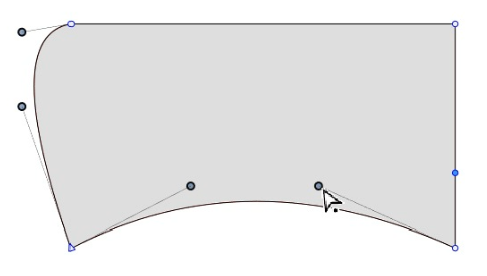
-
@vectoradmin Is this about the app not reading the embedded fonts in a PDF on import?
- Disable automatic scanning of fonts from PDF files.
-
@b77 said in update 1.1.028:
@vectoradmin Is this about the app not reading the embedded fonts in a PDF on import?
- Disable automatic scanning of fonts from PDF files.
No. It is about the font manager. The VS font manager can scan PDF (and PS) files as fonts, if they have embedded fonts.
It does not affect the import.