Could tracking and word spacing both be controlled without first requiring full selection be made?

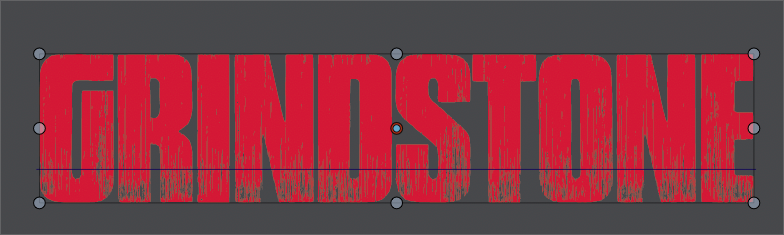
-
Could tracking be made possible with just a general selection of the word and also just with the cursor prompt between letters? Also the same with the word spacing? If I click with the text tool and get a prompt where I can add letters if I wanted, and then use the tracking keyboard shortcut, could it affect the tracking from that specific location?
Right now it seems unless I specifically highlight the letters to track or multiple words to adjust the spacing between, I am unable to do so.
I'd like to be able to position the cursor at the end of one word and before the next word and just adjust the spacing between those two words without necessarily having to highlight both words to do soFrom this general selection, I cannot use the keyboard shortcut to edit the tracking of the letters in this word.
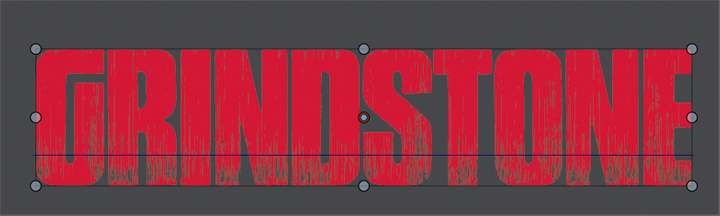
ONly when I select the entire word highlighted can the tracking be adjusted

Let me know if this is not making sense - thanks!
-
@Boldline When using the transform tool, the shortcut for tracking is Option+Left/Right
-
@VectorStyler thanks - I know we've discussed this in a round about way before - but can you explain why another set of keyboard shortcuts for using the transform tool vs the node selection tool, etc. Could this not be consolidated and freeing up a set of keyboard shortcuts?
-
@Boldline If I remember correctly, the text editing shortcut was modified, because it conflicted with some cursor movement. Not sure why the two were not synced.
-
@VectorStyler ok - a while back I was advocating for option-left/right arrow to control tracking (this is what I was used to in Illustrator). this is one example of those threads I remember swapping it in the keyboard shortcuts to option-left/right arrow and then it would go back to being control-option-comma/period with each new build update, etc.
For my workflow, tracking is something I do multiple times a day, every day, so selfishly I like the simpler option-right/left arrow for this (it's also muscle memory)
Whether it switches to the simpler keyboard shortcut or not, would it not make sense to consolidate the functionality of the tracking keyboard shortcuts and not have two different ones based on whether you are in selection mode or text edit mode?
It's extra work to remember what mode needs what keyboard shortcut, etc -
@VectorStyler I think you used option-left/right arrow for tracking when inside text mode because of the conflict with Macs using the option-arrow to jump by words. (How does illustrator makes this work then? because it can be done with or without text mode activated there)
-
@VectorStyler more thoughts on this as I use the tracking and word spacing shortcuts this weekend.
It makes sense to have the word-spacing and the tracking be similar keyboard shortcuts because they'd most often be used in tandem. While holding down the control and option keys, I think I'd rather see the left and right arrow be used for the tracking and the comma and period be used for word spacing because I do far more tracking than I do word spacing adjustments. If it stays as it is, I can get used to it.I was also thinking of non-traditional future ways to accomplish things like tracking and word spacing:
Someone a while back posted the idea of adding commands directly to the selection box. What about adding commands directly to a live text box as well? user would highlight the word with the text tool (maybe we expand the use and name of the text on a path edit tool?) Sort of the way the character tool currently can access individual letters and words and adjust things. the user would select the word or highlight the letters involved and click on the tracking symbol right above the text box and the highlight would change color to demonstrate it's now in tracking mode and then regular left and right keyboard keys would work to modify. Here's a mockup of the main idea:
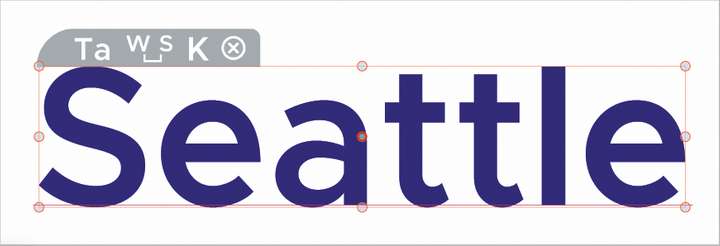
adding to this new future idea - perhaps if the highlight changed color for this part based on what tool is being used?