VectorStyler
    • Categories
    • Unread
    • Recent
    • Tags
    • Popular
    • Register
    • Login

    update 1.1.052

    Scheduled Pinned Locked Moved Release notes of past builds
    13 Posts 6 Posters 2.6k Views 5 Watching
    Loading More Posts
    • Oldest to Newest
    • Newest to Oldest
    • Most Votes
    Reply
    • Reply as topic
    Log in to reply
    This topic has been deleted. Only users with topic management privileges can see it.
    • S Offline
      Subpath @VectorStyler
      last edited by

      @VectorStyler

      have just noticed there was an update for VS
      just when was going to try in idea in it
      great 👍

      Win 11
      CPU: AMD Ryzen 5 9600X, 6-core.
      GPU: Nvidia Geforce RTX 5070.

      1 Reply Last reply Reply Quote 0
      • IngolfI Offline
        Ingolf @VectorStyler
        last edited by Ingolf

        @VectorStyler said in update 1.1.052:

        VectorStyler 1.1.052 release notes

        (...) and convert to curve button to the context panel when the shape editor is active.

        Thank you for another update and fix.

        I am perhaps tired - but I do not see a "convert to curve button" there?

        For the masses 🙂 (it is good idea for most users that the button is visible and easily accessible in the toolbar ). Personally I adore having it handy in the right click menu.

        🍏 macOS Sequoia Apple Silicon

        b77B 1 Reply Last reply Reply Quote 1
        • b77B Offline
          b77 @Ingolf
          last edited by

          @Ingolf It is the last one before the Alignment buttons.

          Trouble is that when you switch to the Shape Editor (A), the node editing buttons are displayed first and the smart shape's properties get pushed to the right, after them.

          I would prefer these to stay put no matter the editing mode (V or A), and display the node editing buttons after them.

          MacBook Pro (Intel) running Monterey 12.6.4

          1 Reply Last reply Reply Quote 0
          • IngolfI Offline
            Ingolf
            last edited by

            Oh - I missed it - I think I belived it was a corner adjustment tool (and missed the tooltip, indeed tired).

            🍏 macOS Sequoia Apple Silicon

            b77B 1 Reply Last reply Reply Quote 0
            • b77B Offline
              b77 @Ingolf
              last edited by b77

              @Ingolf To be fair, the icon would work better for 'Expand Stroke'… maybe that's another reason for not jumping visually.

              So… do you like the constant shifting of the [ shape properties group ] with the [ node editing buttons group ] every time you switch to and from 'Select' (V) to 'Shape Editing' (A)?

              MacBook Pro (Intel) running Monterey 12.6.4

              IngolfI 1 Reply Last reply Reply Quote 0
              • IngolfI Offline
                Ingolf @b77
                last edited by Ingolf

                @b77 said in update 1.1.052:

                So… do you like the constant shifting of the [ shape properties group ] with the [ node editing buttons group ] every time you switch to and from 'Select' (V) to 'Shape Editing' (A)?

                I don't notice it much, I guess, but I've grumbled a bit before about the content in them and about the distribution across the width of the toolbar. I seem to remember that they will be configurable in the future.

                I guess I'm a little worried about the future offering that users have to remove a lot for toolbars to become uncluttered, because most people don't, they probably grab their jacket and leave. You don't have customers' time or patience long out in the market.

                I'm starting to understand why some applications offer to send anonymous usage data to developers. Is one or the other button used at all...

                I know from hard experience in my working life that ten specialist users want it all visible, and the other 10,000 more representative customers don't want it at all, or thrive on all that stuff on the screen. But it's no easy task to minimise. But very easy and cheap to maximise.

                🍏 macOS Sequoia Apple Silicon

                1 Reply Last reply Reply Quote 1
                • IgullI Offline
                  Igull @VectorStyler
                  last edited by

                  @VectorStyler

                  • Overlapped segment removal should work inside groups and multiple selections also.

                  Works perfectly now, thanks !

                  • Changed shortcuts for leading and tracking adjustment.

                  These still seem to be the same as the originals (ctrl+option+comma/period) ? Was the intention to be option+right/left arrow as per AI or is there a preference now that I've missed ?

                  Neil

                  iMac 27" 2015 Catalina 32Gb, MacBook Pro 13" 2016 Monterey 8Gb, Mac Mini M2 2023 8Gb

                  b77B 1 Reply Last reply Reply Quote 0
                  • b77B Offline
                    b77 @Igull
                    last edited by

                    @Igull Both tracking and kerning work now with Control-Option-Left/Right Arrow here.

                    MacBook Pro (Intel) running Monterey 12.6.4

                    IgullI 1 Reply Last reply Reply Quote 0
                    • IgullI Offline
                      Igull @b77
                      last edited by

                      @b77 said in update 1.1.052:

                      @Igull Both tracking and kerning work now with Control-Option-Left/Right Arrow here.

                      Not here on Mac - it's still ctrl+option+ <(comma) or >(period) ?

                      I actually thought that it was being changed to just option + arrow ?

                      Neil

                      iMac 27" 2015 Catalina 32Gb, MacBook Pro 13" 2016 Monterey 8Gb, Mac Mini M2 2023 8Gb

                      1 Reply Last reply Reply Quote 0
                      • BoldlineB Online
                        Boldline
                        last edited by

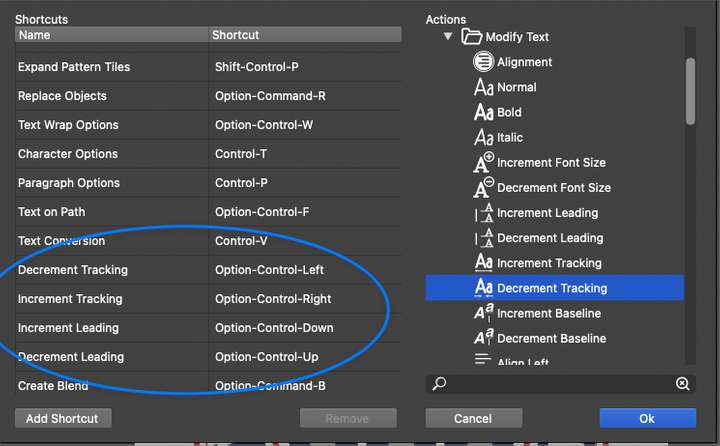
                        Was the keyboard short that adjusted the spacing between words get changed or removed with this recent build update?
                        0_1661213296264_830b78dd-53a2-4d68-9290-09f4f260581a-BLD 2022-08-22 at 20.00.30.png

                        🍎 macOS Tahoe 26.2, Mac mini (M1, 2020), Chip Apple M1, Memory 16 GB
                        Cintiq 27QHD Display and LG Ultra HD Display

                        VectorStylerV 1 Reply Last reply Reply Quote 0
                        • VectorStylerV Offline
                          VectorStyler @Boldline
                          last edited by

                          @Boldline Yes, the word spacing shortcuts were removed. But the actions should be on the right had side list.
                          If missing, it is a bug.

                          1 Reply Last reply Reply Quote 0
                          • First post
                            Last post