VectorStyler
    • Categories
    • Unread
    • Recent
    • Tags
    • Popular
    • Register
    • Login

    WIP - Testing Blending: not yet a tutorial but soon for beginners


    Scheduled Pinned Locked Moved Tutorials
    123 Posts 7 Posters 474.5k Views 7 Watching
    Loading More Posts
    • Oldest to Newest
    • Newest to Oldest
    • Most Votes
    Reply
    • Reply as topic
    Log in to reply
    This topic has been deleted. Only users with topic management privileges can see it.
    • B Offline
      B-Vs-V @Subpath
      last edited by

      @Subpath Thanks for your reply ☺

      VS is indeed quite demanding of computing power when we start to multiply complex designs with the 'repeater' or 'transform' features. As I use other softwares that are quite demanding in terms of computing power, I thought that increasing the ram was a good idea at low cost...

      I think I found the problem. The issue is more the motherboard that doesn't allow the optimal ram frequency... I absolutely dislike these hardware issues.

      W11 Pro 25H2 - 12th Gen Intel(R) i7-12700K 3.61 GHz - RAM 64 Go - NVIDIA GF GTX 4070 Ti - Intuos - Dell UP3216Q / Eizo ColorEdge
      W11 Pro 25H2 - 12th Gen Intel(R) i7-12700KF 3.60 GHz -RAM 64 Go - NVIDIA GF GTX 3080 - IntuosPro- ProArt PA329C

      S 1 Reply Last reply Reply Quote 1
      • S Offline
        Subpath @B-Vs-V
        last edited by

        I think I found the problem

        ok, then good luck

        Win 11
        CPU: AMD Ryzen 5 9600X, 6-core.
        GPU: Nvidia Geforce RTX 5070.

        B 1 Reply Last reply Reply Quote 1
        • B Offline
          B-Vs-V @Subpath
          last edited by

          @Subpath Issue solved (apparently), PC stable again.

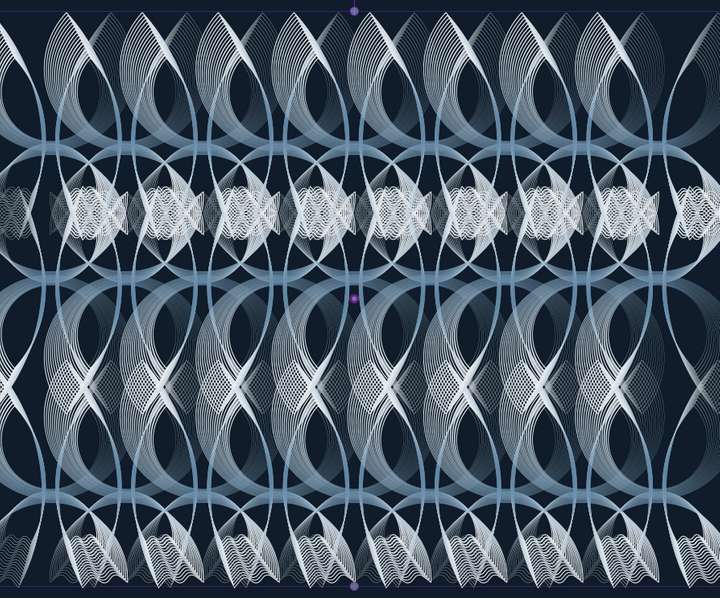
          The 'Repeater' function is really interesting. A little gem from VS again 👍 It reminds me of a video I saw by chance on an AGraphics plugin (forgot which one?).
          0_1676115349616_4b9e391d-23a9-4fcc-a41b-7a8b73534bb8-image.png

          @VectorStyler This is very powerful... but I don't see how to select/change a colour/gradient/etc. from the Repeater panel.

          W11 Pro 25H2 - 12th Gen Intel(R) i7-12700K 3.61 GHz - RAM 64 Go - NVIDIA GF GTX 4070 Ti - Intuos - Dell UP3216Q / Eizo ColorEdge
          W11 Pro 25H2 - 12th Gen Intel(R) i7-12700KF 3.60 GHz -RAM 64 Go - NVIDIA GF GTX 3080 - IntuosPro- ProArt PA329C

          VectorStylerV 1 Reply Last reply Reply Quote 1
          • VectorStylerV Offline
            VectorStyler @B-Vs-V
            last edited by

            @Pat said in WIP - Testing Blending: not yet a tutorial but soon for beginners:

            but I don't see how to select/change a colour/gradient/etc. from the Repeater panel

            The colour/gradient of what? The styles inside the repeated objects are not directly editable in the repeater panel.
            For that use symbols (Symbol role on an object) and repeat the symbol, then changing the styles in the original object will update the repeated one also.

            B 1 Reply Last reply Reply Quote 0
            • S Offline
              Subpath
              last edited by Subpath

              @Pat

              can recommend to search the VS Forum
              with the Topic "Repeater"

              There are already some post with user cases and Tips
              i think also how to use Symbols with it

              Win 11
              CPU: AMD Ryzen 5 9600X, 6-core.
              GPU: Nvidia Geforce RTX 5070.

              1 Reply Last reply Reply Quote 0
              • B Offline
                B-Vs-V @VectorStyler
                last edited by B-Vs-V

                @VectorStyler said in WIP - Testing Blending: not yet a tutorial but soon for beginners:

                @Pat said in WIP - Testing Blending: not yet a tutorial but soon for beginners:

                but I don't see how to select/change a colour/gradient/etc. from the Repeater panel

                The colour/gradient of what?

                Sorry if my question sounds stupid 😕

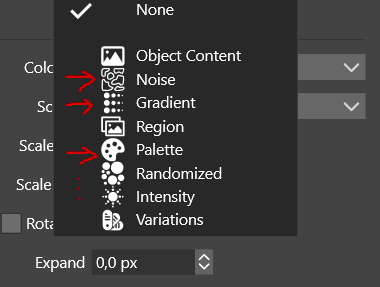
                I'm designing a pattern with the repeater function, fine but:
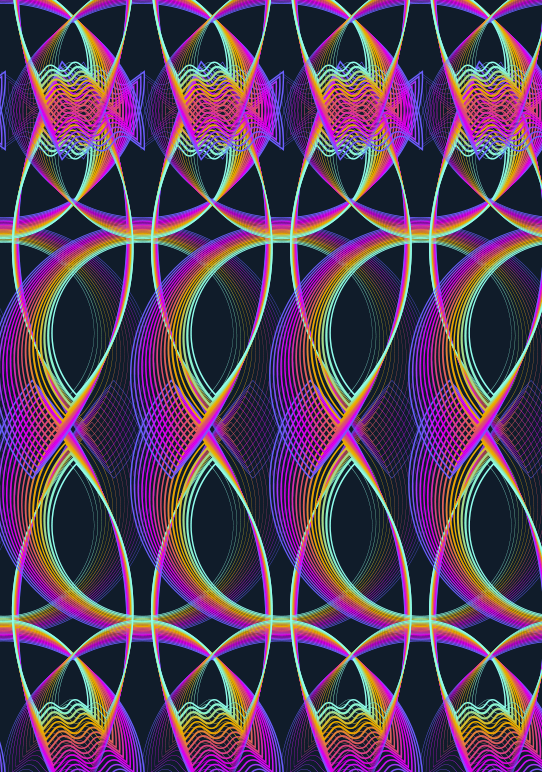
                0_1676120397721_e636543e-652c-4df7-803f-2f45c12ec410-image.png

                ...i n this panel, I see this:

                0_1676120498160_7bac73dd-05e6-4fdc-8154-61a8a02fa086-image.png

                ... so I think it's possible to add a gradient... I do have a gradient :

                0_1676120594204_024e5d73-1af5-4b44-813d-5e507a5fba86-image.png

                but I don't want a simple black-to-white. So, I wonder where I can change it? I can add noise, fine but what if I want to change it? and so on...

                @Subpath Well, you may be right. I'll read first the topics of interest in this forum before posting again ☺

                Edit : I can of course change the colorization via the Gradient panel, no problem but I don't understand the rationale of having these options in the 'Repeater' panel but I'll read the doc (without tuto, it's not easy) before posting.

                W11 Pro 25H2 - 12th Gen Intel(R) i7-12700K 3.61 GHz - RAM 64 Go - NVIDIA GF GTX 4070 Ti - Intuos - Dell UP3216Q / Eizo ColorEdge
                W11 Pro 25H2 - 12th Gen Intel(R) i7-12700KF 3.60 GHz -RAM 64 Go - NVIDIA GF GTX 3080 - IntuosPro- ProArt PA329C

                VectorStylerV 1 Reply Last reply Reply Quote 0
                • VectorStylerV Offline
                  VectorStyler @B-Vs-V
                  last edited by

                  @Pat Got it!

                  That is about the colorization of the repeated objects. It will replace the colors in the objects, according to some color source (like Gradient).

                  In the attached example we have a single (gray) circle repeated and the colorized using the Gradient colorizer.
                  This is done by first selecting Gradient in the Colorize drop down (which will apply a linear gradient), and then selecting Edit Colorizer (same drop down) to edit the gradient options.

                  This gradient cannot be edited interactively, only in a modal view.

                  0_1676121200871_repeater7.vstyler

                  1 Reply Last reply Reply Quote 0
                  • B Offline
                    B-Vs-V
                    last edited by B-Vs-V

                    I haven't had much time to test VS these last weeks but I'm working on a symmetry theme and I think I'll have a little fun with VS for some vector drawings.
                    Here is what I got in a few minutes:

                    0_1678985377218_Testing.jpg

                    @VectorStyler I would like to change the profile of a stroke and I found the function:
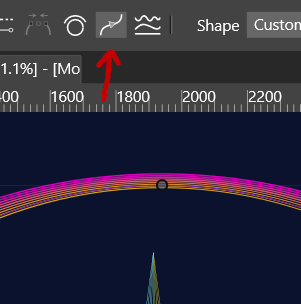
                    0_1678982020940_a446ecbe-32e4-4cbd-8f92-f96890ff9cd7-image.png

                    but this is what I get...:

                    0_1678982168042_2a27cc10-3877-4e04-81ff-605ad534651f-image.png

                    W11 Pro 25H2 - 12th Gen Intel(R) i7-12700K 3.61 GHz - RAM 64 Go - NVIDIA GF GTX 4070 Ti - Intuos - Dell UP3216Q / Eizo ColorEdge
                    W11 Pro 25H2 - 12th Gen Intel(R) i7-12700KF 3.60 GHz -RAM 64 Go - NVIDIA GF GTX 3080 - IntuosPro- ProArt PA329C

                    VectorStylerV 1 Reply Last reply Reply Quote 2
                    • VectorStylerV Offline
                      VectorStyler @B-Vs-V
                      last edited by

                      @Pat That button changes the starting node of the selected path to the selected node.

                      Use the Stroke panel (or the Width panel) to change the profile.

                      B 1 Reply Last reply Reply Quote 0
                      • B Offline
                        B-Vs-V @VectorStyler
                        last edited by

                        @VectorStyler Yes, I know that but when I change the profile, the thinner stroke starts where I don't want. I thought that changing the start of the stroke might help to have the profile as I want.

                        W11 Pro 25H2 - 12th Gen Intel(R) i7-12700K 3.61 GHz - RAM 64 Go - NVIDIA GF GTX 4070 Ti - Intuos - Dell UP3216Q / Eizo ColorEdge
                        W11 Pro 25H2 - 12th Gen Intel(R) i7-12700KF 3.60 GHz -RAM 64 Go - NVIDIA GF GTX 3080 - IntuosPro- ProArt PA329C

                        VectorStylerV 2 Replies Last reply Reply Quote 0
                        • VectorStylerV Offline
                          VectorStyler @B-Vs-V
                          last edited by

                          @Pat said in WIP - Testing Blending: not yet a tutorial but soon for beginners:

                          @VectorStyler Yes, I know that but when I change the profile, the thinner stroke starts where I don't want. I thought that changing the start of the stroke might help to have the profile as I want.

                          Got it, that should work! But it might be that the blend behaves differently if the starting node is shifted.

                          I will test this.

                          B 2 Replies Last reply Reply Quote 0
                          • VectorStylerV Offline
                            VectorStyler @B-Vs-V
                            last edited by

                            @Pat BTW: there is also a Blend Mapping tool (next to the blend tool) that can be used to realign blend shapes.

                            B 1 Reply Last reply Reply Quote 0
                            • B Offline
                              B-Vs-V @VectorStyler
                              last edited by

                              @VectorStyler yes, I thought of that and we should think about changing the starting point before blending.

                              W11 Pro 25H2 - 12th Gen Intel(R) i7-12700K 3.61 GHz - RAM 64 Go - NVIDIA GF GTX 4070 Ti - Intuos - Dell UP3216Q / Eizo ColorEdge
                              W11 Pro 25H2 - 12th Gen Intel(R) i7-12700KF 3.60 GHz -RAM 64 Go - NVIDIA GF GTX 3080 - IntuosPro- ProArt PA329C

                              1 Reply Last reply Reply Quote 0
                              • B Offline
                                B-Vs-V @VectorStyler
                                last edited by

                                @VectorStyler Ok, I have to select two nodes of the two blended objects before changing the start of the strokes and it is fine ☺

                                W11 Pro 25H2 - 12th Gen Intel(R) i7-12700K 3.61 GHz - RAM 64 Go - NVIDIA GF GTX 4070 Ti - Intuos - Dell UP3216Q / Eizo ColorEdge
                                W11 Pro 25H2 - 12th Gen Intel(R) i7-12700KF 3.60 GHz -RAM 64 Go - NVIDIA GF GTX 3080 - IntuosPro- ProArt PA329C

                                1 Reply Last reply Reply Quote 0
                                • B Offline
                                  B-Vs-V @VectorStyler
                                  last edited by

                                  @VectorStyler said in WIP - Testing Blending: not yet a tutorial but soon for beginners:

                                  @Pat BTW: there is also a Blend Mapping tool (next to the blend tool) that can be used to realign blend shapes.

                                  I don't find the way to change the stroke start with any tool (from the panel, right ?).

                                  W11 Pro 25H2 - 12th Gen Intel(R) i7-12700K 3.61 GHz - RAM 64 Go - NVIDIA GF GTX 4070 Ti - Intuos - Dell UP3216Q / Eizo ColorEdge
                                  W11 Pro 25H2 - 12th Gen Intel(R) i7-12700KF 3.60 GHz -RAM 64 Go - NVIDIA GF GTX 3080 - IntuosPro- ProArt PA329C

                                  VectorStylerV 1 Reply Last reply Reply Quote 0
                                  • VectorStylerV Offline
                                    VectorStyler @B-Vs-V
                                    last edited by

                                    @Pat said in WIP - Testing Blending: not yet a tutorial but soon for beginners:

                                    I don't find the way to change the stroke start with any tool (from the panel, right ?).

                                    The Blend Mapping tool is in the toolbox and it does not change the stroke start.

                                    It can be used to create a "mapping" from locations of one shape to the other for the blend effect.

                                    So after changing the stroke start, and the blend breaks, the mapping tool can be used to realign the shapes (without further changing the start).

                                    B 1 Reply Last reply Reply Quote 0
                                    • B Offline
                                      B-Vs-V @VectorStyler
                                      last edited by B-Vs-V

                                      @VectorStyler said in WIP - Testing Blending: not yet a tutorial but soon for beginners:

                                      @Pat said in WIP - Testing Blending: not yet a tutorial but soon for beginners:

                                      I don't find the way to change the stroke start with any tool (from the panel, right ?).
                                      ☺ >
                                      The Blend Mapping tool is in the toolbox and it does not change the stroke start.

                                      It can be used to create a "mapping" from locations of one shape to the other for the blend effect.

                                      So after changing the stroke start, and the blend breaks, the mapping tool can be used to realign the shapes (without further changing the start).

                                      Ok, I see. I haven't used this feature yet but I'll look into it 👍

                                      I notice that this thread has more than 8k views: for those who like abstract shapes & patterns & vector drawing & would be tempted by VS, don't hesitate ☺ I personally find the pleasure I had to use AI a long time ago (and that I never had with another app before VS).

                                      @VectorStyler I'm looking forward to version 1.2 with all the new layout possibilities (hopefully) ☺

                                      0_1679037226888_Testing.jpg

                                      W11 Pro 25H2 - 12th Gen Intel(R) i7-12700K 3.61 GHz - RAM 64 Go - NVIDIA GF GTX 4070 Ti - Intuos - Dell UP3216Q / Eizo ColorEdge
                                      W11 Pro 25H2 - 12th Gen Intel(R) i7-12700KF 3.60 GHz -RAM 64 Go - NVIDIA GF GTX 3080 - IntuosPro- ProArt PA329C

                                      S 1 Reply Last reply Reply Quote 2
                                      • S Offline
                                        Subpath @B-Vs-V
                                        last edited by

                                        @Pat

                                        a nice stamp
                                        will you sell it to the post office ? 🙂

                                        Win 11
                                        CPU: AMD Ryzen 5 9600X, 6-core.
                                        GPU: Nvidia Geforce RTX 5070.

                                        B 1 Reply Last reply Reply Quote 0
                                        • B Offline
                                          B-Vs-V @Subpath
                                          last edited by B-Vs-V

                                          ☺ 😀

                                          W11 Pro 25H2 - 12th Gen Intel(R) i7-12700K 3.61 GHz - RAM 64 Go - NVIDIA GF GTX 4070 Ti - Intuos - Dell UP3216Q / Eizo ColorEdge
                                          W11 Pro 25H2 - 12th Gen Intel(R) i7-12700KF 3.60 GHz -RAM 64 Go - NVIDIA GF GTX 3080 - IntuosPro- ProArt PA329C

                                          S 1 Reply Last reply Reply Quote 2
                                          • S Offline
                                            Subpath @B-Vs-V
                                            last edited by Subpath

                                            @Pat

                                            was kidding 🙂

                                            Win 11
                                            CPU: AMD Ryzen 5 9600X, 6-core.
                                            GPU: Nvidia Geforce RTX 5070.

                                            B 1 Reply Last reply Reply Quote 0
                                            • First post
                                              Last post