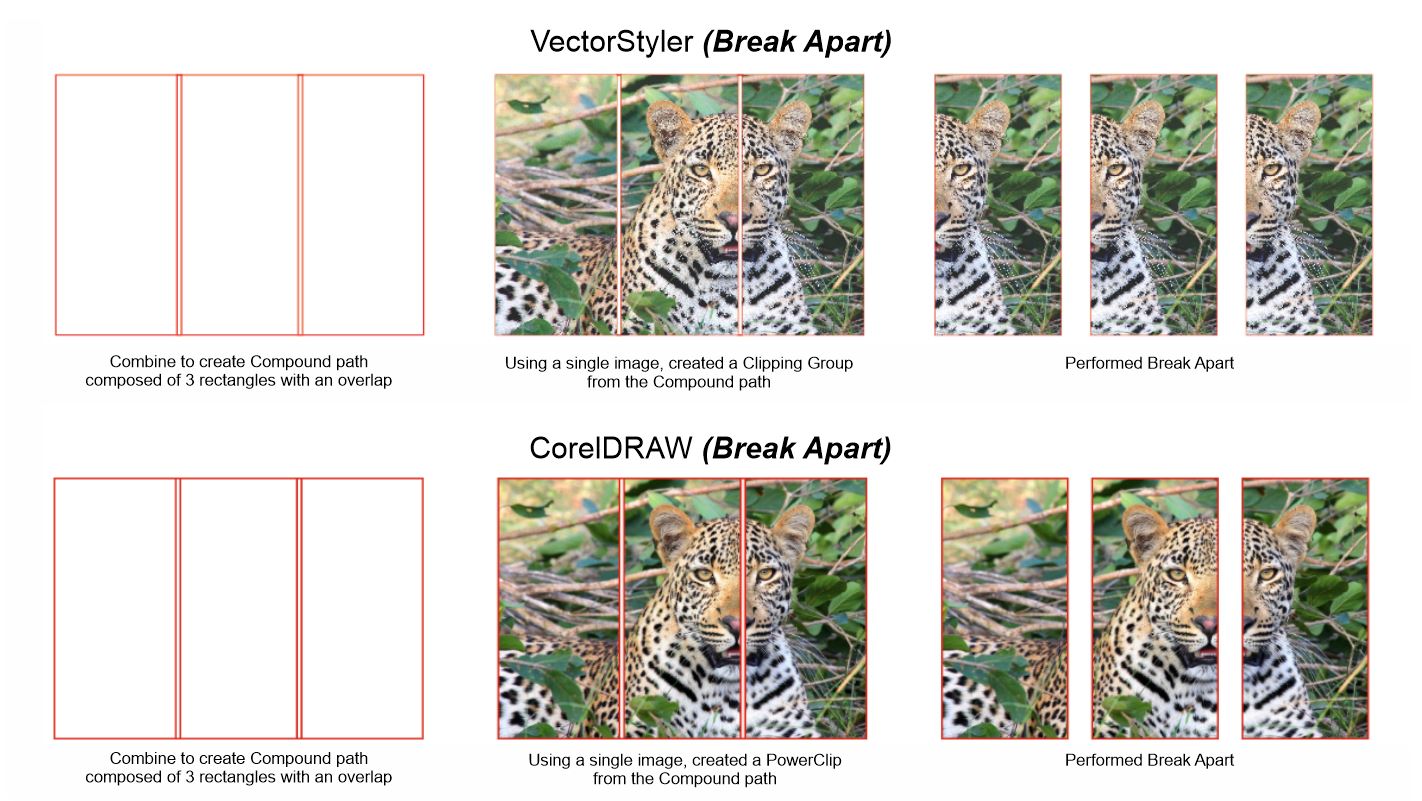
Break Apart in VS vs CorelDRAW vs Illustrator
-
I know you dont want to do this manually
but take it so much time to use "Paste Inside"
to create a clipping Object ?I use separat Boxes (no combine)
an did a Paste Inside on every Box.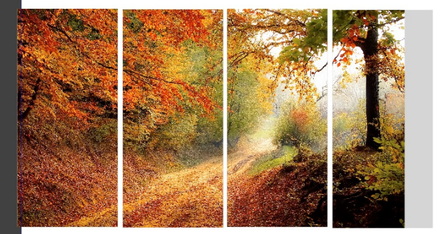
Win 11
CPU: AMD Ryzen 5 9600X, 6-core.
GPU: Nvidia Geforce RTX 5070. -
@Subpath
It would be nice if 'Paste Inside' would paste the image or object(s) inside multiple objects directly.
I think this was requested already, if I'm not mistaken, @VectorStyler?MacBook Pro (Intel) running Monterey 12.6.4
-
@b77 said in Break Apart in VS vs CorelDRAW vs Illustrator:
I think this was requested already, if I'm not mistaken, @VectorStyler?
Not in this form. I added this to the backlog. The main thing here is to have the multiple images aligned to the same position.
-
@b77 said in Break Apart in VS vs CorelDRAW vs Illustrator:
It would be nice if 'Paste Inside' would paste the image or object(s) inside multiple objects directly.
Good idea

I have never thought of this before
That would offer some cool possibilities
-
@Subpath Thank you for your response. I am already aware of the Paste Inside method in VS. Illustrator also has a Paste Inside command, but this method is not the most efficient way I would prefer. I have already condemned it and have already pointed out that I don't want to repeatedly paste artwork inside. Suppose you have 15 or more tiles that need to be applied separately, you will understand how tedious it is.
In this particular scenario the CorelDRAW method I described earlier is the most efficient and painless way to achieve this (Note that I only you a single image / artwork instance in CorelDRAW). VectorStyler, unlike Illustrator is achieving the closest result similar to CorelDRAW's. It's already encouraging that VectorStyler has said that he will look into ways to make some improvements in this regard. -
@William-Kansepa said in Break Apart in VS vs CorelDRAW vs Illustrator:
you have 15 or more tiles that need to be applied separately, you will understand
of course i understand

-
It is highly likely that I do not understand all the subtleties of the problem and the query asked but wouldn't it be possible to do this in VS from artboards?
I just created two artboards, imported an image spanning both artboards & exported individually (File --> export artboards) and I have two images.
-
@Pat
interesting, did not know that, but it doesn't seem to work flawless.
Top

.
.
bottom

-
@Pat said in Break Apart in VS vs CorelDRAW vs Illustrator:
It is highly likely that I do not understand all the subtleties of the problem and the query asked but wouldn't it be possible to do this in VS from artboards?
I just created two artboards, imported an image spanning both artboards & exported individually (File --> export artboards) and I have two images.
@Pat
Thank you for your response to my dilemma. I have tried your prescribed method both in Illustrator and VS. I am happy to say it works.
I used the rectangle tool to draw the exact size of the tile that I want and used the Move command to generate copies of the rectangles (having already set the desired overlap width between of course).
Having completed that, I then created overlapped Artboards from these rectangles. After that, I imported a 3m x 10m artwork to share across the Artboards. I successfully exported all the Artboards as .tif with no issues.
I tried same method in Illustrator and the result was similar.
I have to point out though that Illustrator has a faster way of converting the rectangles to Artboards: 'Convert to Artboards' command. You just select all the rectangles at once and click on the command to simultaneously convert them to multiple Artboards. In VS I had to click on each rectangle one at a time to create the Artboards. Unless I am missing something, is there a function in VS similar to Illustrator's 'Convert to Artboards'?Using this solution from @Pat in Illustrator is as fast as CorelDRAW's Break Apart method.
-
@William-Kansepa Very happy to hear that I was able to help. I had tested it and it seemed to have what you were hoping for but I wasn't too sure... As for AI, I haven't used it in a long time and I don't remember its features.

