update 1.1.100
-
VectorStyler 1.1.100 release notes
- Keep action command folders open when docking panels.
- New shape may should end up in the current layer.
- Minimized panels should not jump when moved.
- Fixed regression in snapping to reference sizes.
- Show an alert view on the Revert command.
- Option to show a smaller layer and object drag preview in layers panel.
- Snapping angles editing to start with no selection.
- Initial transform pivot mode for flip commands.
- Change position for the snapping panel button in the tool bar.
- Option to flatten all curves to lines when printing with printer drivers.
- Keep a minimum size when resizing docked panels.
- Fixed regression in Haze effect rendering.
- Deleting in action panel to select previous item.
- Show composited groups with a special label in the layers panel.
- Also move, rotate and scale artboard content when changes are made in modal view.
- Canvas roles selected in modal view were not applied.
- Improved precision of collision snapping for small curves.
- Exclude group of shapes from an other shape.
- Do not create group content for a shape when isolated, only when. new object is created inside.
- Erasing from clipping group shapes to skip path separation.
- Also modify locked objects inside groups when expanding or converting to curves.
- Improved color slider updating on color mode change.
- Change selected shape after using the path brush tool.
- Deleting an action while recording should stop the recording.
- Fixed regression in selecting shape corners in the modal shape view.
- Outline preview to render outlines correctly at larger zoom levels.
- Fixed regressions in editing with repeater modal view.
- Correct bounding box when rasterizing vector brush objects.
- Keep transparency when rasterizing objects.
- Better detection of AI file content in imported EPS files.
- Disabled calibration mode by default for document preview on Windows (turn it on in preferences).
-
@VectorStyler said in update 1.1.100:
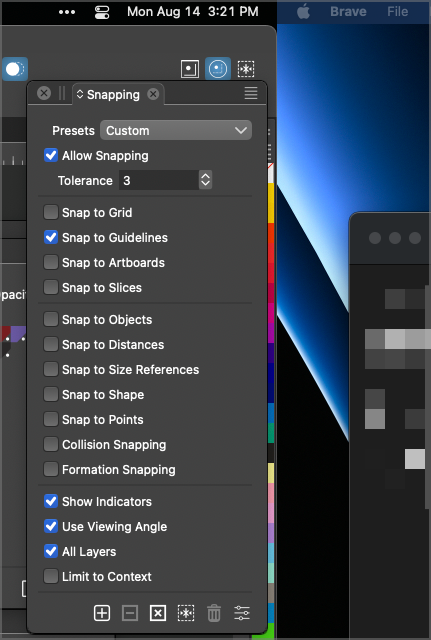
Change position for the snapping panel button in the tool bar.
This is perfect! I know this issue was affecting only me currently, but it solves the problem for anyone with a two screen setup where they digitally are side by side.
Taking a screenshot of the solution actually captured a portion of the other screen as well so that confirms to me that was the issue prior.
-
@VectorStyler said in update 1.1.100:
Option to flatten all curves to lines when printing with printer drivers.
Where is this option located specifically?
-
@Boldline Only on Windows for now, in the Graphics tab of the Printer view