VectorStyler
    • Categories
    • Unread
    • Recent
    • Tags
    • Popular
    • Register
    • Login

    Where do I adjust the node default size in the new beta?
    Scheduled Pinned Locked Moved VectorStyler 1.2 beta
    13 Posts 5 Posters 12.2k Views 4 Watching
    Loading More Posts
    • Oldest to Newest
    • Newest to Oldest
    • Most Votes
    Reply
    • Reply as topic
    Log in to reply
    This topic has been deleted. Only users with topic management privileges can see it.
    • BoldlineB Offline
      Boldline @Subpath
      last edited by Boldline

      @Subpath said in Where do I adjust the node default size in the new beta?:

      @Boldline

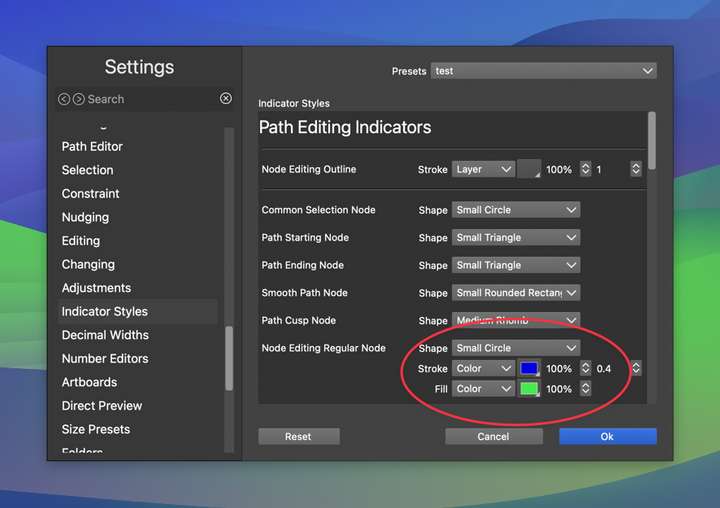
      there are a "Indicator Styles" Section in the Settings
      maybe there ?

      Thanks for replying. I had checked there before and not found it. I had asked this same question a long while back and gotten the answer, but with the new beta, everything is rearranged

      🍎 macOS Tahoe 26.2, Mac mini (M1, 2020), Chip Apple M1, Memory 16 GB
      Cintiq 27QHD Display and LG Ultra HD Display

      L 1 Reply Last reply Reply Quote 0
      • L Offline
        Li Xiao @Boldline
        last edited by

        @Boldline I tried it, and there is no issue.
        https://youtu.be/BGp6bROQfq4

        BoldlineB S 2 Replies Last reply Reply Quote 3
        • BoldlineB Offline
          Boldline @Li Xiao
          last edited by

          @Li-Xiao Thanks - I was thinking of it in a different frame of mind; that there would be small, medium and large option sets to click on like Affinity used to do... not that I was somehow using a large circle as opposed to a small one. I appreciate the help!

          🍎 macOS Tahoe 26.2, Mac mini (M1, 2020), Chip Apple M1, Memory 16 GB
          Cintiq 27QHD Display and LG Ultra HD Display

          1 Reply Last reply Reply Quote 0
          • S Offline
            Subpath @Li Xiao
            last edited by

            @Li-Xiao

            thanks from me too, was also helpful for me
            to know

            Win 11
            CPU: AMD Ryzen 5 9600X, 6-core.
            GPU: Nvidia Geforce RTX 5070.

            1 Reply Last reply Reply Quote 0
            • BoldlineB Offline
              Boldline
              last edited by Boldline

              @VectorStyler Going back to this topic again.
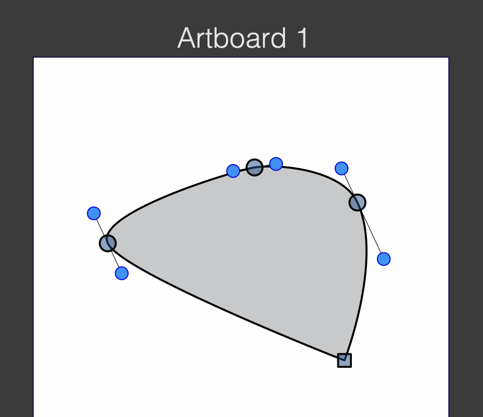
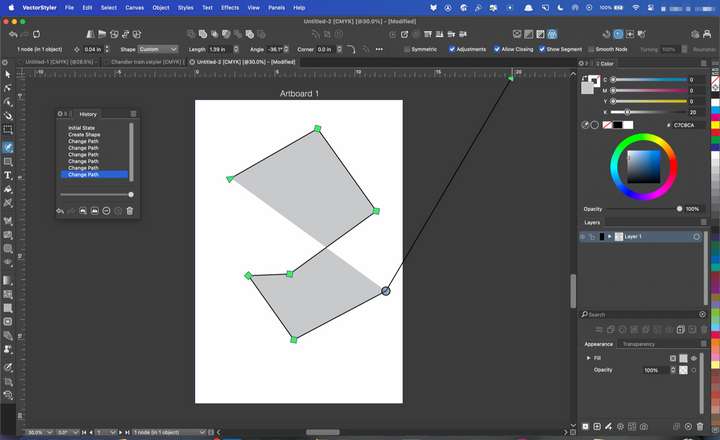
              While I appreciate what @Li-Xiao demonstrated in terms of editing the standard node size, it does not seem to make any difference here on my M1 Mac laptop. As you can see in the full screen capture image, the nodes and indicators for the path are huge and in the first screenshot, you see I went ahead and made sure the standard shape was small
              For comparison, using the same settings on my M1 Mac Mini with larger screen, the nodes and handles look much smaller in comparison
              0_1700292542374_3d2f6ee8-0457-4250-a608-63b1176e37b8-CleanShot 2023-11-18 at 01.26.00.png
              0_1700292325083_46a604a4-fb08-4e9a-af50-573fd630f68c-CleanShot 2023-11-18 at 01.24.02.png

              🍎 macOS Tahoe 26.2, Mac mini (M1, 2020), Chip Apple M1, Memory 16 GB
              Cintiq 27QHD Display and LG Ultra HD Display

              BoldlineB 1 Reply Last reply Reply Quote 1
              • BoldlineB Offline
                Boldline @Boldline
                last edited by Boldline

                @VectorStyler Just for testing purposes, I set the settings back to the default and made a new document and used the pen tool and again, all the nodes and handles and even the artboard title are all super-sized in a bad way
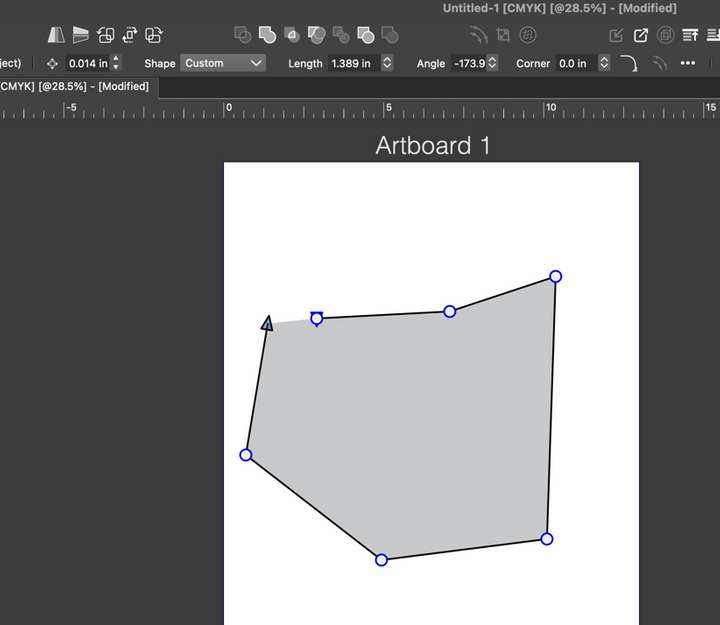
                0_1700293189664_52aa54d4-5baf-4cb7-8a2d-a9de6ff1a814-CleanShot 2023-11-18 at 01.38.20.png

                This is what my laptop screen resolution settings are:
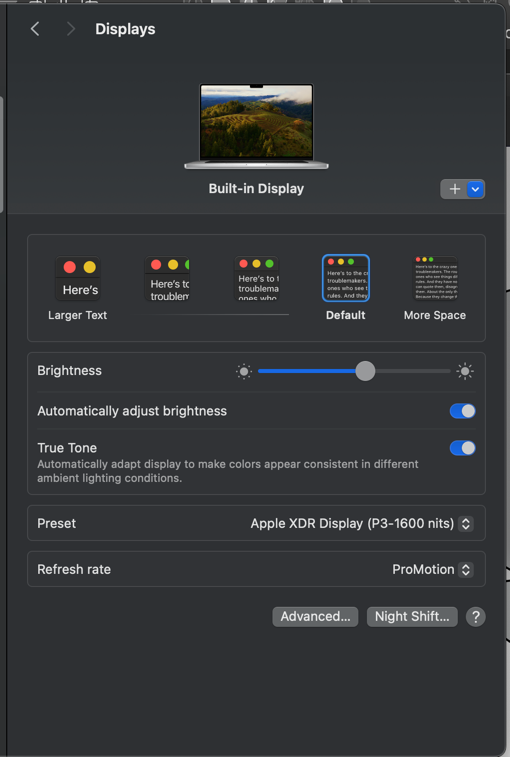
                0_1700293358143_5e2ef1fd-ea42-48dd-9fd5-2269caf0761e-CleanShot 2023-11-18 at 01.41.28.png

                🍎 macOS Tahoe 26.2, Mac mini (M1, 2020), Chip Apple M1, Memory 16 GB
                Cintiq 27QHD Display and LG Ultra HD Display

                BoldlineB 1 Reply Last reply Reply Quote 1
                • BoldlineB Offline
                  Boldline @Boldline
                  last edited by

                  @VectorStyler I will check this on my Mac Mini as well later today and report back. I will look at the size of the nodes and handles and the like as well as the rounded corners, if the adjustment cursor icon is activated in the correct spot or off like it is on the laptop

                  What about adding the ability to choose between small medium and large node indicators overall? Yes, right now there is the option for small medium and large circles and squares and the like to represent the node, but what about adding a relative scale the that as well?

                  🍎 macOS Tahoe 26.2, Mac mini (M1, 2020), Chip Apple M1, Memory 16 GB
                  Cintiq 27QHD Display and LG Ultra HD Display

                  VectorStylerV 1 Reply Last reply Reply Quote 1
                  • VectorStylerV Offline
                    VectorStyler @Boldline
                    last edited by

                    @Boldline There is a bug here, I will try to replicate it.

                    K 1 Reply Last reply Reply Quote 0
                    • K Offline
                      Kumr @VectorStyler
                      last edited by

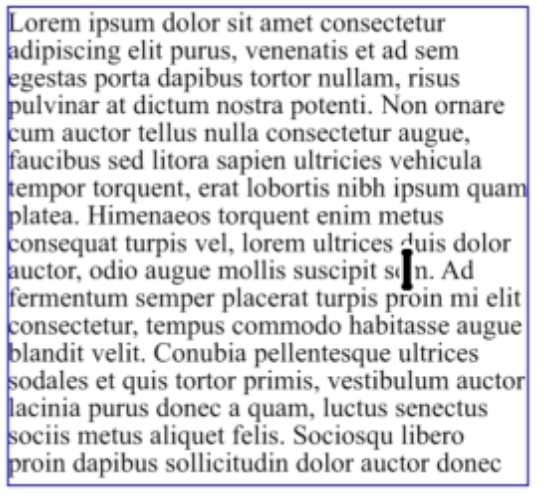
                      @VectorStyler In my Mac cursor text cursor looks very odd.

                      0_1700298247951_Screenshot 2023-11-18 at 2.33.52 PM.png

                      https://recordit.co/iGm1T8HKr1

                      M1 MacBook Air, 16GB, macOS Sonoma 14.4.1

                      VectorStylerV 1 Reply Last reply Reply Quote 1
                      • VectorStylerV Offline
                        VectorStyler @Kumr
                        last edited by

                        @Kumr Could be related. I will improve this.

                        1 Reply Last reply Reply Quote 0
                        • First post
                          Last post