How do I quickly change the color of a shape with negative spaces without automatically filling them as well?
-
@Boldline If you don't want to ungroup them, double-click the group to enter it then select only the blue shapes. When finished, double-click outside of it to exit isolation mode.
(Btw, it would be an idea to post the .vstyler file together with the question, so we can download it, see exactly what the issue is and not have to guess).
MacBook Pro (Intel) running Monterey 12.6.4
-
@encart Usually I run into this issue with shapes that were formerly fonts - but it happens any time there's a negative space in a vectorshape
-
@b77 said in How do I quickly change the color of a shape with negative spaces without automatically filling them as well?:
(Btw, it would be an idea to post the .vstyler file together with the question, so we can download it, see exactly what the issue is and not have to guess).
I'd be happy to upload the files to make it easier, but each time I've tried that, the upload fails, even if the file is well under the size limit for upload. I had reported this to @vectoradmin a while back. He was looking into it bt I have not tried it again recently.
Have you had success uploading files to the forum? -
@Boldline Trying now… 0_1635010491056_test.vstyler
It seems to work.
 You could try a different browser.
 -
@b77 If I try to send your own file back to you on the forum, that uploads correctly. When I tried just now to send my file to you (1.4mb), it failed...

-
@Boldline If these are separate objects, then combine (Object -> Combine -> Combine) and setting the even-odd fill rule (Object->Content->Winding Fill unchecked).
-
@vectoradmin Trouble is you don't know just from an image or quick video if those white shapes are "doubled" by identical holes (negative space) in the blue letter under it.
If they are, I'm not sure how well Combine will work. That's why having a test file uploaded is preferable.
@Boldline Got it, indeed 1.4 MB is too much and won't upload. But you could just paste that text into a new file and I guess it will be much smaller than 1.4 MB.
-
@b77 The forum is supposed to be able to handle files even larger than 1.4MB being uploaded... However, you make a good point I could move it over to a new file. I had tried removing the source photo I had embedded in the file and re-saved it and it retained the same file size even then, so that was odd. Making it a new file with just that part proved far better.
0_1635011843148_Awaken test.vstyler
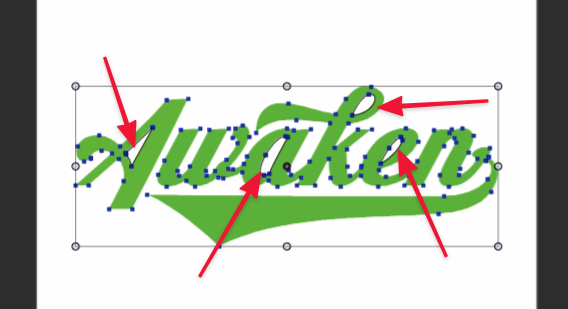
The letters are green fill only but the negative spaces have a black outline that appears when selected...I know this is tied to the layer color being black and any selection made will be in black for that reason, but why are only those negative space areas showing that layer color outline?
🍎 macOS Tahoe 26.2, Mac mini (M1, 2020), Chip Apple M1, Memory 16 GB
Cintiq 27QHD Display and LG Ultra HD Display -
@Boldline As I suspected, the "white" shapes (actually they have no fill) in the group overlap identical holes in the green text beneath – that's why when you select them all and change color they also get the fill and cover the negative space.
Double-clicking inside the group and selecting just the green shapes to assign a different fill works, and you can also use 'Invert Selection' and delete the unneeded shapes with no fill.
Quick video here: https://recordit.co/BT1RDj1CXs
Question is, how did this happen? Just converting editable text to outlines should not result in these double shapes covering the negative space of the letters. Maybe the text object was pasted from AI?
MacBook Pro (Intel) running Monterey 12.6.4
-
@Boldline said in How do I quickly change the color of a shape with negative spaces without automatically filling them as well?:
[…] but why are only those negative space areas showing that layer color outline?
The app highlights the contour of objects when you hover them, so you know when to click-to-select, and because those are separate objects that are not part of the green text (they just overlap it) they get highlighted separately from it.
-
@b77 said in How do I quickly change the color of a shape with negative spaces without automatically filling them as well?:
Maybe the text object was pasted from AI?
If I import vectors with negative shapes from Illustrator, I'll have to be checking that I've removed the extra no-fill shapes it adds in. I appreciate the video


