VectorStyler
    • Categories
    • Unread
    • Recent
    • Tags
    • Popular
    • Register
    • Login

    The Shape of Things - using Parametric Shapes for Pattern making
    Scheduled Pinned Locked Moved Tutorials
    9 Posts 4 Posters 13.2k Views 4 Watching
    Loading More Posts
    • Oldest to Newest
    • Newest to Oldest
    • Most Votes
    Reply
    • Reply as topic
    Log in to reply
    This topic has been deleted. Only users with topic management privileges can see it.
    • S Offline
      Subpath
      last edited by Subpath

      .
      Pattern making tries with parametric Shapes
      .
      Hi all

      As some may know, I like to experiment with Pattern making.
      Not on a pro level, simply out of curiosity and fun to
      experiment and discover.

      In this thread i like to show some results i found.
      All Results where made with the parametric Shapes which
      are part of VS and the help of Clones. Parametric Shapes
      are located here.
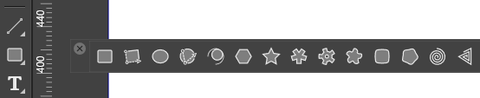
      0_1656509388824_Parametric Shapes.png
      .
      .
      I regulary use Clones in my tries. Find them easy to use
      for sketchy experiments. Other ways are, to use Symbols
      or Reference.
      .
      .
      .
      Preparations
      As a Fondation/Base for my tries i use the following.
      A Shape of course and this Settings:

      Choose a parametric Shape e.g. Polygon.

      Then set the Rotation Point out of the Center.
      I simply use the Transform Cages midpoint on the right.
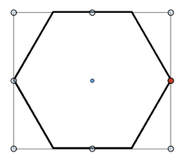
      0_1656509679584_Bildschirminhalt erfassen-1.png
      .
      Keep you Shape selected and go to:
      Menu > Transform > Rotation
      and set the Settings to this:

      Apply to: Clone
      Angle to: 60
      Repeate to: 5
      (this are 6 shapes with your original)
      you could also set Preview on
      .
      .
      Note:
      The Rotation Panel will keep this Settings
      until you change it. So you could easely
      try some other Shapes with the same Settings.

      Press the Ok-Button and you have a Result like this
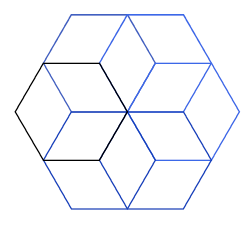
      0_1656510007303_Preparation.png

      Now select your Original Shape, on the left.
      Select the Shape Editor Tool and start to move some Points.

      For a way finer control i recommend to open the Shape Panel
      Panels > Shape Panel. Every parametric Shape has its own
      specific Settings in this Panel, so you could experiment a bit. 🙂

      To change the Values in this Panell use the UP- and DOWN-ARROWS
      Set your Cursor in the Field you like to change and press one of
      these Keys.
      .
      .
      Note:
      All of your Findings could be further refinded with the Trim,
      ShapeBuilder, ShapePaint Tool. Sometimes this Tools works better
      if you convert your result in Curves and or combine it before.
      All it takes then, is a slight bit of imagination. 🙂

      .
      .
      .
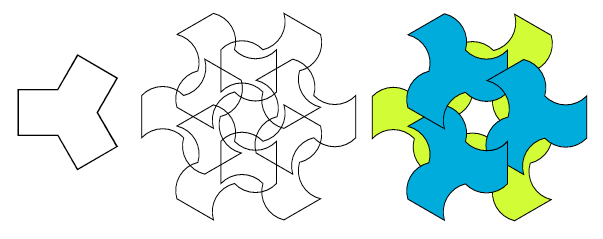
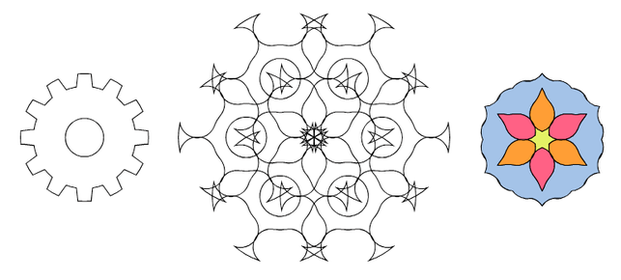
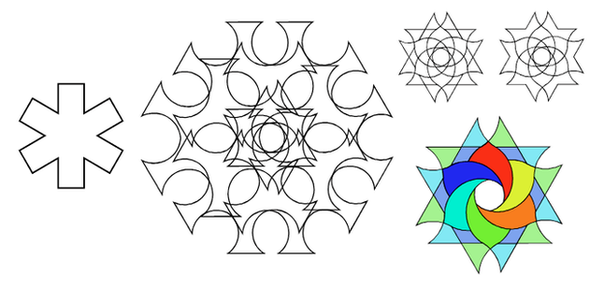
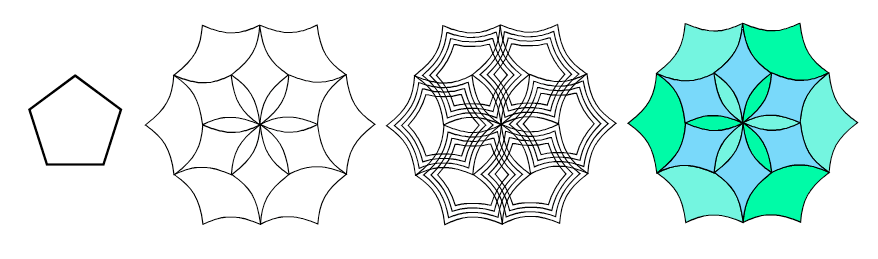
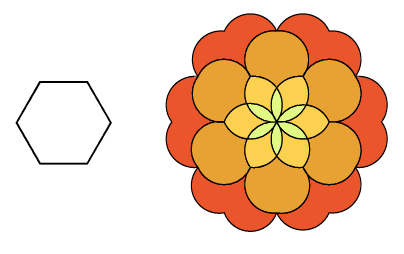
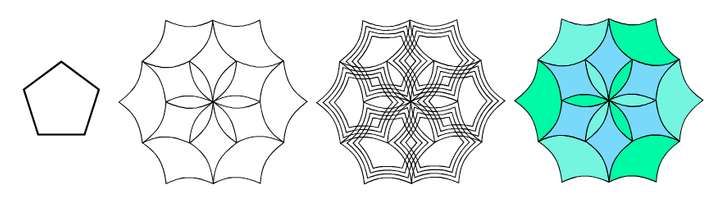
      Below some Results I found so far.
      To keep experimenting fun for you, only the original Shape
      and the Result will be shown.

      Thats all so far. Have fun experimenting.
      .
      .
      0_1656510217178_Pic-1.png
      .
      .
      .
      0_1656510238235_Pic-2.png
      .
      .
      .
      0_1656510262317_Pic 3.png
      .
      .
      .
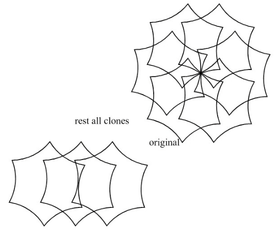
      The Shape Effect "Effects > Outline > Offset Path" could also be nice
      0_1656510275730_PIc 4.png
      .
      .
      .
      0_1656510462016_Pic 5.png

      Win 11
      CPU: AMD Ryzen 5 9600X, 6-core.
      GPU: Nvidia Geforce RTX 5070.

      ? 1 Reply Last reply Reply Quote 8
      • ? Offline
        A Former User @Subpath
        last edited by

        @Subpath Interesting mandalas, BTW. is there no symmetry in VectorStyler? Otherwise one has to change all the pieces to tweak it.

        S 1 Reply Last reply Reply Quote 1
        • S Offline
          Subpath @Guest
          last edited by Subpath

          @plrang

          Thank you
          yes, they look like a mandala
          because of rotational symmetry.
          But are still intended as a pattern

          ...Otherwise one has to change all the pieces to tweak it...

          Above in my post i wrote that I use Clones for this.
          If you look in Edit Menu you will find Duplicate, Reference or Clone for copying/duplicating of shapes/lines.
          Cloning would also be found under Object > Transform > Move, Scale, Skew .....

          A clone follows every editing step you made on the original.
          This way you can create any symmetry you want.
          So you don't have to worry about editing every piece 🙂

          Here a video example, reupload:

          0_1656517802182_Clones.png

          Win 11
          CPU: AMD Ryzen 5 9600X, 6-core.
          GPU: Nvidia Geforce RTX 5070.

          ? 1 Reply Last reply Reply Quote 1
          • ? Offline
            A Former User @Subpath
            last edited by

            @Subpath Oh OK, that's a lesson i needed. Certainly gonna try that.

            1 Reply Last reply Reply Quote 1
            • Devil DinosaurD Offline
              Devil Dinosaur
              last edited by

              Very interesting, thank you 🙂

              Fred.
              MacBook Pro (M1) - MacOs Sonoma 14

              1 Reply Last reply Reply Quote 1
              • S Offline
                Subpath
                last edited by Subpath

                @plrang

                you could also look at this Video here
                to see how to use Clones in VS.
                Is from my Tutorial:
                "Easy Tutorial - How to use a Letter for Pattern creation"

                Here the Video, re-upload:

                Win 11
                CPU: AMD Ryzen 5 9600X, 6-core.
                GPU: Nvidia Geforce RTX 5070.

                ? 1 Reply Last reply Reply Quote 1
                • ? Offline
                  A Former User @Subpath
                  last edited by

                  @Subpath Thanks, I know that technique, we were doing some funny things with that. Maybe gonna find something tomorrow.

                  S 1 Reply Last reply Reply Quote 1
                  • S Offline
                    Subpath @Guest
                    last edited by

                    @plrang

                    yes i think this technique quite well known.

                    One of the reasons why I made this video
                    was to draw a little attention to the possibilities
                    of Transformation > Move e.g in VS.

                    Win 11
                    CPU: AMD Ryzen 5 9600X, 6-core.
                    GPU: Nvidia Geforce RTX 5070.

                    B 1 Reply Last reply Reply Quote 0
                    • B Offline
                      B-Vs-V @Subpath
                      last edited by B-Vs-V

                      @Subpath Nice and interesting 👍

                      W11 Pro 25H2 - 12th Gen Intel(R) i7-12700K 3.61 GHz - RAM 64 Go - NVIDIA GF GTX 4070 Ti - Intuos - Dell UP3216Q / Eizo ColorEdge
                      W11 Pro 25H2 - 12th Gen Intel(R) i7-12700KF 3.60 GHz -RAM 64 Go - NVIDIA GF GTX 3080 - IntuosPro- ProArt PA329C

                      1 Reply Last reply Reply Quote 1
                      • First post
                        Last post