VectorStyler
    • Categories
    • Unread
    • Recent
    • Tags
    • Popular
    • Register
    • Login

    Converting a tutorial from Illustrator (Blend Function) to VectorStyler

    Scheduled Pinned Locked Moved Questions and Support
    12 Posts 4 Posters 15.8k Views 4 Watching
    Loading More Posts
    • Oldest to Newest
    • Newest to Oldest
    • Most Votes
    Reply
    • Reply as topic
    Log in to reply
    This topic has been deleted. Only users with topic management privileges can see it.
    • F Offline
      fewerjunk
      last edited by fewerjunk

      Youtube Tutorial:

      Design Abstract Knot: (about 1:15 in)

      https://www.youtube.com/watch?v=ZJEW96YH6PQ

      Here's what I've got so far, using Shape Builder and Break Apart (Stuck at this point.)

      0_1670308384541_Abstract_Knot_Illus_Vctr2b_Ink_SVG.svg

      VectorStylerV 1 Reply Last reply Reply Quote 0
      • VectorStylerV Offline
        VectorStyler @fewerjunk
        last edited by

        @fewerjunk The "Cut path at anchor point" of AI is the "Separate the selected shape..." from the context panel:
        0_1670309855089_separate.png

        But after separating the two nodes, you will need a "Object -> Break Apart" to be able to delete the inner arc.

        F 1 Reply Last reply Reply Quote 0
        • F Offline
          fewerjunk @VectorStyler
          last edited by

          @VectorStyler

          Ok, I've quite clearly got the two parts separated here and I can't get "Blend" to work as shown here:

          https://www.vectorstyler.com/documentation/blending/blendtool/

          My file: (As best I can figure, divided into two, separately clickable parts)

          0_1670325309882_Abstract_Knot_Illus_Vctr.vstyler

          Blend (Here at about 1:20)

          https://www.youtube.com/watch?v=ZJEW96YH6PQ

          VectorStylerV 1 Reply Last reply Reply Quote 0
          • VectorStylerV Offline
            VectorStyler @fewerjunk
            last edited by

            @fewerjunk It seems that these two paths are inside some groups.
            First ungroup all, then select one of the paths and select Object -> Shape -> Reverse Path Direction to have both paths the same direction.

            Then blend will give what is needed.

            B 1 Reply Last reply Reply Quote 0
            • B Offline
              B-Vs-V @VectorStyler
              last edited by B-Vs-V

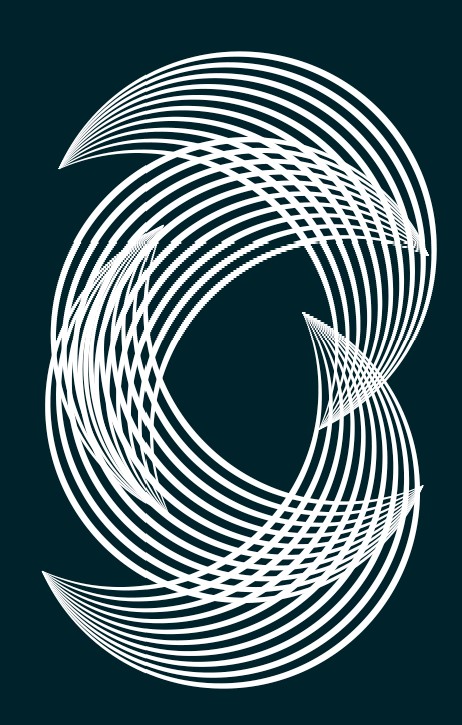
              @VectorStyler Interesting shape. I can get this easily now that I dealt with blending:

              0_1670343810539_WIG.jpg

              but I can't get the final shape with the transform tool... I don't see how ? It can be of use but not what is expected.
              0_1670343876797_WIG'.jpg

              W11 Pro 25H2 - 12th Gen Intel(R) i7-12700K 3.61 GHz - RAM 64 Go - NVIDIA GF GTX 4070 Ti - Intuos - Dell UP3216Q / Eizo ColorEdge
              W11 Pro 25H2 - 12th Gen Intel(R) i7-12700KF 3.60 GHz -RAM 64 Go - NVIDIA GF GTX 3080 - IntuosPro- ProArt PA329C

              VectorStylerV 1 Reply Last reply Reply Quote 0
              • VectorStylerV Offline
                VectorStyler @B-Vs-V
                last edited by

                @Pat The movement in the transform view has different implementation in VS and AI, so this will give different results.

                I will try to improve this.

                B 1 Reply Last reply Reply Quote 0
                • B Offline
                  B-Vs-V @VectorStyler
                  last edited by

                  @VectorStyler I like the way VS handles objects transformation & maybe implementing an option to get the same transform than AI ?

                  W11 Pro 25H2 - 12th Gen Intel(R) i7-12700K 3.61 GHz - RAM 64 Go - NVIDIA GF GTX 4070 Ti - Intuos - Dell UP3216Q / Eizo ColorEdge
                  W11 Pro 25H2 - 12th Gen Intel(R) i7-12700KF 3.60 GHz -RAM 64 Go - NVIDIA GF GTX 3080 - IntuosPro- ProArt PA329C

                  VectorStylerV 1 Reply Last reply Reply Quote 1
                  • VectorStylerV Offline
                    VectorStyler @B-Vs-V
                    last edited by

                    @Pat I think the only issue here is how the movement is handled, and it should be easy to fix.

                    1 Reply Last reply Reply Quote 0
                    • S Offline
                      Subpath
                      last edited by Subpath

                      @fewerjunk, @Pat

                      in case you dont know

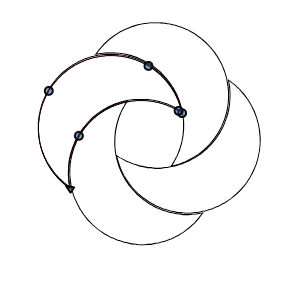
                      there is a way to arrange your shapes in realtime

                      i use clones for that

                      please note:
                      this works only if you select all Nodes
                      of the original Object (the clones will follow then)

                      Here a Video how i made it:
                      live moving a orginal Object and so the clones
                      0_1670348681271_Logo.png

                      Win 11
                      CPU: AMD Ryzen 5 9600X, 6-core.
                      GPU: Nvidia Geforce RTX 5070.

                      B 1 Reply Last reply Reply Quote 3
                      • B Offline
                        B-Vs-V @Subpath
                        last edited by

                        @Subpath excellent... still many features to learn ☺

                        W11 Pro 25H2 - 12th Gen Intel(R) i7-12700K 3.61 GHz - RAM 64 Go - NVIDIA GF GTX 4070 Ti - Intuos - Dell UP3216Q / Eizo ColorEdge
                        W11 Pro 25H2 - 12th Gen Intel(R) i7-12700KF 3.60 GHz -RAM 64 Go - NVIDIA GF GTX 3080 - IntuosPro- ProArt PA329C

                        S 1 Reply Last reply Reply Quote 1
                        • S Offline
                          Subpath @B-Vs-V
                          last edited by Subpath

                          @Pat, @fewerjunk

                          forgot one thing
                          about the Tranform Panel i used in the Video

                          you could change Values in that Transform Panel
                          via Up and Down Key and via the Scroll wheel

                          Win 11
                          CPU: AMD Ryzen 5 9600X, 6-core.
                          GPU: Nvidia Geforce RTX 5070.

                          F 1 Reply Last reply Reply Quote 1
                          • F Offline
                            fewerjunk @Subpath
                            last edited by

                            I got this, by grouping the finished blend which made it easier to rotate (from the center I think vs from an edge). Quite a bit of tinkering. Not a bad result.

                            Thanks for the help.

                            0_1670487017668_Abstract_Knot_Illus_Vctr_FINAL.vstyler

                            1 Reply Last reply Reply Quote 2
                            • First post
                              Last post