Create a new artboard using the format of the selected artboard
-
In Windows 11, using either VS 1.1.117 or 1.2.008, Beta.
- select the Artboard Editor tool from the Toolbox and click on your artboard.
- Size it deliberately different than your starting artboard.
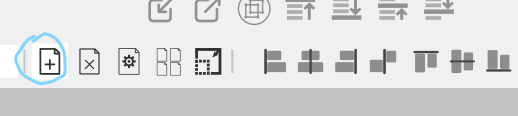
- With the artboard still selected, in the Context Menu at the top, click on the icon with the tooltip, "Create a new artboard using the format of the selected artboard, circled below in blue:
-
Outcome: The new artboard is the size of the starting artboard.
-
Expected Outcome: The new artboard should be the same size of the newly sized and still selected artboard.
-
Extra Info: If you change the artboard size in the Document Setup window, the button will use that size, not the selected artboard size.
