VectorStyler
    • Categories
    • Unread
    • Recent
    • Tags
    • Popular
    • Register
    • Login

    Trim between two nodes

    Scheduled Pinned Locked Moved Questions and Support
    24 Posts 6 Posters 35.9k Views 5 Watching
    Loading More Posts
    • Oldest to Newest
    • Newest to Oldest
    • Most Votes
    Reply
    • Reply as topic
    Log in to reply
    This topic has been deleted. Only users with topic management privileges can see it.
    • IgullI Offline
      Igull
      last edited by

      Using the shape editor tool (A), is there a way to simply remove the line between two nodes ?
      In AI, you simply click the line with the direct selection tool (A) and hit delete - it deletes the line between the two nodes.
      There's probably a specialist tool in VS, but keeping a toolset to the absolute minimum is always my preference - bit like using the handy screwdriver to open the paint tin rather trying to find the correct tool - an old spoon handle πŸ™‚

      Neil

      iMac 27" 2015 Catalina 32Gb, MacBook Pro 13" 2016 Monterey 8Gb, Mac Mini M2 2023 8Gb

      b77B VectorStylerV S 3 Replies Last reply Reply Quote 0
      • b77B Offline
        b77 @Igull
        last edited by b77

        @Igull If you select a node and hit Option-Backspace, both segments connected to it will be deleted.

        So instead of click to select the segment like in AI, double-click to add a node to that segment then hit Option-Backspace.

        MacBook Pro (Intel) running Monterey 12.6.4

        1 Reply Last reply Reply Quote 2
        • VectorStylerV Offline
          VectorStyler @Igull
          last edited by

          @Igull One way to delete a single segment is to separate the path at one of the nodes, and then delete the node.

          IgullI 1 Reply Last reply Reply Quote 0
          • S Offline
            Subpath @Igull
            last edited by Subpath

            @Igull

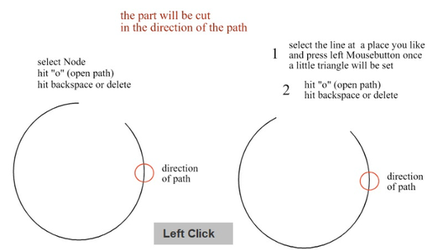
            I think the Command "Open Shape" Shortcut "o"
            could also be useful
            (you found it in Right Click MenΓΌ of the shape editor tool
            i you have select a Curve)
            .
            Edited:
            Forgot to mention is only useful in the case of a closed Shape
            and not on already open paths
            ("Break Shape" is helpful in this case, see my post below)
            .
            .
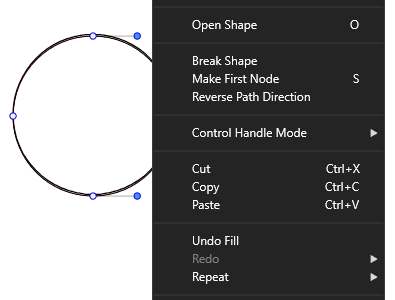
            0_1658829514199_Open shape.png
            .
            .
            See Video here how it works:
            .
            0_1658829741992_open-shape-2.png

            Win 11
            CPU: AMD Ryzen 5 9600X, 6-core.
            GPU: Nvidia Geforce RTX 5070.

            1 Reply Last reply Reply Quote 0
            • S Offline
              Subpath
              last edited by

              In the case of a already open path
              "Break Shape" could be useful.
              (select a open Path with Shape Editor tool and look
              at the Right Click MenΓΌ)
              hat no Shortcut yet, but you could set one

              select a node then "Break Shape" hit Backspace or Delete

              you could also set that Triangle like in the Video above
              and "Break Apart" and hit Backspace or Delete

              Win 11
              CPU: AMD Ryzen 5 9600X, 6-core.
              GPU: Nvidia Geforce RTX 5070.

              1 Reply Last reply Reply Quote 0
              • IgullI Offline
                Igull
                last edited by

                @b77 @vectorstyler @Subpath

                Thanks for all the suggestions !

                TBH, they all seem a bit long-winded to simply delete a segment πŸ™‚
                I think the double-click then option+backspace is about the tidiest for now πŸ™‚
                Having to add a node to a segment to then delete it along with the now two segments is rather unintuitive ?

                I'm wondering if adding a simple click with the mouse then hit backspace is a possible implementation that could be added - it seems far more natural - select and delete ?
                If so, I can add it to the suggestions box πŸ™‚

                Again, thanks for the help.

                Neil

                iMac 27" 2015 Catalina 32Gb, MacBook Pro 13" 2016 Monterey 8Gb, Mac Mini M2 2023 8Gb

                S 1 Reply Last reply Reply Quote 1
                • S Offline
                  Subpath @Igull
                  last edited by Subpath

                  @Igull

                  I am wondering in this case too.
                  moreover, that the Path part can quasi be marked with that Triangle

                  maybe @VectorStyler VS sees this too and has mercy with us πŸ™‚

                  Win 11
                  CPU: AMD Ryzen 5 9600X, 6-core.
                  GPU: Nvidia Geforce RTX 5070.

                  1 Reply Last reply Reply Quote 0
                  • IgullI Offline
                    Igull
                    last edited by

                    I've just been trawling through the path commands to see if anything else was available for this and noticed two commands - one of which may not function as originally intended ...

                    In the help file, the command is 0_1658835894829_Screenshot 2022-07-26 at 12.43.16.png

                    Remove the selected nodes from the edited path - the tooltip for this in VS is Delete the selected objects or shape nodes (backspace).

                    Now, using the shape editor tool, if you click on a segment of a path, the small triangle appears as normal, but if you hit delete, it deletes the complete path. The complete path is not fully selected at this point - just the segment.

                    In the help file, the command is 0_1658835951184_Screenshot 2022-07-26 at 12.43.24.png - Create new nodes at the selected inner location of a segment, or at the middle of the segment following the selected node the tooltip for this is Insert a new node into the shape segment at the selected location (+).

                    What would make sense (to me at least πŸ™‚ ) would be that these two complementary tools are used to simply insert and remove nodes ? The addition of Delete the selected objects would imply that along with any selected nodes, the selected segment object was to be deleted or if the whole object were selected, then that should be deleted ?

                    It would seem to me that this was the original intended function of this and would solve the issue (nearly πŸ™‚ ) as when selecting a node, you have the options of the backspace key or using this tool - both of which perform the same function ?

                    Neil

                    iMac 27" 2015 Catalina 32Gb, MacBook Pro 13" 2016 Monterey 8Gb, Mac Mini M2 2023 8Gb

                    b77B 1 Reply Last reply Reply Quote 0
                    • b77B Offline
                      b77 @Igull
                      last edited by b77

                      @Igull The first tool (the one with a βŠ–) should delete any selected nodes.

                      There is no way to click a segment to select it.
                      Not sure a single click could mark a possible node location (as it currently does) AND also select that segment without confusing users?

                      The second tool (the one with a βŠ•) does the same thing a double-click on the path does β€” it adds a node to that segment.

                      @VectorStyler If no nodes are selected, I don't think clicking the βŠ– node button should delete the entire path instead.

                      Double-clicking the path to add a node and hitting Option-delete is the fastest method to do what you asked initially.

                      MacBook Pro (Intel) running Monterey 12.6.4

                      IgullI 1 Reply Last reply Reply Quote 0
                      • IgullI Offline
                        Igull @b77
                        last edited by

                        @b77 said in Trim between two nodes:

                        There is no way to click a segment to select it.
                        Not sure a single click could mark a possible node location (as it currently does) AND also select that segment without confusing users?

                        Using the Shape Editor tool, if you single click a segment, it leaves a stationary indicator "arrow" at that point, so VS must know that it is a segment as it has just marked it with the arrow ?
                        All VS needs to do is NOT delete the whole path when backspace is hit, but only the segment - problem solved πŸ™‚

                        Selecting a node and hitting backspace/delete whatever would still remain and not confusing at all. You would also still be able to double click to produce a node.
                        Further, VS allows you to drag that segment to produce a curve (GREAT feature BTW !!!) - so it definitely knows it's a segment.

                        In essence the only thing that needs to change is to not delete the whole path but only the segment (as I suspect the original intention was πŸ™‚ )

                        Neil

                        iMac 27" 2015 Catalina 32Gb, MacBook Pro 13" 2016 Monterey 8Gb, Mac Mini M2 2023 8Gb

                        b77B 1 Reply Last reply Reply Quote 1
                        • b77B Offline
                          b77 @Igull
                          last edited by b77

                          @Igull I agree that the ⊳ node marking can work for what it now does (show the place where if you click the [+] key it will add a node) and also "mark" the clicked segment for deletion.

                          It's just that I thought highlighting the segment somehow would have been better.

                          But I can't think of an elegant way to highlight the segment without making things look more busy than they already are when in node editing (with so many nodes and BΓ©zier handles).

                          MacBook Pro (Intel) running Monterey 12.6.4

                          IgullI S 2 Replies Last reply Reply Quote 0
                          • IgullI Offline
                            Igull @b77
                            last edited by

                            @b77 said in Trim between two nodes:

                            It's just that I thought highlighting the segment somehow would have been better.
                            But I can't think of an elegant way to highlight the segment without making things look more busy than they already are when in node editing (with so many nodes and BΓ©zier handles).

                            TBH, I just checked AI - it highlights the whole path (not wonderful really !) So, your idea of placing an X or as is, an arrow/triangle will work just fine I think ?
                            That way, everything will remain the same for mode editing etc.

                            Neil

                            iMac 27" 2015 Catalina 32Gb, MacBook Pro 13" 2016 Monterey 8Gb, Mac Mini M2 2023 8Gb

                            1 Reply Last reply Reply Quote 0
                            • S Offline
                              Subpath @b77
                              last edited by Subpath

                              @b77

                              well for me where also enough to set that Triangle

                              could highlight that segment in complementary color be a way ?

                              Win 11
                              CPU: AMD Ryzen 5 9600X, 6-core.
                              GPU: Nvidia Geforce RTX 5070.

                              IgullI 1 Reply Last reply Reply Quote 0
                              • IgullI Offline
                                Igull @Subpath
                                last edited by

                                @Subpath said in Trim between two nodes:

                                could highlight that segment in complementary color a way ?

                                TBH, that would be nice, but adds icing on the cake πŸ™‚ I'd be happy with leaving the triangle - knowing that I was about to hit delete and remove it all anyway πŸ™‚

                                Neil

                                iMac 27" 2015 Catalina 32Gb, MacBook Pro 13" 2016 Monterey 8Gb, Mac Mini M2 2023 8Gb

                                S 1 Reply Last reply Reply Quote 1
                                • S Offline
                                  Subpath @Igull
                                  last edited by Subpath

                                  @Igull

                                  you right, extended my post above
                                  to set that triangle alone would fit it for me

                                  Win 11
                                  CPU: AMD Ryzen 5 9600X, 6-core.
                                  GPU: Nvidia Geforce RTX 5070.

                                  b77B 1 Reply Last reply Reply Quote 0
                                  • b77B Offline
                                    b77 @Subpath
                                    last edited by

                                    @Subpath and @Igull
                                    It's OK with me to use just the triangle mark for both node placement and segment highlight.

                                    MacBook Pro (Intel) running Monterey 12.6.4

                                    1 Reply Last reply Reply Quote 1
                                    • IgullI Offline
                                      Igull @VectorStyler
                                      last edited by

                                      @VectorStyler

                                      Is it possible to implement this feature, using the shape editor tool, click a segment and hit backspace/delete to delete that segment rather than delete the whole object ?

                                      TIA

                                      Neil

                                      iMac 27" 2015 Catalina 32Gb, MacBook Pro 13" 2016 Monterey 8Gb, Mac Mini M2 2023 8Gb

                                      VectorStylerV 1 Reply Last reply Reply Quote 0
                                      • VectorStylerV Offline
                                        VectorStyler @Igull
                                        last edited by

                                        @Igull said in Trim between two nodes:

                                        Is it possible to implement this feature, using the shape editor tool, click a segment and hit backspace/delete to delete that segment rather than delete the whole object

                                        It is in the backlog.

                                        IgullI J BoldlineB 3 Replies Last reply Reply Quote 0
                                        • IgullI Offline
                                          Igull @VectorStyler
                                          last edited by

                                          @VectorStyler said in Trim between two nodes:

                                          @Igull said in Trim between two nodes:

                                          Is it possible to implement this feature, using the shape editor tool, click a segment and hit backspace/delete to delete that segment rather than delete the whole object

                                          It is in the backlog.

                                          πŸ‘ πŸ‘

                                          Neil

                                          iMac 27" 2015 Catalina 32Gb, MacBook Pro 13" 2016 Monterey 8Gb, Mac Mini M2 2023 8Gb

                                          1 Reply Last reply Reply Quote 0
                                          • J Offline
                                            Jayanta Das @VectorStyler
                                            last edited by Jayanta Das

                                            @VectorStyler I was searching for the easiest way to delete segment and found this thread. There is a simple way to delete segment in AD with node tool holding CTRL and click will delete the segment.
                                            Example in AD

                                            Mac Mini M4 Pro | 24Gb
                                            WIndows 11 | Intel i5 11Gen
                                            Wacom Intuos Pro

                                            VectorStylerV BoldlineB 2 Replies Last reply Reply Quote 1
                                            • First post
                                              Last post