Export Size not showing up consistently/accurately
-
I have a document set to 144 DPI in points (to output PNGs at 2px per pt).
There's 2 problems I'm seeing...
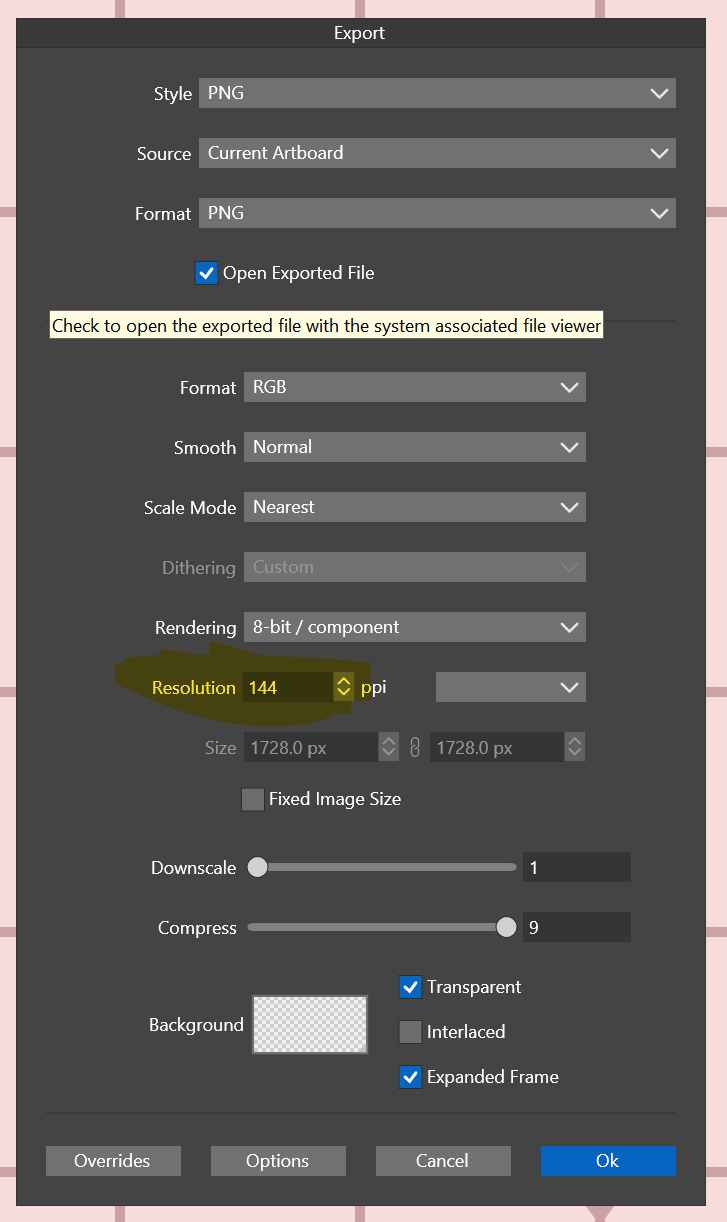
In the File > Export screen, DPI is not automatically set to the document. I don't know if this field intends to mirror the document resolution or not, but this is what I mean:
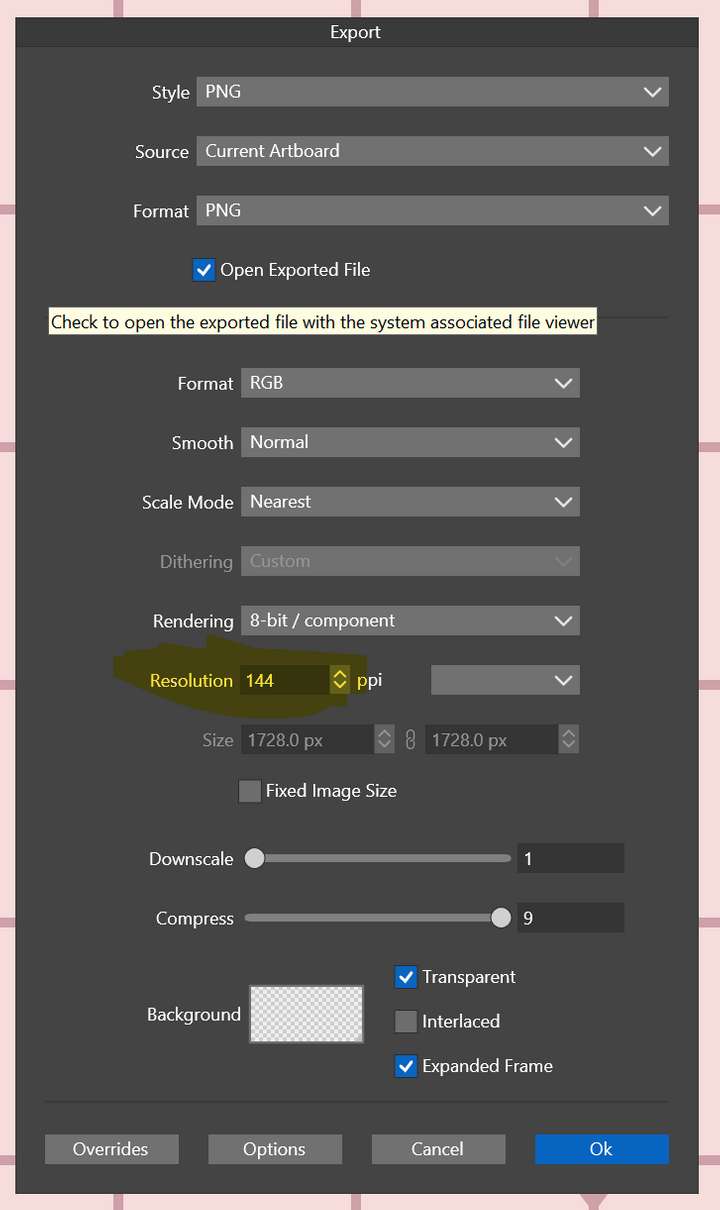
- Also, the Size fields themselves are not accurate according to what they actually output. However, after each export, they "update" to mirror the actual pixel size that was exported prior.
Included is a video of the behavior and the test documents here:
https://1drv.ms/f/s!AuWHX0h5bAoRifpUIT7TjWgRL274uQ?e=ULoBvWAnother issue: At @1:00, you'll notice I go to input "72" and when I click outside the field I cannot click "OK". It cannot "leave" that field easily. It looks like I dragged the window to get focus again so I could actually hit OK.
I will add: On my machine, dragging many fields in the application to highlight often causes those fields to increment/de-increment by decimals at high speed making erasing and reentering or even minor adjustments to values difficult. Sometimes trying to escape this behavior, I managed to input alpha characters which caused a crash, but I've had a hard time reproducing this reliably. Because it's unpredictable behavior, I'm slowly capturing the behavior more clearly so I can report it in full, but thought I would write about it here since some there is also issues related to this with focusing/de-focusing as evidenced in this video... it's especially troublesome on the New Document screen because highlighting the fields to input manual values leads to scrolling behavior as far as input and interfering with my ability to highlight.
-
@debraspicher I added this to the backlog. The export resolution field is independent of that set in the document, but it could mirror it by default.
-
@VectorStyler It's fine to set that field to mirror a default, but optionally, it could be empty/deactivated until actually needed. Perhaps prefill with the document resolution or a sticky value (ex: "last used"), etc.
A benefit of the field being deactivated without user input is that it would be more user friendly to add additional "hard coded" values such as 96, 144, etc, to the dropdown instead of "Low, Medium, High". This is an aid for people working with web/screen graphics or needing it for other requirements. Since the activation of the field is "not required" to export, then having those extra options available is an added convenience rather than a nuisance since they are both not having to write out a common unlisted value each time and they don't have to use the drop down at all if they've set it in document.
Where odd-ball DPI/PPIs are used (app design, iconography... maybe?...), perhaps then a "last used" sticky value could be remembered in that field, but I personally almost never run into that situation. If I did, I'd just set the document up differently.
The only other thing I might add is if the field is deactivated by default, be sure to print the PPI value in that area so that the user sees what is actually intended for export. So if the user goes to File>Export, it should say the PPI will be whatever the document was set to... and then optionally below that, the field and the drop downs to change that.
I always thought of that area as an optional setting since we've already set the PPI once when setting up the document. There's not many cases I would need to "set it again" unless I were exporting to a different resolution.
I hope that was clear.

