Gradient Editor
-
no problem here, i just double clicking on a Gradient Stop
and the Color Panel appearsto set a gradient stop just double click below the Field
were the Gradient is shownto change values in the Fields place the Cursor in the Field
and change it with the Scroll wheel or use the Cursor Keys
up and down +1 with holding the shift key +10the opacitiy field wasnt working at my second try
i restarted VS but it still doesnt workyou find an alternative way creating Gradients in this Tutorial here
https://www.vectorstyler.com/forum/topic/2003/playing-with-outline-path-shape-effect/7
(scroll a bit down)Win 11
CPU: AMD Ryzen 5 9600X, 6-core.
GPU: Nvidia Geforce RTX 5070. -
In the recording, there seems to be some problems with the double clicks. Are these clicks with the mouse or the tablet?
-
The color selector popup opens with a double click on the gradient knob. Also, when a gradient knob is selected, the (regular) color panel, or palette panel will select colors for that knob.
-
Yes, the truncation can be replicate here. I will try to find a fix for this.
-
The gradient editor line (on the canvas) moved because the rotation angle was changed. The line is displayed using the (axial) gradient positions, and these can change based on the rotation.
-
Scale has no meaning for axial gradients.
-
The opacity value is for the selected gradient knob. Overall opacity of the whole object can be set in the Transparency panel (but deselect the knob first).
-
If a numeric field is not fully highlighted, click to activate (shows the cursor) and ctrl+a should select all.
But it should select the whole text when clicking the field the first time (will deselect on the second click).
-
-
@Subpath said in Gradient Editor:
no problem here, i just double clicking on a Gradient Stop
and the Color Panel appearsI believe you lol. I tried both and it was popping up for the double clicks but then disappearing. Which made me think "Should I single click?"... In the video, I was trying both methods and just showing that "Look, nothing happens".
to set a gradient stop just double click below the Field
were the Gradient is shownto change values in the Fields place the Cursor in the Field
and change it with the Scroll wheel or use the Cursor Keys
up and down +1 with holding the shift key +10the opacitiy field wasnt working at my second try
i restarted VS but it still doesnt workI didn't have issues with that field, thankfully. The scrolling behavior I use well enough from Affinity and I rely on that when I can. That said, field input problems seem sporadic.
you find an alternative way creating Gradients in this Tutorial here
https://www.vectorstyler.com/forum/topic/2003/playing-with-outline-path-shape-effect/7
(scroll a bit down)Thanks for this! I will look into it when I'm less overwhelming trying to make simple things work on what appears to be quite a buggy interface on my end
@VectorStyler said in Gradient Editor:
In the recording, there seems to be some problems with the double clicks. Are these clicks with the mouse or the tablet?
No table usage in this video. To show when pen is/isn't used, I've included a crop of the Wacom Diagnostic panel (Windows PowerToys allows this). If it says "Proximity: Out" and no device showing, it means the pen is not hovering over the tablet or being used. Otherwise it'll show everything being read with the pen, including pressure data. I have 2 I use since one reads barrel rotation and both have a different pressure curve so I alternate.
- The color selector popup opens with a double click on the gradient knob. Also, when a gradient knob is selected, the (regular) color panel, or palette panel will select colors for that knob.
Yes, @Subpath clarified this for me. I used both single clicks and double clicks for this and it was triggering the panel very sporadically for double clicks but instantly disappearing. Again, it left the impression I needed to single click as I might've been clicking it away when opened. It was a low success rate to get the fly out panel to stay open at all.
- Yes, the truncation can be replicate here. I will try to find a fix for this.
Good to know it's not just my setup.
- The gradient editor line (on the canvas) moved because the rotation angle was changed. The line is displayed using the (axial) gradient positions, and these can change based on the rotation.
Good to know what is normal, so I appreciate this.
- Scale has no meaning for axial gradients.
Yeah, I was trying to adjust the opacity field and clicked that by accident.
- The opacity value is for the selected gradient knob. Overall opacity of the whole object can be set in the Transparency panel (but deselect the knob first).
I'm aware of that. I am just surprised that it goes to background instead of to the fill color set for the Object. But that just may be, again, myself misunderstanding how this particular Gradient tool is applied. Looking back I can see it overrides the Fill.
My own preference is the Fill Color is maintained so when transparency is involved, we are essentially working on top of some sort of matte color. That way we do not have to have duplicates to simulate this. But it's not that big of a deal and there may already be that functionality, I just haven't learned it yet.
- If a numeric field is not fully highlighted, click to activate (shows the cursor) and ctrl+a should select all.
But it should select the whole text when clicking the field the first time (will deselect on the second click).
I cannot stress enough how frustrating it is to work with fields at times. The dragging behavior has not helped with that experience and it's something I wish I could disable. If I want to highlight a portion of an integer, sometimes it won't allow working with the caret easily since full activation occasionally glitches out and it's almost like clicks are being misread or delayed. Sometimes I can work an hour or so with little to no issue, but admittedly I'm avoiding excessive data entry wherever possible because of the issues I'm having. It doesn't appear to be tied to anything specific I am doing on the Canvas. Interacting with fields is not easily precise when the misbehavior occurs and hard to explain in clear detail or even capture on video because it's a user experience issue. There is frequently a delay in working with UI elements overall and is palpable wherever I work most of the time, so I suspect that could be helping to "play up" the issue or even impacting how clicks being read/misread. That's only a guess, though.
Thanks for taking the time to look into this.
Windows 11 Build 26200.7171 (25H2)
AMD Ryzen 7 9700X with Gigabyte X870E Aorus Pro Ice
32GB RAM @ 6000MHz
PNY NVIDIA RTX 5070 Ti 16GB; Display 1: 4K @150%; Display 2: 4K @150%
Wacom Intuos Pro L (2025); Wacom Intuos Pro M; Epson ET-8550; Siser Romeo -
@debraspicher I will try to replicate the double click issue.
-
@debraspicher About the number fields: when you click first time on a number field, is it highlighting the whole text?
-
@debraspicher said in Gradient Editor:
The dragging behavior has not helped with that experience and it's something I wish I could disable
I will make this optional.
-
The question of whether it's my fault or a bug in VectorStyler
is probably one of the questions that users have most often in
their minds. Which is not meant maliciously.It took me also a while to understand the operating concept and
I was actually able to cope with many vector graphics programs
before that. But over time, the confusion gradually cleared up.But despite all that, VectorStyler is my main vector graphics program
and I wouldn't want to be without it. -
I have also used many vector graphic programs, but the way VectorStyler operates is very suitable for me. I hardly need to consult the manual, and it feels like I have been using the program for a long time. Some of the concepts in it are just what I have always dreamed of.
-
Yes, some tools were easier to understand than others. I remember coming
from CorelDraw and not being able to figure out how to turn an artist brush into
a shape in VectorStyler.Here my very first post.
https://www.vectorstyler.com/forum/topic/844/new-user-i-stuck-with-a-simple-thing -
@VectorStyler Sometimes it misses those single clicks but can go for long runs without an issue. It's better since you made adjustments to the fields.
@Subpath said in Gradient Editor:
The question of whether it's my fault or a bug in VectorStyler
is probably one of the questions that users have most often in
their minds. Which is not meant maliciously.It took me also a while to understand the operating concept and
I was actually able to cope with many vector graphics programs
before that. But over time, the confusion gradually cleared up.But despite all that, VectorStyler is my main vector graphics program
and I wouldn't want to be without it.I'm tolerant to UX differences in programs if the implementation is predictable, so it's no problem for me that VS is different. For the most part I've adjusted fine and am adapting to the VS way of doing things just fine. In this case, it's a matter of the interface behaving fine at some points, misbehaving at others and stubbornly refusing to take input at others.
For example.. visibility and lock icons rarely register when I click on them in Layers panel. Sometimes I can use single-click to rename a Layer, but most of the time I can't do this properly. This means I have to pull up dialogs and sometimes those inputs can be finicky individually. It really depends on which input. So while the solution can be "more UI" and "add this preference item", I think when the UI is glitchy and isn't taking input and behaving as intended, that's the root cause of 90% of the issue. (by issue, I mean specifically "frustration")
It's not consistent behavior/misbehavior so it is hard to learn a "intended" workflow(s) if it keeps responding out of spec. Add to this, more confusion when I don't know what "in spec" even is as a new user, especially when trying to pick up new tools for the first time.
This video was a fantastic example of that experience and other oddities that can happen because of weird panel behavior. I didn't know whether "single" or "double" click was meant to get the Gradient color pop up or not, for example, because it wasn't appearing. I had thought maybe I even hit a modifier key or a shortcut that caused that and maybe I was just imagining that panel that appeared for a split second...
Other issues I'm having, some of which I've reported, but others I'm still trying to collect because there's so many little things. Ctrl + ; (show/hide) guides doesn't work. Keyboard shortcuts related to zoom, especially anything to do with canvas elements, don't take and it can take like 8-10 times before it finally does take. There's lots of little things like this, but I'm not trying to clutter the board and I'm also making sure that it's not just growing pains and yes, that field item or toggle totally ignored my mouse input (again).
I say this to say not that VS is "bad", but that my setup is clearly experiencing some issues with the interface above average. So much so, I'm debating nuking this copy of Windows and just starting over. Something I've been considering lately anyway because I was also debating an upgrade.
-
@debraspicher I will try to improve the number field handling.
-
I have another video with other possibly new bugs. A few issues (mostly in order):
-
I can't edit the node positioning, however occasionally it will drop random (new) positions.
-
At about @0:06 in the video I go to activate the second node to remove it and it both removes itself and creates a new swatch in the middle. This creates a Cyan swatch in the center. This is interesting because this swatch was used in the Sky Object above it and was one of the last swatches I worked with before moving to this Object. It could also be that I activated the Sky wrongly and then went to select the Ground object and it remembered this selection. It did let me delete that swatch, but I had a lot of trouble deleting others. Either way, I lost my original color scheme upon deleition, so I had to undo.
-
There is a point where I can haphazardly create other Cyan swatches in the middle portions of the Gradient, but I can't activate those to work with them.
-
The swatches themselves are difficult to find and click due to the percentage label overlapping them.
-
Note also, the percentage labels are appearing at strange locations and in some cases are delayed in following the mouse as I drag. (The red circle indicators when I'm clicking or dragging with the mouse). Sometimes when I click, the percentage label would be offset a bit, but it's harder to see in the video.
-
Periodically the cyan swatch likes to remake itself and apply itself to the center. The Cyan swatch is probably a leftover from working with the Sky object before this one, but why it would remember that swatch and try to apply it here, I'm not really sure. I could've selected the Sky Object right before starting this gradient and it may have been kept it from then.
Link: https://1drv.ms/v/s!AuWHX0h5bAoRipIZ-wPKfBK_8JiiuA?e=xLIrMt
Gradient is unusable in this particular state. But I might've figured out at least part of what was happening. It's possible when I am making single/double clicks to activate the color flyout, it is creating swatches underneath the 1st swatch rather than allowing me to access the swatch node to pull up the Color picker. This seems to be the case as when I try to edit the 1st swatch, I'll occasionally see a sliver of the color I'm working with in the picker instead of the true 1st swatch, like I intend:
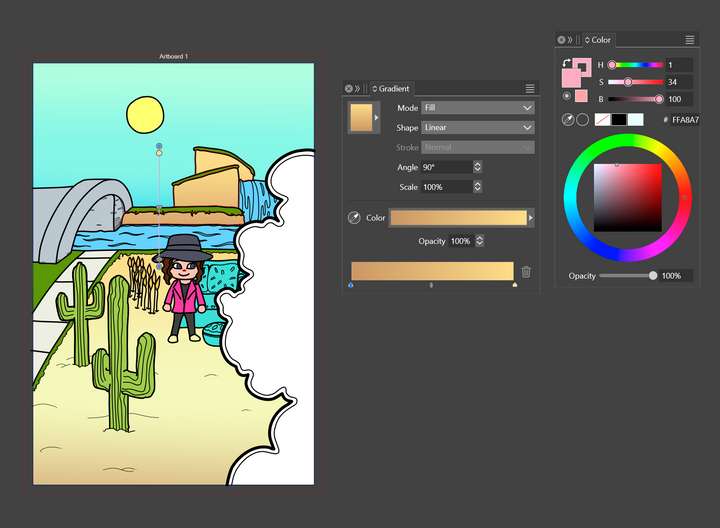
Closer up:
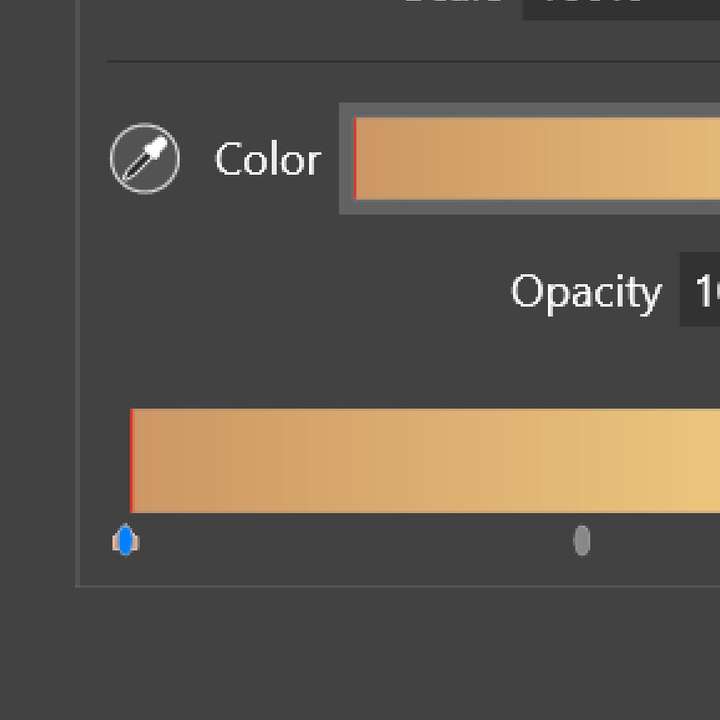
I considered maybe because I had the Transform Tool active instead of the Gradient editor, it was causing a problem, but it didn't seem to help. I did check the Gradient Editor at one point in the toolbar. This is just a video showing another unread click event on this machine (sometime after @0:22). Note the red circle showing click events and trying to hold to get it to appear. The Mesh one above works fine, but it takes a moment for the Gradient editor flyout to respond:
https://1drv.ms/v/s!AuWHX0h5bAoRipIa23R01mkHH-qlbw?e=Q5TcGz
It is possible to edit Gradients in this file as intended and even get the Color flyout to appear when working with the Gradient swatches, but it can't be when an Object is selected in this instance and it can't be an Object having any kind of issue if I want to recolor it using the [Color]Panel (not the flyout).
I made a recording of this kind of behavior. It shows I can't work with the original problem gradient. Even switching to Transform and deselecting Objects and going back to the Gradient Editor, that particular gradient is still non-responsive. So I select a new gradient from the Preset dropdown and work with it directly. It won't let me edit a swatch from the Color Panel, however the flyout now works so I can use that instead. As if that isn't crazy-making enough, I accidentally apply a new gradient to the original problem Object and hit Undo to restore the bad gradient. Now I can edit the original problem gradient just fine (it seems):
https://1drv.ms/v/s!AuWHX0h5bAoRipIbWl9CaJk7P9ejJA?e=Ihnmo1
I will send the file directly.
Windows 11 Build 26200.7171 (25H2)
AMD Ryzen 7 9700X with Gigabyte X870E Aorus Pro Ice
32GB RAM @ 6000MHz
PNY NVIDIA RTX 5070 Ti 16GB; Display 1: 4K @150%; Display 2: 4K @150%
Wacom Intuos Pro L (2025); Wacom Intuos Pro M; Epson ET-8550; Siser Romeo -
-
Posting to show that the "out of bound" swatch problem still occurs even if we can color things fine and move swatches freely across the rest of the gradient.
When I move the swatch to the very left border, I can't access it again and so I lose that swatch seemingly for good:
https://1drv.ms/v/s!AuWHX0h5bAoRipIcmjVjm6HmnNuNiw?e=2Dzk3P
Edit: I did discover it's possible to access these when using Gradient tool and zooming in and viewing the swatches on the Gradient editor line itself.
-
@debraspicher I opened a new bug on these issues. The problem is caused by that round (oval) transition knob between the gradient positions.
-
@VectorStyler Yeah I've been able to still work with it using the gradient line. Sometimes it "unmucks" the UI also and allows me to work with it through the Gradient Editor panel. But largely using the line now.
The only "problem" I have with using the line is that when I do use the color panel fly out, it's sometimes blocking elements so I can't see what it is actually doing. That's the only real downside.

