VectorStyler
    • Categories
    • Unread
    • Recent
    • Tags
    • Popular
    • Register
    • Login

    Non-destructiveness vs new (visible) reality

    Scheduled Pinned Locked Moved Questions and Support
    20 Posts 3 Posters 13.1k Views 3 Watching
    Loading More Posts
    • Oldest to Newest
    • Newest to Oldest
    • Most Votes
    Reply
    • Reply as topic
    Log in to reply
    This topic has been deleted. Only users with topic management privileges can see it.
    • AyoA Offline
      Ayo @VectorStyler
      last edited by

      @VectorStyler
      Thanks for your answer

      Even with "Direct Shape Transformation" checked the scaling factor 50% remains in the readout. For objects like shapes and lines the "reset" button works as a "flatten" solution for scaling and rotation etc. (cumbersome, you have to do this all the time and not forget). "Reset" for text however does not work. Scaling does go back to 100% but the point size remains 24 despite the fact that I now really have a 12 point size on my screen. I want to nail that a new reality!

      VectorStylerV 2 Replies Last reply Reply Quote 0
      • VectorStylerV Offline
        VectorStyler @Ayo
        last edited by

        @Ayo said in Non-destructiveness vs new (visible) reality:

        Even with "Direct Shape Transformation" checked the scaling factor 50% remains in the readout

        This depends on the shape type also, but in case of rectangles it should stay 100%:

        https://share.cleanshot.com/FB7zZ2dD

        1 Reply Last reply Reply Quote 0
        • VectorStylerV Offline
          VectorStyler @Ayo
          last edited by

          @Ayo This is what I get for text: https://share.cleanshot.com/dGSF9bmr

          1 Reply Last reply Reply Quote 0
          • AyoA Offline
            Ayo
            last edited by Ayo

            Yes ok... but

            Scaling rectangle
            That works manually but what if I want to enter the scaling factor numerically?

            Scaling text 1
            In a group (which is necessary for text frame scaling) this does not work. Get 50% readout

            Scaling text 2
            Works for point size as long as it stays in a group but what if I ungroup it again I get 24pt readout again

            VectorStylerV 1 Reply Last reply Reply Quote 1
            • VectorStylerV Offline
              VectorStyler @Ayo
              last edited by

              @Ayo said in Non-destructiveness vs new (visible) reality:

              Scaling rectangle
              That works manually but what if I want to enter the scaling factor numerically?

              yes, this will create a non-destructive scaling, which allows for the editing of the scaling factor.

              Scaling text 1
              In a group (which is necessary for text frame scaling) this does not work. Get 50% readout

              I will test with text frames more.

              Scaling text 2
              Works for point size as long as it stays in a group but what if I ungroup it again I get 24pt readout again

              I will also test this.

              AyoA 1 Reply Last reply Reply Quote 1
              • AyoA Offline
                Ayo @VectorStyler
                last edited by

                @VectorStyler
                Thanks for the answers but not a solution for me yet. In summary the feature request remains very simple.
                A global setting/option toggle, for both manual and numerical editing, that asks:

                Transformations: destructive or non-destructive.
                Non-destructive > keep the initial original spec values
                Destructive > gives new spec values ​​after transformation

                Although the feature request is very simple in words, I guess that realisation is very difficult because it looks like VS is built entirely around the non-destructiveness concept.

                VectorStylerV 1 Reply Last reply Reply Quote 1
                • VectorStylerV Offline
                  VectorStyler @Ayo
                  last edited by

                  @Ayo said in Non-destructiveness vs new (visible) reality:

                  Destructive > gives new spec values ​​after transformation

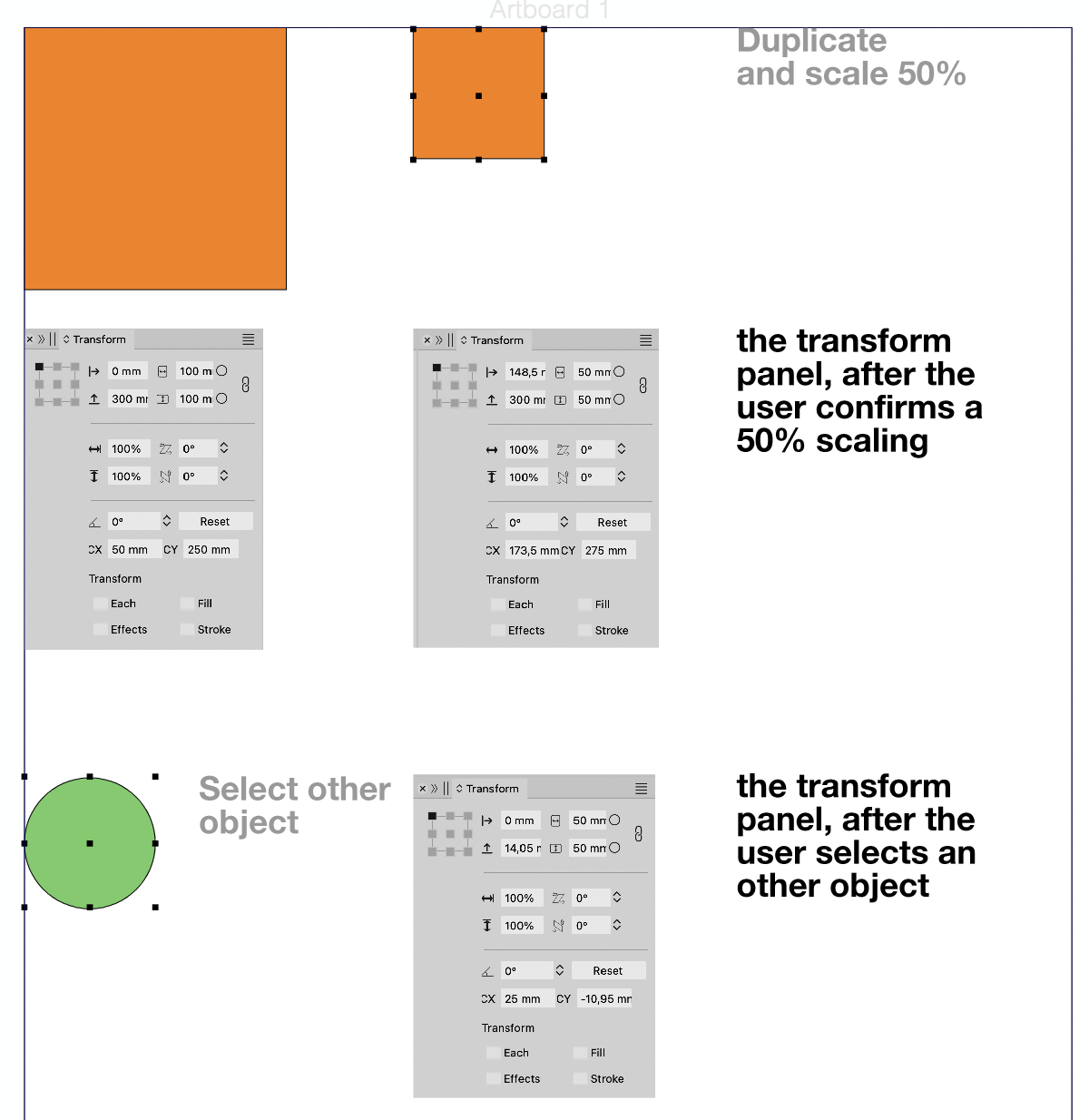
                  Question: what will be shown in the transform panel, after the user confirms a 50% scaling?
                  And what is shown after the user selects an other object?

                  AyoA 1 Reply Last reply Reply Quote 0
                  • AyoA Offline
                    Ayo @VectorStyler
                    last edited by

                    @VectorStyler

                    This...
                    0_1741182125992_73bc4350-24a2-4937-83f4-4b91434a7d07-image.png

                    1 Reply Last reply Reply Quote 1
                    • AyoA Offline
                      Ayo @Ayo
                      last edited by

                      @Ayo said in Non-destructiveness vs new (visible) reality:

                      Is there, or is it possible to create a global option that shows scaled/transformed objects and text after transformation the new (visible) specifications?

                      Another example I've come across that may illustrate my problem well ...
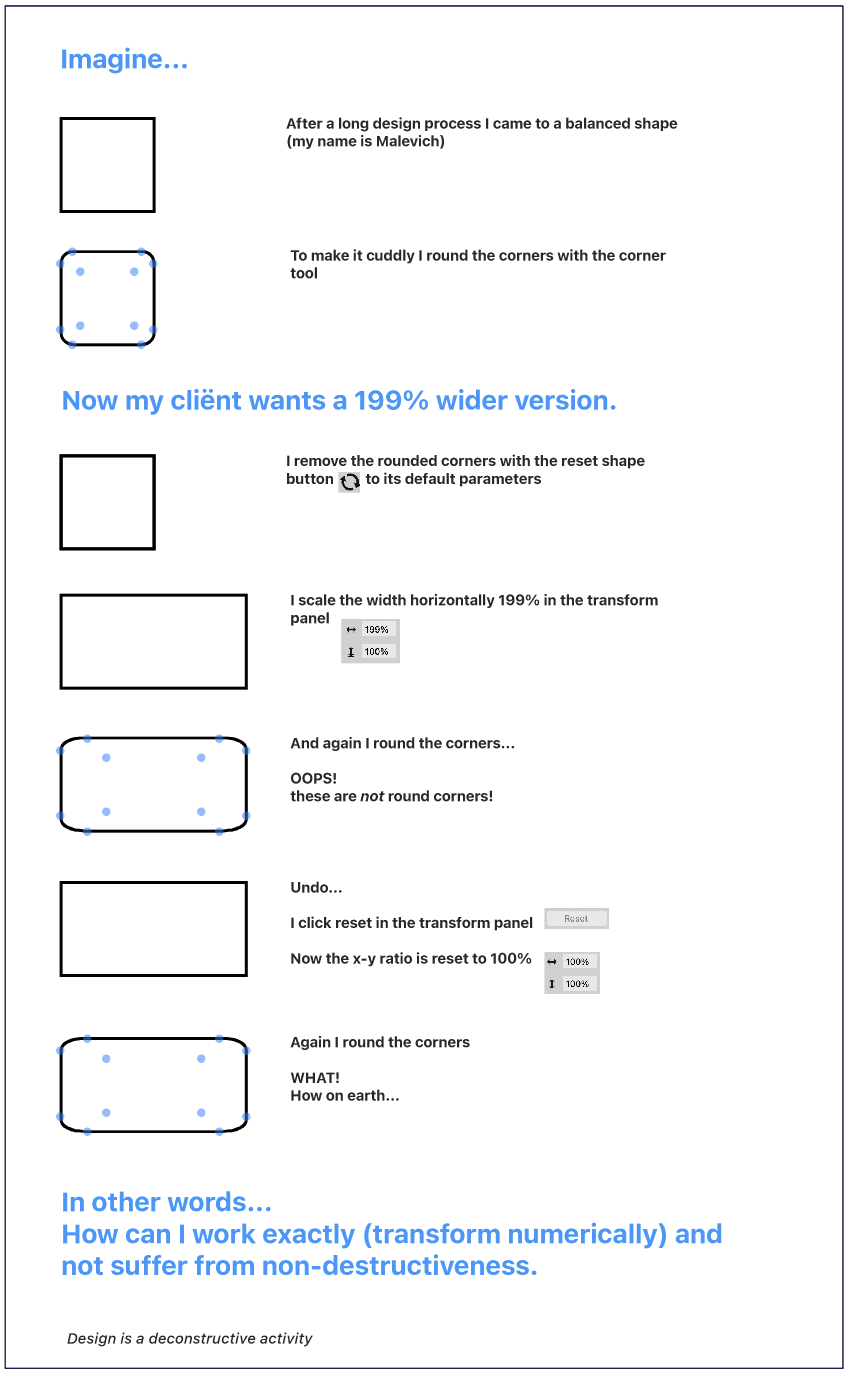
                      0_1742504910500_37c698c6-eae8-44c0-9b97-80557bb49c34-image.png

                      VectorStylerV 1 Reply Last reply Reply Quote 1
                      • VectorStylerV Offline
                        VectorStyler @Ayo
                        last edited by

                        @Ayo In this case, you need to convert to curves first.
                        I can try to find a solution for rounding of scaled objects, but it will not work well for other than rectangular shapes.

                        S 1 Reply Last reply Reply Quote 0
                        • S Offline
                          Subpath @VectorStyler
                          last edited by

                          @VectorStyler

                          Whats curious to me if i do that transformation
                          with "Object > Transform > Transform" the Corner
                          stay round

                          Here a Video

                          Win 11
                          CPU: AMD Ryzen 5 9600X, 6-core.
                          GPU: Nvidia Geforce RTX 5070.

                          AyoA VectorStylerV 2 Replies Last reply Reply Quote 1
                          • AyoA Offline
                            Ayo @Subpath
                            last edited by

                            @Subpath said in Non-destructiveness vs new (visible) reality:

                            curious

                            Indeed! Good research. Nice!

                            I like the behavior of the "Object > Transform Panel" better than the "Window > Transform Panel" It's just a pity that the "Window > Transform Panel" doesn't work as a side panel and is not dockable.

                            What is the difference according to the developer and aren't the two panels confusing?

                            S 1 Reply Last reply Reply Quote 0
                            • VectorStylerV Offline
                              VectorStyler @Subpath
                              last edited by

                              @Subpath In some cases, when the parametric shape attributes can be changes then the corner can stay round after scaling.

                              In VS, the corner is a shape attribute and it is applied before effects or transforms.
                              This causes the corner scaling when scaling a shape (in some cases).

                              AyoA 1 Reply Last reply Reply Quote 0
                              • AyoA Offline
                                Ayo @VectorStyler
                                last edited by

                                @VectorStyler
                                "I in some cases" is quite vague if I may say so...

                                VectorStylerV 1 Reply Last reply Reply Quote 1
                                • VectorStylerV Offline
                                  VectorStyler @Ayo
                                  last edited by

                                  @Ayo Yes, it depends if we are scaling it with the transform tool, or transform panel.
                                  Also: it can be changed with a settings.

                                  AyoA 1 Reply Last reply Reply Quote 0
                                  • AyoA Offline
                                    Ayo @VectorStyler
                                    last edited by

                                    @VectorStyler
                                    Euh, send me on a wild goose chase

                                    1 Reply Last reply Reply Quote 1
                                    • S Offline
                                      Subpath @Ayo
                                      last edited by Subpath

                                      @Ayo said in Non-destructiveness vs new (visible) reality:

                                      aren't the two panels confusing

                                      Not in my point of view, because the "Object > Transform > Transform"
                                      Panel offers more options and the other Transform panel are
                                      for more simple transformations.

                                      Win 11
                                      CPU: AMD Ryzen 5 9600X, 6-core.
                                      GPU: Nvidia Geforce RTX 5070.

                                      AyoA 1 Reply Last reply Reply Quote 0
                                      • AyoA Offline
                                        Ayo @Subpath
                                        last edited by

                                        @Subpath
                                        I am not specifically concerned with more or less functionality, but with the difference in behavior with the same functionality.


                                        1 Reply Last reply Reply Quote 1
                                        • First post
                                          Last post