XLS for features and ideas - Megathread
-
Some of these will be separate tools. In terms of clicks it is better, and then you can assign shortcuts to those tools.
That's fair. Works for me.
I have to learn more about this.
This is a quality of life improvement. This can wait.
Problematic. Both tools are already overload the existing modifier keys. But it is possible to switch temporarily.
Perhaps, there's a misunderstanding here. I'm not suggesting that we getting rid of the node tool. The node tool should exist on it's own. But the pen tool should be able to manipulate both nodes, handles, add, delete nodes, and so on. I will record a video to demo this clearly. Once you see it, you can assess if it's possible. This circumvents the need to use modifier. It is highly intuitive and useful. Combined with other modes previously suggested, it would be supremely meaningful.
I have to learn more about these. Any examples?
I will record video for this.
Not sure, but both of these might exist. Guidelines can be rotated to any angle, and then there is Collision snapping mode.
Will need to check this further to see if it works as it should.
I think these are supported. Just use the Combine path operator.
It's not about combining path. It's about continuing to draw separate curves as a part of a single path. Is that how it works?
Work: Windows 11 | Intel i9 14900HS (24 Cores/32 Threads) | GeForce RTX 4070 | 64 GB RAM
Personal: Windows 11 | Amd Ryzen 9 7950X (16 Core, 32 Threads) | GeForce RTX 3060 | 32 GB RAM -
@Daniel said in XLS for features and ideas - Mega Thread:
It's about continuing to draw separate curves as a part of a single path. Is that how it works?
No. Is this about continuing to add curves to a single path? Show me some examples.
-
@VectorStyler: Yes. I can discontinue a curve. Click somewhere else, and it would be considered a single path. I will record video later this weekend.
-
@Daniel said in XLS for features and ideas - Megathread:
Some of these will be separate tools. In terms of clicks it is better, and then you can assign shortcuts to those tools.
That's fair. Works for me.
I have to learn more about this.
This is a quality of life improvement. This can wait.
Problematic. Both tools are already overload the existing modifier keys. But it is possible to switch temporarily.
Perhaps, there's a misunderstanding here. I'm not suggesting that we getting rid of the node tool. The node tool should exist on it's own. But the pen tool should be able to manipulate both nodes, handles, add, delete nodes, and so on. I will record a video to demo this clearly. Once you see it, you can assess if it's possible. This circumvents the need to use modifier. It is highly intuitive and useful. Combined with other modes previously suggested, it would be supremely meaningful.
I have to learn more about these. Any examples?
I will record video for this.
Not sure, but both of these might exist. Guidelines can be rotated to any angle, and then there is Collision snapping mode.
Will need to check this further to see if it works as it should.
I think these are supported. Just use the Combine path operator.
It's not about combining path. It's about continuing to draw separate curves as a part of a single path. Is that how it works?
''But the pen tool should be able to manipulate both nodes, handles, add, delete nodes, and so on.''
Are you talking about Affinity Designer‘s pen tool -
@lilith no. Xara and gimp.
-
When using the pen tool now: you can add nodes by clicking on the path, and add handles by click and drag on the nodes. When using the control key you can use a lot of the functions of the node tool.
What I would like to see is that the deleting of nodes would work the same way as in the node tool.
-
@FastVector: yeah, my case is for removing the modifier. Why do we need it? Try Gimp once and see for yourself. It makes perfect sense to do the entire operation without any modifier whatsoever.
The precedent for this was set by the ill conceived illustrator pen tool which splits two logically related, sequentially performed operation, creating curves and manipulating nodes.
I'm recommending that we get rid of it the unnecessary modifier key.
Double clicking adds a node.
Middle clicking the node removes nodes. Simple. Clear. Economic. -
@Daniel said in XLS for features and ideas - Megathread:
Middle clicking the node removes nodes.
Currently, clicking directly on an existing node adds a new node in the exact center of the path - this is a tool I'd not want to lose, though I could see adding a modifier to it since it's less commonly used than erasing a node
-
... clicking directly on an existing node adds a new node in the exact center of the path ...
press the plus key "+" once does exact the same
-
@Boldline For me this is only working when I'm using the node tool and then I've to double click on a existing node. (I quess something different in my settings for the pen tool)
Windows 10 | 1920x1080 | 125%
-
@FastVector said in XLS for features and ideas - Megathread:
For me this is only working when I'm using the node tool and then I've to double click on a existing node
Could be a settings issue. Send me your workspace/settings files (Help -> Reveal Workspace).
-
Using Ctrl+a while the Node Tool is selected
will select all Nodes of a Shape. -
How about single clicking curve to add a node. Double clicking a node to delete the node?
-
A single click to add a node seems too risky to me, since its
used to select a section of a path, and it's easy to click accidentally.And double-clicking a path to delete a node?
I'm not really convinced.A modifier key to delete a node seems like a better solution
in my eyes. -
Made a video of how the pen tool is working for me.
The first part i'm just working with the pen tool without any keys.
The second part I'm using the control key. It's for me not totally working the same as the node tool. By double clicking on a node I don't get a new node in the middle but it will go to the object isolation mode. And to delete a node I've to go to the context bar.
-
i think i see it, adding a Node doesnt work when you
activate the Node Tool with the Control Key.
Your are right its the same here.Seems if you activate the Node Tool with the Control Key
that the Node Tool its a bit limited then.Adding a Node works only by selecting the Node Tool
direct. -
Hey been away for while. I will continue here shortly.

-
Feature Idea: Fix alignment for selected objects. One of the most common steps that designers do is re-establish alignment after moving objects. So I was thinking there should be a way to fix alignment and distance between objects.
For instance, if three Circles are selected and horizontally spaced and the distance between set to "100 pixels," moving one of the circles should re-establish alignment and distance. It should be of course possible to toggle off distance fix. Distance fixing is not a new idea. It already exists under the name of auto layouts in tools like Lunacy: https://blog.icons8.com/wp-content/uploads/2023/07/2-autolayout-settings.mp4
But fixing alignments would be truly useful. It should also be possible to fix more than kind of alignment. For instance, horizontally spaced and aligned. In fact, if done correctly, it can work for entire groups of objects. We can call it aligned groups/alignment groups.
Think of it like this: In the image below, you can fix make each line of objects, it's own alignment group. For instance, the red circles can be fixed for alignment across the centres and spaced vertically. And the first row of circles of different colours can fixed for alignment to the top edges and spaced horizontally. Now, moving any one object will keep the matrix structure intact. This is presently not possible in any apps.

Importantly, it should be dynamic. Meaning, if I move the object, the others should move appropriately. https://imgbox.com/JJMryYn6 - I mean like this. But it does not fully capture what I mean. I should be able to move individual objects while retaining alignment across the whole group.
-
@Daniel I added this to the backlog. It would be something like the auto layout from those apps.
-
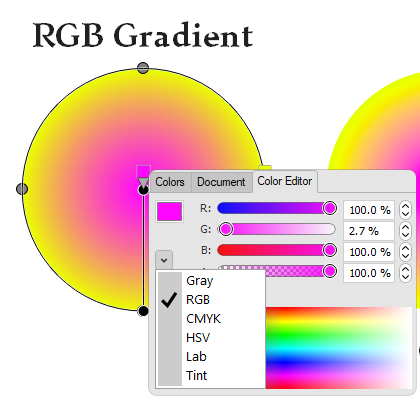
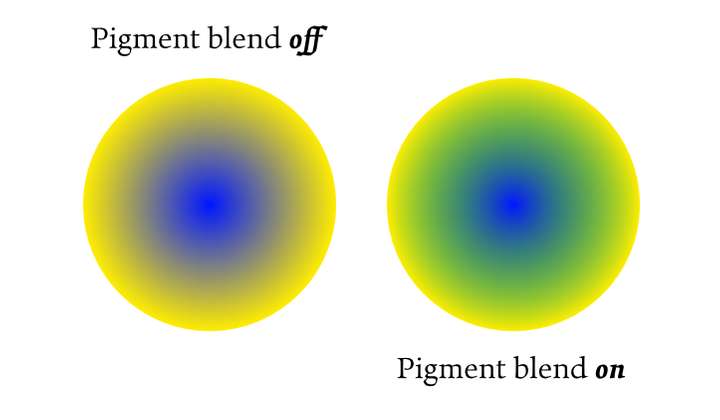
Pigment Blend Gradient and L*, a*, b* colour gradients. Affinity now has a pigment blend option for gradient which allows you to simulate real pigment blending between colours. Although this might seem revolutionary, it has existed for at least a decade in PhotoLine through LAB colour gradients.
Affinity's pigment blending
PhotoLine's LAB Gradient:
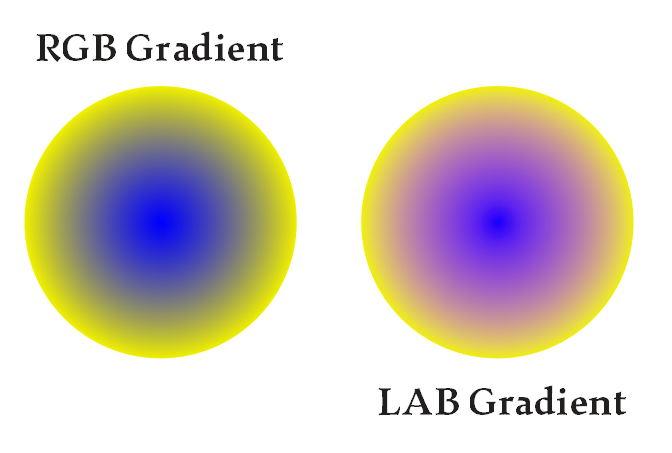
If I had to choose between the two, I'd choose LAB Gradient. Here's why. It is much more predictable in terms of resulting colour, and closer to how eye perceives real world colours. LAB includes 100% of the colours that the human eye can perceive, but arguably printers cannot reproduce. Screens can, depending on the colour gamut. It is so much more vivid.
On the other hand, pigment blend is a really good idea. It simulates how colours actually mix. Blue and yellow produce green, rather than dirty brown. But this introduces a third colour into the mix. It is useful in artform scenarios definitely.
Incidentally, and weirdly, Mesh Gradients cannot do pigment blending. A real and unnecessary oversight! It would have been quite useful to include pigment blending in Meshes as Meshes are more likely to simulate real light reflections. Oh well. Fragmentation is the biggest curse of Affinity.
Ideally, we would have both. But I lean towards LAB. Community can vote.
Edit:
Here's the very real limitation of pigment blending: One of it has pigment blending on. But can you guess purely by looking at the image? You can't. The answer is: The one on the left has pigment blending ON. But it's negligible. But further below is a LAB gradient:
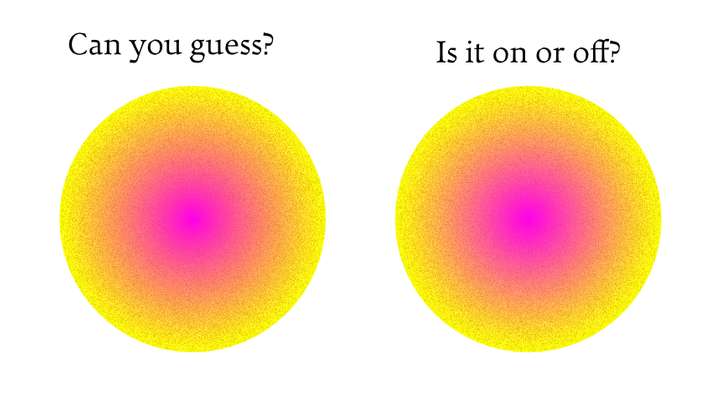
See the difference?
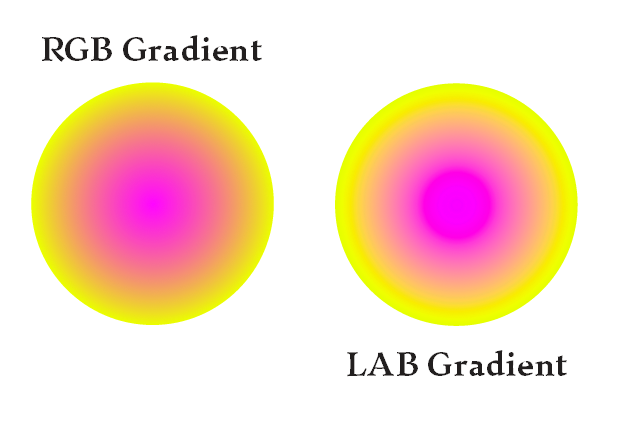
Also, PhotoLine is remarkably the only tool in existence today which allows you to set a colour from different colour spaces for each stop within the same gradient. You might think, ah so what? But when you're trying to simulate real world colours, this is not a small achievement. You can mix RGB, HIS, LAB, CMYK, and Tints of colours within the same gradient. This is a remarkable thing.