Intertwine Feature and a way to fake gaps
-
Intertwine Feature and a way to fake gaps
Intertwine is a new feature in VS since version 1.3.
Which work only with at least two separat Objects.Unlike the "Crossing Gap" shape effect, which only works
with a single path, the "Intertwine" effect doesn't offer
gap settings. At least, none that I'm aware of. However,
these can be faked. In this thread, I'll show way how.
.
.
Some preservationWe first need at least two objects. Lets choose the also new
Polygonal Loop object for them. To better distinguish them,
I'll color one blue and one red. Of course, both could also
have the same color.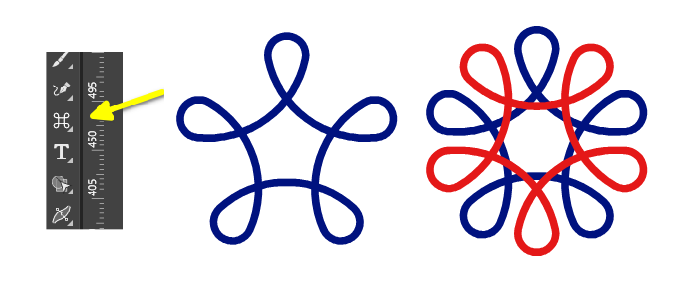
.
.
Now, we need to use a suitable line weight. Take a slightly
thicker line weight. You'll see why in a moment. I keep the
originals by creating a copy of both objects in case I change
my mind about some design decisions.
.
.
Expand the outline, this results in two shape objects. Add a outline to
both in the color of the background. In our case, the color white.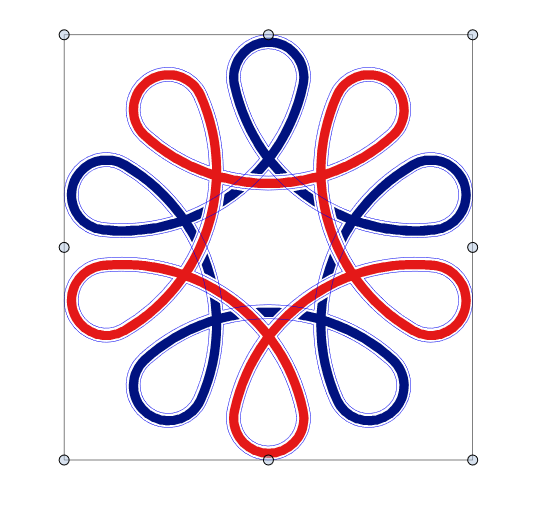
.
.
.
.
Intertwine themYou have two possible ways to do this.
Both ways require to select your objects first.
.
.
First way
Use Menu > Styles > Intertwine > Create Intertwine Group
and then select the Intertwine Tool to place your Intertwines.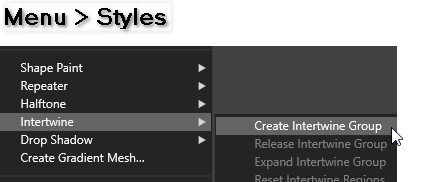
.
.
Second way
Use the Intertwine Tool directly. Select the Intertwine Tool, click onto the
Objects a Dialog appears "Create Intertwine Group" confirm this and you
can continue to place your Intertwines.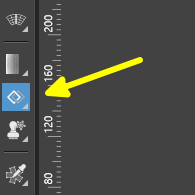
.
.
.
Placing the IntertwinesOne click with the Intertwine tool place the Intertwine.
Another click toggles between the two possible states.In our example, either part of the blue object or part
of the red object is raised. To confirm a state click
once elsewhere.
.
.
.
As you can see, both the shape and the outline are raised.
Since the outline color and the background color are identical,
it looks like gaps.
.
.
Those are the basics. But with the Intertwine tool
and some other features of VS, I can tell you that
there's a lot to discover.
I post a few things i found in a later post.
Will take some time.Of course everyone is welcome to post here too
if they have found something nice.Have fun being creative.
-
@Subpath thanks for this nice tutorial. Will try it when I find the time