update 1.1.082
-
- Added modifier (Control) for relative rotation snapping.
Nice.

-
@b77 said in update 1.1.082:
- Added modifier (Control) for relative rotation snapping.
Nice.
Sorry, I'm not seeing this working ?
Holding shift snaps the object by 45deg , holding ctrl simply switches off the rotation snapping. Holding shift + ctrl does the same as shift.
I assume I'm missing something, I assumed one of them would force the object to 0 deg (say) then snap every 45 (or whatever your snap angles are set to) the other would simply snap relative to the object starting angle ?TIA
Neil
-
@Igull Did you have the modifier keys customized previously?
That could mean that the new modifier keys are not used. -
@VectorStyler I'm having the same situation as @Igull but I'm not sure I swapped around any modified keys in the past.
-
@Boldline I think only a Settings Reset might tell if the modifier keys were changed.
-
@VectorStyler I reset both the settings and the workspace to defaults and using the control key is not constraining a shape's rotation in any way. Shift modifier is working. Is there something more than needs to be turned on or off?
-
@Boldline The Control key thing works only when also holding the Shift key, and it should constrain the rotation relative to the current rotation of the object.
-
@VectorStyler said in update 1.1.082:
@Boldline The Control key thing works only when also holding the Shift key, and it should constrain the rotation relative to the current rotation of the object.
I tried a prefs reset with the same result. I don't need to use the control key, the shift key now rotates relative to the object's current angle, it doesn't force it to 0/90 as before. It seems that the relative rotate has been permanently installed ?
Neil
-
@Igull
When 'Relative Angle Constrain' is enabled in Prefs > Editing Options 1, only Shift is needed,
and pressing Ctrl-Shift rotates in 45° increments ignoring the current rotation.When 'Relative Angle Constrain' is disabled, pressing Ctrl-Shift rotates in 45° increments + the
current angle (say, 12°). -
@b77 said in update 1.1.082:
@Igull
When 'Relative Angle Constrain' is enabled in Prefs > Editing Options 1, only Shift is needed,
and pressing Ctrl-Shift rotates in 45° increments ignoring the current rotation.When 'Relative Angle Constrain' is disabled, pressing Ctrl-Shift rotates in 45° increments + the
current angle (say, 12°).Nope, just tried it again, always the same whether relative angle constrain is checked or not

It always constrains relative to the current angle and never pulls the object back to 0 deg (or 45/90).
I did check that I was on 082 just to make sure

Any thoughts, I'm guessing another pref conflict ?? (although I did do a reset ).
Neil
-
-
@Igull I will try to replicate this issue with the angle constrain
-
-
@Igull Maybe the object is "rotated" inside the bounding box, which will make it look like rotating it with Ctrl-Shift doesn't work?
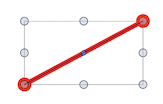
-
@b77 said in update 1.1.082:
@Igull Maybe the object is "rotated" inside the bounding box, which will make it look like rotating it with Ctrl-Shift doesn't work?
Ahhh, this might be the case, well done. I hadn't even considered that it was relative to the bounding box and NOT the actual vector itself - doh
My test was simply a bunch of lines created at odd angles - naturally, all those lines would have orthogonal bounding boxesI had (stupidly ???) assumed that VS would know if a vector was orthogonal or not and would rotate it accordingly.
That's what I based my results on and obviously, that's not what the intended operation should be
Understandably, if one of my test lines were some complex object, then VS wouldn't know if it were orthogonal or not.In that case, you would have to do a collision detect of some part of the object to say an orthogonal guideline to ensure orthogonality, then you would be good to go.
Thanks for that !
Neil