VectorStyler
    • Categories
    • Unread
    • Recent
    • Tags
    • Popular
    • Register
    • Login

    Kind of pattern selection using the Colorize feature
    Scheduled Pinned Locked Moved Tutorials
    21 Posts 3 Posters 28.2k Views 3 Watching
    Loading More Posts
    • Oldest to Newest
    • Newest to Oldest
    • Most Votes
    Reply
    • Reply as topic
    Log in to reply
    This topic has been deleted. Only users with topic management privileges can see it.
    • S Offline
      Subpath
      last edited by Subpath

      .
      Part two:
      How to create a desired selection order for coloring
      with random placed shapes
      .
      .
      In the first Part we saw that coloring shapes via Colorize
      open a way for a kind of pattern selection. But what
      could we do if Shapes are randomly placed.
      .
      .
      As far as I know, the order of the colors applied with "Colorize"
      corresponds to the order in which objects are created. So, how
      can you color shapes in the desired order if they are randomly
      distributed?
      .
      .
      The surprising solution: Use the Shape Builder tool.
      .
      In my experiments, I found that the Shape Builder is able to redetermining
      the selection order of shapes and coloring with Colorize will follow that
      new order.
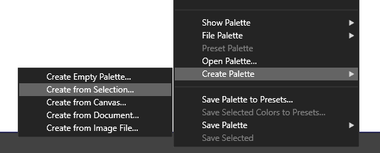
      0_1744370380166_shapeBuilder-Tool.png
      .
      .
      Here an Example

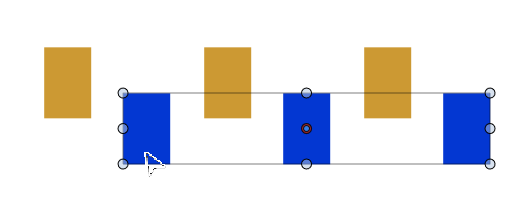
      I used Blend to create a gradient from some shapes and arranged them
      in a random order.

      0_1744370178922_random placed.png
      .
      .
      Then I took the Shape Builder Tool, selected any color and selected all
      objects with the tool in one direction
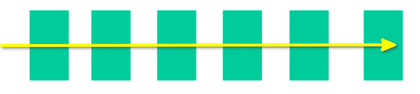
      0_1744370250016_ShapeBuilder selection.png
      .
      .
      Finally I select the shapes and color them using the "Colorize" Feature.
      You can see all shapes are colored in the order of the palette.

      0_1744370295813_Gradient follow shapes.png
      .
      .
      Here a video, which shows the steps
      .
      .
      So with the help of the Shape Builder Tool you can control which direction
      the coloring with Colorize should follow and create any pattern selection
      by following the steps descriped in Part one.
      .
      .
      One Final Note:
      I wrote, that sometimes the coloring with Colorize doesn't
      follow the selection accordingly.

      This seems be solved now, i found the solution.
      The reason for this has to do with using the Magic Wand
      Tool to select the shapes to be colored with Colorize.

      As you using the Magic Wand tool, you may think that you
      can select/pick any shape with the according color, but this
      doesnt work in our case.

      Select the first shape you selected with the Shape Builder
      also with the Magic Wand tool. This way, the color scheme
      starts in the correct place. Then everything will work as
      expected.

      Here a Video about this

      Win 11
      CPU: AMD Ryzen 5 9600X, 6-core.
      GPU: Nvidia Geforce RTX 5070.

      M 1 Reply Last reply Reply Quote 2
      • M Online
        monsterfox @Subpath
        last edited by

        @Subpath Finally got you. This method is quite special. I’ll try it out later. Thanks for the update.

        S 1 Reply Last reply Reply Quote 2
        • S Offline
          Subpath @monsterfox
          last edited by Subpath

          @monsterfox

          Yes, it's a bit special.

          Although I find that color selection with a corresponding
          color palette offers a lot of possibilities. You just need to
          create a suitable color palette and color the shapes
          accordingly. To obtain a specific selection pattern.

          Using the shape builder tool for a custom color sequence
          is the easiest method I've found. If anyone knows or has
          discovered another way, I'm happy to hear.

          Win 11
          CPU: AMD Ryzen 5 9600X, 6-core.
          GPU: Nvidia Geforce RTX 5070.

          M 2 Replies Last reply Reply Quote 0
          • M Online
            monsterfox @Subpath
            last edited by monsterfox

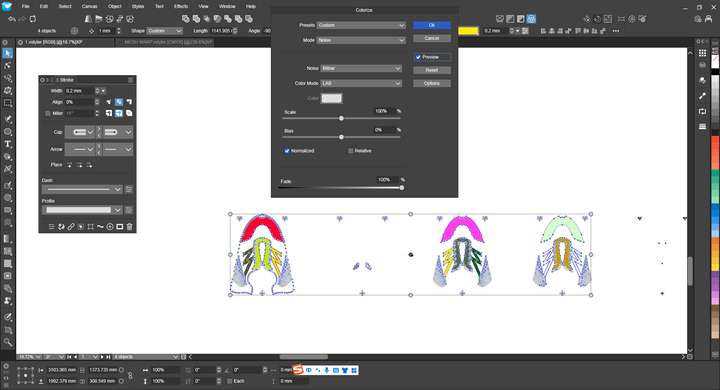
            @Subpath tested this feature today, and it only works on individual objects. It becomes very chaotic when applied to grouped objects.
            @VectorStyler It would be great if grouped objects could be treated as independent ones.1_1744469843843_mmexport1744469824087.png 0_1744469843835_mmexport1744469820884.png
            S VectorStylerV 3 Replies Last reply Reply Quote 1
            • S Offline
              Subpath @monsterfox
              last edited by Subpath

              @monsterfox

              Well, my method may not be helpful in all cases

              Maybe you could post a sample file, here in this Thread?
              Then I can take a look at it.

              If so, please also include an example of what
              the end result should look like.
              .
              .
              You work, of course with more complex objects than I do.

              If you want to define an object order with the Shape Builder tool,
              the objects shouldn't overlap. But the Shape Builder itself also
              works when objects are grouped.

              Win 11
              CPU: AMD Ryzen 5 9600X, 6-core.
              GPU: Nvidia Geforce RTX 5070.

              1 Reply Last reply Reply Quote -1
              • VectorStylerV Offline
                VectorStyler @monsterfox
                last edited by VectorStyler

                @monsterfox said in Kind of pattern selection using the Colorize feature:

                It would be great if grouped objects could be treated as independent ones.
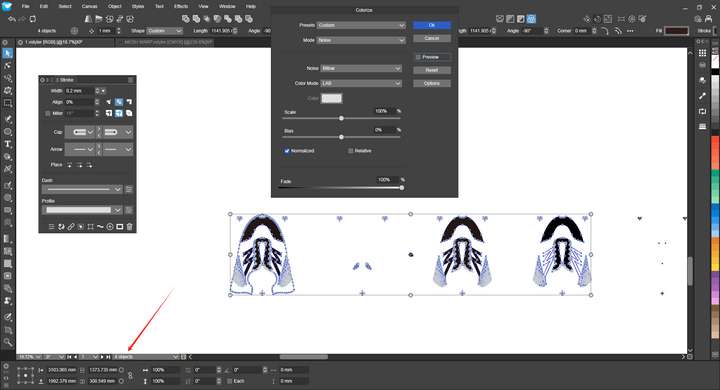
                I will try to find a solution for this.

                1 Reply Last reply Reply Quote 0
                • M Online
                  monsterfox @Subpath
                  last edited by

                  @Subpath 0_1744513960294_2.vstyler Here is the file you requested.

                  S 1 Reply Last reply Reply Quote 0
                  • S Offline
                    Subpath @monsterfox
                    last edited by

                    @monsterfox

                    What do you want to achieve?
                    Just coloring that parts?
                    Then could you show me a picture of what it should look like?

                    Or create some kind of selection pattern?

                    Win 11
                    CPU: AMD Ryzen 5 9600X, 6-core.
                    GPU: Nvidia Geforce RTX 5070.

                    M 1 Reply Last reply Reply Quote 0
                    • M Online
                      monsterfox @Subpath
                      last edited by

                      @Subpath The file contains 4 to 5 groups, with both paths and fills in black. I want them to appear as separate, independent shapes and automatically change into 4 to 5 different colors.

                      S 1 Reply Last reply Reply Quote 0
                      • S Offline
                        Subpath @monsterfox
                        last edited by Subpath

                        @monsterfox
                        .
                        .
                        I've been experimenting a bit with the designs in your file.
                        .
                        .
                        Separate filled shapes and outlines

                        Filled objects can be separated from outline objects.
                        By selecting filled Shapes via.
                        Menu > Select > Styling > Filled
                        and move them to another Place
                        .
                        .
                        Coloring Shapes

                        Coloring your Designs via Colorize makes no sense to me.
                        The Designs differ to much, have different number of objects
                        and/or the object order is different.

                        I developed a way, but I don't know if it will work for you.
                        It uses the "Selected Intersecting Shapes" feature to select shapes.
                        You could color them then.

                        The Video here show the Steps needed

                        Once the shapes are colored, you can select them
                        with via the Magic Wand Mode for selecting shapes.
                        Or via the way i showed in the Video.

                        Important!
                        The color for the circle is for selection purposes only.
                        So this color should not appear in the Design.

                        Win 11
                        CPU: AMD Ryzen 5 9600X, 6-core.
                        GPU: Nvidia Geforce RTX 5070.

                        M 1 Reply Last reply Reply Quote 0
                        • M Online
                          monsterfox @Subpath
                          last edited by

                          @Subpath Thank you for sharing. Although this approach doesn't quite fit my workflow, I've picked up some useful tips. My workflow is a bit complex and would take some time to explain—perhaps I'll make a video about it when I get the chance.

                          S 1 Reply Last reply Reply Quote 1
                          • S Offline
                            Subpath @monsterfox
                            last edited by Subpath

                            @monsterfox

                            Your welcome.
                            A video sounds interesting; I'd also like to learn something new. 🙂
                            But no need to rush it; do it whenever it suits you.

                            Win 11
                            CPU: AMD Ryzen 5 9600X, 6-core.
                            GPU: Nvidia Geforce RTX 5070.

                            1 Reply Last reply Reply Quote 0
                            • VectorStylerV Offline
                              VectorStyler @monsterfox
                              last edited by

                              @monsterfox said in Kind of pattern selection using the Colorize feature:

                              It would be great if grouped objects could be treated as independent ones.

                              I need some examples for this where the selection is chaotic.

                              S M 2 Replies Last reply Reply Quote 0
                              • S Offline
                                Subpath @VectorStyler
                                last edited by Subpath

                                @VectorStyler

                                In my opinion, it might look chaotic, but may not be really chaotic.

                                In all my attempts, using Colorize, the fill colors followed the selection
                                order of the shapes. I didn't get any different results in my experiments.

                                Only the trick with the ShapeBuilder to define a new selection order didn't
                                always work. I'll try to record a case if I see it again.

                                If you look at the Monsterfox sample file, the designs have different selection
                                orders. You can see this if you take a design and track the selection order
                                with "Previous" or "Next Selection." This could be the reason why the result
                                may look like chaotic / does not look as expected.
                                The Designs have also a different Object count.

                                Win 11
                                CPU: AMD Ryzen 5 9600X, 6-core.
                                GPU: Nvidia Geforce RTX 5070.

                                1 Reply Last reply Reply Quote 1
                                • M Online
                                  monsterfox @VectorStyler
                                  last edited by

                                  @VectorStyler 0_1744971300530_4.vstyler

                                  1 Reply Last reply Reply Quote 1
                                  • S Offline
                                    Subpath
                                    last edited by

                                    @VectorStyler

                                    I created a video here in which Colorize doesn't
                                    follow the selection order.

                                    Here's the video:

                                    While experimenting with this again, I noticed an curious behavior:

                                    I previously selected the shapes with the Magic Wand tool.

                                    But when I select the same shapes again with the
                                    Rectangular Selection tool, the coloring works as expected.

                                    You can see this in this video.

                                    Win 11
                                    CPU: AMD Ryzen 5 9600X, 6-core.
                                    GPU: Nvidia Geforce RTX 5070.

                                    1 Reply Last reply Reply Quote 0
                                    • S Offline
                                      Subpath
                                      last edited by Subpath

                                      @VectorStyler

                                      I think i got it

                                      When using the Magic Wand tool to select
                                      the shapes you want to Colorize

                                      you have to pick/select the first shape you selected
                                      with the Shape Builder tool.

                                      Then everything will work as intended.

                                      here the Video

                                      I am fine with this, as it seems logical to me.

                                      Win 11
                                      CPU: AMD Ryzen 5 9600X, 6-core.
                                      GPU: Nvidia Geforce RTX 5070.

                                      1 Reply Last reply Reply Quote 1
                                      • S Offline
                                        Subpath
                                        last edited by Subpath

                                        @monsterfox , @VectorStyler
                                        .
                                        .
                                        You can't simply create a color palette and color
                                        your shapes with it.

                                        There is a little more to do then this

                                        Either
                                        You need to determine the object order and adjust the
                                        colors in your palette to that order.

                                        Or create the objects of your Design according to a specific system/order
                                        so that the order in which the objects are created are always the same.

                                        In addition, the number of shapes in the design must match
                                        the number of colors in the color palette.

                                        The Shape Builder trick can only be used to a limited extent here,
                                        and only with objects that don't overlap.

                                        Here is a video where I created a color palette according to
                                        the selection order of your design.

                                        Here the video

                                        Win 11
                                        CPU: AMD Ryzen 5 9600X, 6-core.
                                        GPU: Nvidia Geforce RTX 5070.

                                        1 Reply Last reply Reply Quote 0
                                        • First post
                                          Last post