VectorStyler
    • Categories
    • Unread
    • Recent
    • Tags
    • Popular
    • Register
    • Login

    Playing with Blend in Pattern Brush

    Scheduled Pinned Locked Moved Tutorials
    11 Posts 5 Posters 24.7k Views 5 Watching
    Loading More Posts
    • Oldest to Newest
    • Newest to Oldest
    • Most Votes
    Reply
    • Reply as topic
    Log in to reply
    This topic has been deleted. Only users with topic management privileges can see it.
    • S Offline
      Subpath
      last edited by Subpath

      0_1654622336586_Pattern-Brush-40.png
      .
      Table of content
      .
      1. Post -- is below here
      Using Blends, Multiblends and Variations

      .
      2. Post
      Tip -- Even distributed shapes between decreasing Pattern Shapes
      .
      3. Post
      Tip -- Combining Pattern Brushes and combining rigid and non rigid Pattern Brushes
      .
      .
      Hi

      Back to play again in VS 🙂

      This time with:
      The Pattern Brush and - Blend object inside pattern and other brush types -
      ( a new functionality in VS since Version 1.0.42 )
      .
      .
      Whats to see?
      -- Multi Blends in VS with the Blend Tool
      -- some Tricks / Ideas
      -- using of Style Picker in conjunction with a Pattern Brush
      .
      .
      A few Notes beforehand:
      This is not a tutorial, I'm just showing some finds/ideas and tricks
      I noticed while playing with the Pattern Brush since version 1.1.042
      despite that I kept it in some order
      .
      The new functionality may not be helpful in any case because
      it sometimes creates artifacts.
      .
      While i play with different Designs i found out that those Pattern
      often have a few sweet spots and some Pattern Brushes dont
      work on any Shape.
      .
      Round Corners work better then sharp Edges. Bigger Shapes
      better then small ones and tight curves could cause Problems.
      So, from Shape to Shape you have to find some workarounds
      to get the Results you after.

      But anyway all this is still better then to live without that Pattern Brush feature.
      I nevertheless have fun with it and am glad about this new option 🙂
      .
      .
      Here we go:

      0_1654622740924_Blend-1.png
      To create a Blend select two shapes, Blend and Group them (Blend Tool (W) )
      .
      To create a Pattern Brush with it, select your grouped Blend
      go to Menu Styles -> Create Styles -> Create Pattern Brush Preset
      .
      .

      0_1654622852080_Blend-2.png
      Then choose the Brush Tool (B) select your Pattern Brush and paint.
      .
      If you dont want any Pattern Deformation, choose "rigid shapes" and
      "scale rigid shapes" in Pattern Brush Option Menu.
      .
      .

      0_1654622890118_Blend-3.png
      If you dont want those repeatings, create longer Blends (e.g. a longer Pattern)
      .
      .
      .

      0_1654622971816_Multi-Blend-1.png
      For those who do not know it yet: Multiblends are also possible.
      Select the first two shapes, create a blend. Then select the last shape
      of this blend and the new shape and so on...
      .
      The sad news are, this would give you no continues Curve
      .

      0_1654623032104_Multi-Blend-2.png
      The good News are, if you create a pattern brush with your Blend
      that give you that continues Curve now
      .
      .
      .
      Multiblends don't necessarily have to be created with the last shape.
      You can be creative and mix them according to your taste

      0_1654623138105_Multi-Blend-3.png
      These are 4 individual blends, which was then grouped together
      .

      0_1654623183097_Multi-Blend-4.png
      .
      .
      0_1654623199761_Multi-Blend-5.png
      .
      But remember to play with the Settings/Shape size to avoid Artefacts
      .
      .

      Win 11
      CPU: AMD Ryzen 5 9600X, 6-core.
      GPU: Nvidia Geforce RTX 5070.

      1 Reply Last reply Reply Quote 8
      • IngolfI Offline
        Ingolf
        last edited by

        Whow, I have to play with that soon! 😛

        🍏 macOS Sequoia Apple Silicon

        S 1 Reply Last reply Reply Quote 1
        • S Offline
          Subpath @Ingolf
          last edited by

          @Ingolf
          🙂

          Win 11
          CPU: AMD Ryzen 5 9600X, 6-core.
          GPU: Nvidia Geforce RTX 5070.

          1 Reply Last reply Reply Quote 1
          • encartE Offline
            encart
            last edited by

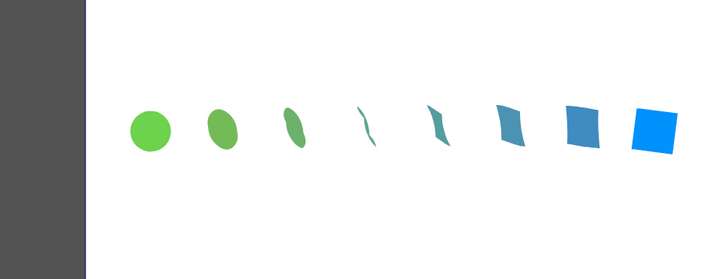
            My playing ended in the first stage. Unfortunately I am getting a strange transformation when applying the blend effect. Mapping does not help
            0_1654631405658_screenshot_20220607_214801.png

            MacBook Air M4 24Gb, Tahoe 26.2

            b77B S 2 Replies Last reply Reply Quote 0
            • b77B Offline
              b77 @encart
              last edited by

              @encart Maybe you need to flip and also rotate one of the shapes.

              MacBook Pro (Intel) running Monterey 12.6.4

              encartE 1 Reply Last reply Reply Quote 0
              • encartE Offline
                encart @b77
                last edited by

                @b77 Thanks! Flipping solved the problem.

                MacBook Air M4 24Gb, Tahoe 26.2

                1 Reply Last reply Reply Quote 2
                • S Offline
                  Subpath @encart
                  last edited by Subpath

                  @encart

                  I think this is a result of which way, right or left, you create a shape.
                  Then the starting/connecting points are probably different.

                  But as @b77 said flipping or rotate the start or end shape
                  will fix that

                  Win 11
                  CPU: AMD Ryzen 5 9600X, 6-core.
                  GPU: Nvidia Geforce RTX 5070.

                  1 Reply Last reply Reply Quote 0
                  • S Offline
                    Subpath
                    last edited by Subpath

                    How to get better even spacing in such patterns

                    0_1654674426545_Even-Space-2.png
                    .
                    .
                    0_1654674527211_Even-Space-1.png
                    Even spacing between the shapes is easy with such patterns
                    .
                    .

                    0_1654674571295_Even-Space-2.png
                    But seems not possible when using Profils
                    .
                    .

                    0_1654674630901_Even-Space-3.png
                    Using Blend gives us the option to adjust the space with "Position"
                    in Blend Option. But I am not really happy with this way.
                    .
                    .
                    .
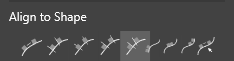
                    I like to use the Alignment Panel and the Align to Shape "...distribute equal distances..." icon.
                    .
                    Here how to do it:
                    Create a Blend with your Pattern.
                    ( Transformation with copy would also work, I find a Blend easier )
                    Expand the Blend and Ungroup it and draw a straight Line below.

                    0_1654675010192_Even-Space-blend-4.png

                    .
                    .
                    0_1654675205212_Even-Space-blend-5.png
                    Select all shapes of the pattern. Hold the Shift-Key and select the straight line.
                    Call the Alignment Panel. In the Align Panel Menu, select Geometric Alignment
                    and then the > Align to Shape "...distribute equal distances..." Icon.
                    0_1654676955645_Alignment-Distance-1.png
                    .
                    .
                    Here a Video, how to do it, re-upload:
                    .
                    .
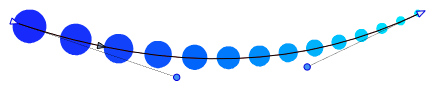
                    Delete the Line and Group the Result an create a Pattern Brush Preset with it.
                    Set "Rigid shapes" and "Scale rigid shapes".
                    .
                    .
                    0_1654675594134_Even-Space-blend-6.png
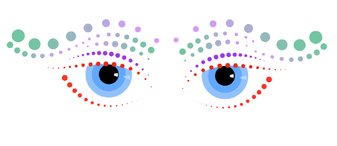
                    To control the space between the Shapes in this Pattern Brush,
                    play with the Line length and with the Node Handles
                    .
                    .
                    0_1654675616823_Augen-60.png
                    .
                    .

                    Win 11
                    CPU: AMD Ryzen 5 9600X, 6-core.
                    GPU: Nvidia Geforce RTX 5070.

                    1 Reply Last reply Reply Quote 4
                    • S Offline
                      Subpath
                      last edited by Subpath

                      Combining Pattern and combining rigid and non rigid Pattern Brushes
                      .
                      .
                      Sometimes it doesnt work to set the shapes in your pattern brush
                      to rigid or non-rigid. As it will not cover all needs of your Pattern.

                      Like this example show:
                      0_1655109291949_Pattern-Brush-4.png
                      .
                      .
                      The solution is a simple practical one:
                      Create two Pattern, set one Part to rigid and the other Part not
                      and place one Pattern on top of the other.
                      .
                      Copy your Shape and apply the first pattern onto
                      the one shape and your second pattern onto the copy.
                      .
                      Select both, use Alignment panel, click on horizontal center
                      and vertical center and you have a much nicer result than before.
                      ( is also possible to record a Action with the Alignment Steps,
                      so its just one click then)
                      .
                      Found this a nice way to combine several different pattern brushes.
                      E.g. creating pattern for inner and outline structures.
                      .
                      .
                      Here some Example Pictures:
                      .
                      0_1655109495245_Pattern Brush-2.png
                      .
                      0_1655109504843_Pattern Brush-2a.png
                      .
                      0_1655109518008_Pattern Brush-2c.png
                      .
                      0_1655114292306_Pattern Brush-2d.png
                      .
                      .
                      0_1655109541979_Pattern Brush-3.png
                      .
                      0_1655109857030_Pattern Brush-3a.png
                      .
                      .
                      0_1655109566122_Pattern-Brush-1a.png
                      3 Pattern Brushes used
                      .
                      0_1655109572858_Pattern-Brush-1.png

                      Win 11
                      CPU: AMD Ryzen 5 9600X, 6-core.
                      GPU: Nvidia Geforce RTX 5070.

                      B 1 Reply Last reply Reply Quote 5
                      • B Offline
                        B-Vs-V @Subpath
                        last edited by

                        @Subpath Well done 👍

                        I should have read this before starting the blending thread... well, too late ☺

                        W11 Pro 25H2 - 12th Gen Intel(R) i7-12700K 3.61 GHz - RAM 64 Go - NVIDIA GF GTX 4070 Ti - Intuos - Dell UP3216Q / Eizo ColorEdge
                        W11 Pro 25H2 - 12th Gen Intel(R) i7-12700KF 3.60 GHz -RAM 64 Go - NVIDIA GF GTX 3080 - IntuosPro- ProArt PA329C

                        S 1 Reply Last reply Reply Quote 1
                        • S Offline
                          Subpath @B-Vs-V
                          last edited by Subpath

                          @Pat said in Playing with Blend in Pattern Brush:

                          Thank you

                          I should have read this before starting the blending thread

                          ... not really necessary, I like your own view

                          Win 11
                          CPU: AMD Ryzen 5 9600X, 6-core.
                          GPU: Nvidia Geforce RTX 5070.

                          1 Reply Last reply Reply Quote 2
                          • First post
                            Last post