VectorStyler
    • Categories
    • Unread
    • Recent
    • Tags
    • Popular
    • Register
    • Login

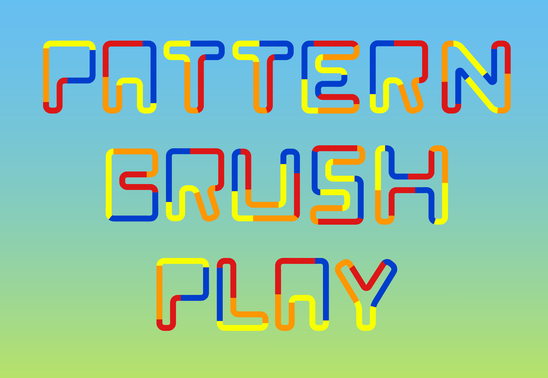
    Playing with Blend in Pattern Brush

    Scheduled Pinned Locked Moved Tutorials
    11 Posts 5 Posters 24.7k Views 5 Watching
    Loading More Posts
    • Oldest to Newest
    • Newest to Oldest
    • Most Votes
    Reply
    • Reply as topic
    Log in to reply
    This topic has been deleted. Only users with topic management privileges can see it.
    • IngolfI Offline
      Ingolf
      last edited by

      Whow, I have to play with that soon! 😛

      🍏 macOS Sequoia Apple Silicon

      S 1 Reply Last reply Reply Quote 1
      • S Offline
        Subpath @Ingolf
        last edited by

        @Ingolf
        🙂

        Win 11
        CPU: AMD Ryzen 5 9600X, 6-core.
        GPU: Nvidia Geforce RTX 5070.

        1 Reply Last reply Reply Quote 1
        • encartE Offline
          encart
          last edited by

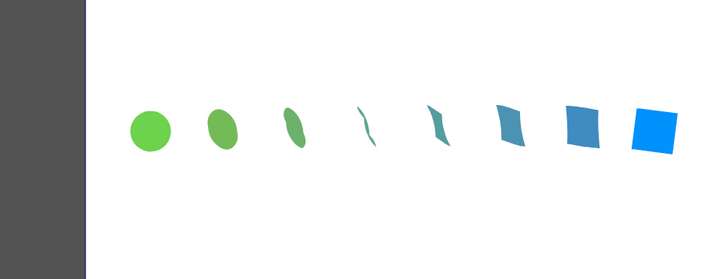
          My playing ended in the first stage. Unfortunately I am getting a strange transformation when applying the blend effect. Mapping does not help
          0_1654631405658_screenshot_20220607_214801.png

          MacBook Air M4 24Gb, Tahoe 26.2

          b77B S 2 Replies Last reply Reply Quote 0
          • b77B Offline
            b77 @encart
            last edited by

            @encart Maybe you need to flip and also rotate one of the shapes.

            MacBook Pro (Intel) running Monterey 12.6.4

            encartE 1 Reply Last reply Reply Quote 0
            • encartE Offline
              encart @b77
              last edited by

              @b77 Thanks! Flipping solved the problem.

              MacBook Air M4 24Gb, Tahoe 26.2

              1 Reply Last reply Reply Quote 2
              • S Offline
                Subpath @encart
                last edited by Subpath

                @encart

                I think this is a result of which way, right or left, you create a shape.
                Then the starting/connecting points are probably different.

                But as @b77 said flipping or rotate the start or end shape
                will fix that

                Win 11
                CPU: AMD Ryzen 5 9600X, 6-core.
                GPU: Nvidia Geforce RTX 5070.

                1 Reply Last reply Reply Quote 0
                • S Offline
                  Subpath
                  last edited by Subpath

                  How to get better even spacing in such patterns

                  0_1654674426545_Even-Space-2.png
                  .
                  .
                  0_1654674527211_Even-Space-1.png
                  Even spacing between the shapes is easy with such patterns
                  .
                  .

                  0_1654674571295_Even-Space-2.png
                  But seems not possible when using Profils
                  .
                  .

                  0_1654674630901_Even-Space-3.png
                  Using Blend gives us the option to adjust the space with "Position"
                  in Blend Option. But I am not really happy with this way.
                  .
                  .
                  .
                  I like to use the Alignment Panel and the Align to Shape "...distribute equal distances..." icon.
                  .
                  Here how to do it:
                  Create a Blend with your Pattern.
                  ( Transformation with copy would also work, I find a Blend easier )
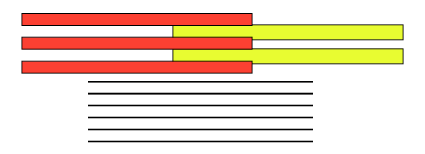
                  Expand the Blend and Ungroup it and draw a straight Line below.

                  0_1654675010192_Even-Space-blend-4.png

                  .
                  .
                  0_1654675205212_Even-Space-blend-5.png
                  Select all shapes of the pattern. Hold the Shift-Key and select the straight line.
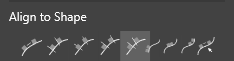
                  Call the Alignment Panel. In the Align Panel Menu, select Geometric Alignment
                  and then the > Align to Shape "...distribute equal distances..." Icon.
                  0_1654676955645_Alignment-Distance-1.png
                  .
                  .
                  Here a Video, how to do it, re-upload:
                  .
                  .
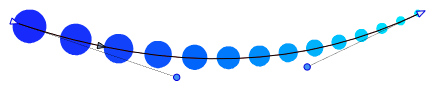
                  Delete the Line and Group the Result an create a Pattern Brush Preset with it.
                  Set "Rigid shapes" and "Scale rigid shapes".
                  .
                  .
                  0_1654675594134_Even-Space-blend-6.png
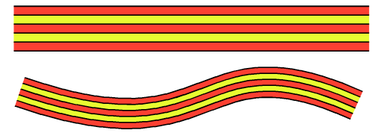
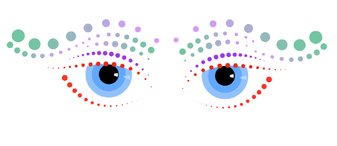
                  To control the space between the Shapes in this Pattern Brush,
                  play with the Line length and with the Node Handles
                  .
                  .
                  0_1654675616823_Augen-60.png
                  .
                  .

                  Win 11
                  CPU: AMD Ryzen 5 9600X, 6-core.
                  GPU: Nvidia Geforce RTX 5070.

                  1 Reply Last reply Reply Quote 4
                  • S Offline
                    Subpath
                    last edited by Subpath

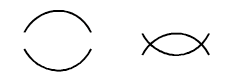
                    Combining Pattern and combining rigid and non rigid Pattern Brushes
                    .
                    .
                    Sometimes it doesnt work to set the shapes in your pattern brush
                    to rigid or non-rigid. As it will not cover all needs of your Pattern.

                    Like this example show:
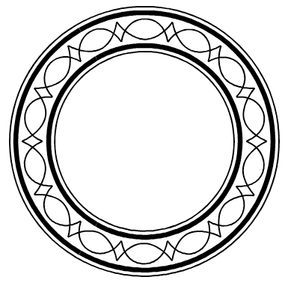
                    0_1655109291949_Pattern-Brush-4.png
                    .
                    .
                    The solution is a simple practical one:
                    Create two Pattern, set one Part to rigid and the other Part not
                    and place one Pattern on top of the other.
                    .
                    Copy your Shape and apply the first pattern onto
                    the one shape and your second pattern onto the copy.
                    .
                    Select both, use Alignment panel, click on horizontal center
                    and vertical center and you have a much nicer result than before.
                    ( is also possible to record a Action with the Alignment Steps,
                    so its just one click then)
                    .
                    Found this a nice way to combine several different pattern brushes.
                    E.g. creating pattern for inner and outline structures.
                    .
                    .
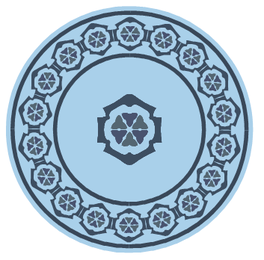
                    Here some Example Pictures:
                    .
                    0_1655109495245_Pattern Brush-2.png
                    .
                    0_1655109504843_Pattern Brush-2a.png
                    .
                    0_1655109518008_Pattern Brush-2c.png
                    .
                    0_1655114292306_Pattern Brush-2d.png
                    .
                    .
                    0_1655109541979_Pattern Brush-3.png
                    .
                    0_1655109857030_Pattern Brush-3a.png
                    .
                    .
                    0_1655109566122_Pattern-Brush-1a.png
                    3 Pattern Brushes used
                    .
                    0_1655109572858_Pattern-Brush-1.png

                    Win 11
                    CPU: AMD Ryzen 5 9600X, 6-core.
                    GPU: Nvidia Geforce RTX 5070.

                    B 1 Reply Last reply Reply Quote 5
                    • B Offline
                      B-Vs-V @Subpath
                      last edited by

                      @Subpath Well done 👍

                      I should have read this before starting the blending thread... well, too late ☺

                      W11 Pro 25H2 - 12th Gen Intel(R) i7-12700K 3.61 GHz - RAM 64 Go - NVIDIA GF GTX 4070 Ti - Intuos - Dell UP3216Q / Eizo ColorEdge
                      W11 Pro 25H2 - 12th Gen Intel(R) i7-12700KF 3.60 GHz -RAM 64 Go - NVIDIA GF GTX 3080 - IntuosPro- ProArt PA329C

                      S 1 Reply Last reply Reply Quote 1
                      • S Offline
                        Subpath @B-Vs-V
                        last edited by Subpath

                        @Pat said in Playing with Blend in Pattern Brush:

                        Thank you

                        I should have read this before starting the blending thread

                        ... not really necessary, I like your own view

                        Win 11
                        CPU: AMD Ryzen 5 9600X, 6-core.
                        GPU: Nvidia Geforce RTX 5070.

                        1 Reply Last reply Reply Quote 2
                        • First post
                          Last post