Freeform Gradients
A freeform gradient blends colors across a shape using points or curves that you place within the filled area. You control where colors appear, and VectorStyler blends between them to create a smooth fill.
The object’s outline can also act as a color curve. When you edit the outline, the freeform gradient updates to follow it.
There are two ways to arrange the colors:
- Points mode - Place color stops independently inside the object.
- Lines mode - Place color stops along connected curves so the colors follow the contours of your artwork.
Creating a Freeform Gradient
- Select a vector object with the selection tool.
- Choose the Freeform Gradient
 tool, grouped with the other gradient tools in the toolbox.
- Open the Freeform Gradient panel from Window. The panel is titled Freeform.
- Enable Insert Curves to add curves, or disable it to add independent points.
- Click inside the object to create points or curve nodes.
- Select a point or node and choose its color from a color selection panel. Double-click a node to open a pop-up for its color and opacity.
Applying a freeform gradient replaces the object’s existing fill. To edit it later, select the object and activate the Freeform Gradient tool.
Freeform Gradient Options
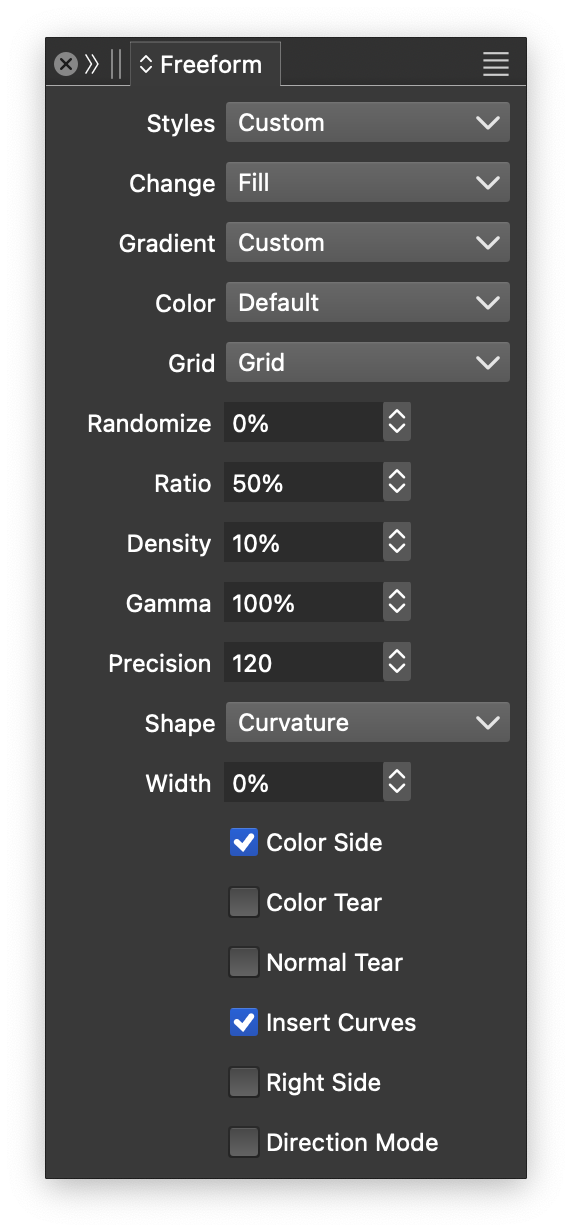
The Freeform panel.
The Freeform panel controls the gradient’s appearance and how the tool edits it:
- Styles - Create or apply a freeform gradient fill style, including all gradient settings and member shapes.
- Change - Choose whether the tool edits the object’s Fill, Stroke, or Transparency mask.
- Gradient - Create or apply a freeform gradient style containing only the local settings.
- Color - Choose the color mode used to blend colors.
- Grid - Choose how additional points are generated across the filled area to build the gradient’s mesh.
- Randomize - Set how much the mesh grid is randomized.
- Ratio - Set the color transition ratio.
- Density - Set the mesh density.
- Gamma - Set the gamma of the color transition.
- Precision - Set the precision of the gradient curves.
- Shape - Choose the interpolation method for the gradient curves.
- Width - Set the width of the gradient curves.
- Color Side - Enable coloring on each side of a curve.
- Color Tear - Enable color tearing along the curves.
- Normal Tear - Enable tearing of color directions along the curves.
- Insert Curves - Add curves when enabled, or independent points when disabled.
- Right Side - Edit colors or color directions (normals) on the right side of curves.
- Direction Mode - Edit color directions.


