Subcategories

  • These features and ideas have been implemented in VS as suggested

    180 Topics
    1k Posts
    VectorStylerV
    @Ayo said in About the Snap feature: Wouldn't it be better to change "Snap to Visible Only" to "Snap to View Extend Only" or shorter "Snap to Viewport Only" or even shorter "Snap to View Only" ? There is a big chance of confusion with the term 'visible' which is mainly linked to the layer system. I added this to the backlog.
  • Corner tool possibilities

    7
    2 Votes
    7 Posts
    7k Views
    BoldlineB
    @Subpath said in Corner tool possibilities: so mission accomplished Yes the immediate mission was accomplished! Hoping @VectorStyler can address the minor but important suggestion for improvement and the error with the top row far right example that seemed to overinflate
  • 1 Votes
    3 Posts
    4k Views
    G
    @VectorStyler Thanks Admin
  • Adobe Illustrator's Quick Preview When Moving Complex Object Around

    5
    1
    0 Votes
    5 Posts
    5k Views
    G
    @VectorStyler Thanks Admin
  • Option to switch from text shape to text frame

    3
    1 Votes
    3 Posts
    3k Views
    BoldlineB
    @VectorStyler Thanks for pointing out where it already existed in VS as a menu option/shortcut. I assume that is the "convert to frame" option? Knowing the shortcut to do this is probably a better option than adding it as a handle on the text frame. I agree it's not something commonly used too often. [image: 1673379744338-a66ab328-2a98-4608-b083-03791c51ba54-bld-2023-01-10-at-14.42.16.png] I did notice when trying it out, that it shrunk the text box down considerably when used. Is there something I would need to do to keep the text the same size when switching to area type? This is a different video I found that relates to it. He approaches it from the other way - creating area type and then wanting to control it as text shape and switching between them. I was intrigued by the "area text panel" in illustrator in the video I linked. Seems to allow for control of spacing between lines of text, etc while maintaining it within an area text selection. I also know there's a high chance this already exists in VS and I just didn't see it yet lol [image: 1673380198245-82b0af0c-5447-4a31-be11-5b02229aac50-bld-2023-01-10-at-14.49.26-2x.png]
  • Improving search options in Preferences

    2
    2
    3 Votes
    2 Posts
    3k Views
    VectorStylerV
    @Boldline Added this to the backlog for 1.2
  • Setting Text Size Unit & Other Object Size Unit Differently

    4
    0 Votes
    4 Posts
    4k Views
    VectorStylerV
    @gotanidea Added this to the backlog, will try to replicate and fix ASAP.
  • select tool open all the tools inside the group

    3
    1
    2 Votes
    3 Posts
    3k Views
    J
    Also there is an option in AI, ALT +click the group swap the tools. Here is a recording
  • Eraser polygon shapes

    7
    1 Votes
    7 Posts
    7k Views
    S
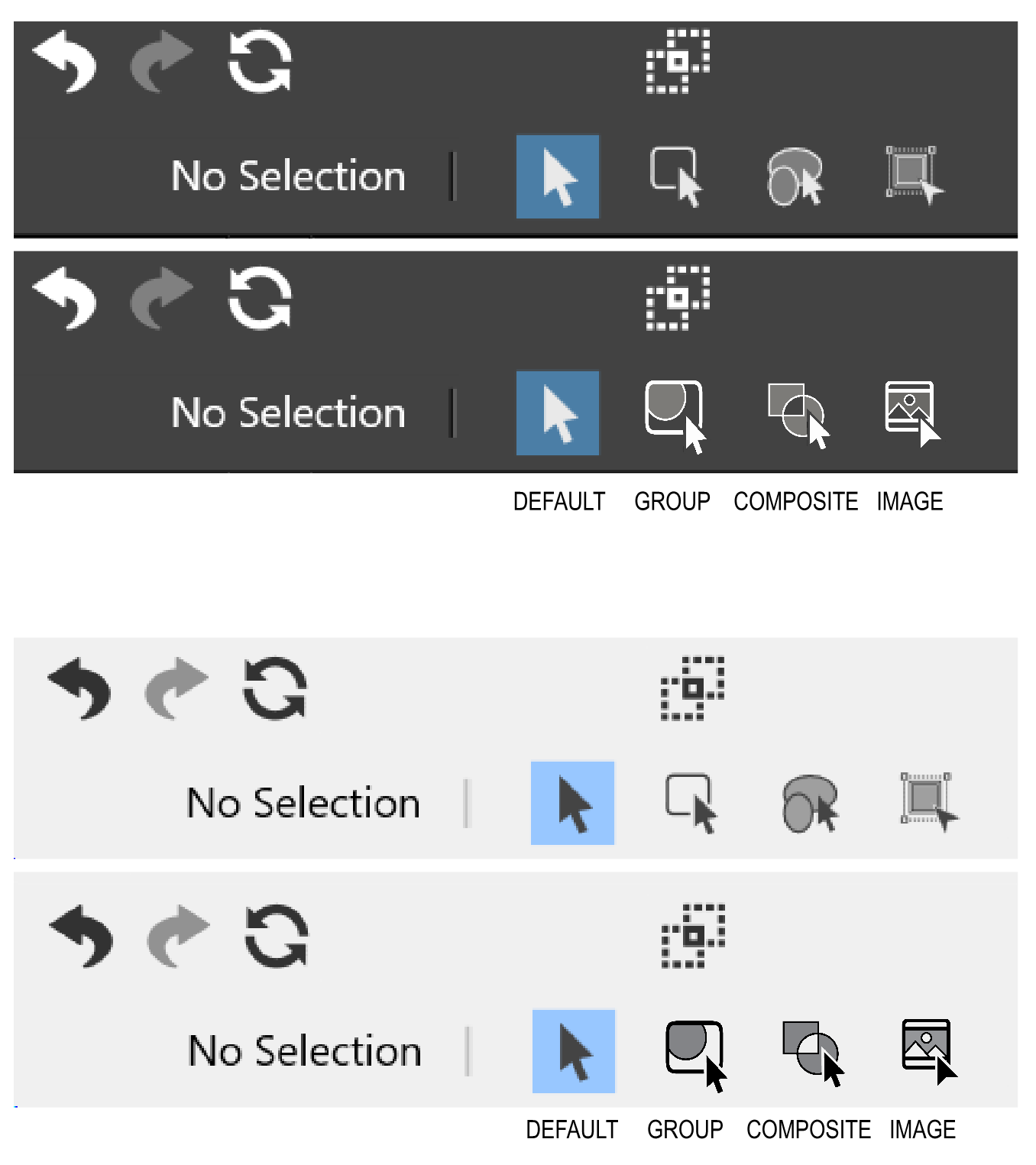
    @Harry I corrected my post above, because of a mistake i made. I had forgotten that, to select a Member of a Composite Group, you first have to switch on "Select ... members of Composite Mode Tool" first. Then the selection of objects works in composite mode. Its the Icon on the right. [image: 1672937055457-composite-mode.png] Here a Video that shows the right way
  • 1 Votes
    4 Posts
    4k Views
    VectorStylerV
    @b77 Happy New Year!
  • 0 Votes
    2 Posts
    3k Views
    VectorStylerV
    @Boldline Added this to the backlog.
  • Changing A Selected Word's Font using Style Picker Tool

    2
    1 Votes
    2 Posts
    4k Views
    VectorStylerV
    @gotanidea Added this to the backlog.
  • Order of arrangement icons

    16
    1
    1 Votes
    16 Posts
    12k Views
    IngolfI
    @b77 said in Order of arrangement icons: …or just use the shortcuts. It's what I do. True but quite a few of the shortcuts require: That you remember them (I try but use too many programs to remember them for long) That you let go of the mouse/pointing device (to use Option+Control+Up for example) Or touch those keys using one hand with a focused, slow touch that only a squid can compete with That is why I often (during the most hectic drawing phase) move some panels close to/over the artboard - and even make custom panels with the features I need when working in these phases with the mouse on the canvas. No keyboard interruptions. Just A, V, G, C etc. at most - my left hand seems to remember them for me.
  • Adding new brush/stroke sizes not intuitive

    5
    1
    1 Votes
    5 Posts
    5k Views
    BoldlineB
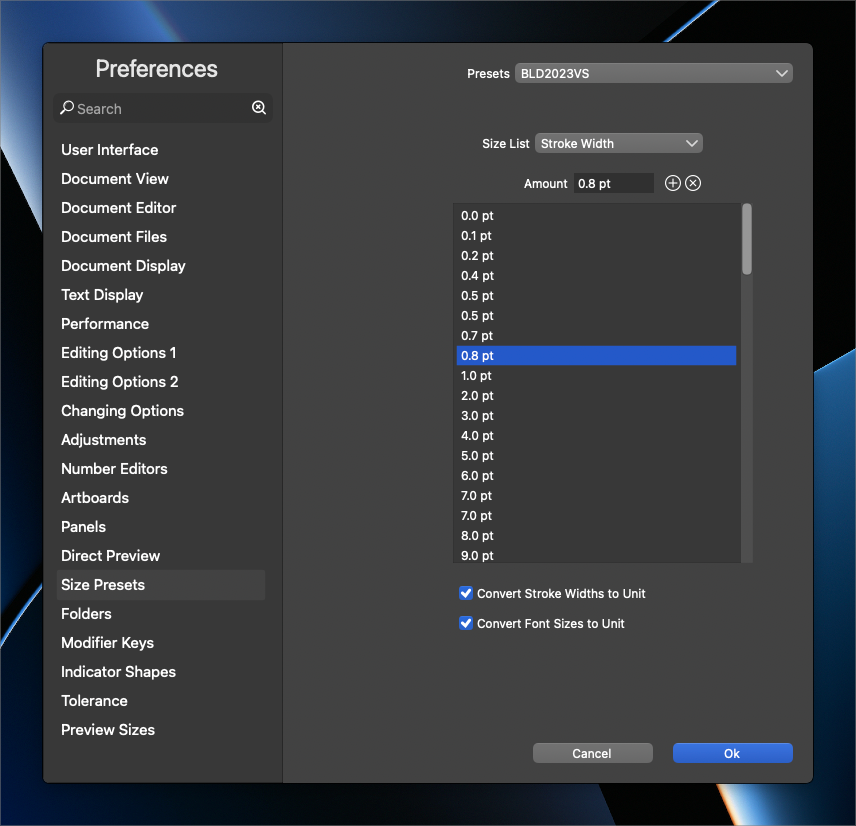
    @VectorStyler Stroke width seems to be working correctly. However, with font size and brush width, it adds a new size to the list, but it's not the right number. You have to close out the panel entirely and reopen to see the updates. Here is a video showing this So really, if the font size and brush width options worked like the stroke width does now, the panel would feel better and more intuitive
  • Shortcut to make all selected node handles flush with path

    9
    1
    1 Votes
    9 Posts
    7k Views
    BoldlineB
    @VectorStyler said in Shortcut to make all selected node handles flush with path: The question here is: which handles to alter? Or could be with selected node handles only, there it is simple. Yes, in the case of having node handles be made to run parallel with the stroke path, that would be with selected node handles only
  • 0 Votes
    4 Posts
    4k Views
    BoldlineB
    @VectorStyler The handle itself could be pulled out as long as you wanted and would give more detailed precise control over how fast the rotation occurred. The shorter the handle, the less precision and control over the rotation. the longer the handle is pulled out, the more precise and minute edits can be achieved. Here is a screenshot of the feature found in procreate on the ipad. the green handle pulls out and controls the precision of the rotation of the actual selected object. the yellow handle on the opposite side rotates the bounding box itself around the object. This would also be an awesome addition to VS [image: 1671486351108-bc02607f-9fdd-4f0f-8b63-9ffe4d7119b8-bld-2022-12-19-at-16.44.48.png]
  • 0 Votes
    2 Posts
    3k Views
    VectorStylerV
    @Boldline Good idea! For now, holding the Control key while dragging a guideline will assign it to the artboard under the cursor.
  • Seamless pattern generator

    19
    1 Votes
    19 Posts
    17k Views
    S
    @Harry The Tutorial is online, you found it in the Tutorial Section. Here the LInk https://www.vectorstyler.com/forum/topic/2801/how-to-create-pattern-fills-with-clipped-shapes
  • Hover over close button

    4
    0 Votes
    4 Posts
    4k Views
    VectorStylerV
    @Harry said in Hover over close button: Speaking of it. It would be great to have something similar on the windows taskbar - opening VS file in the background would indicate it like on other windows apps - Recordit This one I have to figure out first, how it is done.
  • Selecting One Locked Object

    9
    3 Votes
    9 Posts
    7k Views
    G
    @VectorStyler said in Selecting One Locked Object: @gotanidea said in Selecting One Locked Object: We can select one locked object to unlock it selectively in Illustrator, instead of unlocking all locked objects. I know we can select one locked object through Layers panel, but it would be easier to do it from the viewport Yes, in the menu: Select -> Options -> Allow Locked Objects Thank you, I didn't know about that. It's exactly what I need
  • Slabtype text alignment option

    7
    1
    2 Votes
    7 Posts
    6k Views
    VectorStylerV
    @Boldline Yes, this is doable with the Alignment panel. It needs maybe more clicks that ideal, will try to improve that.