• 0 Votes
    12 Posts
    16k Views
    F
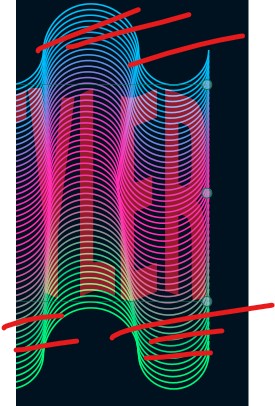
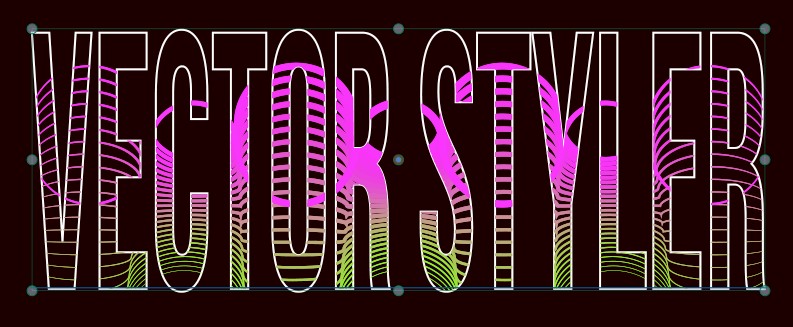
    I got this, by grouping the finished blend which made it easier to rotate (from the center I think vs from an edge). Quite a bit of tinkering. Not a bad result. Thanks for the help. 0_1670487017668_Abstract_Knot_Illus_Vctr_FINAL.vstyler
  • Disabling vertical flipping during text scaling?

    3
    2 Votes
    3 Posts
    5k Views
    VectorStylerV
    @encart I added this to the backlog, will do flipping only if both directions are flipped. @Boldline No option for this.
  • Trim and Join and .... Extend (once again)

    4
    1
    2 Votes
    4 Posts
    4k Views
    IgullI
    @VectorStyler said in Trim and Join and .... Extend (once again): @Harry Should it work for lines only, or for curves also? It would really need to work for curves too - that'll make it easier for you Neil
  • 1-bit Bitmap export been added to VS?

    6
    1
    0 Votes
    6 Posts
    6k Views
    VectorStylerV
    @Boldline Got it!
  • Change dimensions for bounding box

    5
    0 Votes
    5 Posts
    5k Views
    S
    @Clausj Also interesting to open and to look at is the "Shape" Panel With it you can edit different parameters of the different Shapes that VS offers Menu > Panel > Shape
  • I lost gradient styles and presets from Gradient panel

    10
    1
    0 Votes
    10 Posts
    9k Views
    VectorStylerV
    @Harry Just select a color in the Color panel or Palette panel. Make sure that no gradient color knob is selected in the gradient panel.
  • How to just trim/crop image fastest possible way?

    4
    0 Votes
    4 Posts
    4k Views
    S
    @b77 indeed, thats fast I did not know that either So, good to know
  • How to apply effects to other objects?

    26
    1
    0 Votes
    26 Posts
    35k Views
    VectorStylerV
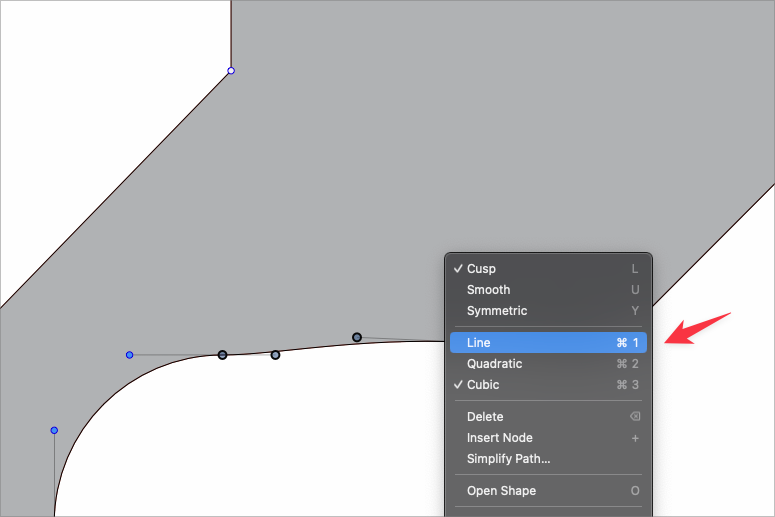
    @Pat said in How to apply effects to other objects?: I think there is still enough space to get sharp pointed edges but no way by modulating the miter limit... another way ? The blunt corners are caused by open paths. At the highlighted locations, the nodes overlap, but the paths are actually open. Use the Node tool and the command in the context panel to connect the nodes.
  • About Artboards, Layers & Objects

    2
    0 Votes
    2 Posts
    3k Views
    VectorStylerV
    @postdes said in About Artboards, Layers & Objects: But what if I want to isolate the objects in a layer stack that are on 1 specific artboard? Is there a way to do this, or a preferences setting to change these things? It is not possible to limit objects to 1 specific artboard only (for now). In VS the artboards are similar to how they are done in Illustrator (for a single canvas). Probably it is easier to work with this model with some Illustrator background instead of Affinity. All objects on a canvas are part of a Layer hierarchy (layers at any depth, and groups) of that canvas. In VS, artboards are more like "guides", indicating areas for printing and /or exporting. A single canvas may contain any number of artboards, placed arbitrarily on the canvas. Objects can overlap multiple artboards, and the stacking order of objects across all artboards is the same. It is possible to clip objects to artboards, but this is just a "displaying" trick, and the object can still strech across multiple artboards (even if clipped on each). And about multiple canvases: yes, things get a bit complicated here. This part is more similar to what we have in InDesign with spreads (canvases) and pages (artboards). And I think the Corel multiple page model is also similar to this. But yes, it is possible to have multiple canvases in a single VS document each containing its own Layer hierarchy. Only one canvas can be visible in a document view, but multiple document views of the same document may show different canvases. Master canvases are similar to what we have as master pages in DTP apps. Sort of a template for canvas content. Reference canvases are "extra" canvases that are not included in printing or exporting, and can be used as a place for various assets like symbols, vector pattern or vector brush content, etc. Reference canvases become interesting once we get used to how styles and object roles work in VS (these are VS specific). For example, it is possible to "declare" all objects (with a name) on a reference canvas as symbols. Or all colors used to fill objects on a reference canvas as "color styles". And these remain dynamically linked: modifying them updates all their uses through the document.
  • Shape tool properties should not be affected by "transform strokes"

    2
    1
    2 Votes
    2 Posts
    3k Views
    VectorStylerV
    @Boldline Do you have a recording of this, it might help identifying the issue.
  • Schoolboy Circle Question

    21
    0 Votes
    21 Posts
    27k Views
    VectorStylerV
    @b77 said in Schoolboy Circle Question: Unfortunately trackpad users are stuck with no access to a context menu with this setting This is why the before / after mouse press differentiation of modifiers allows for covering more use cases.
  • How does arithmetic operations work in Transform panel?

    5
    1
    0 Votes
    5 Posts
    5k Views
    VectorStylerV
    @Harry In the angle editor the units are just decorative. In the position / size the units always convert to [pt] and this causes the issues here. I will try to improve this.
  • Difficulty selecting small objects surrounded by others

    9
    1
    0 Votes
    9 Posts
    7k Views
    BoldlineB
    @VectorStyler I sent you the file by email. I was trying at first with the wacom stylus and then tried with mouse - it was easier with mouse but not by much
  • Align to Shape does not work as expected

    5
    4
    0 Votes
    5 Posts
    5k Views
    S
    @VectorStyler works after convert to curve put i miss this Part here [image: 1669801829205-missing-part.png]
  • Repeat Move of nodes

    2
    0 Votes
    2 Posts
    3k Views
    VectorStylerV
    @Raven said in Repeat Move of nodes: then select other node/s and choose Repeat Move, the nodes move by the amount of the earlier object movement I think this might be a bug. I will try to replicate it and find a fix ASAP.
  • How do I switch back to text size preview when dragging with text tool?

    3
    0 Votes
    3 Posts
    3k Views
    BoldlineB
    @b77 said in How do I switch back to text size preview when dragging with text tool?: That option enables text size preview when dragging and it's not working. ok - yes then we're on the same page. I wanted to be sure it was not just me who was having issues with it. Also wanted to be sure @VectorStyler was aware of the issue. thanks https://recordit.co/wWWD7odBwV
  • Improved Context menu bar

    2
    0 Votes
    2 Posts
    3k Views
    VectorStylerV
    @Jayanta-Das Some attribute options are only shown if there is a selected object.
  • 0 Votes
    4 Posts
    4k Views
    VectorStylerV
    @Boldline Probably this problem existed before. The "Transform" is added to the text if it is scaled. But when converting to curves, it should keep the positions. Can this be replicated with the example sent by email?
  • Can merge nodes at center handle more than 2 nodes?

    3
    0 Votes
    3 Posts
    3k Views
    VectorStylerV
    @Boldline I will try to figure out how to make this work with more than 2 nodes.
  • Shift modifier for pulling node in single direction?

    2
    0 Votes
    2 Posts
    2k Views
    VectorStylerV
    @Boldline When multiple nodes are selected, this should work. For a single node, it depends on other modifier settings.