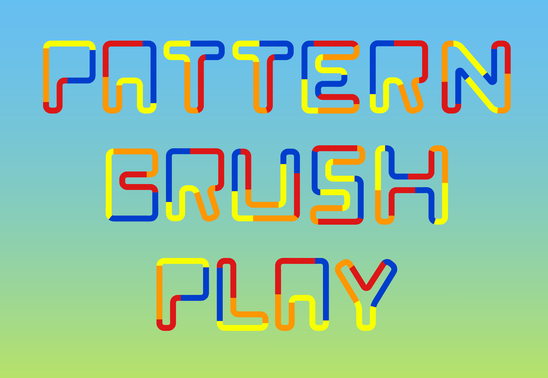
Playing with Blend in Pattern Brush








-
Whow, I have to play with that soon!

-
-
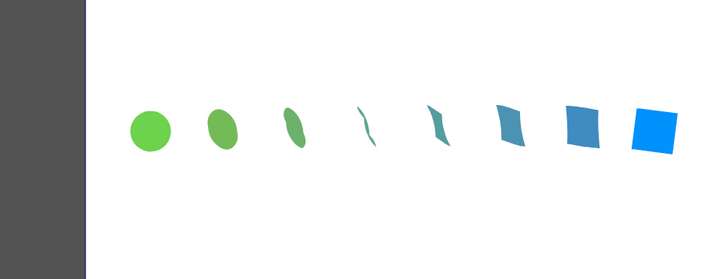
My playing ended in the first stage. Unfortunately I am getting a strange transformation when applying the blend effect. Mapping does not help
MacBook Air M4 24Gb, Tahoe 26.3.1
-
@encart Maybe you need to flip and also rotate one of the shapes.
-
@b77 Thanks! Flipping solved the problem.
-
-
How to get better even spacing in such patterns

.
.

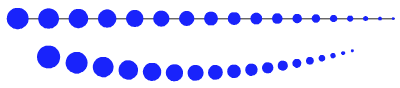
Even spacing between the shapes is easy with such patterns
.
.

But seems not possible when using Profils
.
.

Using Blend gives us the option to adjust the space with "Position"
in Blend Option. But I am not really happy with this way.
.
.
.
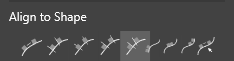
I like to use the Alignment Panel and the Align to Shape "...distribute equal distances..." icon.
.
Here how to do it:
Create a Blend with your Pattern.
( Transformation with copy would also work, I find a Blend easier )
Expand the Blend and Ungroup it and draw a straight Line below.

.
.
Select all shapes of the pattern. Hold the Shift-Key and select the straight line.
Call the Alignment Panel. In the Align Panel Menu, select Geometric Alignment
and then the > Align to Shape "...distribute equal distances..." Icon.
.
.
Here a Video, how to do it, re-upload:
.
.
Delete the Line and Group the Result an create a Pattern Brush Preset with it.
Set "Rigid shapes" and "Scale rigid shapes".
.
.
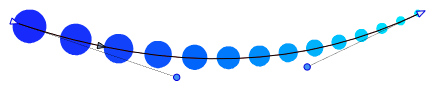
To control the space between the Shapes in this Pattern Brush,
play with the Line length and with the Node Handles
.
.

.
. -
Combining Pattern and combining rigid and non rigid Pattern Brushes
.
.
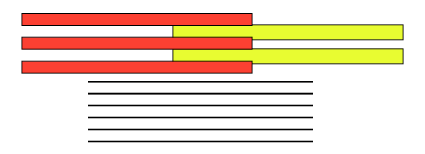
Sometimes it doesnt work to set the shapes in your pattern brush
to rigid or non-rigid. As it will not cover all needs of your Pattern.Like this example show:
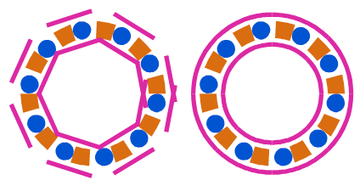
.
.
The solution is a simple practical one:
Create two Pattern, set one Part to rigid and the other Part not
and place one Pattern on top of the other.
.
Copy your Shape and apply the first pattern onto
the one shape and your second pattern onto the copy.
.
Select both, use Alignment panel, click on horizontal center
and vertical center and you have a much nicer result than before.
( is also possible to record a Action with the Alignment Steps,
so its just one click then)
.
Found this a nice way to combine several different pattern brushes.
E.g. creating pattern for inner and outline structures.
.
.
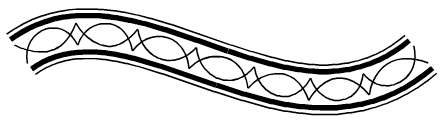
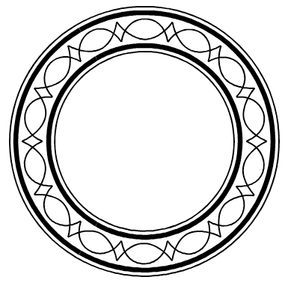
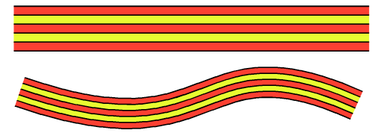
Here some Example Pictures:
.
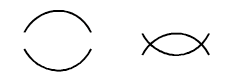
.
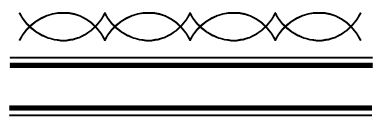
.
.
.
.
.
.
.

3 Pattern Brushes used
.

-
@Subpath Well done

I should have read this before starting the blending thread... well, too late

-
@Pat said in Playing with Blend in Pattern Brush:
Thank you
I should have read this before starting the blending thread
... not really necessary, I like your own view
-
S Subpath referenced this topic on
-
 C Clippy notes referenced this topic on


