Truchet Shapes
Truchet shapes use repeating tile variations whose edges connect to form larger shapes. Use them as ordinary object shapes or within the Halftone effect.
Edit the Truchet shape with the Node tool or the Shape panel.
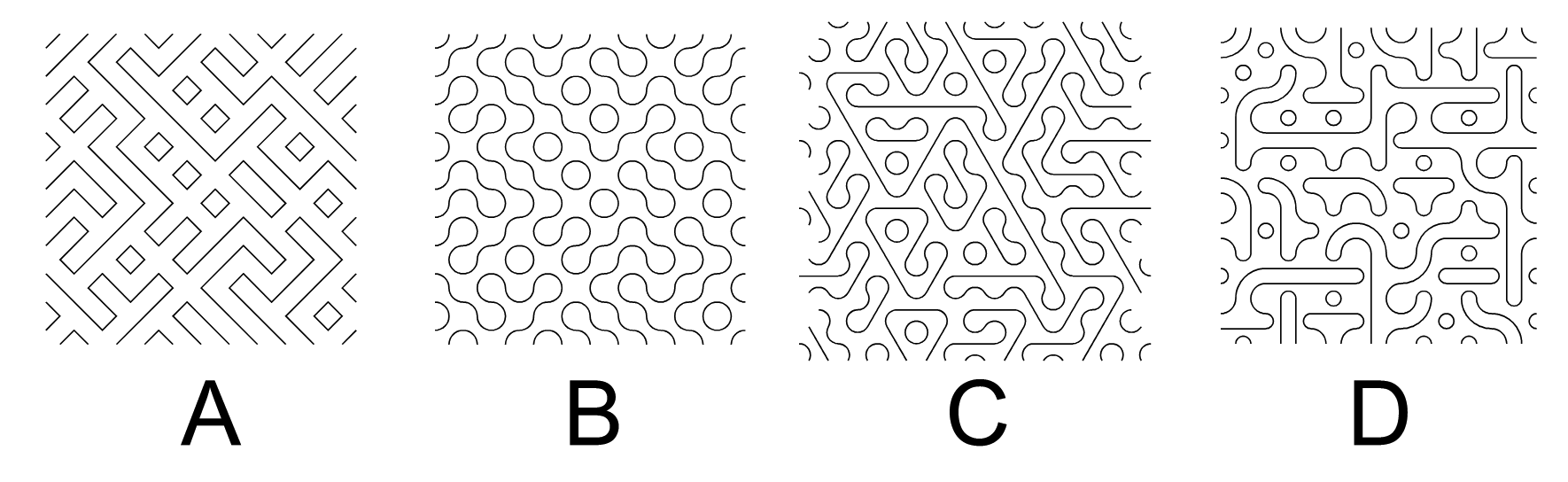
Truchet shapes with different tile patterns.
Drawing Truchet Shapes
Use the  Truchet Shape tool to draw Truchet shapes. To draw a Truchet shape:
- Select the Truchet Shape tool from the toolbox.
- Press on the canvas where you want to start drawing.
- Drag to set the Truchet shape size. The size is adjusted to be a multiple of the Truchet tile size.
- Hold the Control key to draw the Truchet shape centered at the starting point.
- Hold the Shift key to draw a square Truchet shape.
- Release the mouse button to create the Truchet shape with the selected size.
Double-click the Truchet Shape tool to set its drawing defaults. Choose the pattern type and size in the Shape panel before drawing.
To enter precise values, click the canvas with the drawing tool to open the Truchet Shape dialog. Set the properties described below, then click Ok to create the shape.
Editing Truchet Shapes
Use the Node tool to edit Truchet shapes:
- Select the Truchet shape.
- Select the
 Node tool from the toolbox.
- Three handles control the shape’s size and rotation.
- Drag the bottom-right handle to change both the width and height.
- Drag the handle at the center of the right edge to change the width and rotation.
- Drag the handle at the center of the top edge to change the height and rotation.
- Hold Shift to constrain rotation to the configured increments.
- Hold Control to resize the shape without rotating it.
- Hold Command (Mac) or Alt (Windows) while dragging to rotate the shape without resizing it.
Truchet Shape Properties
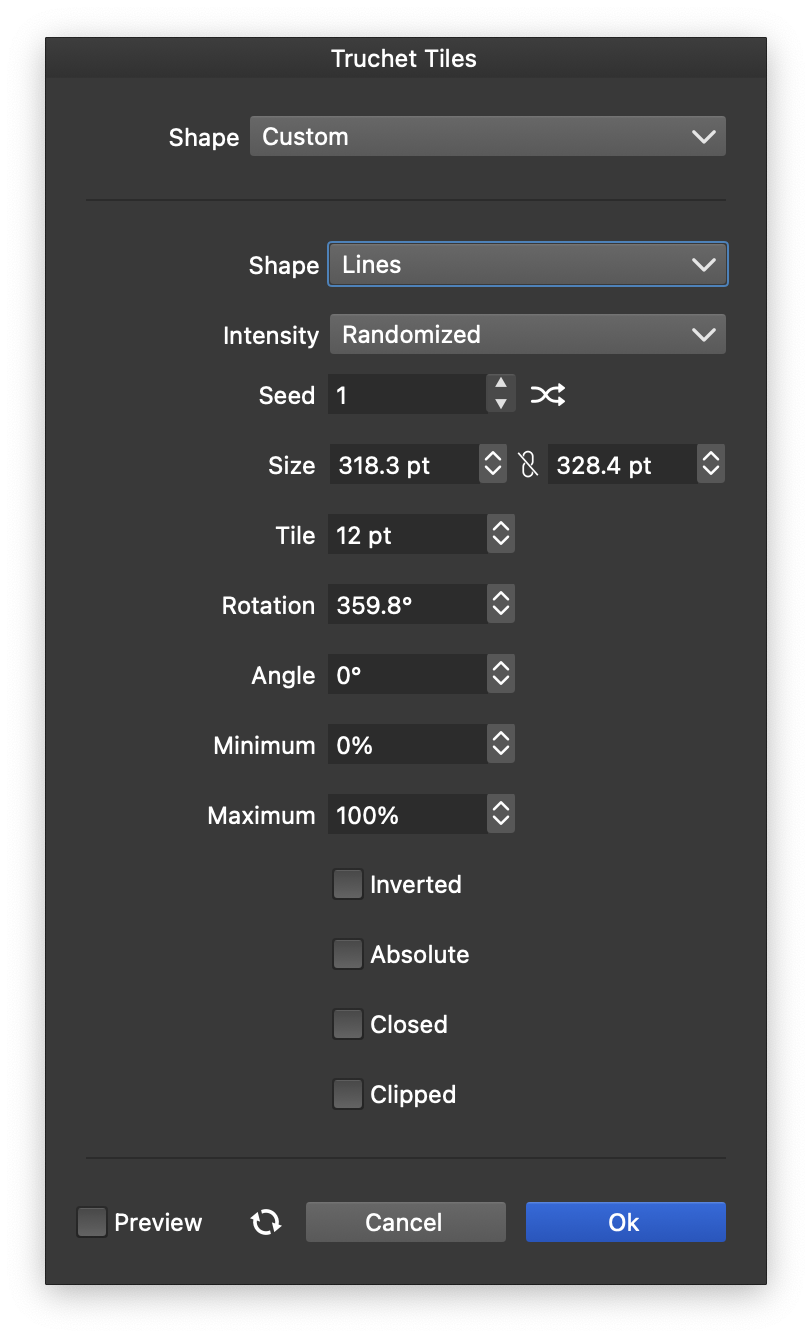
The Truchet Shape options.
With the shape selected, edit its properties in the Shape panel. You can also open the Truchet Shape dialog from the panel or when editing a shape style.
The following properties are available:
- Shape - Select the Truchet tile pattern. Custom Truchet tiles can be created with the Create Truchet Shape Preset and Create Truchet Shape Style commands of the Styles - Create Styles menu.
- Intensity - Select the intensity scheme used to control the variation in the Truchet shape tiles.
- Seed - Set the random seed used in intensity schemes.
- Size - Set the width and height of the Truchet shape.
- Tile - Set the size of the Truchet tiles.
- Rotation - Set the rotation of the whole Truchet shape.
- Angle - Set the running angle of the Truchet tiles.
- Minimum - Set the minimum intensity level when selecting Truchet tiles.
- Maximum - Set the maximum intensity level when selecting Truchet tiles.
- Inverted - Check to invert the intensities used to select Truchet tiles.
- Absolute - Check to use absolute Truchet tile positioning.
- Closed - Check to close the Truchet shape at the edges.
- Clipped - Check to cut the Truchet shape at the edges to the selected size.
Create Truchet Shape Tiles
Choose Create Truchet Shape Preset or Create Truchet Shape Style from Styles - Create Styles to save custom tiles.
Create several tile variations with matching edges so they connect into a continuous pattern.
There are two ways to define Truchet tiles:
- Use several groups clipped to triangles, squares, or hexagons. VectorStyler detects the tiling scheme from the clipping shapes and cuts the group contents to fit.
- Create a custom tiling template alongside the tile artwork. The template defines how tiles fit together to fill an area. The “Snub Square”, “Trihexagonal”, and “Truncated” presets use this approach.
A tiling template is a group of shapes arranged to repeat across an area. Copies are positioned so that designated shapes in neighboring groups overlap. You can also use these templates for vector patterns and repeater geometries.
Use the following steps to create Truchet tiling templates:
- Add one or more global or spot colors to the document palette.
- Arrange a group of shapes with aligned edges. Aligned edges are required for a continuous flow between Truchet tiles, though they are optional for patterns and repeaters.
- Apply the global colors to shapes at the group’s edges that should overlap when the template repeats.
- Name each object in the group. These names identify the matching tile content when creating Truchet shapes, patterns, or repeaters.
- Use the same name for objects with the same tile shape. For example, triangles can share a name and accept triangular artwork; squares can share another name and accept square artwork.
- Use this group as the template for Truchet shapes, patterns, or repeater geometries.
To create a Truchet shape:
- Create additional groups clipped to shapes that match the template’s tiles. Draw the artwork so its edges connect across tiles.
- Give these groups the same names as their matching objects in the template.
- Select the template and the artwork groups.
- Choose Create Truchet Shape Preset or Create Truchet Shape Style from Styles - Create Styles.
- Set the tile options, then confirm the preset or style.


