• Having trouble doing a 'Cut / Paste inside' workflow

    10
    0 Votes
    10 Posts
    9k Views
    ambrosA
    @b77 Yes.. it's what i was looking for.. something quick and easy Thanks for your help
  • Offset Path Default on Miter instead of Round

    4
    1
    0 Votes
    4 Posts
    5k Views
    VectorStylerV
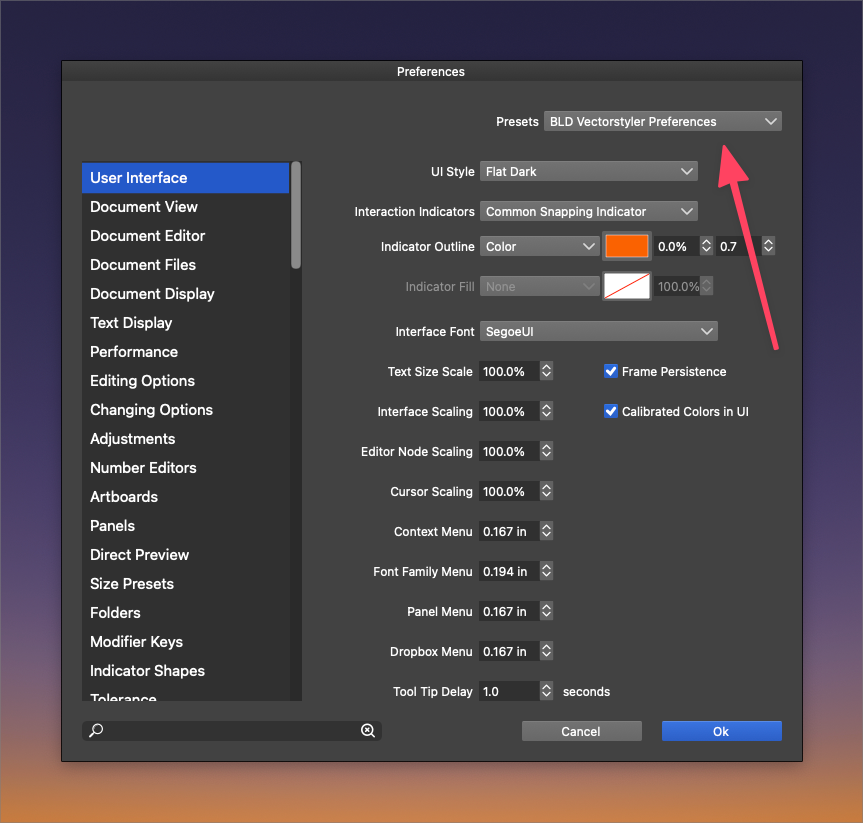
    @Boldline These are tied into the workspace (along with other panel states), which can also be saved / loaded.
  • VectorStyler GUI doesnt display any text.

    7
    1
    0 Votes
    7 Posts
    7k Views
    E
    Made the time, reset the default system font, VS now displays text. Still have 40 days of trial to evaluate. Thanks for your assistance and solution.
  • Can Shape Picker Tool not also change actual text to same as source?

    2
    0 Votes
    2 Posts
    3k Views
    VectorStylerV
    @Boldline This is a bit of a problem: the shape picker tool picks and applies shapes. In case of point text, the whole thing is a shape (text + formatting). It would be difficult to make exception for one shape type. Maybe in this case the Edit -> Attributes -> Copy / Paste Character Style would be a better option?
  • Highlighting nodes or items within a group

    4
    1
    0 Votes
    4 Posts
    5k Views
    BoldlineB
    @vectoradmin @b77 - yes I already had "Enable the: Preferences -> Editing Options -> Show Nodes of Selected Shapes" selected prior to this screenshot. I think this issue is more user error on my part looking at it fresh today. The nodes when selected in this case turn a dark blue and are hard to see. see first pic below: (What setting in preferences>user interface> interaction indicators changes that color from blue? Same with handles? Thanks in advance) [image: 1636306266183-0265805b-90bf-42ea-aa39-f7e32f0e5bad-image-resized.png] This is what I'm used to in Illustrator - in the pic below, I have numerous red shapes I grouped together into one group. the light blue outline of the selection is around all the shapes contained within that group. The highlight around each piece and the nodes can be hidden by pressing command-H, resulting in the last image below. I like having the option to show all parts of a grouping, and the ability to hide the selection interior depending on what I am doing on screen [image: 1636306850911-b274f064-4d98-4ede-a707-76cf5878565e-image.png] [image: 1636307228384-7d32afff-f76a-4ffa-b7ef-48c2b60869dd-image.png]
  • How to disable smooth scrolling/zooming?

    8
    0 Votes
    8 Posts
    11k Views
    D
    Actually I'm using a large trackpad with gesture control -- similar to the Apple Magic Trackpad -- not a mouse.
  • Each new object is placed inside of the first layer.

    5
    0 Votes
    5 Posts
    5k Views
    encartE
    @vectoradmin Thank you! Now it's fine. Edit: Deselecting these two fixed the problem with renaming as well.
  • Stop Layers expanding when clicked on

    2
    0 Votes
    2 Posts
    3k Views
    ambrosA
    Yes there is is !! Under Panel options uncheck 'open selected' Happy Days
  • Could Magic Wand work while any other tool is selected?

    5
    0 Votes
    5 Posts
    6k Views
    encartE
    @Boldline said in Could Magic Wand work while any other tool is selected?: Part of the confusion for me is that the magic wand/polygon lasso/box icon does not turn blue when selected like the other tools in the toolbar do. Each of them, I think, is just a selection mode. Therefore, it does not highlight blue. It is not a tool in itself. At least I haven't figured it out yet. It might as well land on the contextual bar.
  • How do I flip text to the other side of the path?

    9
    1
    0 Votes
    9 Posts
    11k Views
    BoldlineB
    @vectoradmin ok yes it works. I did not have the "text on path" tool selected first. Thank you
  • Resetting the Workspace on Mac

    10
    2
    0 Votes
    10 Posts
    15k Views
    Prevalent ArtsP
    @b77 said in Resetting the Workspace on Mac: @Prevalent-Arts said in Resetting the Workspace on Mac: The second did not for an odd reason. Must be one of those bad MacBook keyboards… Yeah I'm not sure. But at least I now have the solution.
  • Would loading a saved preference file negate a system reset?

    3
    0 Votes
    3 Posts
    4k Views
    BoldlineB
    @vectoradmin ok, that makes sense. In this case, my computer had been using too much disk space and the machine needed a total reboot. It performed better after that. I commonly notice issues happening when I'm opening an eps or PDF file from another source. Vectorstyler seems to prefer its own graphics
  • Snapping seems to not work reliably (1.0.062)

    5
    0 Votes
    5 Posts
    5k Views
    G
    Hi, Thanks, that fixed it.
  • 1 Votes
    2 Posts
    3k Views
    VectorStylerV
    @Boldline I will add this to the backlog.
  • brush settings seem off

    2
    2
    0 Votes
    2 Posts
    3k Views
    VectorStylerV
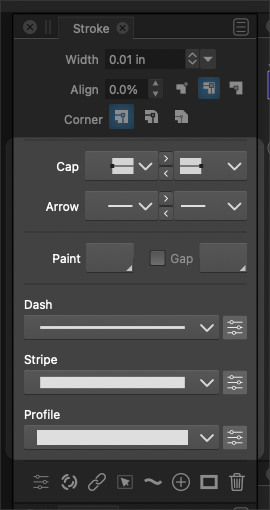
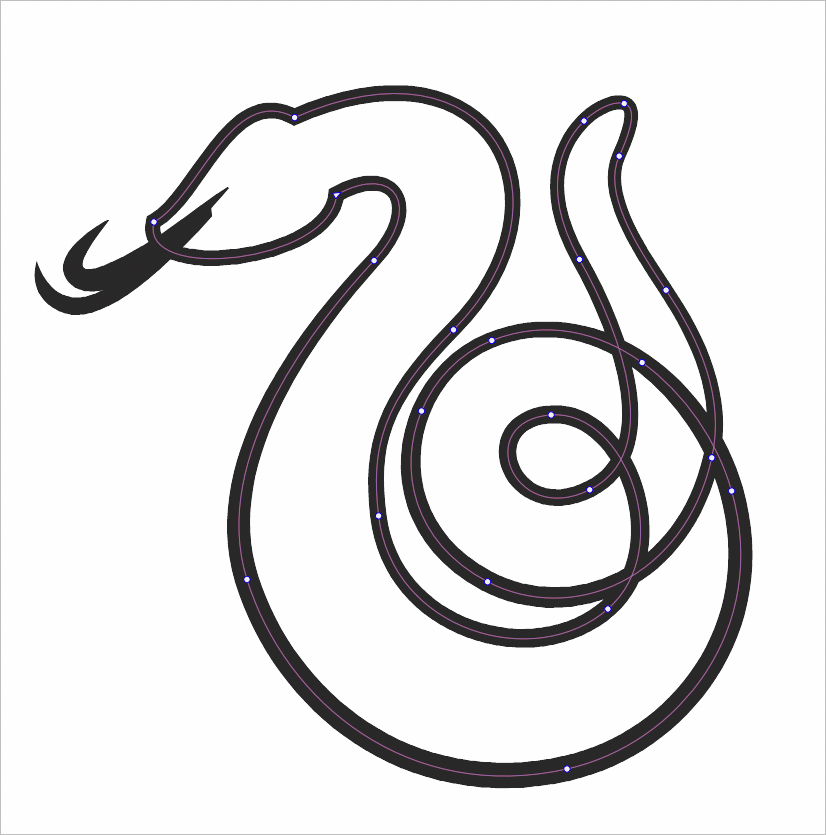
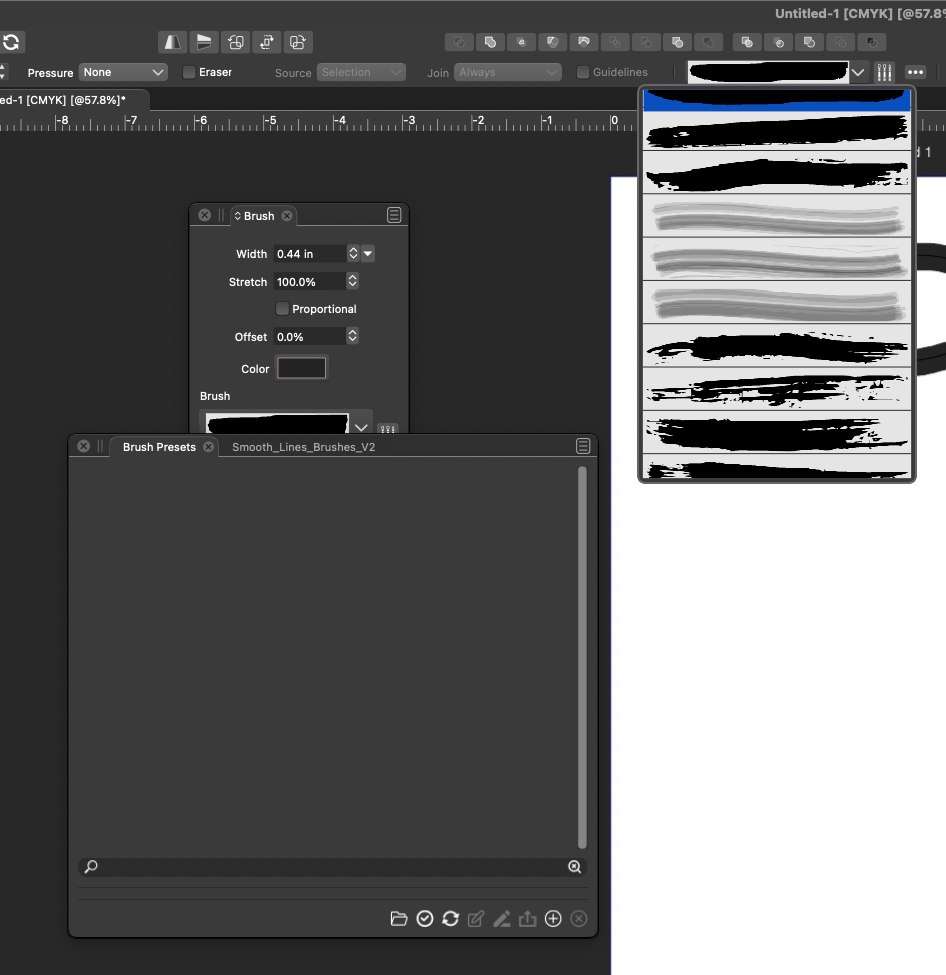
    @Boldline I checked this and it is normal brush behavior (bending at sharp corners). Setting the stroke corner to miter in the stroke panel (first of the 3 corner buttons) might mitigate this a bit (if the corner is not too sharp).
  • How to get exact rotation setting to object on screen?

    2
    1
    0 Votes
    2 Posts
    4k Views
    VectorStylerV
    @Boldline No, guidelines will rotate with the view (they are in document coordinates). The view rotation can be set to a specific angle at the bottom left part of the window, the second number.
  • Convert any stroke into a guide

    Moved
    3
    0 Votes
    3 Posts
    6k Views
    BoldlineB
    @vectoradmin Awesome! thanks for sharing. Nice that it's already in VS and that it can be reverted back to it's original state if desired. the snap to guideline tip will come in handy.
  • Recommended Best Performance Setting

    7
    0 Votes
    7 Posts
    8k Views
    R
    @vectoradmin I tried all permutations of performance settings, the issue was still there. My guess is SVG import has some bug, perhaps. I converted the file to EPS and I was able to open in correct colors. https://drive.google.com/file/d/1Ulq-ZScA9SSafHVHQxczd4NftW6EXIYE/view?usp=sharing I am not in a rut to get this working so please take your time to let into this further if needed. Thanks for your help and support!
  • 0 Votes
    5 Posts
    6k Views
    BoldlineB
    @vectoradmin https://www.dafont.com/highvoltage.font
  • What is the default "Move with Keyboard" amount?

    4
    1
    0 Votes
    4 Posts
    5k Views
    VectorStylerV
    @Boldline The default is 1 pt.