• Why does this happen when moving shape

    2
    0 Votes
    2 Posts
    3k Views
    VectorStylerV
    @Ingolf Looks like the "Fuglen" layer has a different position than "Layer 1". Layers can be selected (small circle) and moved as a whole, to have their own position.
  • Easy grouping of objects

    5
    0 Votes
    5 Posts
    6k Views
    IngolfI
    @vectoradmin I see. Is it possible to add a right click menu to the layers panel with some of these options readily available ? Context sensitive kinda. So I can easily group whatever is marked with blue than can actually be grouped? To group in the layers panel, use the fourth icon at the bottom. Again, then the objects can indeed be grouped, just not with a keyboard shortcut. The user must know the difference and I am not sure I understand the value of this approach. It could be me, though, I am still new to the program, but the more fluid a program makes a workflow, the more productive one gets. Bug. BTW if I right click a layer (does nothing) there is no tooltip afterwards when hovering the icons below.
  • IU size problem

    5
    1
    0 Votes
    5 Posts
    5k Views
    L
    @vectoradmin Thank you very much, the problem is solved, and bravo for your reactivity, very much appreciated!
  • Mouse wheel & field value : integer value without decimal ?

    11
    0 Votes
    11 Posts
    11k Views
    B
    @vectoradmin said in Mouse wheel & field value : integer value without decimal ?: @PatrickM The number editor scrolling magnitudes and zooming speed are two different things. Zooming speed is customizable. I will add the number editor scrolling to the next build. @vectoradmin Of course... "zoom", I read too quickly and was influenced by the topic of the thread. Next build... amazing !
  • Document setup : some remarks/questions

    12
    0 Votes
    12 Posts
    11k Views
    B
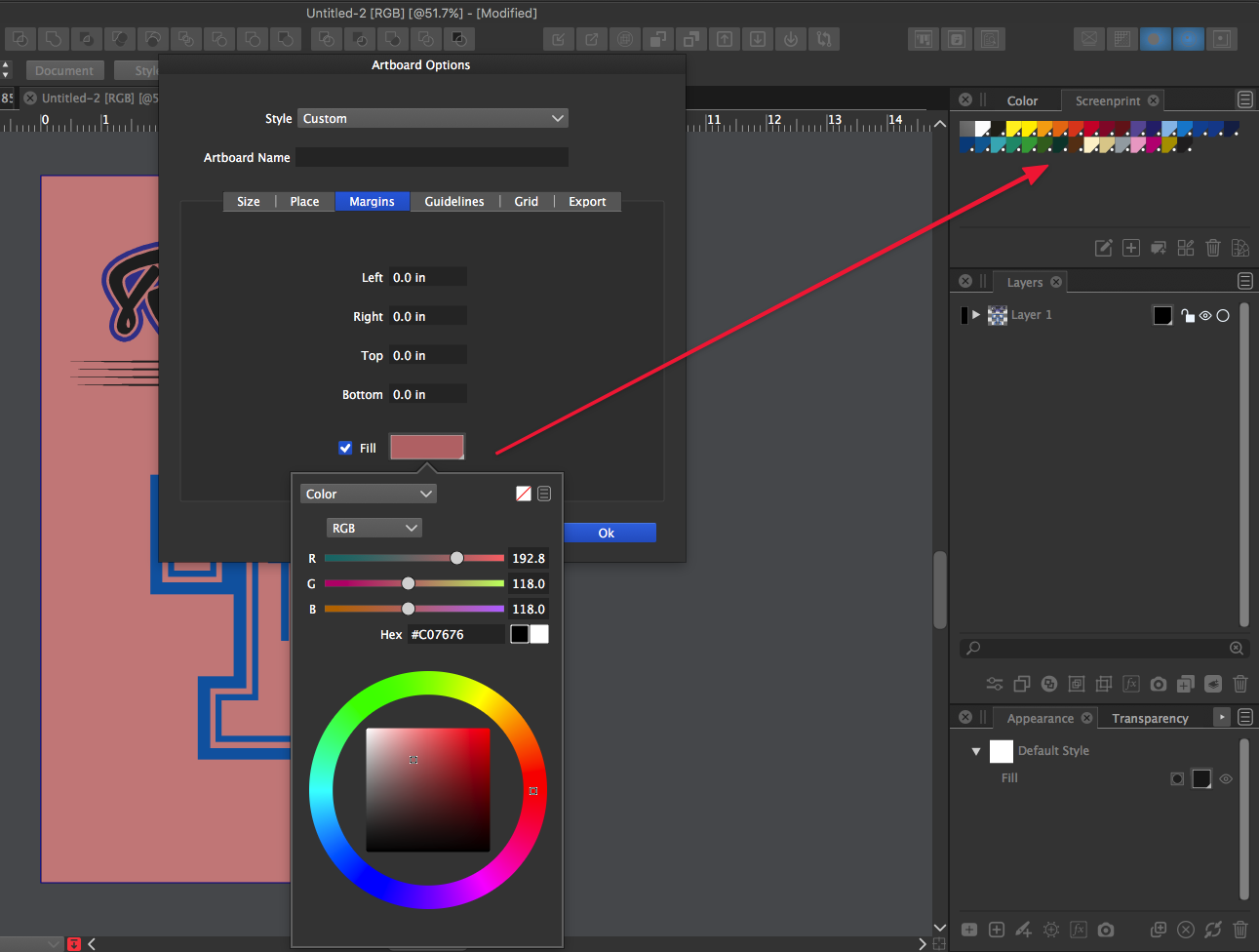
    @vectoradmin great It's a detail but the title "Margins" in the document setup is somehow confusing. One would expect to be able to set the internal margins at the beginning of one file setup. Maybe just name "Bleeds/slug" or include the margins? I leave that to you
  • How to close or connect end points.

    6
    1
    0 Votes
    6 Posts
    6k Views
    b77B
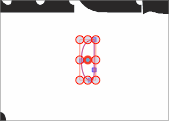
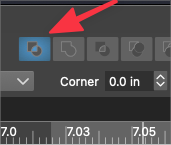
    @chillywilly That's exactly what I did β€” the shape in the quick video is a compound (composite) path. Are two nodes selected though? In your screenshot it looks like you're not in node editing mode. Node editing is done with the Shape Editor tool (shortcut: A). Switch to it, select two nodes (either directly with click-and-drag over them, or with click then Shift-click), and the 'Join' button should be available. Quick video here: https://recordit.co/eSm2eCJNxZ
  • Clone vs Reference commands

    3
    0 Votes
    3 Posts
    5k Views
    W
    @vectoradmin said in Clone vs Reference commands: @William-Kansepa No problem: Clone - creates a new (separate) object that has some (initially all) of its attributes linked to the original object. Even if some attributes are linked, this is a new / separate object. If a linked attribute changes in the original (e.g. stroke color) it also changes in the clone. If some attribute of the clone is changed, it is not linked to the original anymore. It is also possible to relink / unlink attributes of a clone object (Object -> Cloned Properties), and to change the master object (Object -> Select Master). Reference - creates a replica of an other object, that remains a replica at all times (these are symbols). What this means: there is no new object, just a reference or a link to an existing object, and this reference can be then placed somewhere else and can have additional transformations, shape effects applied to it. References are how VS implements symbols (a reference is the same as a symbol in VS). The only way to change some existing attribute of a reference object is to use Style Overrides (this is a very important, but separate topic). References can also be expanded using Styles->Expand Symbol. Also: shape effects (envelope, mesh, etc) can be applied on top of existing references (a.k.a symbols). Anything (style, shape, etc) changed in the original object is mirrored in all references, until the reference (symbol) is expanded. References are a large part of how VS works, not just for objects (symbols) but also for attributes, things get a bit complicated, so further explanation may be needed (there is also a chapter about Styles in the docs). Some neat tricks with references: it is possible to place objects on the Reference Canvas (see Canvas&Artboard panel) and have these behave as symbols through the document. If the reference is edited all instances (uses of the symbol) are updated. it is possible to define any style (color, transparency, gradient, fill, stroke, shape, effects, etc) as a reference to the style of an existing object. This is where Object Roles come in (Object Objects -> Role button). This topic is a bit large, so a separate tutorial might help. when creating multiple references to complex object, there is almost no impact on the document size. @vectoradmin Thank you for the detailed and invaluable explanation. Armed with this new knowledge, I will definitely practise some more to sharpen my skills.
  • Fonts available in other Vector Apps but not in VS

    5
    3
    0 Votes
    5 Posts
    6k Views
    BoldlineB
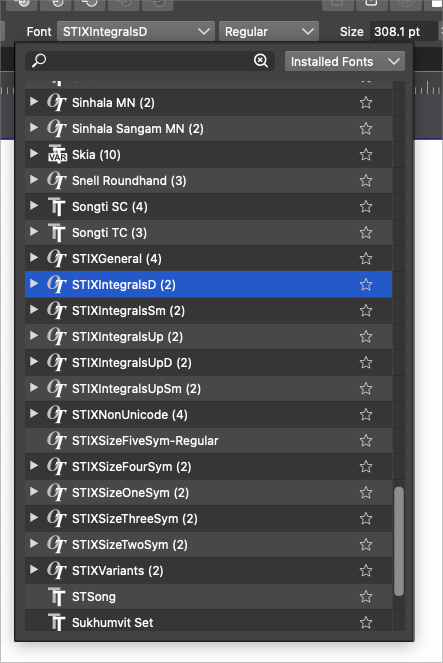
    @vectoradmin Thank you for the explanation. That makes a lot more sense now. I knew VS has a built-in font manager. I have been planning to look further into it and see how I could best make use of it.
  • Install language for Spell Checker on Win

    2
    0 Votes
    2 Posts
    3k Views
    VectorStylerV
    @freggern The spell checker is using the system spell checker. The hyphenation is based on hunspell. There is no public folder yet for adding hyphenation dictionaries, but it can be added app folder in VectorStyler/zeta/data/locale/ EDIT: but it also need a manifest file to work, see "hyph_english_us.hyphen"
  • Blend tool : different thickness

    13
    1
    0 Votes
    13 Posts
    12k Views
    VectorStylerV
    @PatrickM The fix for earlier blend issue will be in the next build. But this latest reported issue is not replicated yet.
  • Knowing the best ways to break things apart

    6
    0 Votes
    6 Posts
    7k Views
    VectorStylerV
    @b77 Yes, I think the solution is to make Separate Path smarter.
  • Official name of node in transform tool selection

    2
    2
    0 Votes
    2 Posts
    3k Views
    VectorStylerV
    @Boldline It is "Selection Outline Nodes"
  • Option to Export Each Active layer?

    9
    0 Votes
    9 Posts
    9k Views
    b77B
    @Boldline Spot colors should always show up on plates at full opacity, unless the user changed the opacity of the object or used the spot color in a gradient. VS can import and use spot colors like this: https://recordit.co/YvSK8MRtio @vectoradmin I don't know if you can define any color as a spot color, but if VS can do this, then objects in that (new) spot color should show on a separate plate, and in opaque black (100% like BL explained above), not 50, 32 or 87.
  • Object - colours & gradient

    4
    1
    0 Votes
    4 Posts
    5k Views
    B
    @encart Thank you. I will try to reproduce the steps I did to identify my mistake.
  • "Transform" panel & artboard(s)

    ange
    2
    0 Votes
    2 Posts
    5k Views
    B
    Ok, I find the way... had to select the artboard tool ! Cheers
  • Mouse wheel & zoom in/out

    3
    0 Votes
    3 Posts
    4k Views
    B
    Great, thanks. There are so many (useful & great) features in VS that a new user need a bit of time to find her/his way...
  • Having trouble doing a 'Cut / Paste inside' workflow

    10
    0 Votes
    10 Posts
    9k Views
    ambrosA
    @b77 Yes.. it's what i was looking for.. something quick and easy Thanks for your help
  • Offset Path Default on Miter instead of Round

    4
    1
    0 Votes
    4 Posts
    5k Views
    VectorStylerV
    @Boldline These are tied into the workspace (along with other panel states), which can also be saved / loaded.
  • VectorStyler GUI doesnt display any text.

    7
    1
    0 Votes
    7 Posts
    7k Views
    E
    Made the time, reset the default system font, VS now displays text. Still have 40 days of trial to evaluate. Thanks for your assistance and solution.
  • Can Shape Picker Tool not also change actual text to same as source?

    2
    0 Votes
    2 Posts
    3k Views
    VectorStylerV
    @Boldline This is a bit of a problem: the shape picker tool picks and applies shapes. In case of point text, the whole thing is a shape (text + formatting). It would be difficult to make exception for one shape type. Maybe in this case the Edit -> Attributes -> Copy / Paste Character Style would be a better option?