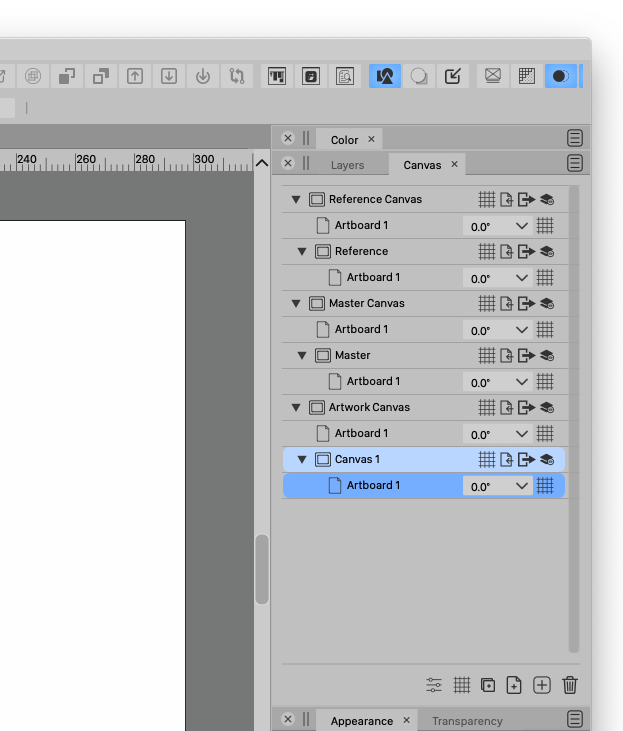
• "scale by distributing mode" setting location?

    5
    0 Votes
    5 Posts
    6k Views
    BoldlineB
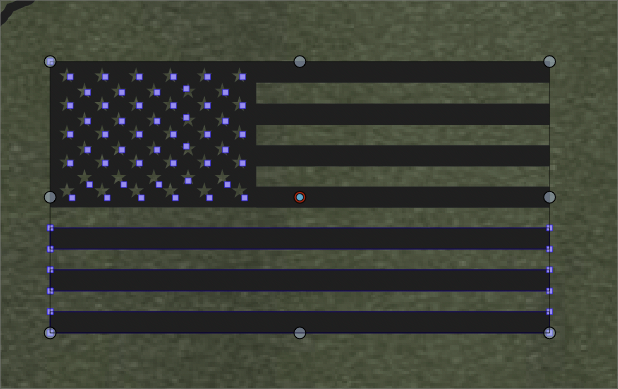
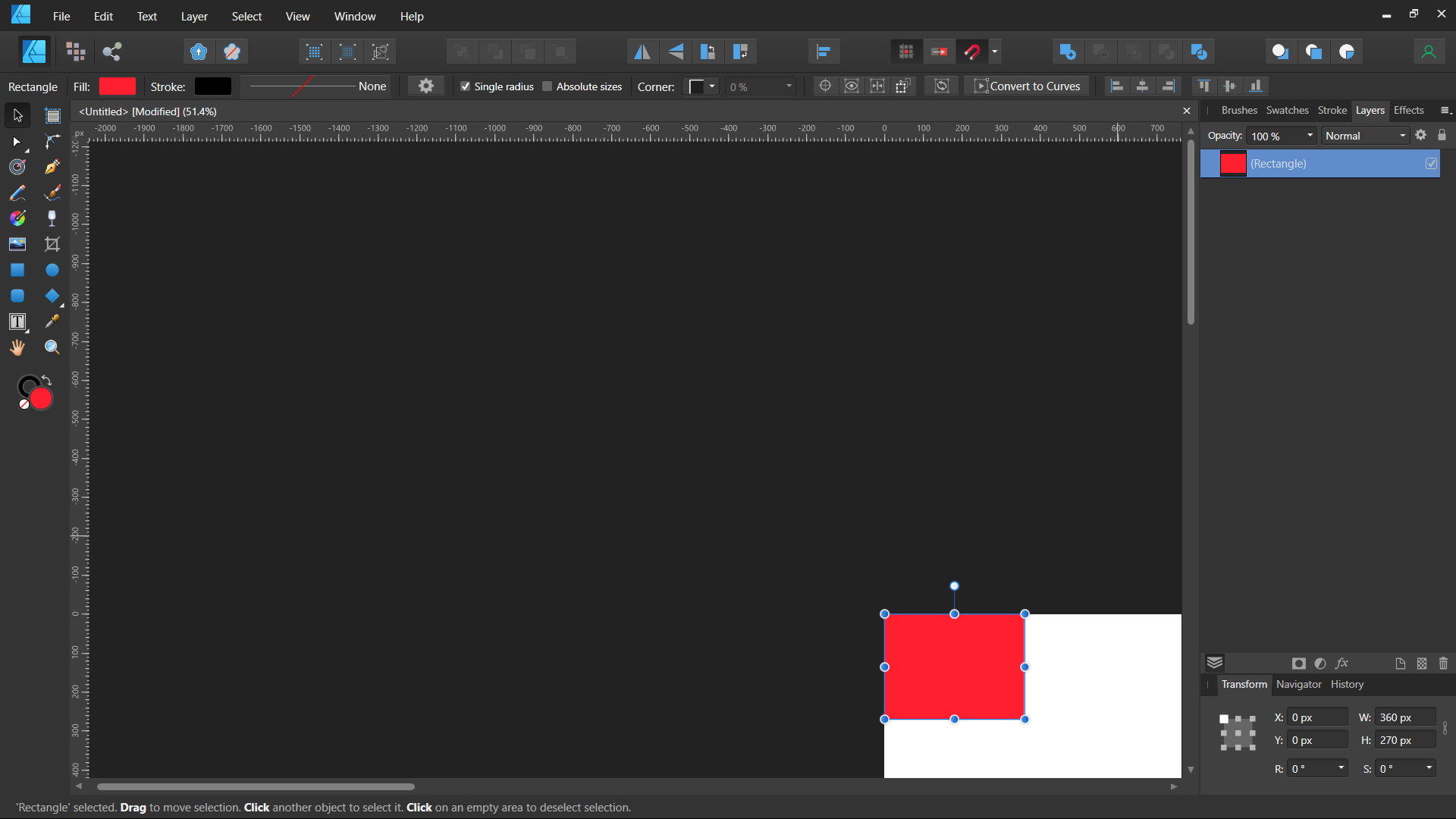
    UPDATE: I think I found the issue - I was playing around with the second selection arrow - allowing me to move/transform members of a grouped item.... I had not put it back to the default. [image: 1640720988737-8fecfa5c-b5ea-48dc-b81c-88a28b6958b3-image.png] This probably also answers where the "scale by distributing mode" is located - my original question on this thread
  • Need a answer for a Mac User to download the Demo

    3
    0 Votes
    3 Posts
    4k Views
    S
    @vectoradmin thanks
  • 0 Votes
    3 Posts
    4k Views
    BoldlineB
    @vectoradmin said in Option to expand panels such as stroke panel for additional tools not always needed: I will add the above state also. Thanks for showing me that arrow feature! Yes if you can add the option for just the top info above what I highlighted, that would be a great addition
  • Where is the Document info Panel?

    3
    0 Votes
    3 Posts
    4k Views
    BoldlineB
    @vectoradmin ok thank you! I just need to remember it's in the "editing" panel. I had the same issue a year ago when I was always trying to find the history panel (same place) but now I always know where to look. thanks!
  • 0 Votes
    3 Posts
    4k Views
    X-RaymX
    @vectoradmin perfect thanks! This is indeed quite essential to my workflow, it lots of various cases
  • Q/FR: Split a Shape into Different Shapes

    5
    0 Votes
    5 Posts
    5k Views
    X-RaymX
    I can see various use case for this, interesting! Thx for the video demo!
  • 0 Votes
    3 Posts
    4k Views
    X-RaymX
    @b77 Oh, wow, what a nice surprise that this is already built-in ! [image: ZBJAeB7.gif] Space key is a bit unsual, I didn't think about testing this, but at least, it exists! Welcome to VectorStyler! Still exploring to see if it has to tool I already use in Affinity, and if it has the one I needed... this is a point win for VectorStyler!
  • How to expand and divide a single stroke overlapping object?

    7
    1
    0 Votes
    7 Posts
    11k Views
    S
    @vectoradmin Thanks for the Info, a often overseen Tool. I try it, but i must say i dont know how to use it. Especially in the case of one intersecting Stroke like in Boldlines Example above. Found some infos and fiddle a bit and seems to get it to work in overlapping circles. But not if there is only one intersecting Stroke. Then it seems it works just like a normal fill will do.
  • Could Name of file saved for shortcut presets be shown here?

    Moved
    2
    2
    0 Votes
    2 Posts
    3k Views
    VectorStylerV
    @Boldline The files that are listed in that drop down are searched automatically from specific folders. In this case add a new folder (with "Add Folder") to the "Menu Folders" list of folders. This can be used to point to folders where menu, toolbox or shortcut customization files are saved. [image: 1640332556720-menufolders-resized.png]
  • What can I apply distortions to

    2
    0 Votes
    2 Posts
    3k Views
    VectorStylerV
    @Ingolf To work best with distortions, use the Shape Effects panel (so that parameters are accessible). It is recommended to apply distortions to single objects or a group of objects. For multiple objects, it is best to group them first (should automatically group, as an option in the panel menu). So it is single objects and group of objects. Distortions will not work a whole layer. It is best to group the layer content.
  • Scaling issues

    10
    0 Votes
    10 Posts
    9k Views
    J
    @boldline Great, thanks. I’ll try that tomorrow. Edit: Yay! that trick works. I'm back in business!
  • 0 Votes
    2 Posts
    3k Views
    VectorStylerV
    @Boldline Is is better to start with the "Application Shortcuts" in the Context drop down. These are the common shortcuts, that are available in any tool, unless the tool overrides some. To add shortcuts: select the action(s) on the right side. press the "Add Shortcut" button. if the action already has a shortcut, it will be highlighted. otherwise it is added, with an empty shortcut. in this case click in the Shortcut column, and the row of the action, and press the shortcut.
  • Please explain more about Repeater and Node Type symbols

    10
    0 Votes
    10 Posts
    9k Views
    J
    Excellent thanks, resetting workspace did the trick.
  • Value highlight when editing properties

    9
    1 Votes
    9 Posts
    9k Views
    TorakikiiiT
    @vectoradmin I could not replicate your exact problem. Anyway what I could replicate 90% of the times is this: open a new document draw a rectangle select the rectangle click on the W field of the transform panel, it will be grey with a typing cursor inserted deselect the rectangle repeat steps 9 out of 10 I get the grey box BUT... if you click on the Transform panel itself 10 out of 10 I get the W field highlighted. I'm not a programmer but it looks like there's a focus problem when clicking directly into the W field, like the panel isn't active and needs a second click somewhere to get alive. In fact if you click on the W field it will be grey but if you then click the H field it will be blue. Hope it helps.
  • Minor issues

    13
    0 Votes
    13 Posts
    11k Views
    VectorStylerV
    @Torakikiii Agree with the different icon design.
  • Repeater

    2
    0 Votes
    2 Posts
    3k Views
    VectorStylerV
    @Torakikiii The "Extent" field in the panel (when the repeater object is selected) can be used to set the whole extent of the repeated region. There is no column / row mode (for now). Also: one other (interesting) way to use repeaters is to fill a shape with a symbol. For this select the symbol object (for example a small circle or rectangle) and select the shape (should much larger of course). In this case the repeater (by default grid) is created so that the area of shape is filled with the symbols. In this case there is no Extent field in the panel, as the extent is automatic from the shape. Then different "Geometry" modes can be selected to play with options. Some examples: draw/select a large shape, and pick one of the presets from the Style drop down in the panel. About the undo: it is a bug and can be replicated. The workaround is to do Undo twice, as it seems to separate the two phases of the repeater creation Repeater documentation will be available later (before the 1.1 beta is over).
  • Setting up a VS file for Printing out a film used in screen printing

    2
    1
    0 Votes
    2 Posts
    4k Views
    VectorStylerV
    @Boldline A: yes that should be the Registration color. But it also depends where it is exported or printed to, so I think it needs to be tested. I'm not sure about pasting or importing AI registration, I have to check that. B: Yes it should as black as it can get by having a full (100%) ink on each color channel, all CMYK and the additional spot channels each receiving 100% when a registration color is printed. Depending on the process, true knocked out black is C=0, M=0, Y=0 and K=100. But the registration colors will always result in C=100, M=100, Y=100, K=100 (where 100 can be replaced to whatever the T slider in the Color panel is). This should result in full ink on each plate.
  • Proportional numeric scaling and values reset on transform panel

    5
    1 Votes
    5 Posts
    8k Views
    BoldlineB
    @Torakikiii said in Proportional numeric scaling and values reset on transform panel: On Illustrator you hold option while inputting 500 and hitting return, it then scales the height accordingly. No need to manually activate the proportional lock, scale and deactivate it. Quick and easy. This is something I did not know about Illustrator, but then again for me, most of my work I want things to always be proportionally scaled so I've left the lock on by default. Does this also work in reverse? If I have the proportion lock on and I hold down option, will it override the lock? I'll have to check this out. Could be a nice addition to VS
  • Pasting

    3
    0 Votes
    3 Posts
    4k Views
    VectorStylerV
    @Torakikiii @b77 currently, if the object was copied from the same document and same artboard then it is in place. Otherwise it is centered. This could be improved to have centered if there has been panning or zooming of the view. I add this to the backlog. The importing issue seems to be a bug. Will get fixed.
  • Reference on duplicate

    7
    2
    0 Votes
    7 Posts
    7k Views
    VectorStylerV
    @Boldline said in Reference on duplicate: Update: I partially answered my own question - if I edit the clone I uses to make new clones from, only those offspring have further edits - like a cascading style sheet. If I edit the master of course, all are changed... makes sense Exactly, it always inherits from the master, even if that in turn is also a clone. There are some additional tricks: Object -> Cloned Properties: to check / uncheck what is cloned. This can be used to restore some attribute of a clone object to the cloned state (if it was changed). Object -> Select Master: this can be used to change the master of a clone, but first it needs some other objects marked with the "Master Object" role (Object -> Object Options -> Role -> More Roles -> Master Object enabled)