• Visible confirmation of clipping action between layers

    2
    0 Votes
    2 Posts
    3k Views
    VectorStylerV
    @Boldline When dragging an object (or layer) in the layers panel: https://recordit.co/IDgEjcLLsz if the indicator fully covers the other object, then it will drop the object inside (so clipping will happen). if the indicator is between two layers (objects) then it will move the object there. If it is not like this, then it is a bug. Not sure if other indication is necessary.
  • 0 Votes
    3 Posts
    4k Views
    BoldlineB
    @vectoradmin I'm glad you were able to figure it out! The color in this case was not a spot color.
  • 1 Votes
    6 Posts
    6k Views
    F
    As a general rule, selecting a tool in and of itself should not alter the document. This feature breaks that rule and violates the principle of least surprise, so while I can understand that some people might consider it a helpful workflow optimization, it definitely should not be default behavior.
  • Outline Preview

    3
    0 Votes
    3 Posts
    4k Views
    861475_VctSt8
    @vectoradmin v1.1.016 Thank you. I've checked the improvements.
  • Double click to open document

    5
    0 Votes
    5 Posts
    5k Views
    VectorStylerV
    @Jayanta-Das Most of the VS problems related Window 11 are documented, and they are in the backlog. These will get fixed as soon as possible.
  • Expand stroke of pattern brush squishes it

    4
    0 Votes
    4 Posts
    4k Views
    VectorStylerV
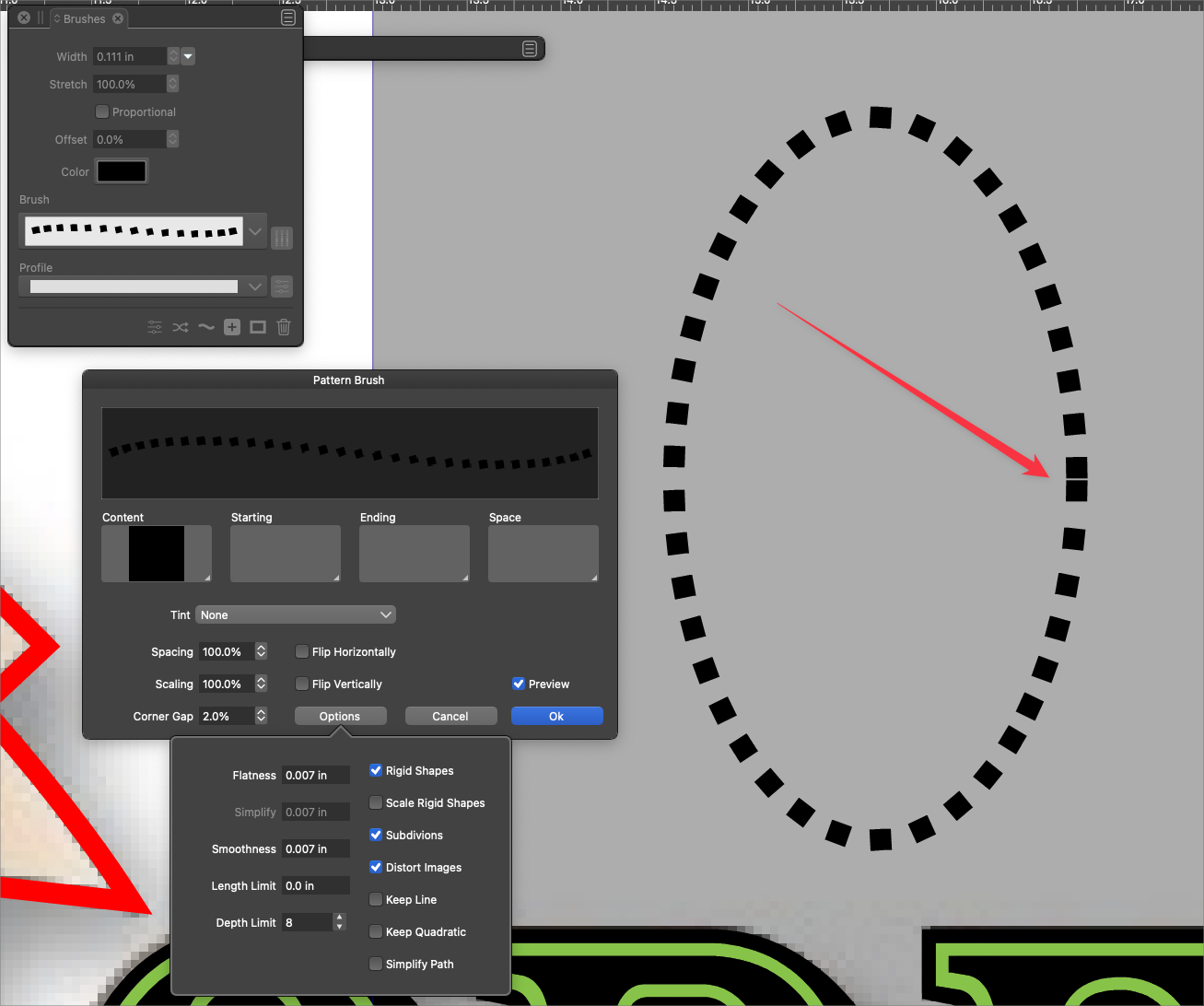
    @Boldline Got it! This is a bug, the expand stroke has a problem with the "Rigid Shapes" option. Will get fixed.
  • Clarifying How to Use the space bar modifier with selections

    8
    2
    0 Votes
    8 Posts
    9k Views
    BoldlineB
    @vectoradmin said in Clarifying How to Use the space bar modifier with selections: Maybe we need to change magic wand? Maybe- I think it depends on what ways it can still function with other tools and if that is affected. Your layout makes sense - it is a selection method just like the other two it resides with on the toolbar. Illustrator (not that it's better, just as a point of reference) seems to treats it like unique tool that can be clicked away from Thinking more on it - one thing that helps in Illustrator is that the magic wand has a unique cursor. It's pretty clear just from looking at it, that you're not in the default selection tool - but in VS, it's harder to know that because it looks like the other two selection options. If you decide at some point to expand the way magic wand can be used, I'd not want to get away from the traditional arrow cursor for that, but could we add an asterisk next to it - to remind users they are not in the other selection modes? That might be enough, along with a keyboard shortcut for the standard selection to solve the problem.
  • Cut Path at Intersection

    9
    0 Votes
    9 Posts
    8k Views
    J
    @vectoradmin said in Cut Path at Intersection: @Jayanta-Das Yes, it only adds nodes, will not cut the path. There is one more option for this: when working with open paths, use the "Cut Out" boolean operation (first icon in the second group). This will cut the bottom path, but an additional "Break Apart" is still needed. I understand. I thought that it add nodes to both the objects at intersection. It only add node to one object.
  • How do I separate wonky linked panels?

    5
    0 Votes
    5 Posts
    5k Views
    BoldlineB
    @Jayanta-Das Thank you! That was the answer
  • Scaling Strokes and Effects

    7
    0 Votes
    7 Posts
    7k Views
    b77B
    @vectoradmin Maybe the Spacebar can be coopted in the combination.
  • Modifier key after clicking mouse - right design choice?

    4
    0 Votes
    4 Posts
    4k Views
    VectorStylerV
    @Ingolf If there are cases that do not make sense, please report it!
  • Quicklook image preview of VS files not working?

    2
    0 Votes
    2 Posts
    3k Views
    VectorStylerV
    @Boldline Yes, there is an open issue with quicklook. It seems that on some systems, MacOS does not let the quicklook plugin fully load. This issue is in the backlog, I will try to replicate it. The EPS file preview should not be related.
  • Size proportion lock in Shape and Properties panel

    3
    1
    3 Votes
    3 Posts
    4k Views
    J
    @vectoradmin Thank you.
  • 1 Votes
    8 Posts
    8k Views
    VectorStylerV
    @Boldline @b77 I will add this to the backlog.
  • Shape is stretching in an unorthodox manner

    7
    0 Votes
    7 Posts
    7k Views
    VectorStylerV
    @Boldline I select the group (with the first selection mode in the context panel). The Shape Effects panel will show all the shape effects applied to it. This will be a Transform and a Warp. Click at the remove (x) icon at the end of the Warp row.
  • Convert symbol set to regular objects (finalize)

    9
    0 Votes
    9 Posts
    8k Views
    J
    @b77 Thank you.
  • 0 Votes
    2 Posts
    3k Views
    BoldlineB
    Maybe I'm doing something else wrong with the layers or a setting because it does not always happen - it's probably user error on my part
  • Have had a Question about the Repeater Panel - is solved

    1
    1 Votes
    1 Posts
    3k Views
    No one has replied
  • This topic is deleted!

    1
    3
    0 Votes
    1 Posts
    4 Views
    No one has replied
  • How to distribute objects with a precise distance between them ?

    33
    1
    0 Votes
    33 Posts
    53k Views
    B
    I often use alignment in my schemes because I can have a lot of objects per artboard. Nice I can keep alignment options on, thanks for the tip @Boldline Why not just make the "Align selected objects..." functions independent of other parameters (e.g., space) [image: 1644306971211-fb002e19-9443-40a3-bb6a-eebc2f8b2a01-image.png] [image: 1644306985634-f3fd6525-c754-4f1e-914a-e78d2d984104-image.png] since when we want to space the objects by a specific distance, @vectoradmin has implemented adhoc functions? [image: 1644307049270-63b03ac1-17be-49b0-8fbb-810ac7d53f4c-image.png] [image: 1644307061333-38414459-2789-4ed1-8ae9-97a7b93de535-image.png] So, with two clicks, the objects are at the right distance from each other and aligned. Isn't this redundant or am I missing something?