Blend Options
Edit detailed blend settings in the Blend Options dialog. Open it from the Blend panel or choose Blend Options from Effects - Blend.
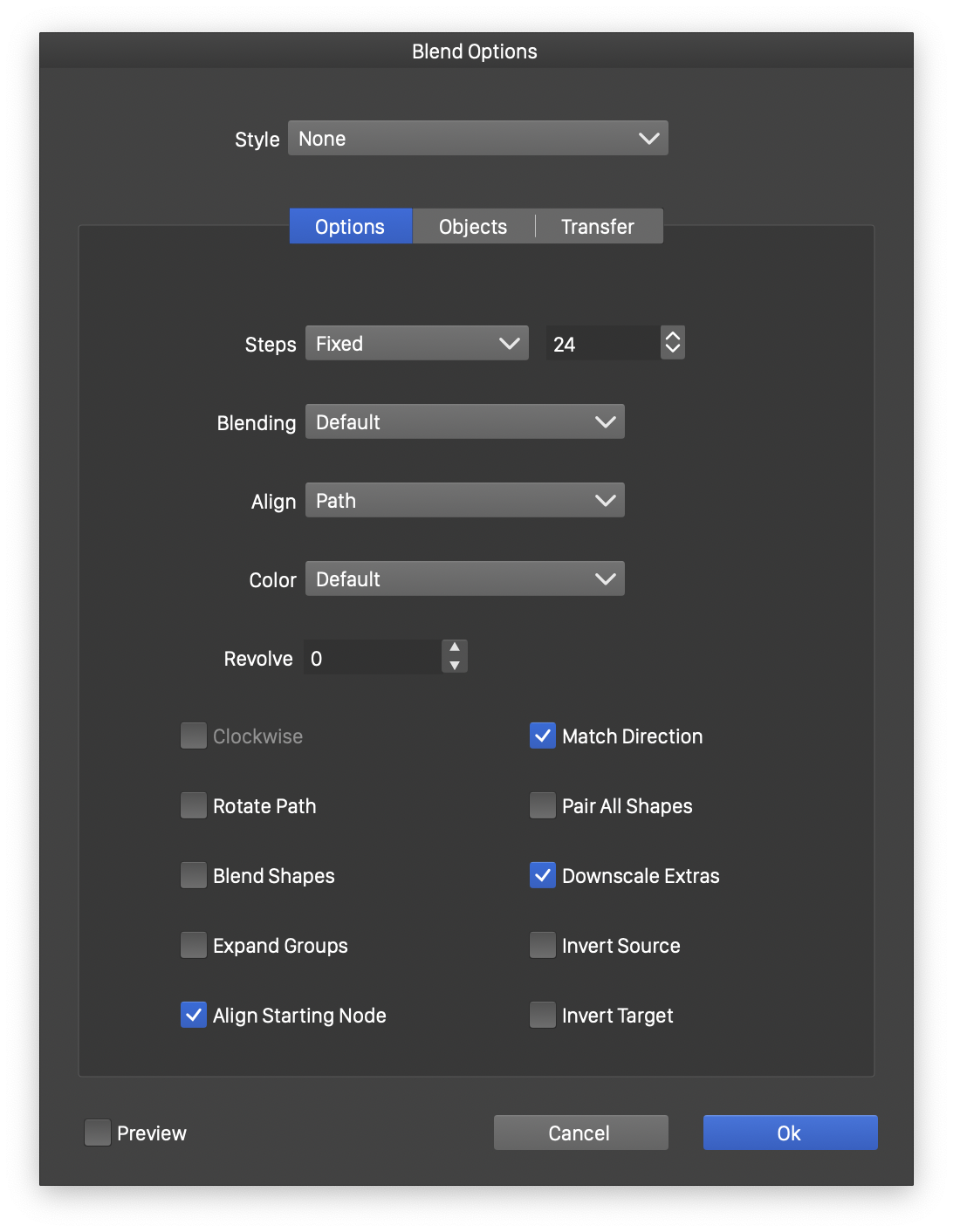
The Blend Options dialog.
The Options section contains these settings:
- Steps - Control the intermediate objects in a blend. This is shown when a blend object is selected.
- Fixed - Enter the number of intermediate objects.
- Distance - Set the distance between intermediate objects.
- Smooth - Set the smoothness of color transitions.
- Position - Set the transition position of a single-step blended object. This appears when a blended object is selected.
- Blending - Choose the scheme that controls how one path transitions into another.
- Align - Choose a shape style, preset, or object with the Shape role as the blend path. This path positions both the original and intermediate objects.
- Color - Choose the color mode for color transitions.
- Revolve - Set the number of full 360-degree rotations during the transition.
- Clockwise - Blend colors clockwise around the hue channel in color modes that have one.
- Rotate Path - Rotate intermediate shapes to follow the blend path. This applies only when a blend path is used.
- Blend Shapes - Blend the parameters of matching shape types. This is off by default, so the blend uses the shapes’ curves instead.
- Expand Groups - Match objects across the entire contents of a group or symbol. When disabled, preserve the hierarchy and match internal groups first.
- Align Starting Node - Automatically find matching start nodes on the two paths.
- Match Direction - Automatically match the directions of closed shapes.
- Pair all Shapes - Force all shapes to be paired for blending.
- Downscale Extras - Scale down shapes that have no matching partner.
- Invert Source - Reverse the starting shape’s direction.
- Invert Target - Reverse the ending shape’s direction.
- Preview - Preview changes as you adjust the options.
Blend Schemes
Choose from these path blending schemes:
- Default - Use the original path blending scheme.
- Direct - Blend the paths directly, using the editable blend mapping.
- Adjusted - Add and match nodes so the paths have corresponding segment-length distributions.
- Detail Transfer - Use shape descriptors to transfer detail between paths. Suitable for smooth, closed shapes.
- Axis Alignment - Use shape descriptors to blend paths aligned at their axes.
- Corner Alignment - Use shape descriptors to blend paths aligned at their four corners.
- Coarse Alignment - Use shape descriptors with coarse path alignment.
- Fine Alignment - Use shape descriptors with fine path alignment.
- Rigid Frame - Blend the directions of path changes to create the intermediate shape.
- Radial Blend - Blend radial coordinates along closed paths.
- Align Direction - Align paths using segment directions.
- Align Corners - Align paths using corner angles at nodes.
- Align Radius - Align paths using each node’s distance from the center.
Blend Objects
Use the Objects section to control how objects and paths are matched:
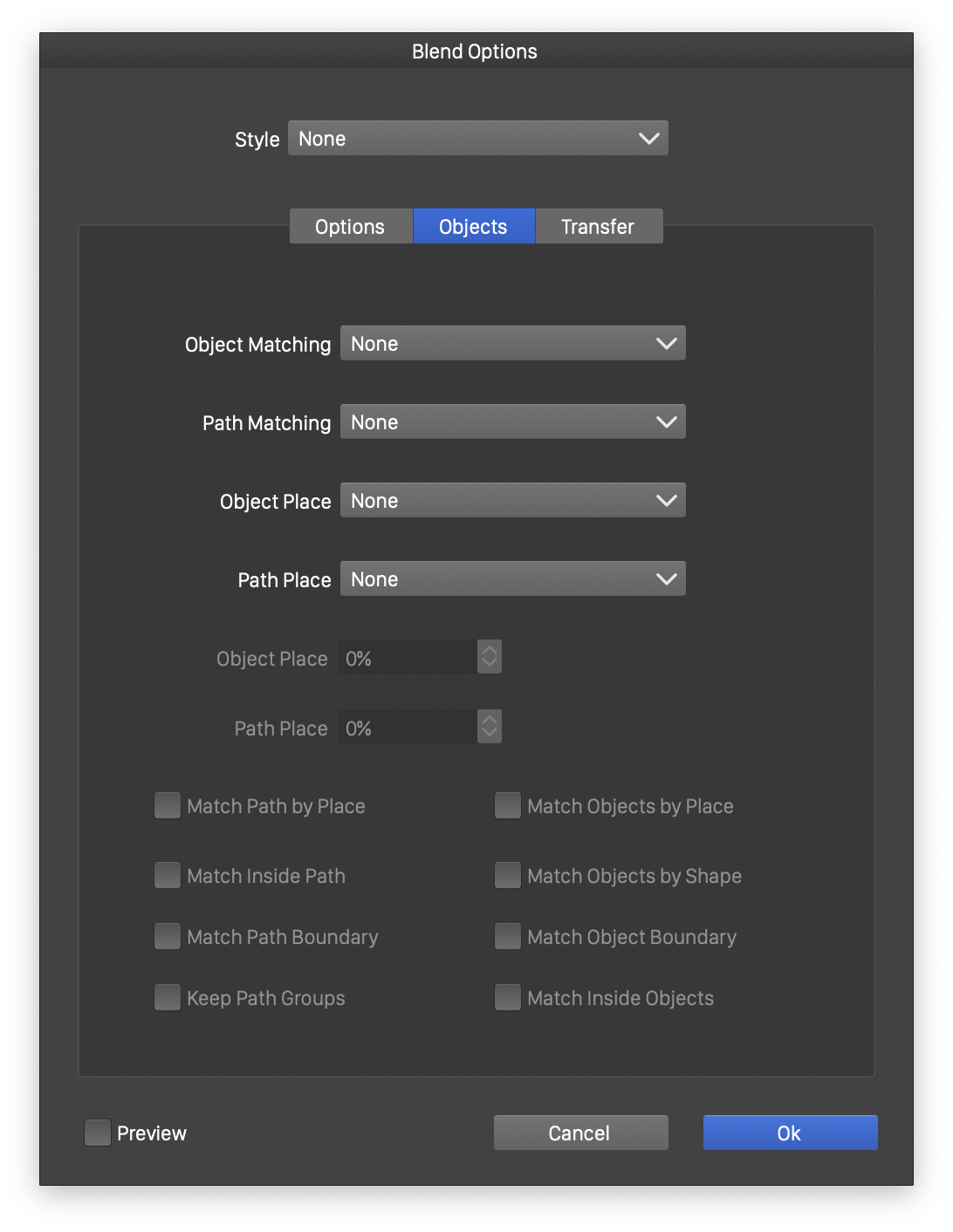
The Objects section of Blend Options.
- Object Matching - Choose how objects are matched when blending groups or symbols.
- Path Matching - Choose how paths are matched when blending composite paths.
- Object Place (dropdown) - Choose the trajectory objects follow during the blend.
- Path Place (dropdown) - Choose the trajectory paths follow within composite paths.
- Object Place (number field) - Set how much object position influences matching.
- Path Place (number field) - Set how much path position influences matching within composite paths.
- Match Path by Place - Include relative position when matching paths.
- Match Inside Path - Consider which paths lie inside others when matching composite paths.
- Match Path Boundary - Match only the boundaries of composite paths.
- Keep Path Groups - Preserve path groups within composite paths.
- Match Objects by Place - Include relative position when matching objects.
- Match Objects by Shape - Include shape type when matching objects.
- Match Inside Objects - Consider which objects lie inside others when matching.
- Match Object Boundary - Match only object boundaries.
Blend Transfer
Transfer functions control how shapes and styles change through the blend.
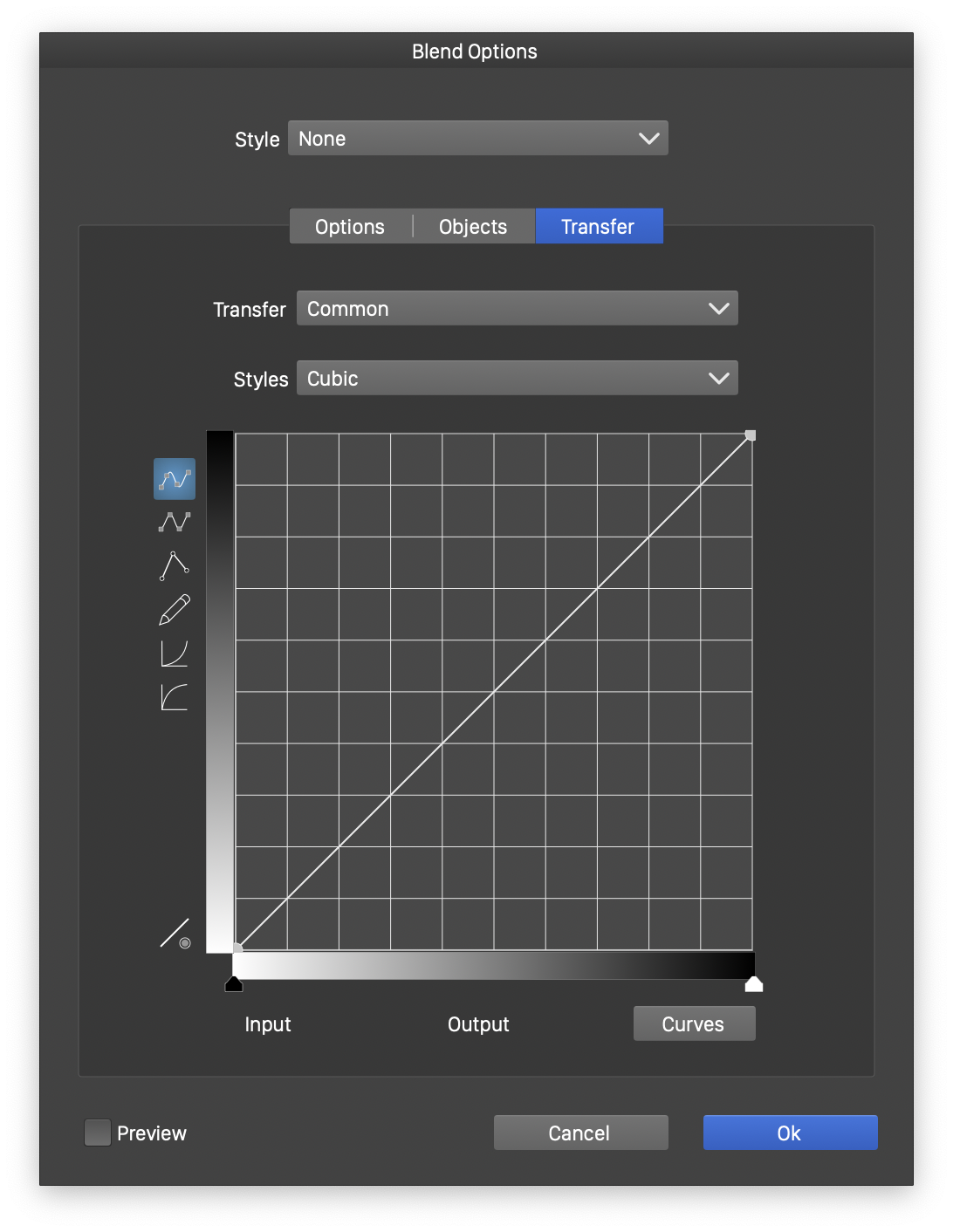
The Transfer section of Blend Options.
Choose what to edit in the Transfer field:
- Common - Adjust both shape and style transitions.
- Shape - Adjust shape transitions.
- Style - Adjust style transitions.
Use these buttons to choose the function type:
 - Choose a cubic function. Drag its nodes to adjust the transition.
 - Choose a monotone cubic function. Adjust its nodes as you would for a cubic function.
 - Define the transition with a series of editable straight lines.
 - Draw the function with a mouse or tablet.
 - Choose a Gamma function and drag the curve to adjust it.
 - Choose a Reverse Gamma function and drag the curve to adjust it.


