Repeaters
Repeaters contain automatically generated copies of one or more symbols or objects. A geometry arranges the copies, adjustments vary their position, size, or rotation, and colorization schemes change their colors.
Use repeaters to fill regions with artwork, repeat objects or symbols, or create vector halftones. A repeater can fill a shape, with or without clipping, or occupy an area defined by its settings. The source objects and settings remain editable. Expand the repeater to edit its generated copies individually.
Keep these features in mind:
- A repeater can use multiple symbols and choose between them randomly.
- Geometry determines the arrangement of the copies.
- Adjustments vary position, size, or rotation across the repeater.
- Colorization schemes change the copies’ colors.
- Intensity sources control variations such as size, color, or rotation. For example, sample the content beneath a repeater to vary its copies according to the underlying image.
Overview
- Repeater Panel - Create repeaters and adjust common settings.
- Repeater Options - Access all settings in the Repeater Style dialog.
- Geometries - Choose how copies are arranged.
- Repeater Intensity - Control variations in scaling, colorization, and other attributes.
- Colorizer - Set up color adjustments.
- Adjustment - Adjust position, size, and rotation.
- Editor - Adjust geometry interactively.
- Symbol Tools - Paint and edit symbol sets.
Creating Repeaters
To fill a larger object with copies of a smaller one:
- Open the Repeater panel from Window - Effects.
- Select both objects.
- If needed, choose the creation mode from Create Mode in the panel menu.
- Click
 .
- Adjust the settings in the panel.
To repeat an object without filling a shape:
- Select the source object and choose the repeater settings.
- Click .
- Set Extent or Radius, depending on the geometry.
To repeat multiple objects:
- If filling a shape, select the object to fill. Also select the source objects to repeat.
- In the panel menu’s Create Mode, choose Create in Largest Object or Create in First Selected to fill a shape. Choose Create from All Selected to repeat objects without a containing shape.
- Click , then adjust the settings.
You can also choose Styles - Repeater - Create Repeater to create a repeater from the selection with default settings. Edit it in the panel or with Styles - Repeater - Repeater Options.
Remove Repeater in the same menu removes the repeated content from the selected object. Use Release Repeater to remove the effect and recover the source objects.
Interactive Editing
- Select a repeater.
- Activate the Repeater Editor
 tool, grouped with the other object effect tools.
- Drag the geometry’s handles to adjust the layout. The corresponding settings also appear in the Repeater panel.
Expanding Repeaters
- Select a repeater.
- Choose Styles - Repeater - Expand Repeater. The copies become a group of objects.
- Ungroup the result to edit the copies individually.
Repeater Examples
Combine geometry, colorization, and adjustments to create halftones, fill regions, or produce stippling effects.
Halftones with Repeaters
The Vector Halftones feature provides faster halftone effects using shapes. Repeaters can also use groups of objects with multiple colors.
Use small circles of varying sizes to reproduce an image’s tones:
- Draw a small circle and select it together with the image.
- Set Create Mode to Create in Largest Object in the panel menu.
- Click .
- Set Geometry to Grid and Angle to 45 degrees.
- Set Scaling to Object Content to scale the circles according to image intensity.
- Set Scale Min to 20% to increase the minimum dot size.
- Open Scaling, choose Edit Intensity, and adjust the tone response curve on the right.
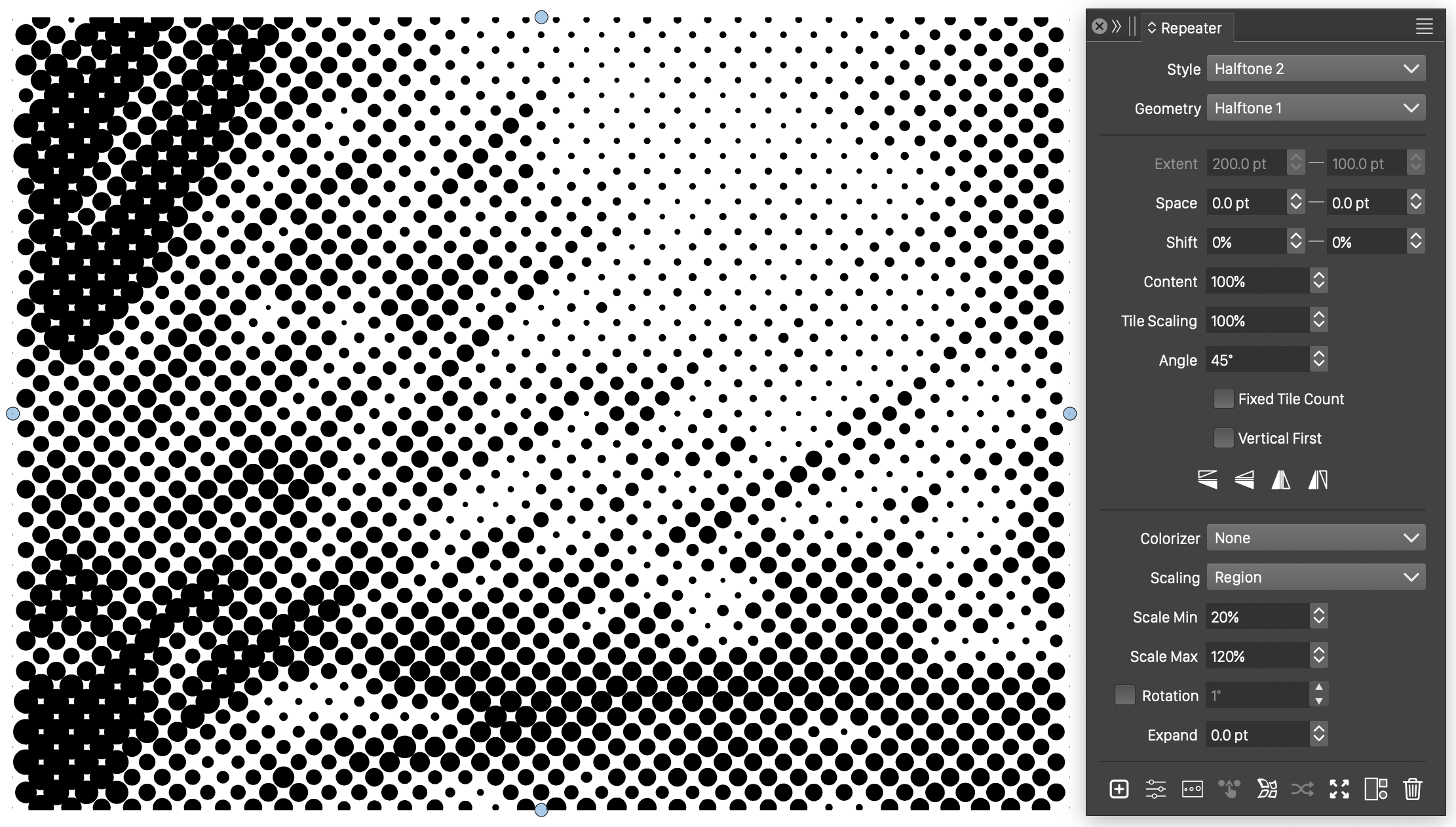
A repeater halftone reproducing an image’s tones.
Setting colors from an image
Place circles randomly and color them with samples from an image:
- Draw a small circle and select it together with the image.
- Set Create Mode to Create in Largest Object.
- Click .
- Set Geometry to Random and Radius to 8.
- Set Content to 60% to reduce the circle size.
- Set Colorizer to Object Content to sample the image’s colors.
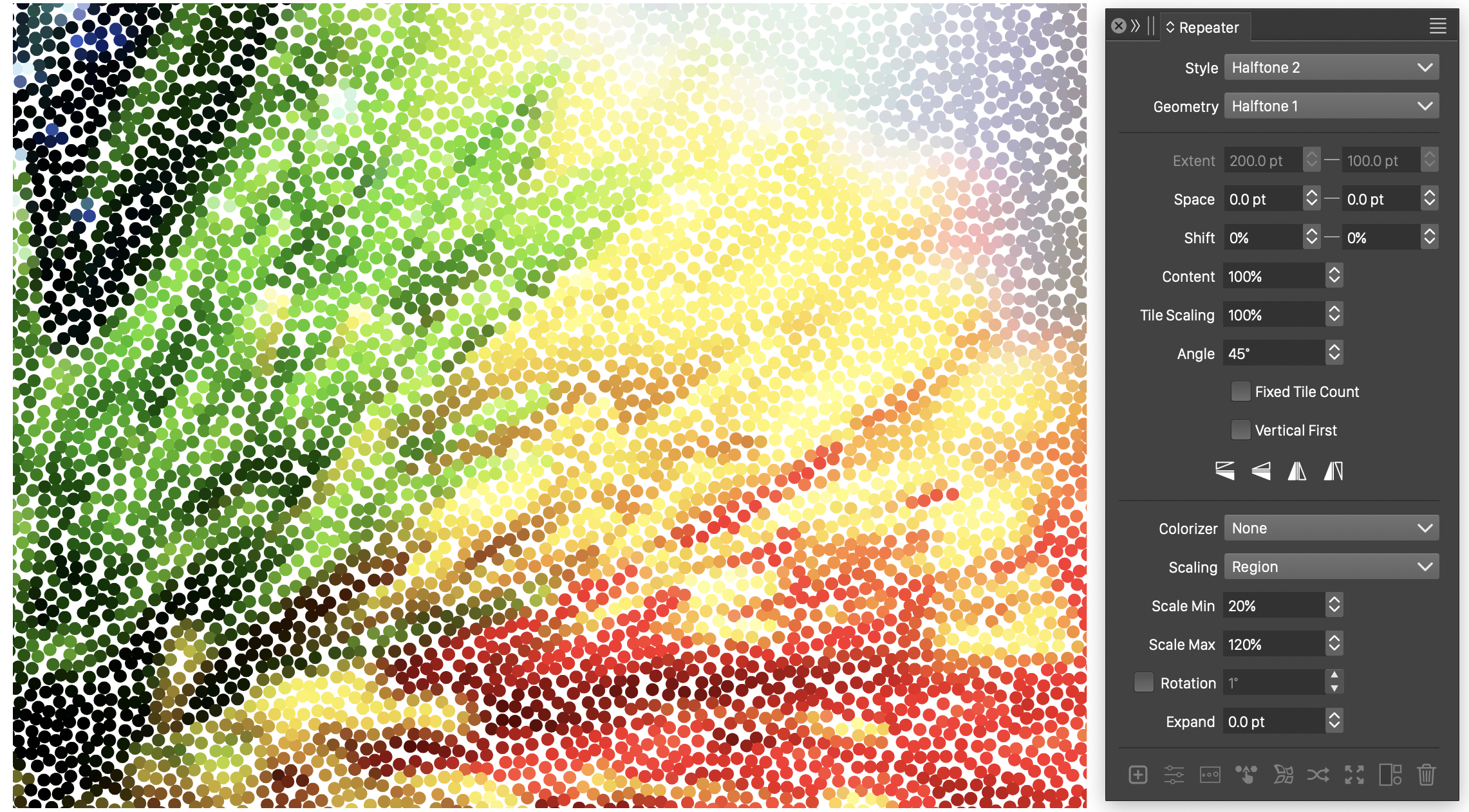
Random dots colored from an image.
Adding a custom vector halftone to a text
Fill editable text with a halftone that follows a 45-degree gradient, independently of the text’s fill style. The halftone updates when the text changes.
- Draw a small circle and select it together with the text shape.
- Set Create Mode to Create in Largest Object.
- Click .
- Set Geometry to Grid and Angle to 45 degrees.
- Set Scale Min to 20%.
- Set Scaling to Gradient, then choose Edit Intensity from that field.
- Choose a black-to-white gradient and set its angle to 45 degrees.
- Adjust the tone response curve on the right.
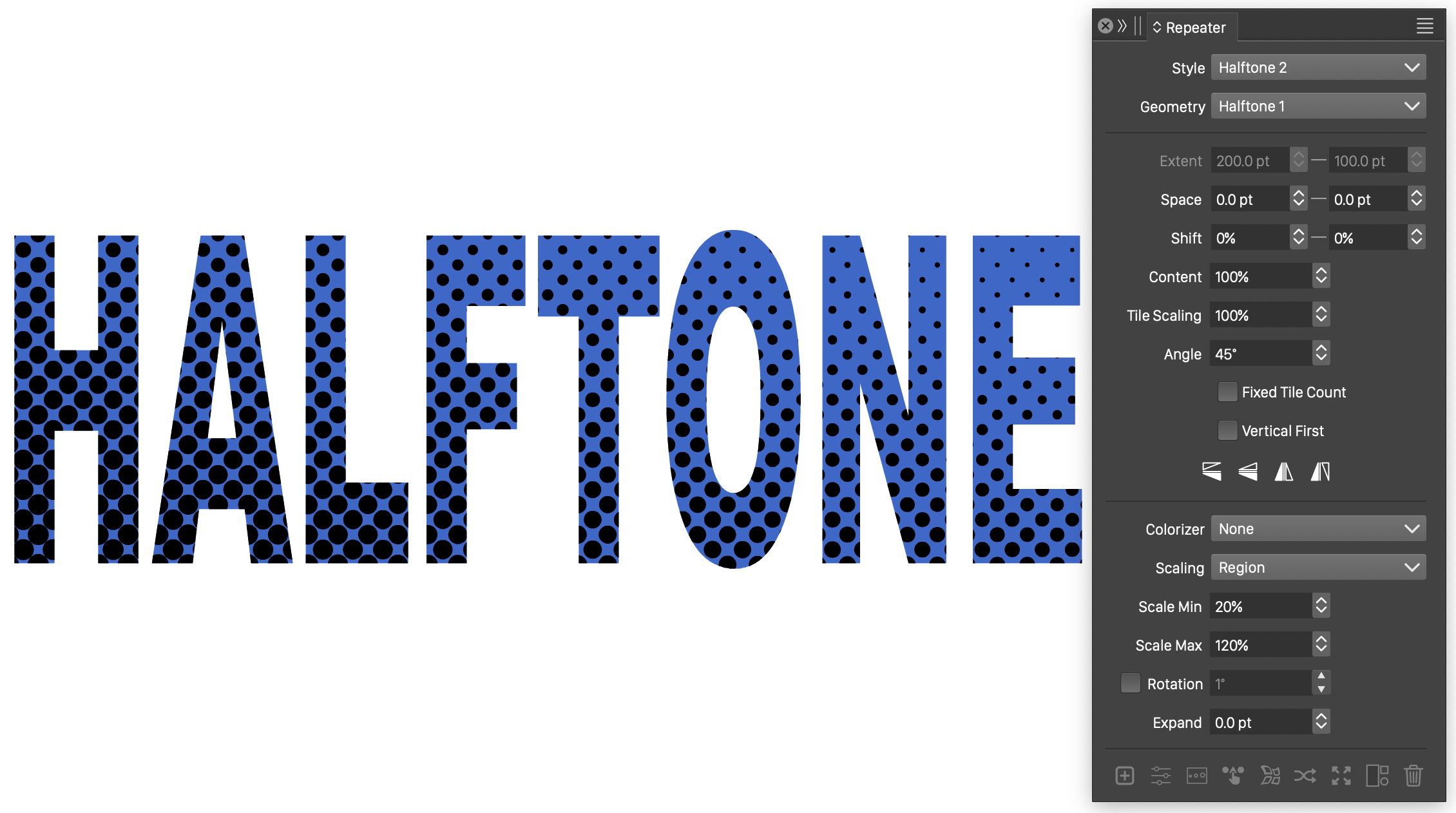
A repeater halftone on editable text.
Stippling with small dots.
Use small, randomly placed circles to reproduce an image’s tones.
Vector Halftones also include an optimized stippling effect.
- Draw a small circle; its size will be adjusted later.
- Select the circle and the image.
- Set Create Mode to Create in Largest Object.
- Click .
- Set Geometry to Random and Radius to 2 pt.
- Set Content to 12% to reduce the circle size.
- Set Colorizer to Object Content to sample the image’s colors.
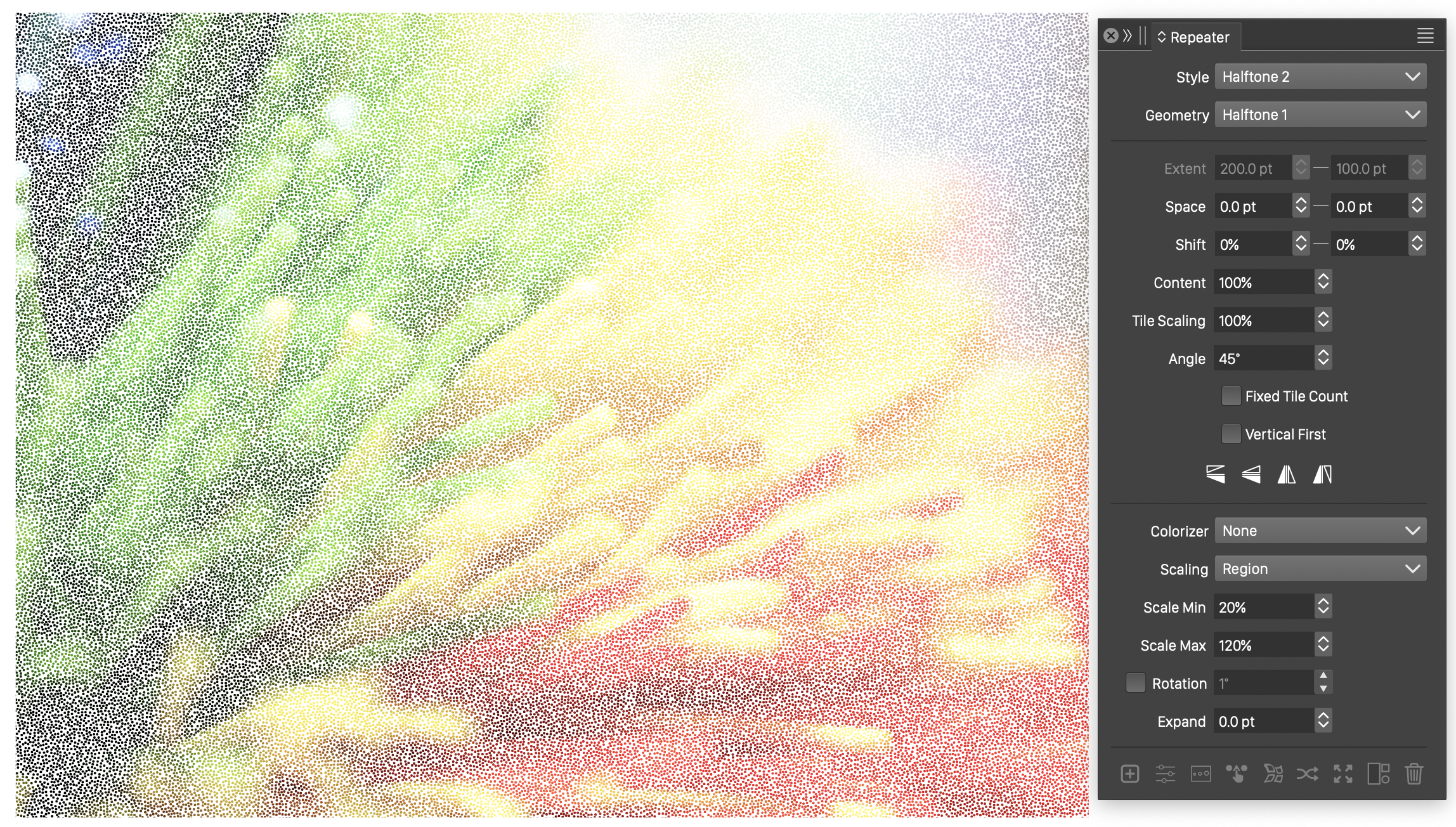
Small random circles creating a stippling effect.
Repeating a single object
Repeat one object in a grid with random rotations:
- Select the source object and click .
- Set Geometry to Grid and horizontal Shift to 50%.
- Enable Rotation and set its angle range.
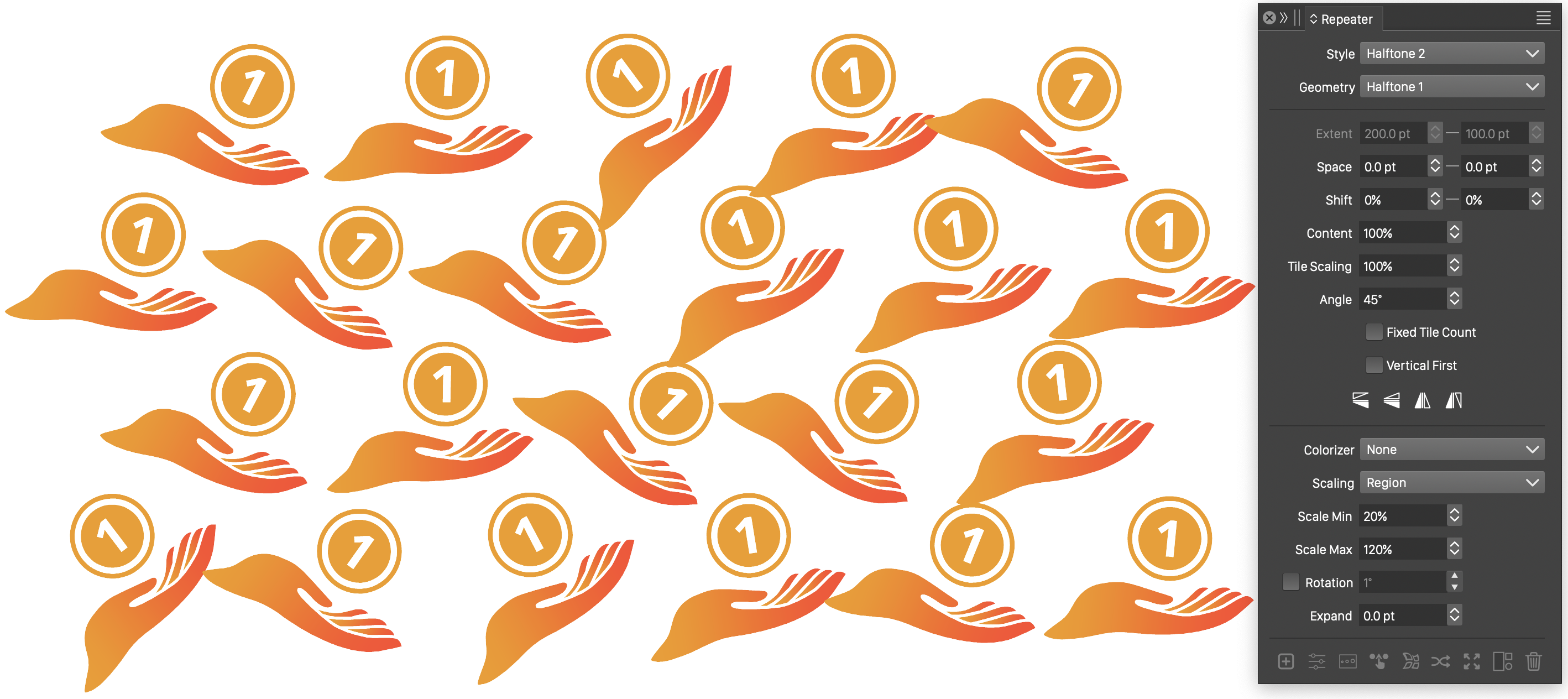
A symbol repeated in a grid with random rotations.
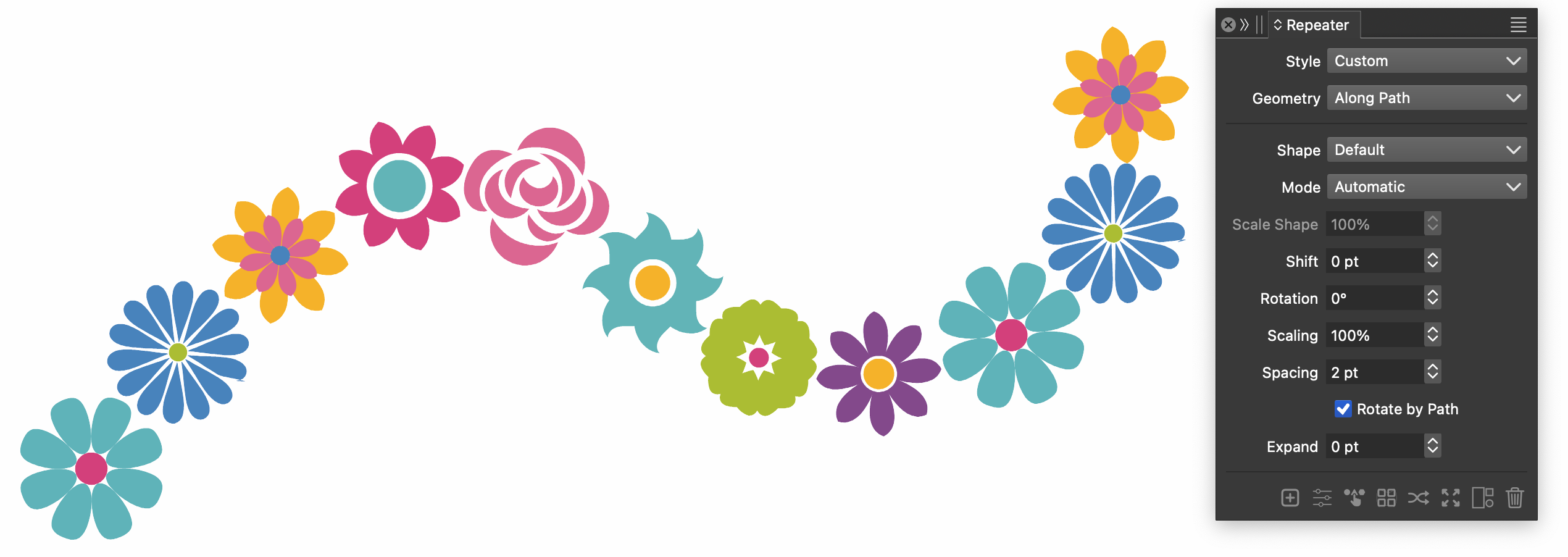
Repeating objects along a path
Repeat several objects along an editable path:
- Select the objects to repeat, then select the path.
- Click .
- Set Geometry to Along Path and enable Rotate by Path.
- Use the repeater options to adjust scattering and size variation along the path.