Contour Tool
Use the Contour  tool to create contours, shift their centers, and edit local width variations.
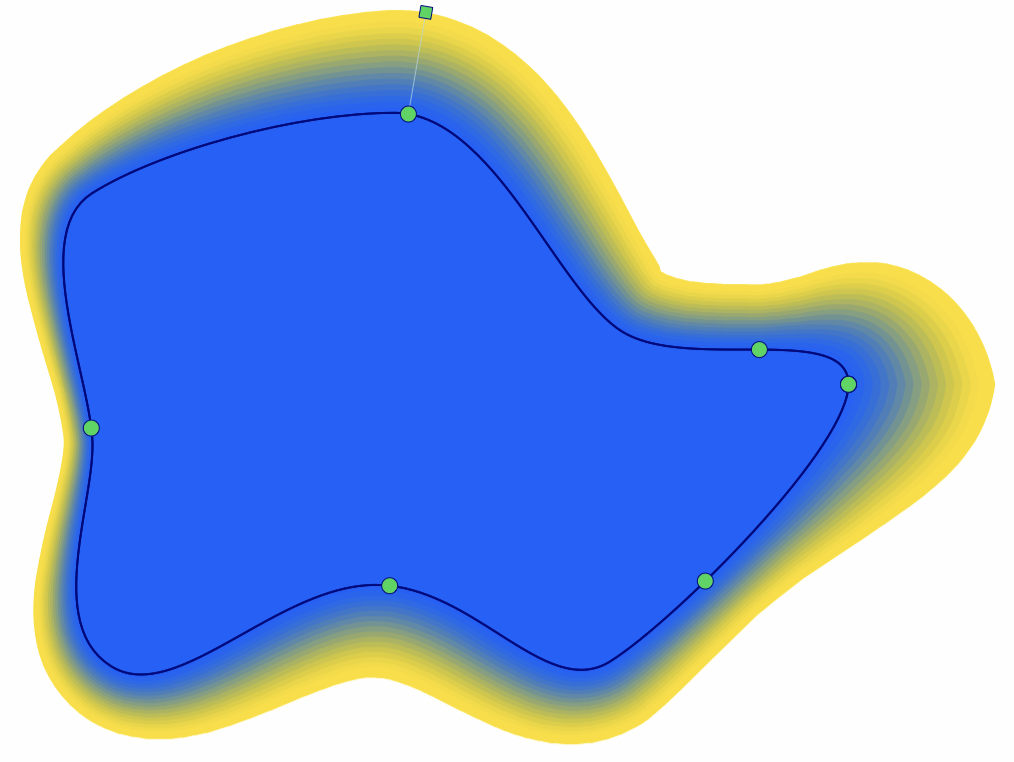
Editing local width variations with the Contour tool.
To create a contour, activate the tool and drag from the object’s outline to set the width. The effect uses the default settings, which you can change in the Contour panel.
To shift a contour relative to the original object, drag its round center handle. A line connects the offset handle to the original object’s center.
To adjust width and create local variations:
- Activate the Contour tool. Nodes on the original outline mark the current width positions.
- Drag the contour next to a node to change the width there.
- If the width is uniform, hold Command (Mac) or Control (Windows) and drag from the original shape to add a local width.
- If a variable width profile is already in use, drag from another position on the original shape to add a local width.
- Drag the handle at the end of a width line to adjust that local width.
- Drag the node at the start of a width line to move its position along the original outline.
Editing a contour’s width profile works in the same way as editing a variable stroke width profile.


