Contour Options
Edit detailed contour settings in the Contour Options dialog. Open it from the Contour panel or choose Contour Options from Effects - Contour.
Use Styles to choose a saved contour style or preset. Choose Create Style or Create Preset from the same list to save the current settings for reuse.
Options
Use this section to control contour width and the number of steps.
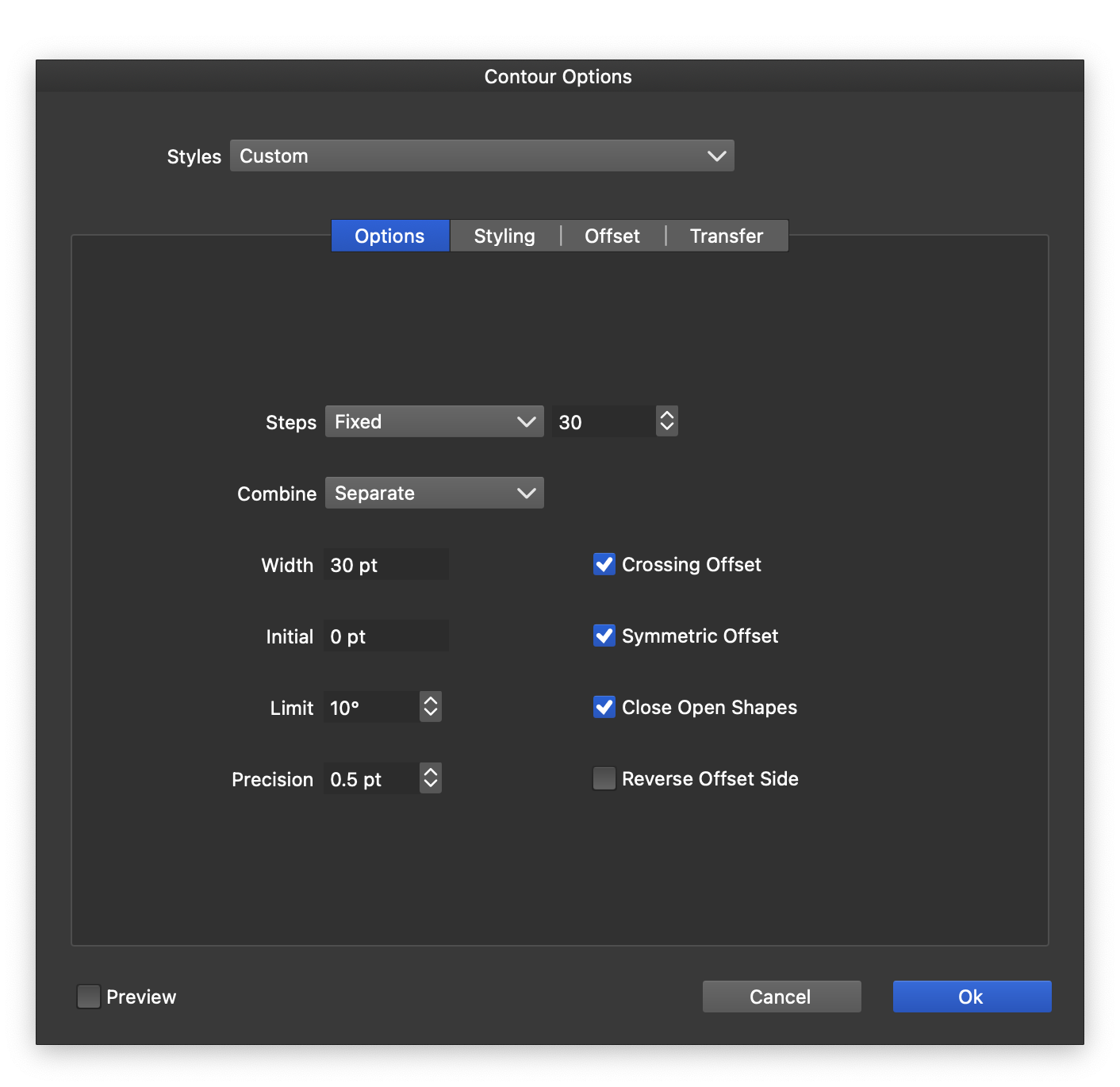
The Options section of Contour Options.
- Steps - Control the number or spacing of intermediate contours.
- Fixed - Enter the number of intermediate objects.
- Distance - Set the distance between intermediate objects.
- Smooth - Set the smoothness of color transitions.
- Combine - Combine composite shapes into a unified contour.
- Width - Set the contour width. Positive values create outer contours; negative values create inner contours.
- Initial - Set the initial offset from the shape.
- Limit - Set the minimum angle for sharp corners in mitered contours.
- Precision - Set the precision used to generate contour shapes.
- Crossing Offset - Allow offset paths to cross themselves.
- Symmetric Offset - Create symmetric contours with both inner and outer offsets.
- Close Open Shapes - Create double closed shapes using the selected stroke cap.
- Reverse Offset Side - Reverse the side of the shape used for the contour.
Styling
Set the style of the final contour step in this section.
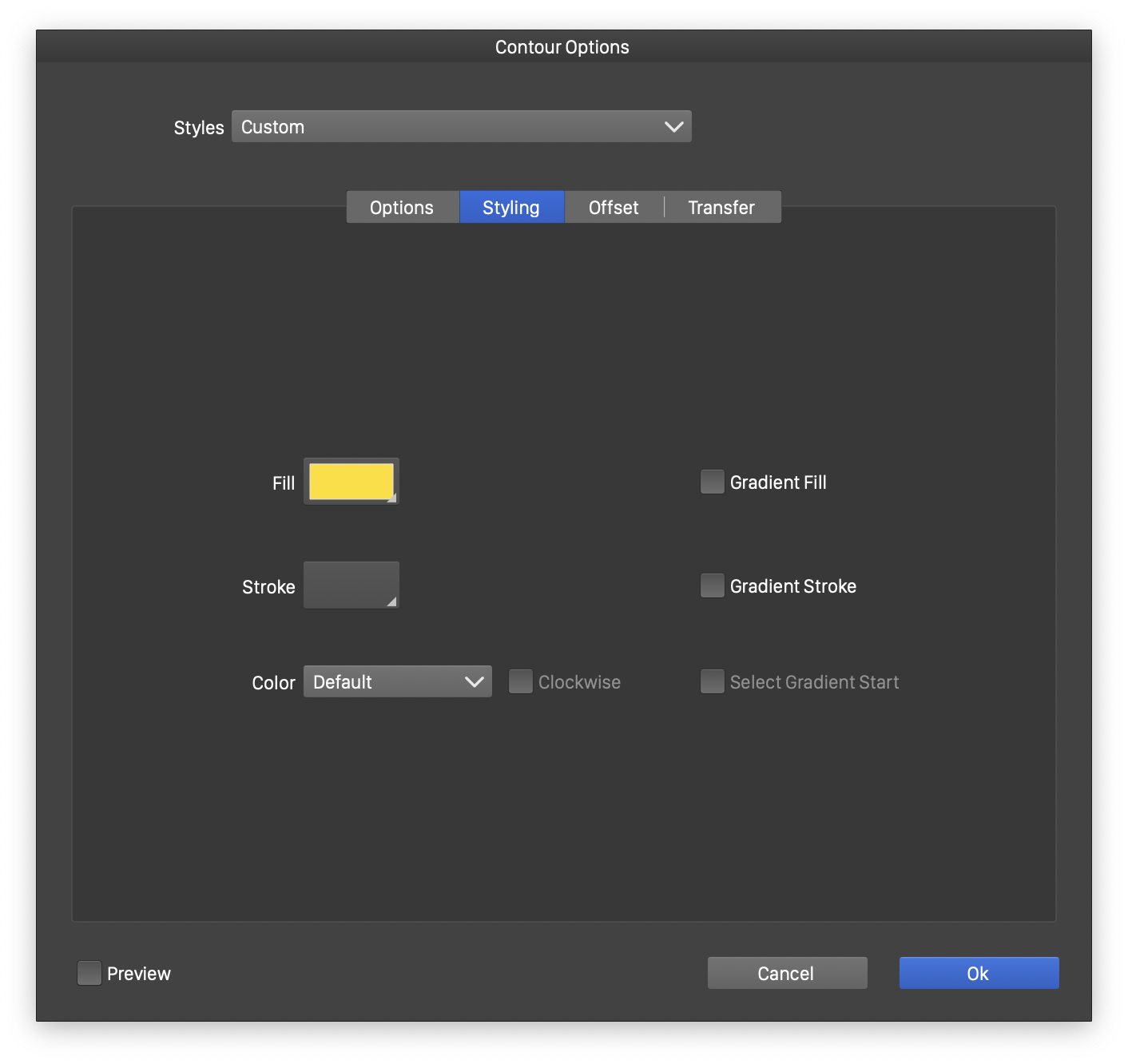
The Styling section of Contour Options.
- Fill - Choose the final contour’s fill. Intermediate contours blend from the original object’s fill to this style.
- Stroke - Choose the final contour’s stroke. Intermediate contours blend from the original object’s stroke to this style.
- Color - Choose the color mode for color transitions.
- Clockwise - Set the transition direction in color modes with a hue channel.
- Gradient Fill - Use a gradient to determine the fill color at each contour step.
- Gradient Stroke - Use a gradient to determine the stroke color at each contour step.
- Select Gradient Start - Set the gradient’s start color from the selected object’s color.
Offset
Control how open and closed shapes are offset.
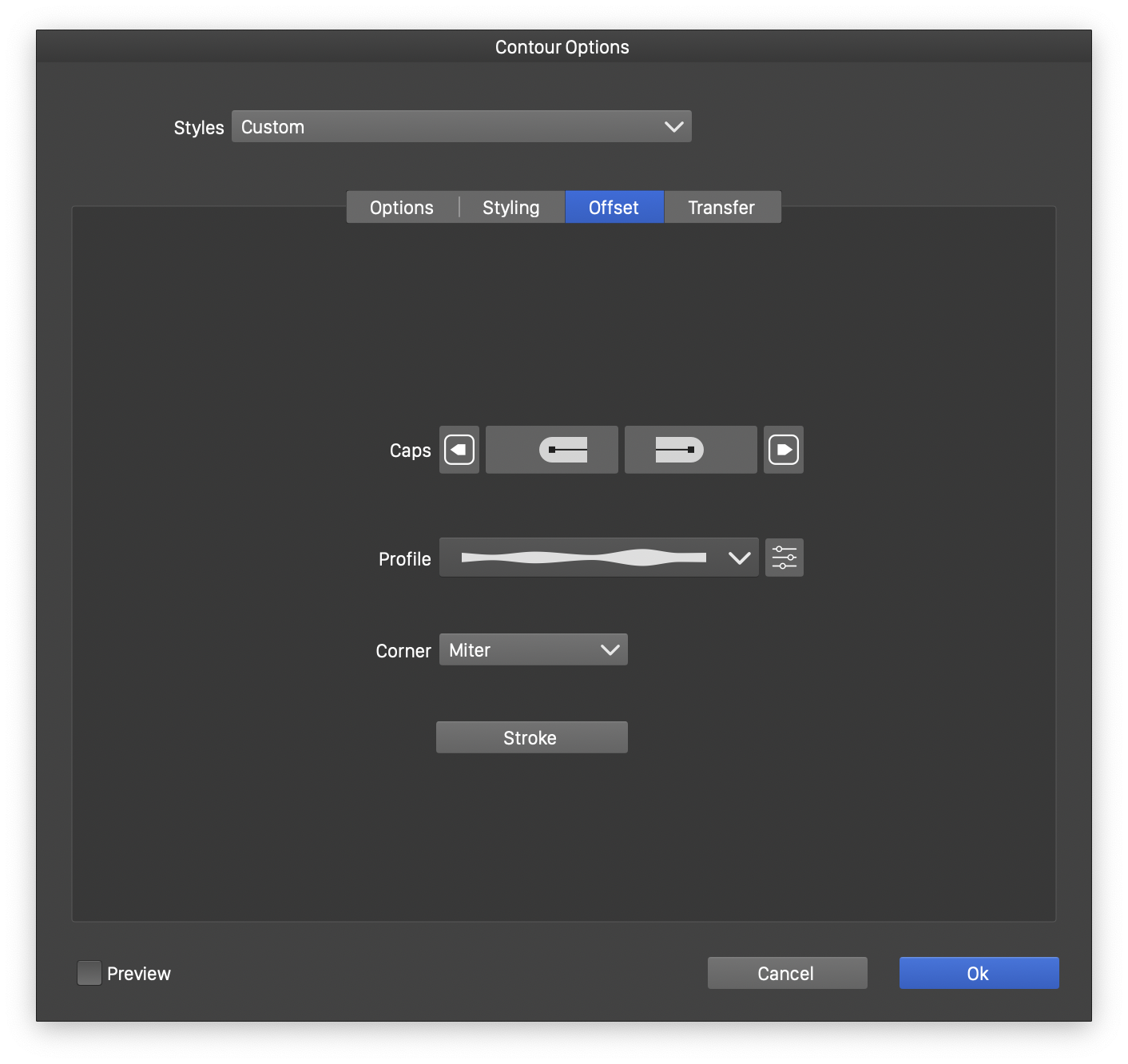
The Offset section of Contour Options.
- Caps - Choose the stroke cap style or preset for contours around open shapes.
- Profile - Choose a variable width profile style or preset for the contour.
- Corner - Choose how sharp corners are formed, using the same corner modes as stroke attributes.
- Stroke - Open the stroke editor to set attributes for the final contour.
Click  to open the profile editor. You can also edit the profile directly on the contour with the Contour
 tool.
Transfer
Transfer functions control how shape and style change from the original object to the final contour.
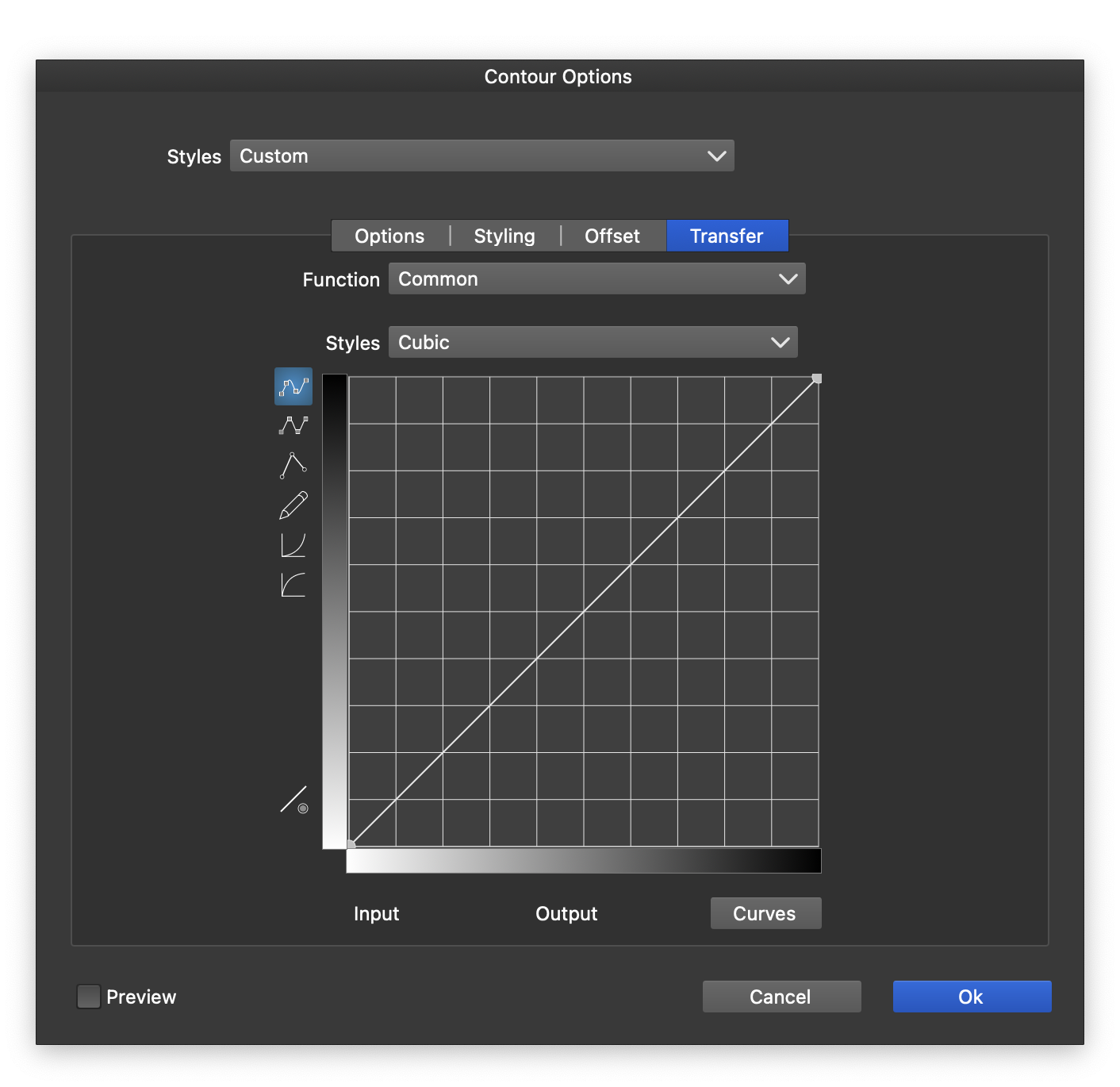
The Transfer section of Contour Options.
Choose what to edit in the Transfer field:
- Common - Adjust both shape and style transitions.
- Shape - Adjust shape transitions.
- Style - Adjust style transitions.
Use these buttons to choose the function type:
 - Choose a cubic function. Drag its nodes to adjust the transition.
 - Choose a monotone cubic function. Adjust its nodes as you would for a cubic function.
 - Define the transition with a series of editable straight lines.
 - Draw the function with a mouse or tablet.
 - Choose a Gamma function and drag the curve to adjust it.
 - Choose a Reverse Gamma function and drag the curve to adjust it.


