Subcategories

  • These features and ideas have been implemented in VS as suggested

    180 Topics
    1k Posts
    VectorStylerV
    @Ayo said in About the Snap feature: Wouldn't it be better to change "Snap to Visible Only" to "Snap to View Extend Only" or shorter "Snap to Viewport Only" or even shorter "Snap to View Only" ? There is a big chance of confusion with the term 'visible' which is mainly linked to the layer system. I added this to the backlog.
  • Keep Important Info Boxes on top of VS desktop

    3
    0 Votes
    3 Posts
    4k Views
    BoldlineB
    @vectoradmin The save box is working correctly. It happened with the update panel today and with the recovery panel the other day for sure... I'll keep a closer watch and update you
  • A better Place for the Stroke-Width-Tool on your Website

    1
    1 Votes
    1 Posts
    3k Views
    No one has replied
  • Perspective and Extrude Tool

    12
    1 Votes
    12 Posts
    20k Views
    S
    @fde101 ...The output from Art Text is raster... Thats what i already guessed. Because that's often the case. The Windows version is no longer available since version 2. The demand from Windows users is said to have been too low.
  • Custom alignment selection

    2
    2
    1 Votes
    2 Posts
    4k Views
    VectorStylerV
    @Boldline Optical alignment is in the backlog, but this one is more specialized.
  • Selecting two node handles at the same time to move in tandem?

    2
    0 Votes
    2 Posts
    3k Views
    VectorStylerV
    @Boldline Yes, it should be possible now. In Preferences -> Editing Options -> Tangent Mode select All. Then all handles are visible when editing, and Shift+ click should select multiple ones.
  • Alter gradient line as if it were a path

    8
    1
    1 Votes
    8 Posts
    9k Views
    S
    @Boldline Yes, i also think that would be a great addition. So 1+ from me for that
  • Video Tutorial For Different Menu Functions

    13
    0 Votes
    13 Posts
    14k Views
    BoldlineB
    @b77 said in Video Tutorial For Different Menu Functions: Then start a new polygon, press the Shift key, drag and rotate until one side is positioned horizontally. Thanks for sharing this - this solution works for me.
  • 0 Votes
    4 Posts
    5k Views
    VectorStylerV
    @Boldline I could not replicate this one. I think it could be caused by some specific steps (changes) made after copying. If there is an example file, with stored history, that might help replicate this one, please email it to me.
  • 1 Votes
    2 Posts
    4k Views
    VectorStylerV
    @Boldline Use Preferences -> Editing Options -> Show Editor Popups (third on the left).
  • Aethestic improvement ideas for the new select node lasso tool

    2
    0 Votes
    2 Posts
    4k Views
    VectorStylerV
    @Boldline The lasso indicator (line) style will be changed. The problem with the blue circle is that there are two functions activated by the Option (Alt) key in this case (again collision of too many features on modifier keys). One is the lasso tool, the other is a intersection join and segment erase tool. This other tool works when clicking at an intersection location of two open paths, where the smaller endings are removed and the open paths are joined at the intersection. I will have to find a better way to accommodate both tools, I'm open to suggestions.
  • This topic is deleted!

    1
    0 Votes
    1 Posts
    3 Views
    No one has replied
  • Strokes act as a cutting method when divide boolean is selected

    2
    0 Votes
    2 Posts
    4k Views
    VectorStylerV
    @Boldline Somehting similar can be done by: select the lines and combine into a single shape (first icon in the context panel shape tools). select the combined lines shape and then the other shape. click Exclude in the context panel. select Break Apart in the Object menu (the resulting shape is a combination of the parts). now we get the parts of the shape cut by the lines.
  • Text Tracking controlled by option and right or left arrow?

    23
    0 Votes
    23 Posts
    46k Views
    b77B
    Text objects are special because fonts are involved — is this vertical s̶c̶a̶l̶i̶n̶g̶ distorting of fonts really useful and often needed? I would just drag the top or bottom handle if I wanted that (but 99% of the time I don't). I would go for consistent shortcuts (Option + Arrows, or something else) for both tracking and leading and make them work also when you're not in text editing mode. That would be a fast workflow in my opinion.
  • Sharing work for inspiration and learning

    2
    0 Votes
    2 Posts
    4k Views
    VectorStylerV
    @richbyte We can use the Tutorials category for this.
  • Bucket Fill Shape Creation

    7
    0 Votes
    7 Posts
    10k Views
    VectorStylerV
    @Boldline A Shape Paint Group can be expanded using Styles -> Shape Paint -> Expand Shape Paint.
  • 0 Votes
    10 Posts
    14k Views
    encartE
    I agree that it will be hard to find a happy medium with such a variety of uses. Personally, I like the Move window style called by the Enter key When the object/group is selected, you press the key that activates the window, you can move around with the Tab key. That's how I see it First press Enter a Transform window with typical properties appears there should not be many of parameters so that moving between them without using the mouse would be fast and efficient. 9-Point Reference Object Origin - also possible to highlight with the Tab. Points can be selected with the 1-9 buttons Second press Enter The Move window appears Press Enter for the third time The Move window disappears I think it would be a relatively intuitive and practical system that quickly becomes a habit.
  • 0 Votes
    4 Posts
    6k Views
    VectorStylerV
    @Vector-Rock I added to the backlog a dash/cap selection improvement task.
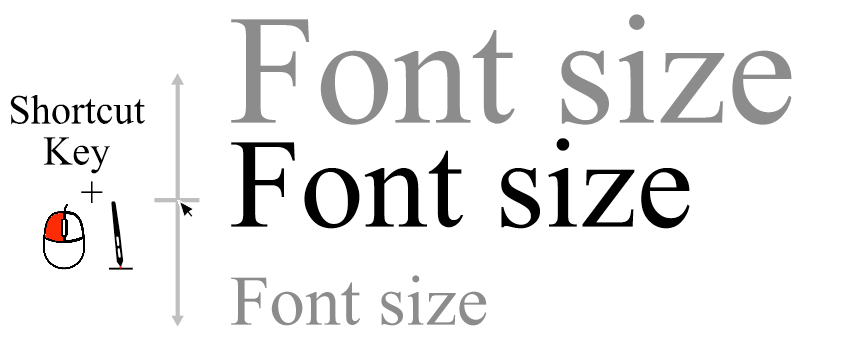
  • Is the size of the text used on the forum OK for everybody?

    forum
    3
    0 Votes
    3 Posts
    7k Views
    VectorStylerV
    @Boldline Will try to fix the VS link. Lets have more input on the font size.
  • Scrolling the contextual panel bar

    9
    0 Votes
    9 Posts
    11k Views
    861475_VctSt8
    @vectoradmin Thank you for always answering my requests. It's always fun to see how it gets easier and easier to use. There are 24 commands in "combine" alone, so I have them all hidden for now. I've hidden all of them and right-click on them to call them up. However, it would be nice to have an icon.
  • App Icon, still strangely blurry

    15
    0 Votes
    15 Posts
    17k Views
    861475_VctSt8
    @b77 @vectoradmin Not sure what happened and why your first screenshot was different. The following resources I uploaded in my first post may not be for Mac. In particular, the ".ico" extension is for Win. /Applications/VectorStyler.app/Contents/vector/data/resources/appicon.png /Applications/VectorStyler.app/Contents/vector/data/resources/appicon.ico I found ".ics" in another directory. This seems to be the resource for Mac. /Applications/VectorStyler.app/Contents/Resources/AppIcon.icns There are 10 images in "AppIcon.icns". I exported the 144DPI, 1024x1024 image from this one. (fig) [image: 1628486588046-an_icon-resized.png] Anyway, can you confirm you downloaded and tested with the .icns file I sent via forum chat? I DL'd it from Dropbox. This is a VS resource. This is the same as your image. The difference is that yours is a screenshot image (1012x1047). Mine is a resource image. Improvement Case Below 72DPI 128x128, false colors occur in relation to the background. Two suggestions for improvement are as follows Make the blur of the corner R frame a solid color stroke. Eliminate the dot pattern.