Repeater Intensity
Use intensity to vary settings such as object size, rotation, or the radius of a random repeater.
An intensity is a value sampled at each position from a chosen source. For example, sample the image beneath a repeater to control the size of each copy.
Every intensity type has a tone response curve on the right side of its dialog. Drag points on the curve to adjust the response, and enable Inverted to reverse it.
Choose a curve type with these buttons:
 - Adjust a cubic curve with a few control points. The curve may overshoot between them.
 - Adjust a cubic curve that does not overshoot between control points.
 - Define the response with straight line segments.
 - Draw a response curve freely.
 - Adjust tones with a gamma curve.
 - Adjust tones with a reverse gamma curve.
 - Restore the identity response, which leaves intensity values unchanged.
Gradient Intensity
Use a gradient to control intensity across the repeater. For example, vary object sizes to create a halftone independently of the object’s content.

Gradient intensity options.
- Gradient - Choose the gradient style.
- Resolution - Set the sampling area’s size in pixels.
- Shape - Choose the gradient shape.
- Angle - Set the gradient angle.
- Scale - Set the gradient scale.
- Color - Choose the gradient colors.
- Repeat - Set how many times the gradient colors repeat.
The gradient preview lets you choose a style or preset. Use the gradient slider to add, remove, or adjust color stops.
Randomized Intensity
Generate random values across the repeater. Use them to vary size, rotation, or the radius in random geometry.

Randomized intensity options.
- Randomizer - Choose the random number generator that determines the value distribution.
- Seed - Set its seed number.
Noise Intensity
Procedural noise creates smooth, random variations across the repeater.

Noise intensity options.
- Noise - Choose a noise type, preset, or style, or edit its settings. See Noise for details.
- Density - Adjust noise density.
- Scale - Scale the noise intensity values.
- Offset - Offset the noise intensity values.
- Dimension - Control noise detail.
- Normalized - Generate normalized noise values.
Region Intensity
Sample another object, group, or layer to define the repeater’s intensities. This works similarly to a transparency mask that references a group.
To make a source available, name it and enable its Image for Effect role.
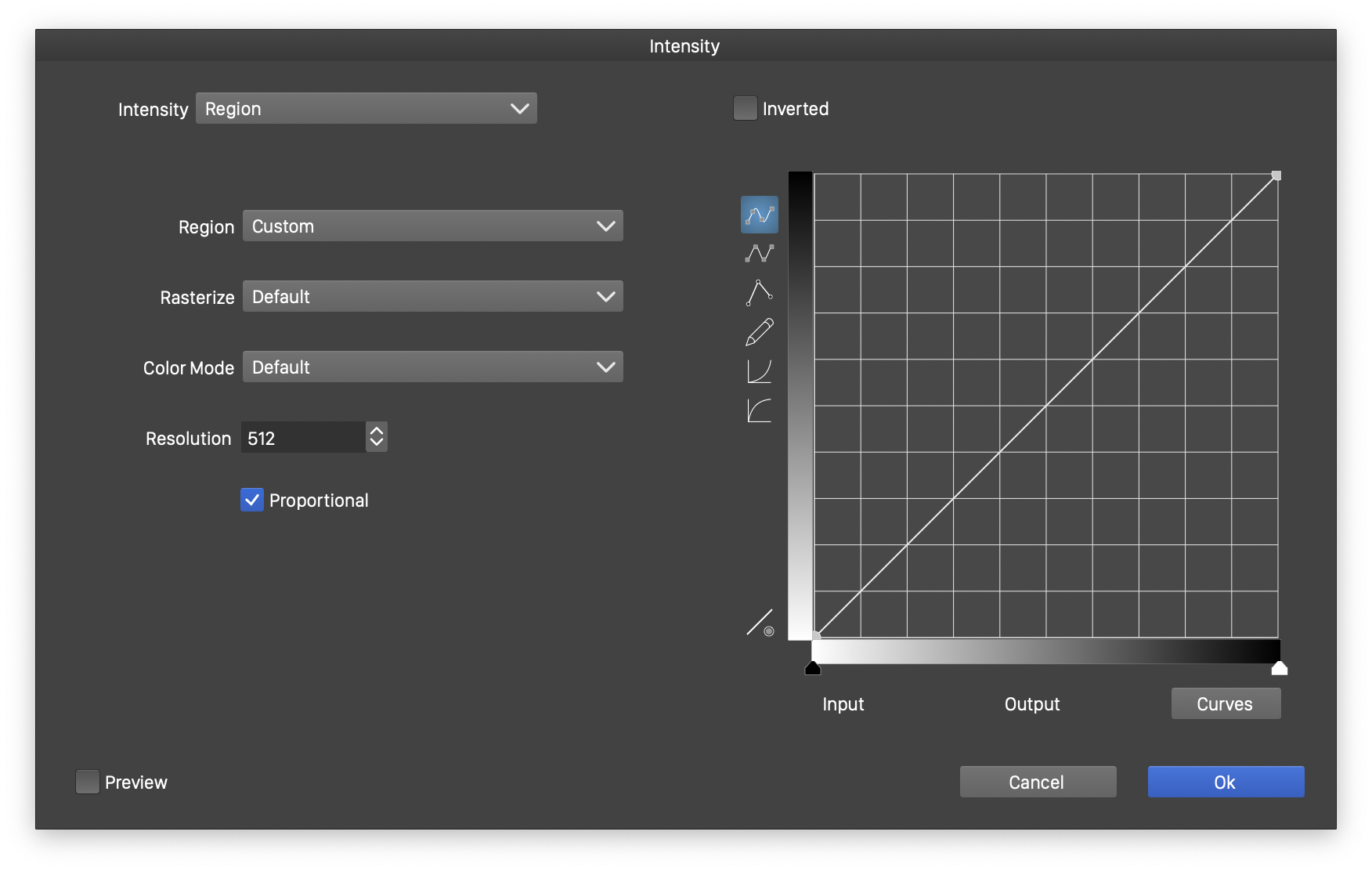
Region intensity options.
- Region - Choose a named source with the Image for Effect role.
- Resolution - Set the sampling resolution in pixels.
- Proportional - Sample the region proportionally to the repeater’s size.
- Aligned Region - Align sampling with the current positions of the region and repeater.
Object Content Intensity
Object Content works like Region, but samples the existing content of the object containing the repeater. Add a repeater to an object or image to reproduce its intensities or colors. The original content is typically hidden while still serving as the intensity source.
Directions Intensity
Directions samples the backdrop image’s gradient direction at each position and uses that angle as the intensity value.


