Symbol Tools
Use symbol tools to create and edit sets of symbols with fixed positions, scales, and rotations. A symbol set is a repeater whose arrangement is fixed instead of generated by a geometry. Create one with the symbol sprayer, or use a symbol tool on an existing repeater to convert it to a symbol set.
Symbol Stamp Tool
Use the Symbol Stamp  tool. Place individual symbols or copies of objects on the canvas:
- Select the tool, choose a symbol in the Symbols panel, and click where you want to place it.
- To copy an existing object, select it before activating the tool, then click to place copies.
- Double-click the tool icon to edit its options.
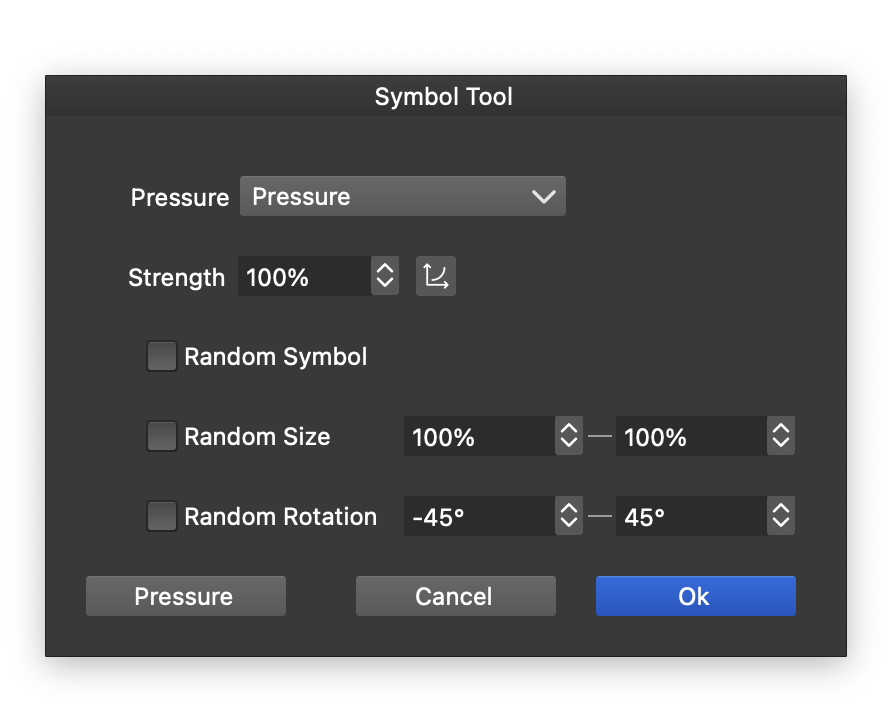
Symbol Stamp options.
- Pressure - Choose how pressure controls the placed symbol’s size.
- Strength - Set pressure variation strength and edit its response curve.
- Random Symbol - Choose randomly when multiple symbols are available.
- Random Size - Randomize size within the specified minimum and maximum values.
- Random Rotation - Randomize rotation within the specified minimum and maximum angles.
Symbol Sprayer Tool
Use the Symbol Sprayer  tool. Spray collections of symbols or objects onto the canvas. The tool can also disperse existing symbols in the current set around the brush position.
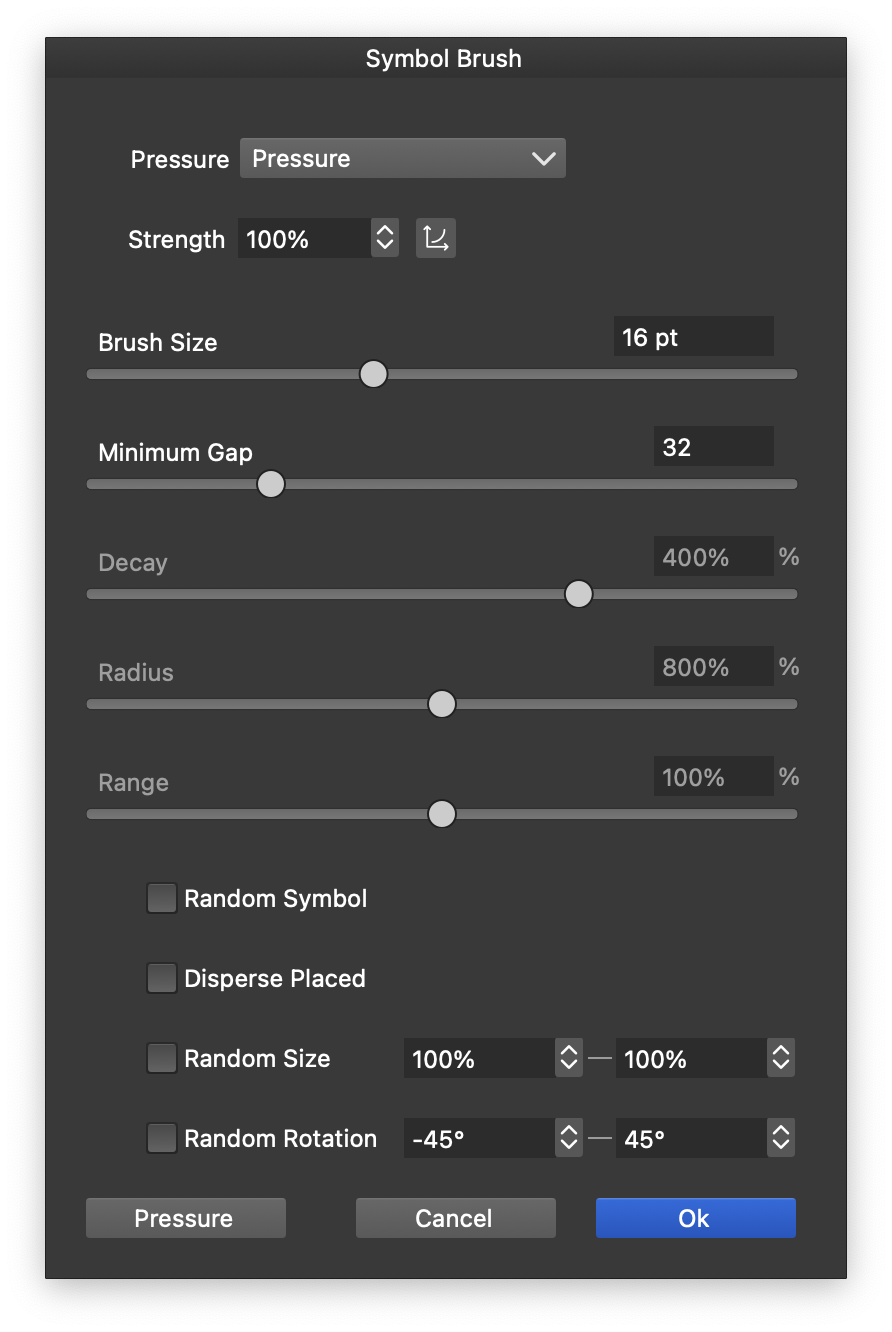
Symbol Sprayer options.
- Pressure - Choose how pressure controls the spray radius.
- Brush Size - Set the size of the region where symbols are dispersed.
- Minimum Gap - Set how far the brush must move before placing another symbol.
- Decay - Set how quickly dispersion falls off.
- Radius - Set the dispersion radius relative to brush size.
- Range - Set the dispersion range relative to brush size.
- Random Symbol - Choose randomly when multiple symbols are available.
- Disperse Placed - Disperse existing symbols around the brush path.
- Random Size - Randomize size within the specified minimum and maximum values.
- Random Rotation - Randomize rotation within the specified minimum and maximum angles.
Symbol Shifter Tool
Use the Symbol Shifter  tool. Move existing symbols in the current set along the brush’s direction.
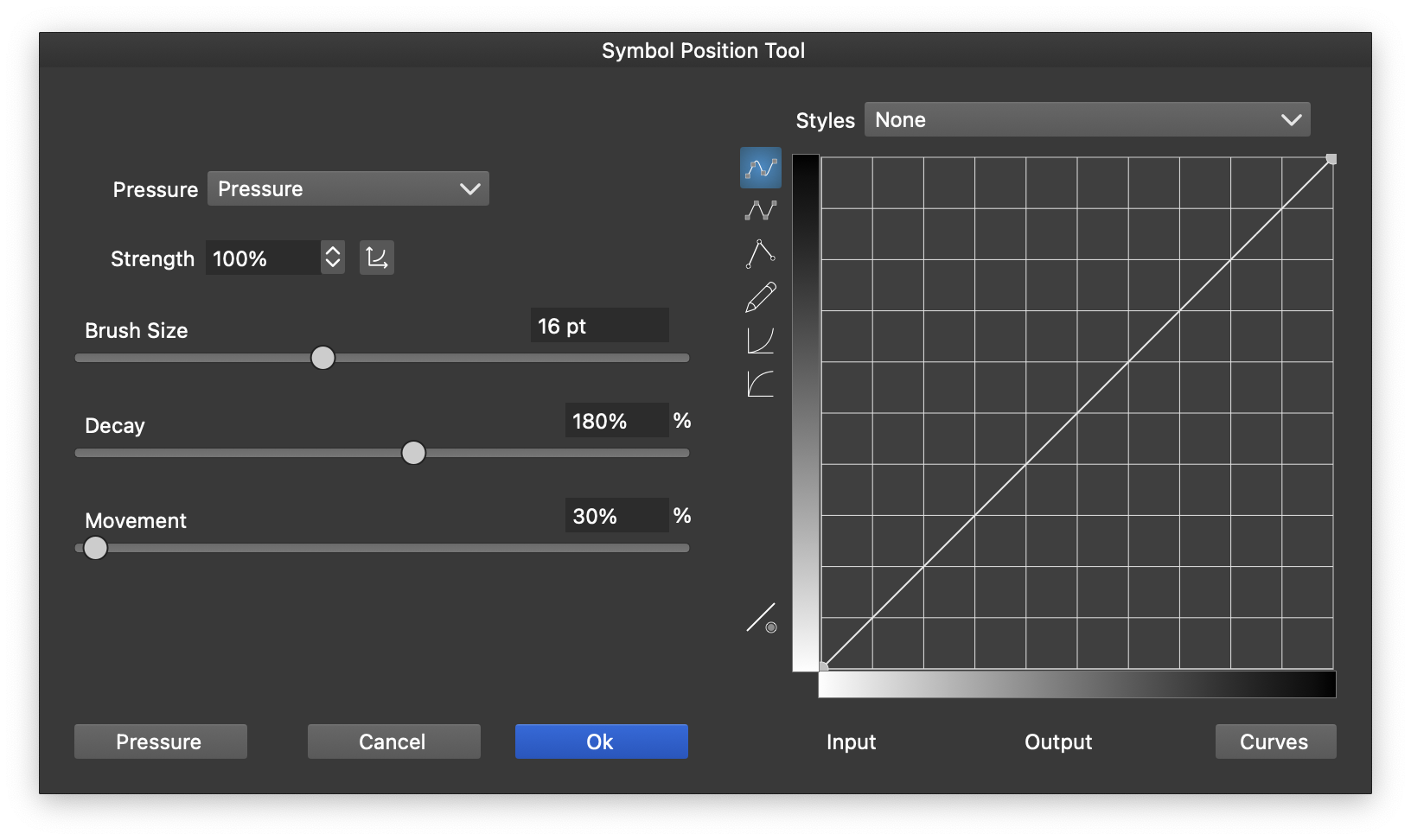
Symbol Shifter options.
- Pressure - Choose how pressure controls the movement radius.
- Strength - Set pressure variation strength and edit its response curve.
- Brush Size - Set the radius of the area affected.
- Decay - Set how quickly movement falls off.
- Movement - Set the movement amount relative to brush size.
- Range - Set the movement range relative to brush size.
Edit the decay curve on the right to control movement strength according to how close each symbol is to the brush center.
Symbol Dispersing Tool
Use the Symbol Dispersing  tool. Disperse existing symbols in the current set around the brush position.
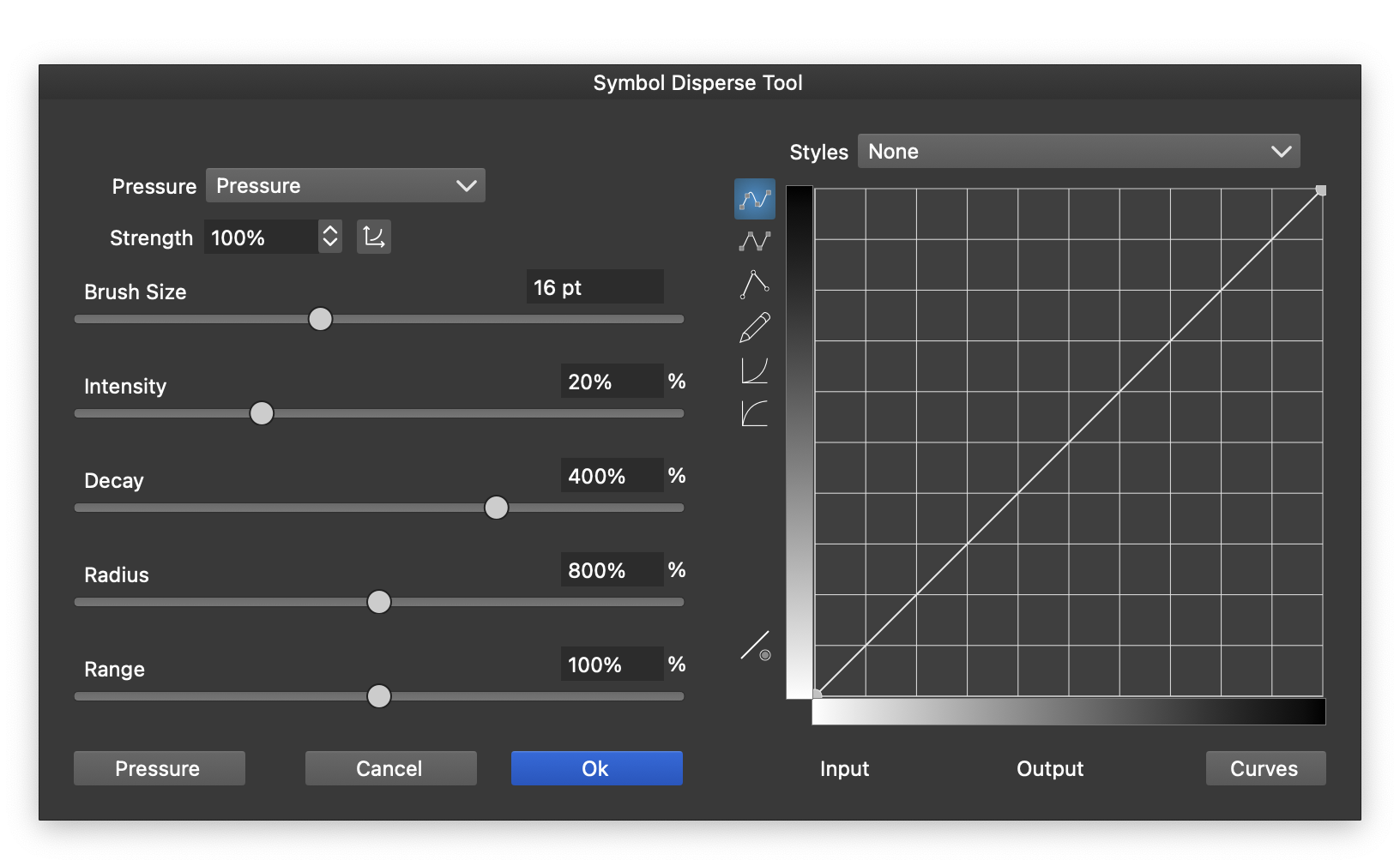
Symbol Dispersing options.
- Pressure - Choose how pressure controls the dispersion radius.
- Strength - Set pressure variation strength and edit its response curve.
- Brush Size - Set the radius of the area affected.
- Intensity - Set dispersion strength.
- Decay - Set how quickly dispersion falls off.
- Radius - Set the dispersion radius relative to brush size.
- Range - Set the dispersion range relative to brush size.
Edit the decay curve on the right to control dispersion strength according to how close each symbol is to the brush center.
Symbol Scaling Tool
Use the Symbol Scaling  tool. Resize symbols in the current set according to their distance from the brush center.
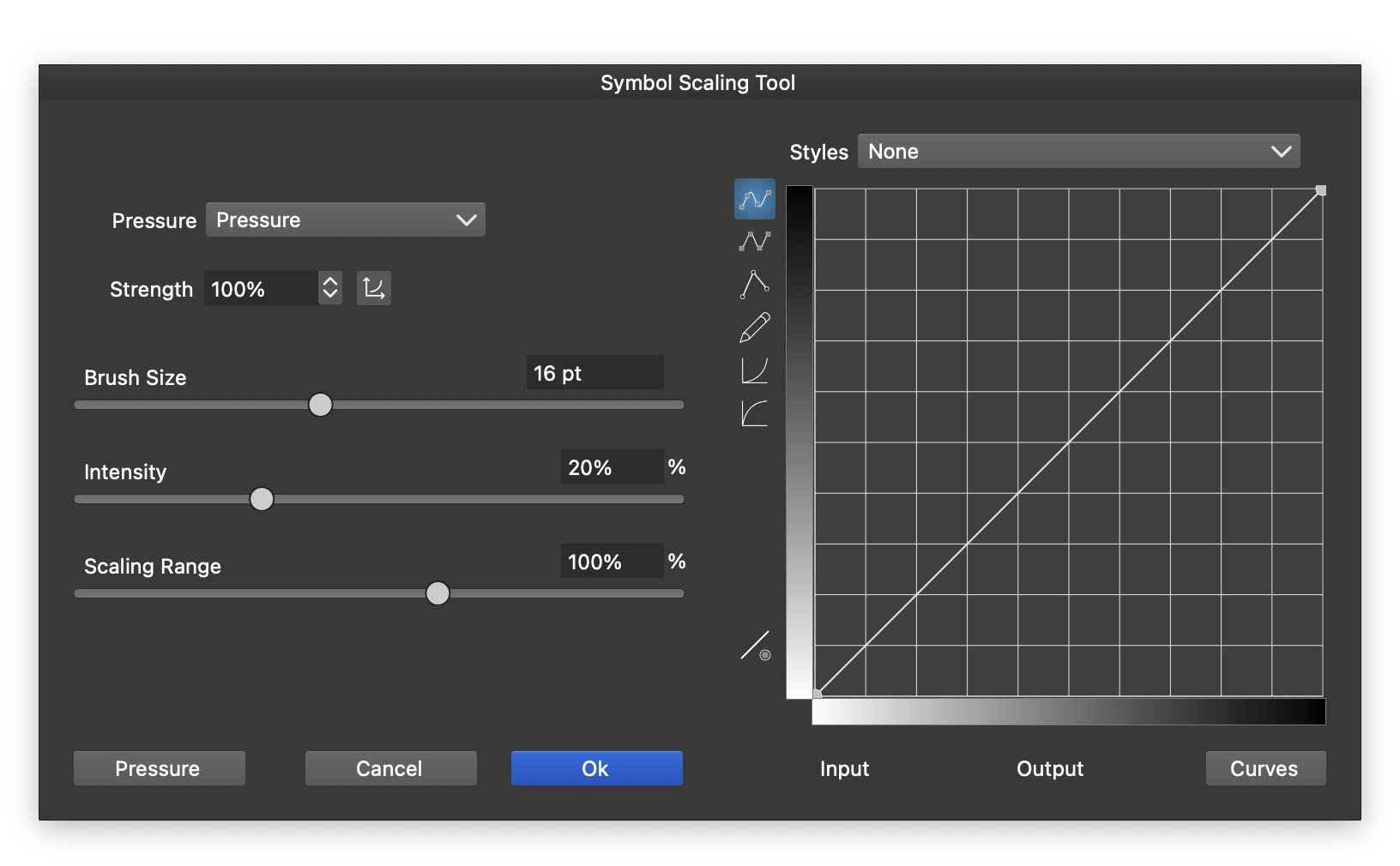
Symbol Scaling options.
- Pressure - Choose how pressure controls the affected radius.
- Strength - Set pressure variation strength and edit its response curve.
- Brush Size - Set the radius of the area affected.
- Intensity - Set scaling strength.
- Scaling Range - Set the scaling range.
Edit the decay curve on the right to control scaling strength according to how close each symbol is to the brush center.
Symbol Spinner Tool
Use the Symbol Spinner  tool. Rotate symbols in the current set according to their distance from the brush center.
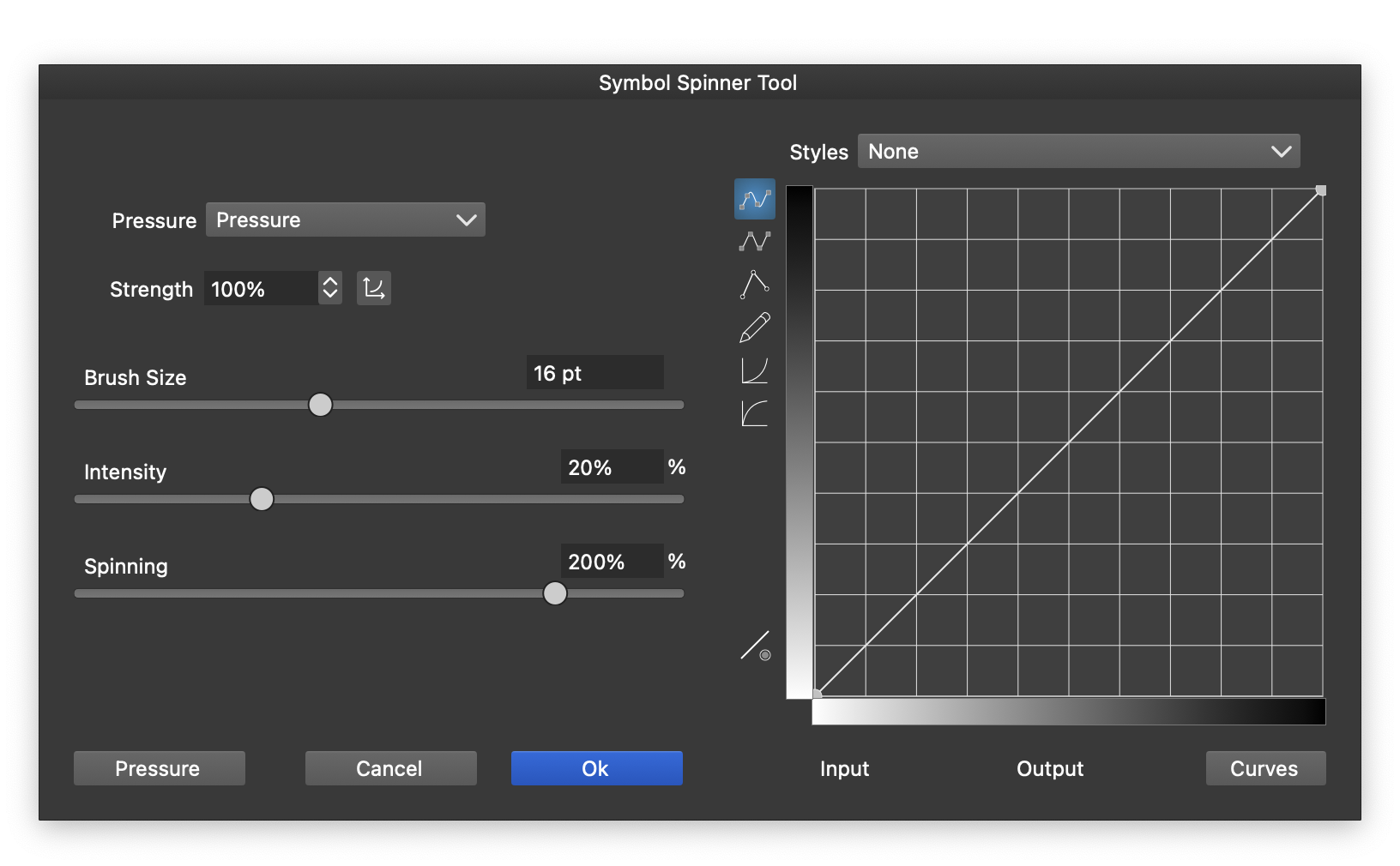
Symbol Spinner options.
- Pressure - Choose how pressure controls the affected radius.
- Strength - Set pressure variation strength and edit its response curve.
- Brush Size - Set the radius of the area affected.
- Intensity - Set rotation strength.
- Spinning - Set the maximum rotation as a percentage of a full turn.
Edit the decay curve on the right to control rotation strength according to how close each symbol is to the brush center.
Symbol Tinting Tool
Use the Symbol Tinting  tool. Mix the current color into symbols in the set. The amount depends on each symbol’s distance from the brush center.
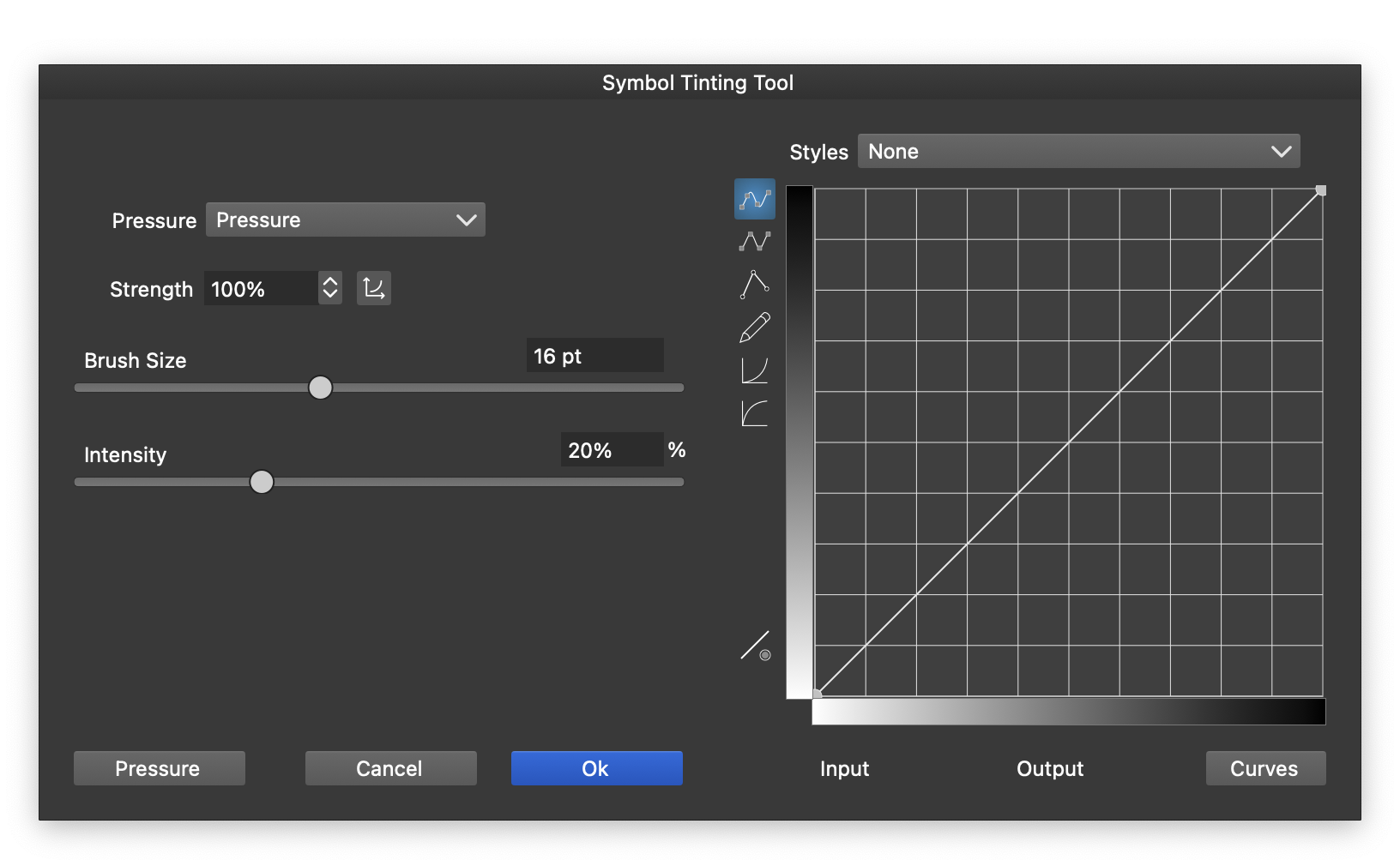
Symbol Tinting options.
- Pressure - Choose how pressure controls the affected radius.
- Strength - Set pressure variation strength and edit its response curve.
- Brush Size - Set the radius of the area affected.
- Intensity - Set tinting strength.
Edit the decay curve on the right to control tinting strength according to how close each symbol is to the brush center.
Symbol Opacity Tool
Use the Symbol Opacity  tool. Reduce symbol opacity according to each symbol’s distance from the brush center.

Symbol Opacity options.
- Pressure - Choose how pressure controls the affected radius.
- Strength - Set pressure variation strength and edit its response curve.
- Brush Size - Set the radius of the area affected.
- Intensity - Set opacity adjustment strength.
Edit the decay curve on the right to control opacity adjustment strength according to how close each symbol is to the brush center.


