Repeater Panel
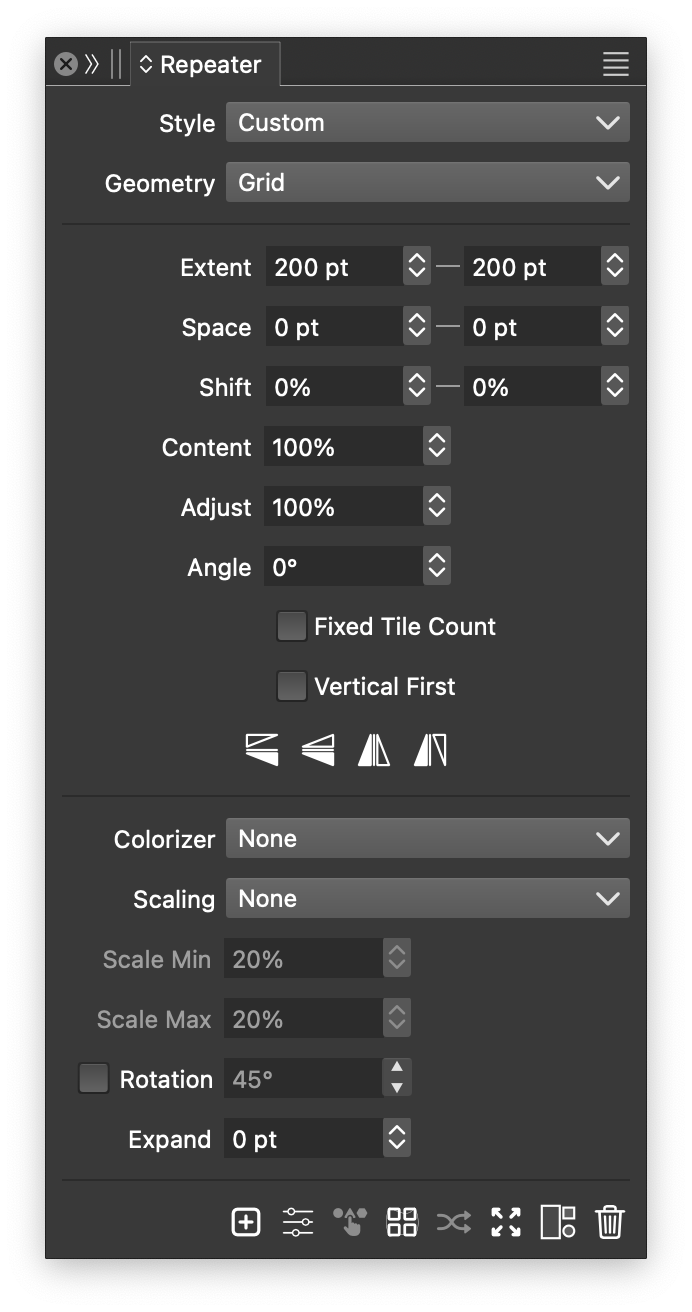
The Repeater panel.
Open the Repeater panel with the Repeater command or from Window - Effects. When you select a repeater, the panel shows its current settings.
Panel Options
- Style - Create or reuse repeater presets and styles.
- Geometry - Choose a geometry type, preset, or style. The menu also lets you edit geometry settings and save them as presets or styles.
- Colorizer - Choose a colorization mode, preset, or style. See Colorizer.
- Scaling - Choose a scaling intensity mode, preset, or style. See Adjustment.
- Scale Min and Scale Max - Set the scaling range used by the selected Scaling scheme.
- Rotation - Enable random rotation and set its maximum amount. Additional intensity controls are available in Adjustment.
- Expand - Expand or shrink the repeater region inside a containing shape.
The middle of the panel contains settings for the selected geometry.
Panel Commands
 - Create a repeater from the selected objects using the panel menu’s Create Mode.
 - Open the Repeater Style dialog. See Repeater Options.
 - Use the selected objects as sources for new repeaters.
 - Apply the object’s shape effects to the repeated content. When disabled, only the containing shape is distorted; the content fills that shape.
 - Choose new random seeds.
 - Convert the copies to independent objects.
 - Release the repeater and recover its source objects.
 - Remove the repeated content.
Panel Menu

The Repeater panel menu.
- Create Repeater - Create a repeater from the selected objects and current settings.
- Repeater Options - Open the full set of repeater options.
- Geometry Options - Open the Repeater Geometry dialog. See Geometries.
- Append Repeated Objects - Add sources to a repeater. Select the repeater and additional objects that do not contain repeaters, then use this command.
- Replace Repeated Objects - Replace the sources. Select the repeater and replacement objects that do not contain repeaters, then use this command.
- Adjustments - Open the adjustment menu. See Repeater Options for the style and variable controls.
- Geometry Adjustments - Edit position, scale, and rotation adjustments. See Adjustment.
- Colorizer Options - Edit color adjustments. See Colorizer.
- Adjust Color Styles - Override color styles separately for each copy using a colorizer scheme and the copy’s position.
- Adjust Number Values - Override number variables for each copy using an intensity scheme to choose between minimum and maximum values.
- Adjust Opacities - Vary opacity with backdrop intensity.
- Adjust Tints - Vary color tints, including spot color tints, with backdrop intensity.
- Adjust Corner - Vary corner sizes with backdrop intensity.
- Adjust Offsets - Offset shapes by amounts controlled by backdrop intensity.
- Edit Distortions - Apply shape effects to repeater positions to create more complex arrangements.
- Data Source - Choose a document data source to override styles and variables in repeated objects. Create, import, and manage sources in the Data Source panel.
- Data Mode - Choose the order in which data rows are assigned to copies.
- Absolute Position - Use an absolute origin for the geometry. For grids, this aligns the tiles.
- Clipped Content - Clip repeated content to the containing shape.
- Hide Overlapped Appearance - Hide object content below the repeater in the Appearance panel. Enabled by default.
- Always Copy Objects - Create object copies even in basic repeater cases.
- Distorted - Apply the object’s shape effects to the repeated content. When disabled, only the containing shape is distorted; the content fills that shape.
- Inside Shape - Show only copies fully inside the containing shape.
- Restrict Using Shape - Use each copy’s actual shape to check whether it is inside the container.
- Random Symbols - Choose randomly between multiple source objects or symbols.
- Symbols by Backdrop - Choose between multiple source objects or symbols using backdrop intensity.
- Expand Repeater - Convert the copies to independent objects.
- Release Repeater - Release the repeater and recover its source objects.
- Remove Repeater - Remove the repeated content.
- Detach Repeater Styles - Unlink all styles and symbols used in the repeated content.
- Create Mode - Choose how the repeater is created:
- Create in Largest Object - Fill the largest selected object with copies of the others.
- Create in First Selected - Fill the first selected object with copies of the others.
- Create from All Selected - Repeat all selected objects without a containing shape.
- Create with Symbols - Use symbols dropped onto the panel.
- Expand Mode - Choose how generated copies become objects:
- Expand Inside Object - Keep them inside the container and clipped. Ungroup further to access individual objects.
- Expand Into a Group - Place them in a separate group. Ungroup to access individual objects.
- Expand Into Separate Objects - Create separate objects directly.
To save settings for reuse:
- Save Geometry Preset - Save the current geometry as a preset.
- Save Geometry Style - Save the current geometry as a style.
- Save Adjustment Preset - Save the current geometry adjustments as a preset.
- Save Adjustment Style - Save the current geometry adjustments as a style.
- Save Colorizer Preset - Save the current colorizer settings as a preset.
- Save Colorizer Style - Save the current colorizer settings as a style.
- Save Repeater Preset - Save all repeater settings, including the source objects or symbols, as a preset.
- Save Repeater Style - Save all repeater settings, including the source objects or symbols, as a style.
Selecting Symbols
A repeater’s source objects or symbols are chosen when it is created. To add or change symbols later, drag them from the Symbols or Presets panel onto the Repeater panel.
To use objects from the canvas, select them together with the repeater. Choose Append Repeated Objects to add them or Replace Repeated Objects to replace the current sources.


